Wait For Time Delay Action
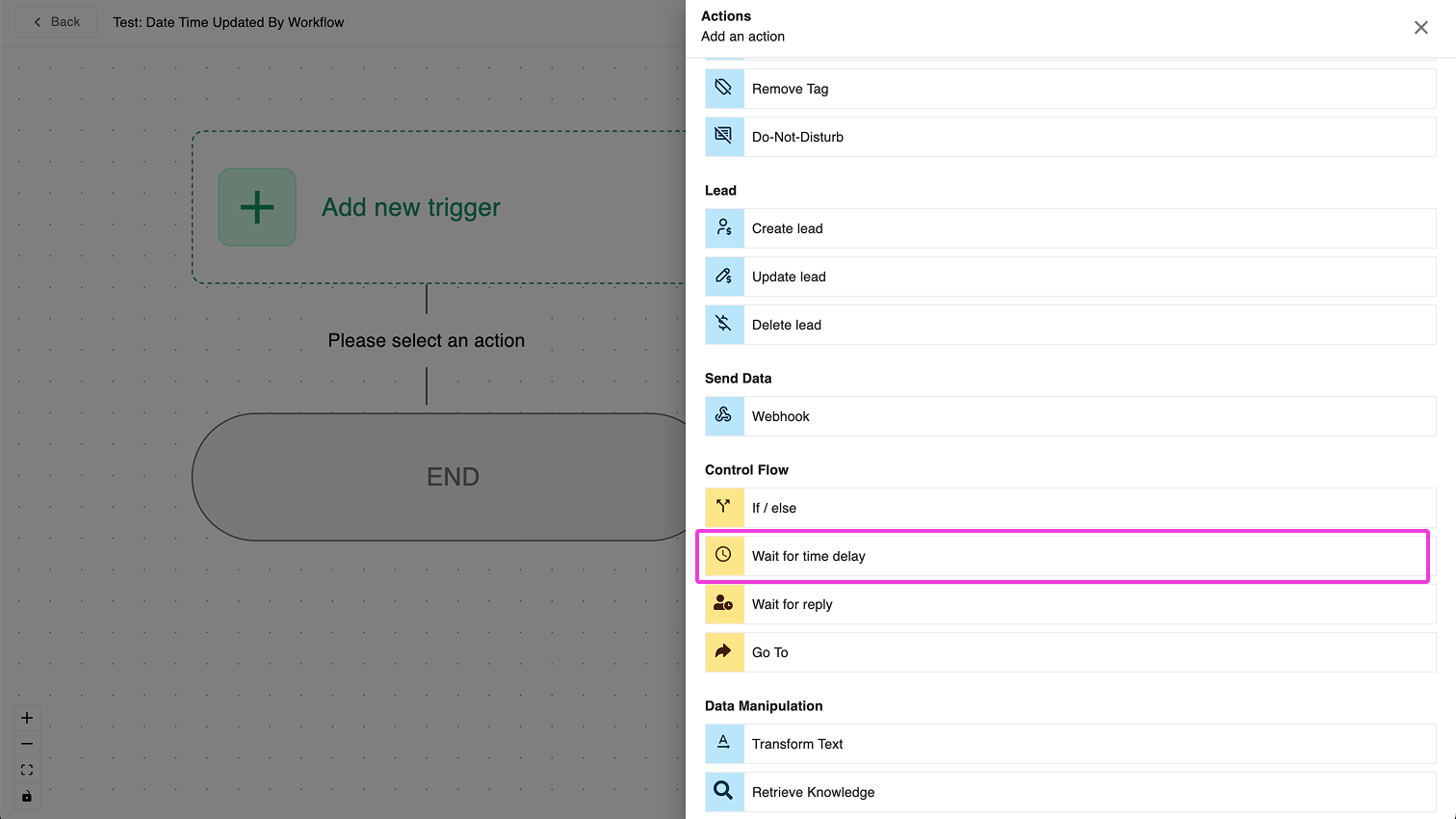
What is the Wait For Time Delay Action?
The Wait For Time Delay action is a powerful tool that pauses your workflow for a specified period before continuing to the next step. This strategic pause can make your automated communications feel more natural and well-timed to your audience.
Think of it as a "pause button" you can program into your automated sequence, ensuring your messages are delivered at the most appropriate times.
Why Use Time Delays?
Time delays in your workflows serve several important purposes:
- Creating natural conversation rhythms: Immediate back-to-back messages can feel robotic and overwhelming. Adding delays mimics human conversation patterns.
- Timing messages for maximum impact: Deliver information when it's most relevant to your audience.
- Coordinating with real-world events: Align your communications with upcoming or recent events like webinars, appointments, or deadlines.
- Respecting your audience's time: Give recipients time to read and process information before sending follow-ups.
Available Time Delay Options
The Wait For Time Delay action offers two flexible ways to pause your workflow:
Option 1: Wait for a Specific Time Period
This option creates a fixed time delay between steps in your workflow.
How to Set Up a Fixed Time Delay
- Select Wait for a specific time period in the action settings
- Enter the desired waiting time (minutes, hours, days, etc.)
- Save your settings
The workflow will pause for exactly the time period you specified before proceeding to the next step.
Example: If you set a delay of 15 minutes, the workflow will wait precisely 15 minutes before executing the next action.
Option 2: Wait Until a Specific Date/Time
This more advanced option allows you to coordinate your workflow with a date/time that is stored in your contact's information.
How to Set Up a Date/Time-Based Delay
- First, ensure you have a custom field of type DATE_TIME created for your contacts
- Store the reference date (like a webinar time, appointment, etc.) in this custom field
- Select Wait until a specific date/time in the action settings
- Choose the contact's custom field that contains your reference date
- Select one of the timing options:
- After this time: Trigger after the reference time (you'll specify how long after)
- Before this time: Trigger before the reference time (you'll specify how long before)
- Exactly at this time: Trigger precisely at the reference time
The workflow will calculate the appropriate waiting time based on the reference date/time and your settings.
Real-World Use Cases
Webinar Campaign Automated WhatsApp Messages
Let's say you're running a webinar on 25-Jan-2025 at 10:00 PM. You can use the Wait For Time Delay action to:
-
Send a reminder before the webinar starts
- Store the webinar start time (25-Jan-2025 10:00 PM) in a contact's DATE_TIME field
- Use the "Before this time" option and set it to 2 hours
- The system will automatically calculate when to send the reminder (8:00 PM)
- Your reminder message will arrive exactly when attendees need it most
-
Follow up with attendees after the webinar
- Use the "After this time" option with the same reference field
- Set it to 1 hour after the webinar end time
- Send a thank-you message and next steps to those who attended
-
Reach out to no-shows with alternative options
- Also trigger 1 hour after the webinar
- Send a different message offering another webinar session or recording access
Creating Natural Conversational Flows Between Teams
For organizations with centralized lead management, time delays can create more natural handoffs:
Scenario: HQ collects lead information before transferring to a local sales representative
- HQ gathers all necessary information and sends an acknowledgment message
- Insert a Wait For Time Delay of 1 minute
- The sales representative then reaches out from their phone number
This small artificial delay makes the experience feel more natural to the lead. Without it, they might receive messages from two different numbers almost simultaneously, which could feel jarring or confusing.
Tips for Effective Time Delays
- Test your workflows: Make sure your time calculations work as expected before deploying them with real contacts
- Use natural intervals: Think about how actual human conversations flow and set delays that mimic these patterns
- Balance timeliness with patience: Ensure your messages arrive when relevant, but don't overwhelm contacts with too many rapid communications
By strategically incorporating the Wait For Time Delay action into your workflows, you can create more natural, effective, and considerate automated communications.