AI Model Action
What is the AI Model Action?
The AI Model action is like having a smart assistant that can read and understand messages from your customers, then help you decide what to do next. Instead of looking for exact words, it can understand the meaning behind what people say, even if they phrase it differently or make spelling mistakes.
Imagine you have a really smart employee who can read customer messages and figure out what they mean, even if the customer doesn't use the exact words you expect. That's what the AI Model action does—automatically!
Why Use AI Model?
Normally, automation looks for specific keywords—like searching for the exact word "refund" in a message. But what if a customer says "money back" or "return my payment" instead? Without AI, you'd miss those messages.
The AI Model action solves this by understanding the meaning of messages, not just exact words. This helps you:
- Understand what customers really mean, even if they misspell words or use different phrases
- Sort messages into categories automatically (like "wants a refund" vs "asking about prices")
- Make smart decisions that would normally need a human to read and think about the message
Let's look at a real example to see how powerful this is.
Real-World Example: Routing Leads to the Right Outlet
Let's say you run ABC Robotics, an enrichment center with three outlets:
- Downtown East
- Somerset
- Jurong Point
Here's how your current lead flow works:
- All new leads first message your headquarters WhatsApp number
- Someone at HQ chats with the lead to find out which outlet location they prefer
- Once the preferred outlet is identified, HQ transfers the conversation to that specific outlet's WhatsApp number
- The outlet team then continues the conversation and handles enrollment
Right now, someone at HQ needs to read every message and manually figure out which outlet the lead wants, then manually transfer them. This takes time and means leads have to wait for a human to be available.
With AI, you can automate this entire routing process! The AI will read the lead's messages, identify which outlet they're interested in, and automatically transfer them to the right outlet number—all without human intervention.
The Old Way (Without AI)
Before AI, you might try to automate this with keyword matching:
- Trigger: When someone new messages HQ
- Check: Does the message contain the exact words "Downtown East"?
- If yes: Transfer conversation to Downtown East outlet number
- Check: Does the message contain the exact words "Somerset"?
- If yes: Transfer conversation to Somerset outlet number
- Check: Does the message contain the exact words "Jurong Point"?
- If yes: Transfer conversation to Jurong Point outlet number
What if a lead writes "DT East" instead of "Downtown East"? Or types "I stay in the east" or "near Pasir Ris"? Or makes a typo like "Dwntown East"?
Your automation wouldn't understand these variations, and the lead wouldn't get transferred to the right outlet. They'd be stuck waiting at HQ, which defeats the purpose of automation!
The New Way (With AI)
Now, let's add the AI Model action. Here's how the intelligent routing workflow looks:
- Trigger: When someone new messages HQ
- AI Model: Read their messages and figure out which outlet they're interested in
- Check: Which outlet did the AI identify?
- Then:
- Tag the contact with the outlet name
- Send them a personalized message confirming their location
- Transfer the conversation to that outlet's WhatsApp number
The AI can understand:
- Different ways of saying the same thing ("DT East", "downtown area", "near Bedok")
- Typos and misspellings ("Dwntown", "Summerset")
- Contextual clues ("I live in the west", "close to my office in town")
Then it automatically routes them to the right team—no human reading required!
Let's Set Up Your AI-Powered Lead Routing
Now I'll walk you through exactly how to set this up, step by step. Don't worry if you've never worked with AI before—I'll explain everything!
Step 1: Add the AI Model Action
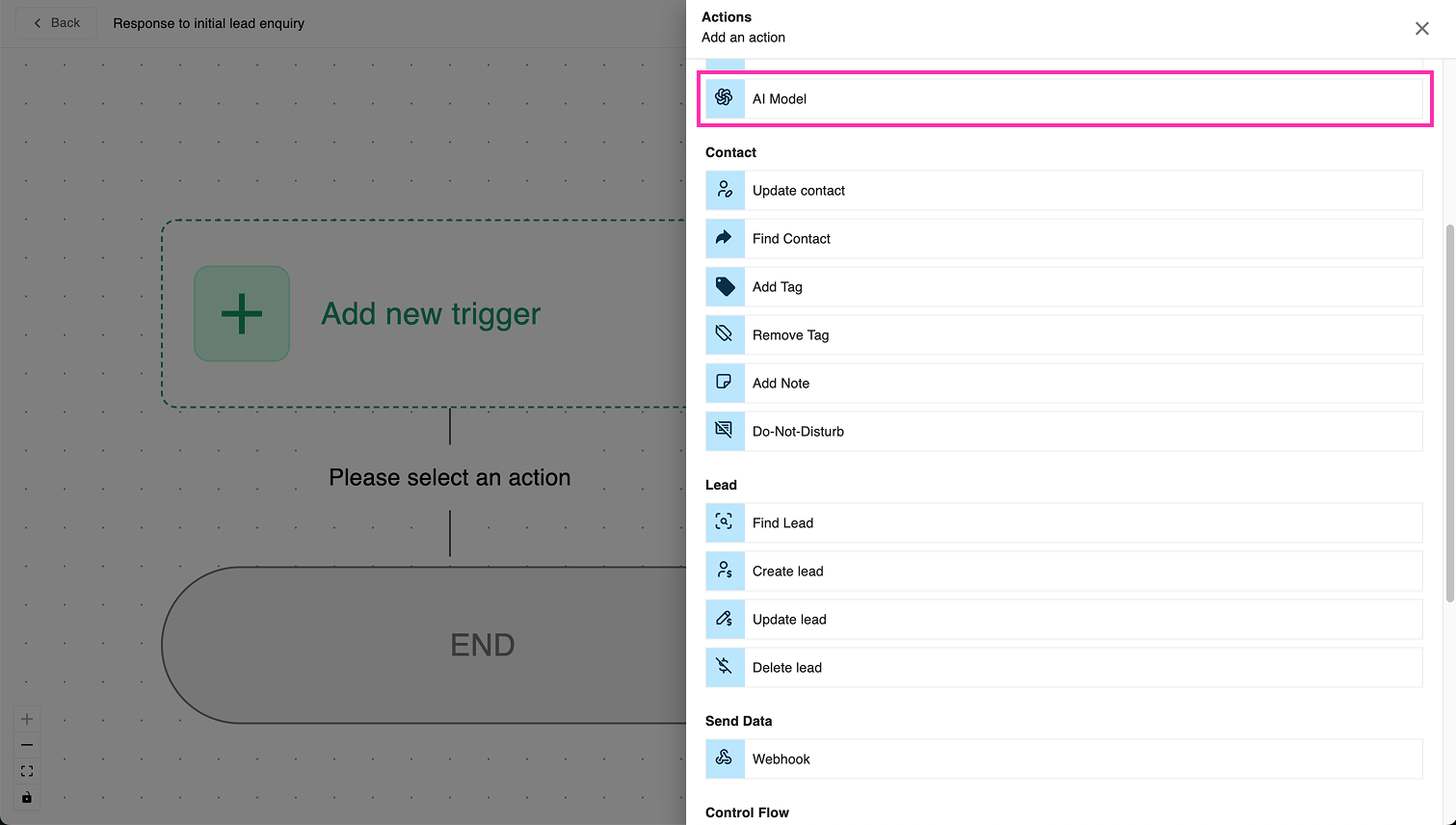
- In your workflow (triggered when a new lead messages HQ), click to add a new action
- Find and select AI Model from the action library
Step 2: Choose Your AI Provider
This is the company that provides the AI "brain" that will read your messages. Think of it like choosing between Google, Apple, or Microsoft for your email—they all do the same basic thing, but from different companies.
For this guide, we'll use OpenAI as our provider (you can explore others later).
Step 3: Choose Your AI Model
Next, you'll see a dropdown to select a specific model. For this example, choose "GPT-4.1-mini".
Think of different models like different sizes of engines in cars. GPT-4.1-mini is like a smaller, fuel-efficient engine—it's perfect for quick tasks like reading and categorizing messages. It's also more cost-effective. Other models (like GPT-4) are like bigger engines—great for writing long articles, but overkill (and more expensive) for simple tasks like identifying locations.
Step 4: Write Your Instructions (The "Prompt")
Now comes the important part: telling the AI what to do.
A prompt is simply the instructions you give to the AI. It's like briefing a new employee on their job. The clearer your instructions, the better the AI will perform.
In the large text box labeled "System Prompt" or "Instructions", copy and paste this:
You are an expert at identifying which ABC Robotics outlet location a lead is interested in based on their messages.

ABC Robotics has three outlet locations:
1. Downtown East
2. Somerset
3. Jurong Point

Your job is to read the lead's messages carefully and determine which outlet location they prefer or are most interested in.

Consider:
- Direct mentions of outlet names (even with typos or abbreviations)
- Geographic clues (e.g., "I live in the east", "near my office in town", "west side")
- Nearby landmarks or neighborhoods

If the message clearly indicates Downtown East, respond with "DOWNTOWN_EAST".
If the message clearly indicates Somerset, respond with "SOMERSET".
If the message clearly indicates Jurong Point, respond with "JURONG_POINT".
If you cannot determine a clear preference or the lead hasn't mentioned location yet, respond with "UNKNOWN".
We're telling the AI: "You're an expert at reading lead messages and figuring out which of our three outlets they want. Look for direct mentions, typos, abbreviations, or even geographic hints. Tell me which one it is, or say UNKNOWN if you're not sure yet."
The AI will now understand variations like "DT East", "I stay near Orchard" (Somerset area), "westside" (Jurong Point), or "near Pasir Ris" (Downtown East area).
Step 5: Tell the AI Which Messages to Read
Scroll down to the section called "Conversation History".
Leads might send multiple messages before indicating their location. This setting tells the AI how many recent messages it should read to get the full picture.
- Select "Count from latest"
- Set the number to 5
This means the AI will read the last 5 messages in the conversation to figure out the lead's preferred outlet.
This gives the AI enough context. A lead might first say "Hi, I'm interested in classes for my 7-year-old", then later mention "We live in the east side". By reading multiple messages, the AI can piece together their location preference.
Step 6: Choose How the AI Should Respond
Scroll down to "Output Format". You have two options here: Text or Structured Output. Let's start with the simpler option.
Option A: Text Output (Simpler)
Select "Text" as the output format.
Now, update your prompt with clearer formatting instructions. Replace your previous prompt with this:
You are an expert at identifying which ABC Robotics outlet location a lead is interested in based on their messages.

ABC Robotics has three outlet locations:
1. Downtown East
2. Somerset
3. Jurong Point

Your job is to read the lead's messages carefully and determine which outlet location they prefer or are most interested in.

Consider:
- Direct mentions of outlet names (even with typos or abbreviations)
- Geographic clues (e.g., "I live in the east", "near my office in town", "west side")
- Nearby landmarks or neighborhoods

If the message clearly indicates Downtown East, respond with "$DOWNTOWN_EAST".
If the message clearly indicates Somerset, respond with "$SOMERSET".
If the message clearly indicates Jurong Point, respond with "$JURONG_POINT".
If you cannot determine a clear preference or the lead hasn't mentioned location yet, respond with "$UNKNOWN".

Give your answer in exactly this format:

Final Output: <location_code>

Example:
Final Output: $DOWNTOWN_EAST
The dollar sign ($) is just a unique marker that makes it easy for your workflow to find the answer in the AI's response. It's like putting a sticky note on the important part!
Option B: Structured Output (More Reliable)
If you want a more reliable format (recommended once you're comfortable), select "Structured Output" and paste this into the JSON Schema box:
{
    "name": "predict_preferred_outlet",
    "strict": true,
    "schema": {
        "type": "object",
        "properties": {
            "preferred_outlet": {
                "type": "string",
                "enum": [
                    "DOWNTOWN_EAST",
                    "SOMERSET",
                    "JURONG_POINT",
                    "UNKNOWN"
                ],
                "description": "Preferred outlet location identified from the lead's messages. If no outlet preference is identified, return 'UNKNOWN'."
            }
        },
        "additionalProperties": false,
        "required": [
            "preferred_outlet"
        ]
    }
}
JSON Schema is like a form template that forces the AI to respond in a very specific, organized way. Think of it like a multiple-choice question—the AI must pick one of the four options we listed (DOWNTOWN_EAST, SOMERSET, JURONG_POINT, or UNKNOWN). It cannot give any other answer.
This is more reliable than text because the AI can't accidentally format its answer differently. You can just copy and paste the code above—you don't need to understand how it works for now!
Step 7: Route Leads Based on the AI's Answer
Great! Now the AI will analyze the lead's messages and identify their preferred outlet. The next step is to route them to the right outlet team.
Below your AI Model action, add Condition actions to check what the AI decided, then route accordingly.
If You Used Text Output:
Set up your conditions like this:
Condition 1: If AI Model Output contains "$DOWNTOWN_EAST"
- Action 1: Tag contact with "Outlet - Downtown East"
- Action 2: Send message: "Great! I see you're interested in our Downtown East outlet. I'm transferring you to our Downtown East team who will help you with enrollment details."
- Action 3: Transfer conversation to Downtown East outlet WhatsApp number
Condition 2: If AI Model Output contains "$SOMERSET"
- Action 1: Tag contact with "Outlet - Somerset"
- Action 2: Send message: "Perfect! I see you're interested in our Somerset outlet. I'm transferring you to our Somerset team who will assist you further."
- Action 3: Transfer conversation to Somerset outlet WhatsApp number
Condition 3: If AI Model Output contains "$JURONG_POINT"
- Action 1: Tag contact with "Outlet - Jurong Point"
- Action 2: Send message: "Wonderful! I see you're interested in our Jurong Point outlet. I'm connecting you with our Jurong Point team now."
- Action 3: Transfer conversation to Jurong Point outlet WhatsApp number
Condition 4: If AI Model Output contains "$UNKNOWN"
- Action: Send message: "Thank you for your interest in ABC Robotics! To better assist you, may I know which of our outlets would be most convenient for you? We have locations at: Downtown East, Somerset, and Jurong Point."
If the AI can't figure out the location yet (maybe the lead just said "Hi, tell me more about your classes"), it will return "UNKNOWN". In this case, you politely ask them to specify their preferred location. Once they reply, the AI will run again on the next message and likely be able to identify the outlet.
If You Used Structured Output (JSON):
Set up your conditions like this:
Condition 1: If AI Model Output "preferred_outlet" equals "DOWNTOWN_EAST"
- Action 1: Tag contact with "Outlet - Downtown East"
- Action 2: Send message: "Great! I see you're interested in our Downtown East outlet. I'm transferring you to our Downtown East team who will help you with enrollment details."
- Action 3: Transfer conversation to Downtown East outlet WhatsApp number
Condition 2: If AI Model Output "preferred_outlet" equals "SOMERSET"
- Action 1: Tag contact with "Outlet - Somerset"
- Action 2: Send message: "Perfect! I see you're interested in our Somerset outlet. I'm transferring you to our Somerset team who will assist you further."
- Action 3: Transfer conversation to Somerset outlet WhatsApp number
Condition 3: If AI Model Output "preferred_outlet" equals "JURONG_POINT"
- Action 1: Tag contact with "Outlet - Jurong Point"
- Action 2: Send message: "Wonderful! I see you're interested in our Jurong Point outlet. I'm connecting you with our Jurong Point team now."
- Action 3: Transfer conversation to Jurong Point outlet WhatsApp number
Condition 4: If AI Model Output "preferred_outlet" equals "UNKNOWN"
- Action: Send message: "Thank you for your interest in ABC Robotics! To better assist you, may I know which of our outlets would be most convenient for you? We have locations at: Downtown East, Somerset, and Jurong Point."
The beauty of this setup is that once the AI identifies the outlet, the lead is immediately and automatically transferred to the right team. No waiting for HQ staff to read messages and manually transfer. Your leads get faster service, and your HQ team saves hours of manual work!
You're Done!
Congratulations! You've just set up an intelligent lead routing system that:
✅ Automatically reads and understands lead messages
✅ Identifies their preferred outlet (even with typos and indirect mentions)
✅ Tags them appropriately
✅ Sends a personalized transfer message
✅ Routes them to the correct outlet WhatsApp number
Your HQ number now acts like a smart receptionist. When a lead says "I'm interested in classes, can I check if your DT East outlet still accept registration?", the AI understands that DT East is Downtown East and automatically routes them there. No more manual reading, no more guessing, no more delays!
What Happens Next?
Once the conversation is transferred to the outlet's WhatsApp number, that outlet's team can continue the conversation, answer specific questions, and close the enrollment—all without HQ having to touch the lead again.
As you get more comfortable with AI, you can use this same technique for other routing tasks:
- Route support tickets by issue type (billing vs technical vs general inquiry)
- Identify urgent vs non-urgent messages
- Detect leads asking about specific programs or age groups
- Categorize feedback as positive, negative, or neutral
The possibilities are endless!