Delete Message
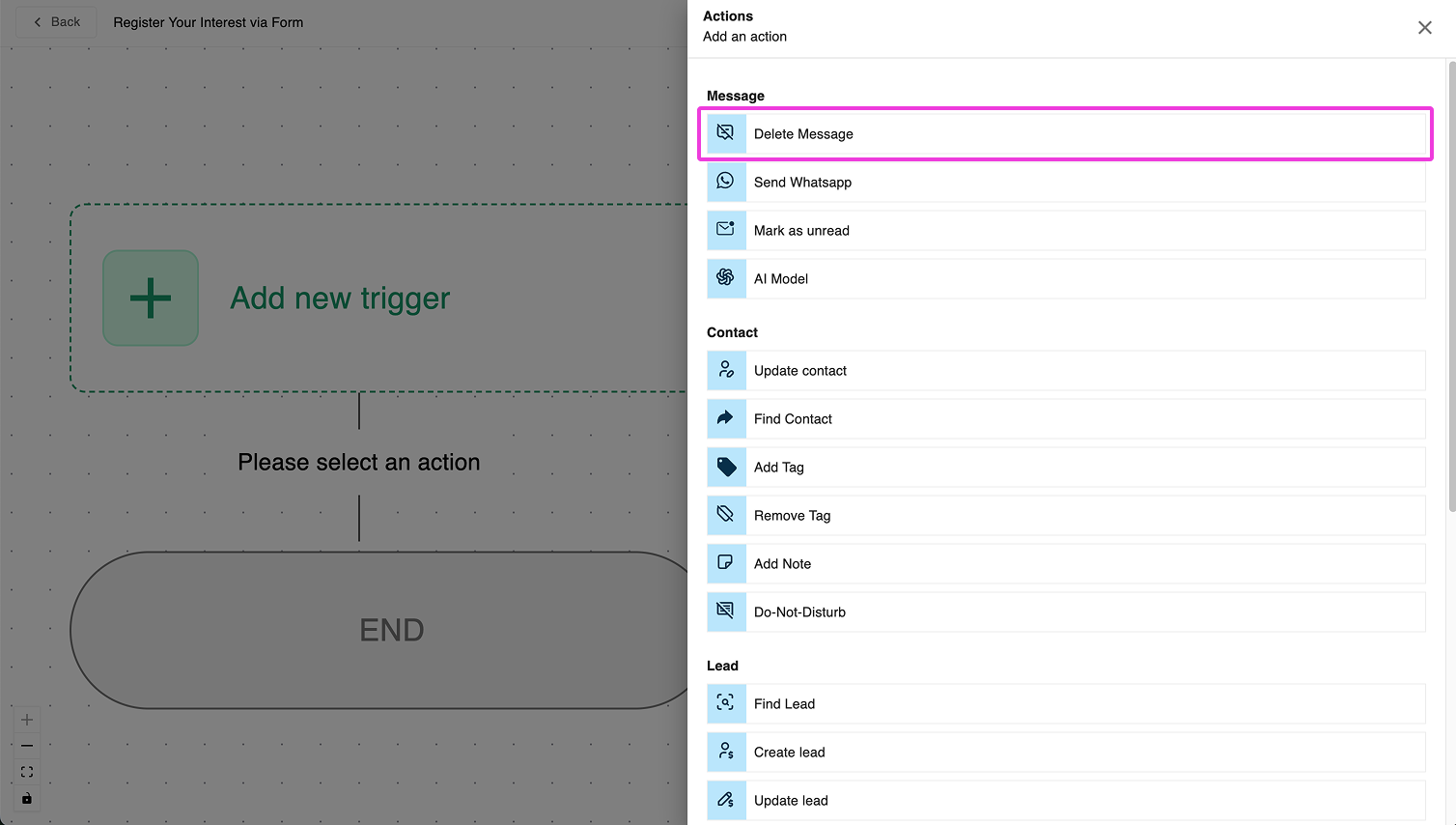
What is Delete Message?
Delete Message is a powerful workflow action that allows you to remove messages that have either been sent to contacts or are scheduled to be sent in the future. This feature works by identifying messages through their message tags, enabling you to precisely target which communications should be removed from your system.
Delete Message gives you control over two key types of messages:
- Scheduled messages: Messages that are queued to be delivered at a future date/time
- Sent messages: Messages that have already been delivered to your contacts
Why Use Delete Message?
Key Benefits
Managing your communication flow with contacts is essential for maintaining professional relationships and ensuring information relevance. The Delete Message feature provides several important benefits:
- Prevents confusion by removing outdated or irrelevant information from your contact's inbox
- Maintains communication accuracy when circumstances change
- Keeps your automated workflows adaptable to real-world changes
- Enhances customer experience by ensuring contacts only receive current, relevant messages
- Improves workflow efficiency by allowing automatic cleanup of obsolete communications
Business Value
Implementing Delete Message in your workflows delivers tangible business value:
- Increased customer satisfaction through properly managed communications
- Reduced support inquiries related to outdated or confusing messages
- More professional brand perception with properly timed and relevant communications
- Time savings by automating the cleanup of irrelevant messages
- Greater workflow flexibility to handle appointment changes and cancellations
How to Configure Delete Message
Basic Setup
- Navigate to your workflow editor
- Add a "Delete Message" action at the appropriate point in your workflow
- Select the message type to delete:
- Scheduled messages: For messages that haven't been sent yet
- Sent messages: For messages that have already been delivered
- Enter the message tag that identifies the messages you want to delete
Advanced Configuration
Message Tag Selection
- Enter the exact message tag used when the original message was sent or scheduled
- You can use workflow variables in your tag definition (example:
appointment_reminder_2_hours_before)
Workflow Placement
- Position this action immediately after the trigger that indicates a change (rescheduling, cancellation)
- Ensure it runs before any new messages are scheduled or sent
Conditional Execution
- Optionally add conditions to your Delete Message action to run only in specific circumstances
- Example: Run only if
appointment_statusequals"rescheduled"or"cancelled"
Real-World Use Cases
1. Appointment Rescheduling
Scenario: A customer reschedules their dental appointment from Tuesday to Friday.
Workflow:
- Appointment change trigger activates
- Delete Message action removes the original Tuesday reminder messages using the tag
dental_reminder_2_hours_before - New reminder messages are scheduled for the Friday appointment
- Customer receives only relevant reminders for their current appointment
Value: Prevents customer confusion by ensuring they don't receive reminders for both the old and new appointment times.
2. Event Cancellation
Scenario: A webinar is cancelled due to speaker illness.
Workflow:
- Event cancellation trigger activates
- Delete Message action removes all scheduled reminder messages tagged with
webinar_infant_care_reminder - A single cancellation notice is sent instead
- Registrants don't receive continued reminders for a cancelled event
Value: Maintains professional communication and prevents attendees from blocking time for a non-existent event.
3. Product Availability Update
Scenario: A pre-order item's delivery date is delayed by two weeks.
Workflow:
- Inventory system updates the estimated arrival date
- Delete Message action removes all scheduled "Your item is arriving soon" messages tagged with
preorder_arrival_pearl - New accurate arrival messages are scheduled based on the updated timeline
- Customers receive only accurate information about their purchase
Value: Builds trust with customers by providing accurate delivery expectations.
Best Practices
Tagging Strategy
- Use specific, descriptive tags that clearly identify the purpose of the message
- Include unique identifiers like appointment IDs, contact IDs, or event IDs in your tags
- Establish a consistent tagging system across your organization
- Document your tag naming conventions to ensure team alignment
Workflow Integration
- Always include Delete Message actions when building workflows that involve scheduling changes
- Test your Delete Message configurations thoroughly before deploying to production
- Monitor deletion activity to ensure the right messages are being removed
- Combine with notification actions to inform appropriate team members when critical messages are deleted
Common Pitfalls to Avoid
- Overly generic tags that might unintentionally delete more messages than intended
- Missing Delete Message actions when adding new scheduling or rescheduling workflows
- Deleting messages without sending replacements when information changes
- Incorrect timing of Delete Message actions in your workflow sequence
Troubleshooting
Messages Not Being Deleted
Possible causes:
- Tag mismatch between original message and Delete Message action
- Workflow not triggering correctly
- Permission issues with your account
Solution: Verify your tags, check workflow execution logs, and ensure your account has proper permissions.
Too Many Messages Deleted
Possible causes:
- Tags are too generic
- Multiple workflows using the same tags
- Workflow logic error
Solution: Make your tags more specific, review all workflows using similar tags, and test your workflow logic.
Conclusion
The Delete Message feature is an essential tool for maintaining relevant, accurate communication with your contacts. By properly implementing this feature in your workflows, you'll create a more professional experience for your contacts while saving time and reducing confusion.
Remember that effective communication is not just about sending the right messages—it's also about removing the wrong ones when circumstances change. With Delete Message, you can ensure your communication stays relevant and valuable.