Sending Data OUT of Exabloom
This guide will teach you how to send data from Exabloom to external systems using webhook actions in workflows.
What You'll Learn
By the end of this guide, you'll know how to:
- Set up workflows to send Exabloom data to external systems
- Use the Dynamic Value Selector to map data correctly
- Configure webhook actions properly
- Test your data integration
When to Use This
Use webhook actions when you want to automatically send Exabloom data to external systems like:
- CRM platforms
- Email marketing tools
- Analytics dashboards
- Custom applications
Step-by-Step Setup
Step 1: Create a New Workflow
- Navigate to Workflows in your Exabloom dashboard
- Click "Create New Workflow"
- Give your workflow a descriptive name (e.g., "Send New Contacts to CRM")
Step 2: Choose Your Trigger
The trigger determines what data you'll have access to send. Common triggers include:
- Contact Created - Access to contact data
- Contact Updated - Access to contact data
- Lead Created - Access to lead and related contact data
- Lead Updated - Access to lead and related contact data
Example: If you select "Contact Created" as your trigger, you'll have access to all the contact's information (name, email, phone, etc.).
Step 3: Add a Webhook Action
- Click "Add Action"
- Select "Webhook" from the action list
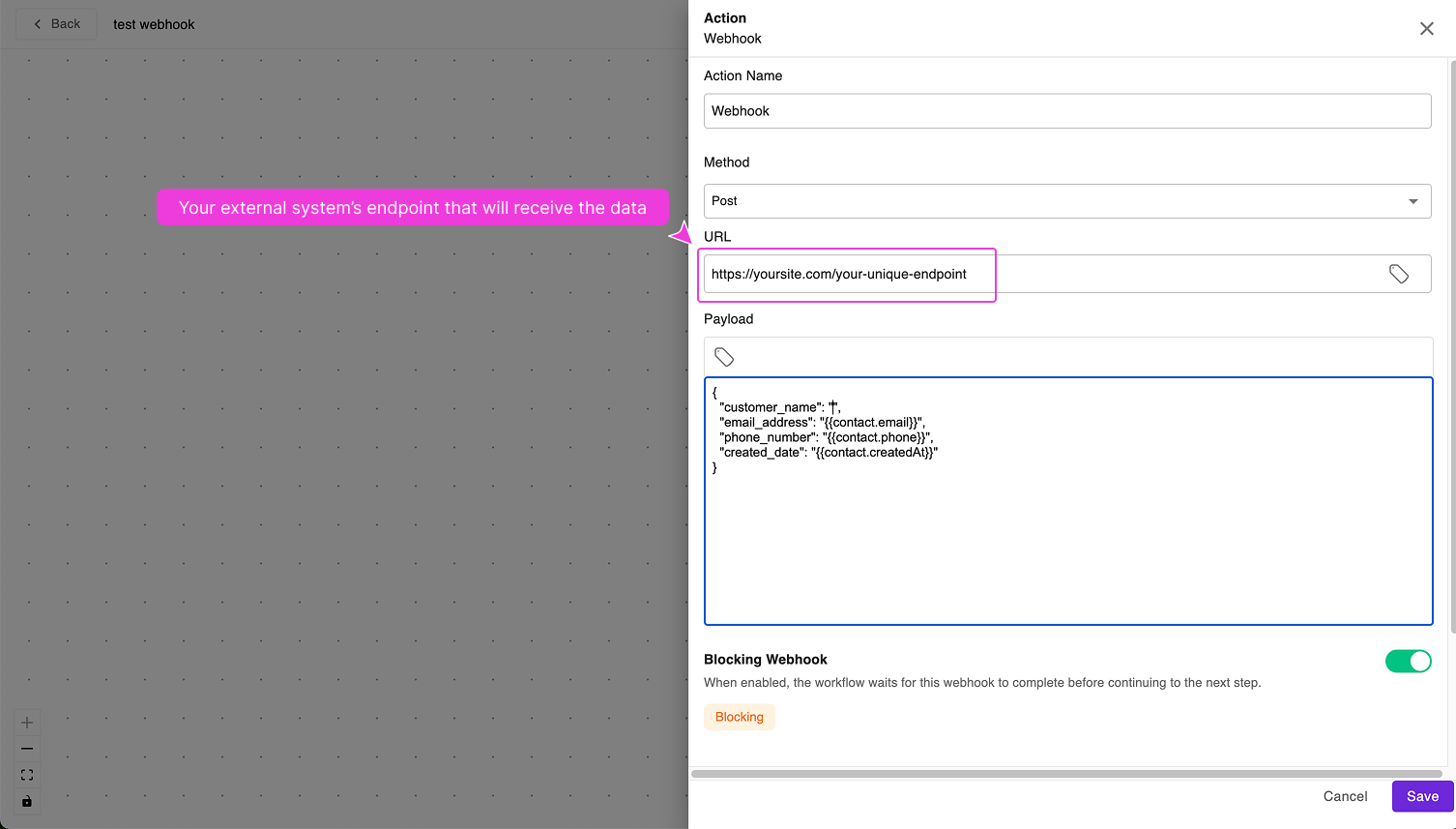
- Configure the webhook settings:
-
Method: Usually POST for sending data
-
URL: Where to send the data (your external system's endpoint)

-
Step 4: Map Your Data Using Dynamic Value Selector
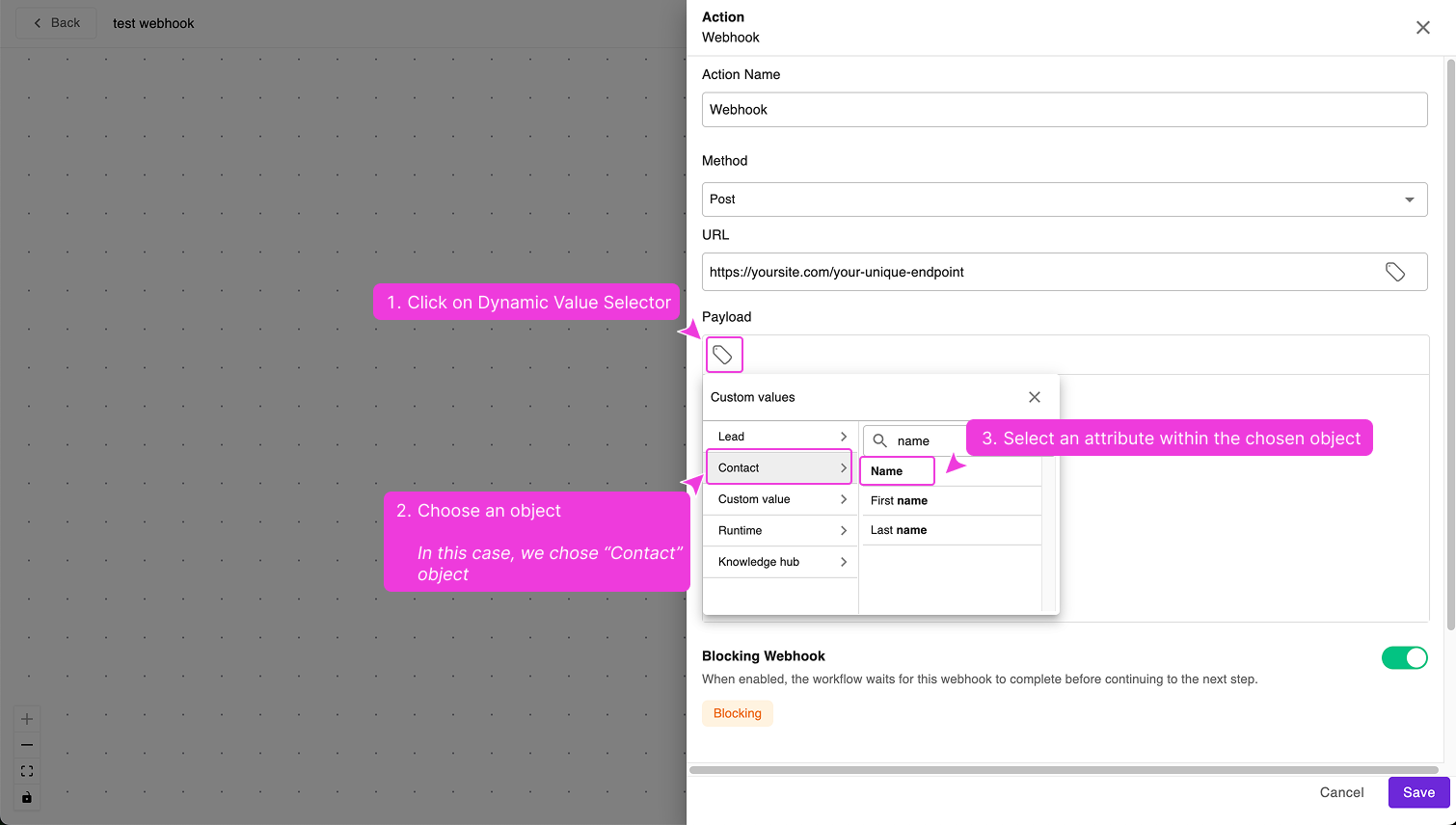
This is where you'll map data from your trigger to the webhook body using Exabloom's Dynamic Value Selector.
How to use the Dynamic Value Selector:
- In the webhook body field, click on the "Tag" icon
- A selector will appear showing available objects (e.g., Contact, Lead, etc.)
- Choose the object you want to access
- Select the specific attribute you need from that object
- The dynamic value will be inserted in the correct format
Here's a quick illustration of how to use this dynamic value selector:

Example JSON payload:
{
"customer_name": "{{contact.name}}",
"email_address": "{{contact.email}}",
"phone_number": "{{contact.phone}}",
"created_date": "{{contact.createdAt}}"
}
Step 5: Test Your Workflow
Before you can test the workflow, you need to publish your workflow first.
To test your workflow, simply trigger the workflow based on your chosen trigger:
For "Contact Created" trigger:
- Manually create a new contact in Exabloom
- This will trigger the workflow to run
For "Contact Updated" trigger:
- Edit an existing contact (e.g., change the last name)
- This will trigger the workflow to run
For other triggers:
- Perform the action that matches your trigger type
Step 6: Expected Outcome
Once you've tested and the receiving end should receive the data payload.
If things didn't workas expected, look at the Workflow Logs to understand what's going on.
Common Pitfalls
❌ Incorrect: Missing Double Quotes
This is wrong because the dynamic values are not encapsulated in double quotes:
{
"customer_name": {{contact.name}},
"email_address": {{contact.email}},
"phone_number": {{contact.phone}},
"created_date": {{contact.createdAt}}
}
✅ Correct: Proper Quote Encapsulation
This is correct with dynamic values properly encapsulated in double quotes:
{
"customer_name": "{{contact.name}}",
"email_address": "{{contact.email}}",
"phone_number": "{{contact.phone}}",
"created_date": "{{contact.createdAt}}"
}
Common Use Cases
Scenario 1: Sync New Contacts to External CRM
- Trigger: Contact Created
- Action: Webhook to CRM API
- Data: Contact name, email, phone, source
Scenario 2: Send Lead Updates to Analytics Dashboard
- Trigger: Lead Stage Changed
- Action: Webhook to analytics platform
- Data: Deal value, status, close date
Scenario 3: Notify External System of Contact Changes
- Trigger: Contact Updated
- Action: Webhook to notification service
- Data: Updated contact information and change timestamp
Troubleshooting Tips
Webhook not firing?
- Check that your workflow is published
- Verify the trigger conditions are met
- Review the workflow execution logs
External system not receiving data?
- Verify the webhook URL is correct
- Confirm the JSON payload format matches what your external system expects
Data mapping issues?
- Use the Tag icon to access the Dynamic Value Selector instead of typing field names manually
- Ensure dynamic values are enclosed in double quotes
- Check for required vs. optional fields in your external system
Next Steps
Now that you understand how to send data out of Exabloom:
- Plan your integrations - List the external systems you want to connect
- Start simple - Begin with one basic webhook workflow
- Test thoroughly - Always test by triggering the workflow manually
- Monitor regularly - Review workflow execution logs to ensure smooth operation