Send WhatsApp Action
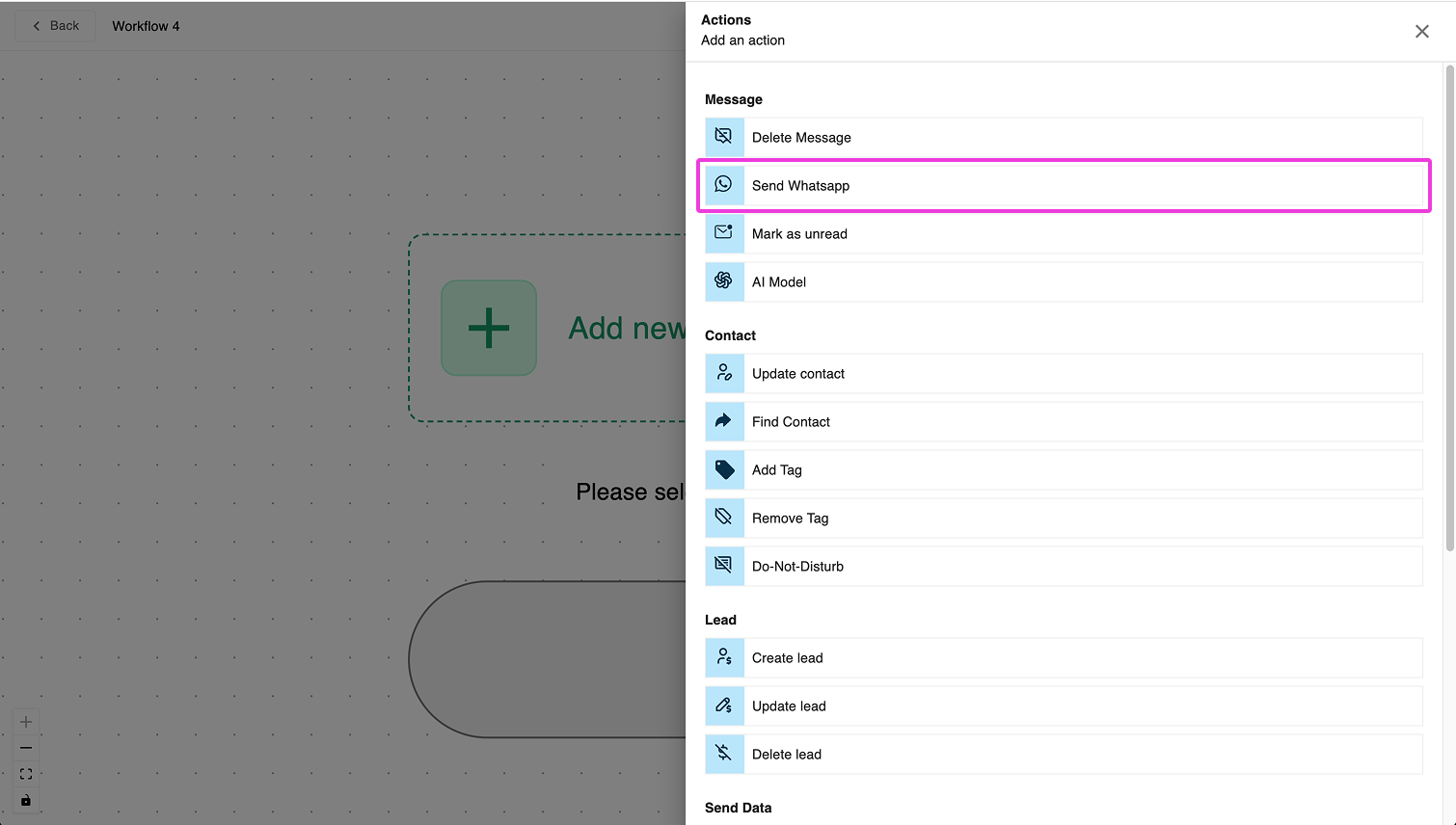
The Send WhatsApp action is one of the most frequently used actions in Exabloom. As the name suggests, it allows you to send a WhatsApp message to a contact.
For most use cases, you only need to:
1️⃣ Compose the message
2️⃣ (Optional) Personalize it with dynamic values
3️⃣ (Optional) Attach an image or document
By default, the message is sent immediately to the contact that entered the workflow.
✍️ Composing Your Message with Dynamic Values
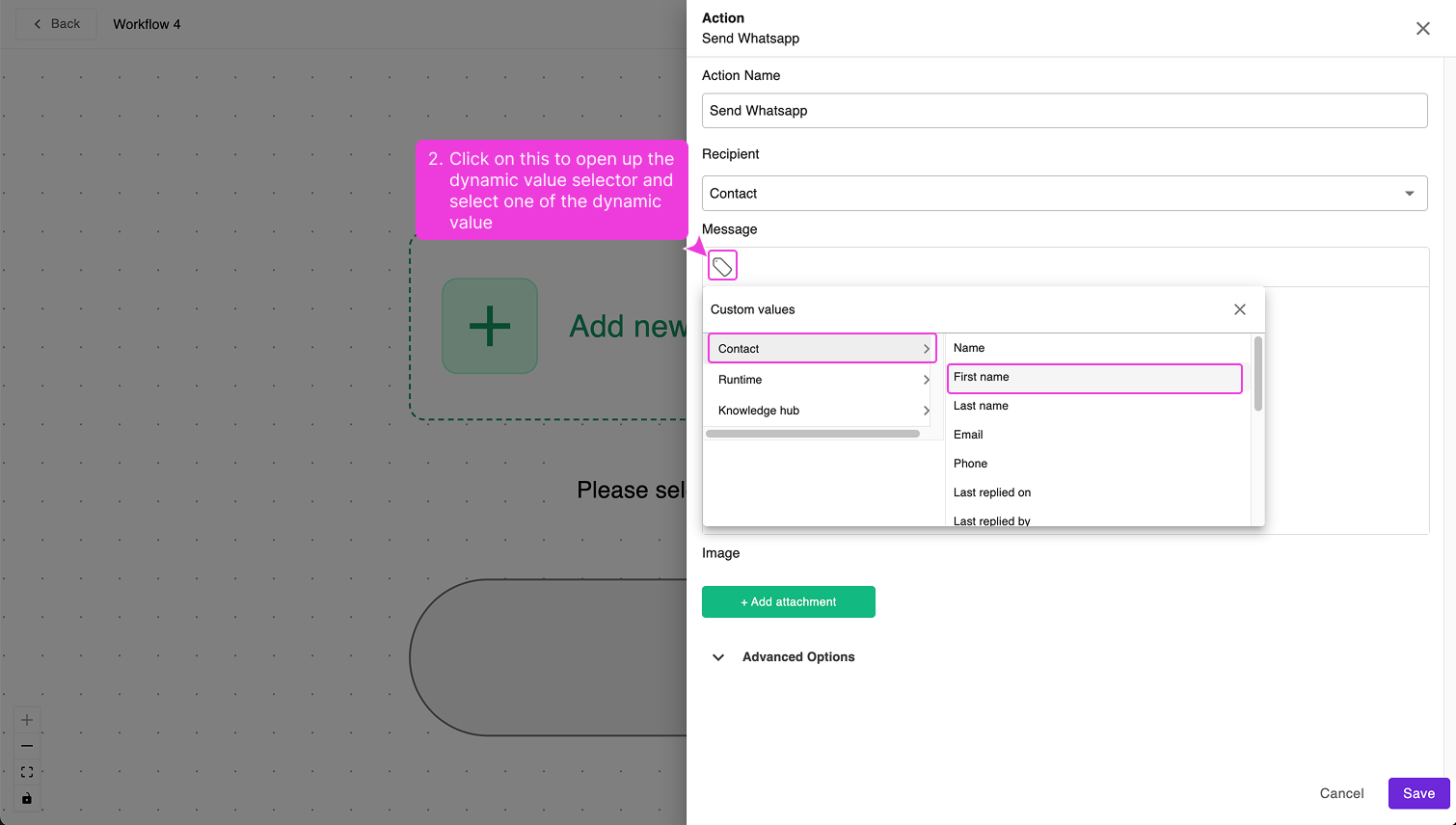
If you need to personalize your message, you can use the dynamic value selector to pull real-time data.
✅ Available Dynamic Values:
- Contact (e.g., first name, last name, phone number)
- Runtime (e.g., current date, time)
- Knowledge Hub (predefined stored information)
- Lead (available if the trigger is "Lead Created" or "Lead Updated")
- Message (available if the trigger is "Contact Replied")
Example: Personalizing the Message
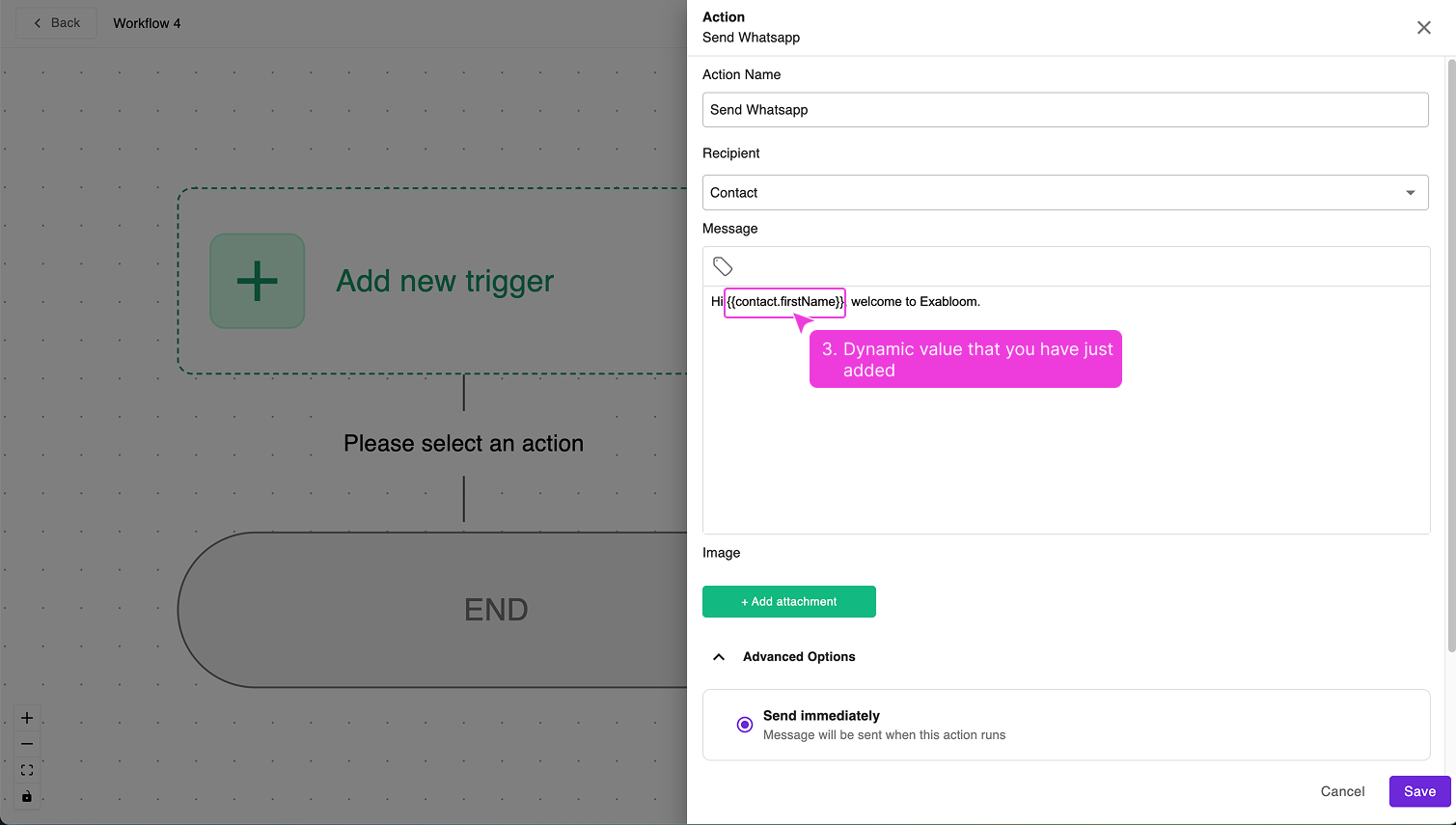
If you want to include the contact’s first name, write:
Hi {{contact.firstName}}, welcome to Exabloom.
If the contact’s first name is Andy, they will receive:
Hi Andy, welcome to Exabloom.
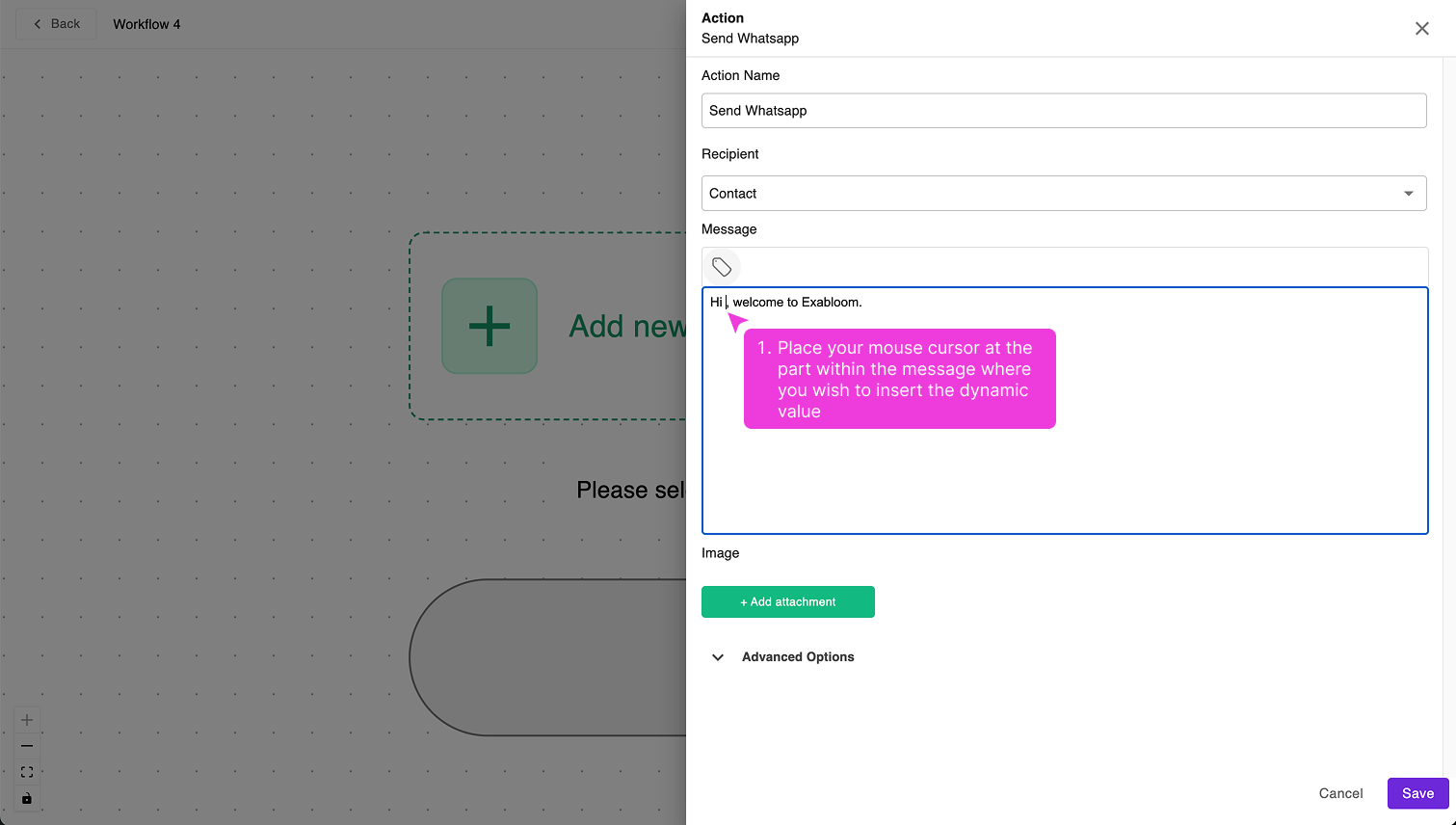
🔹 To insert a dynamic value, simply click on the dynamic value selector and choose the relevant field.
Click here to see how to select dynamic value when composing the message
📎 Attaching Media Files
You can attach images, PDFs, or documents along with the message. Supported file types include:
- Images (
.jpg,.png,.gif) - Documents (
.pdf,.doc,.xls)
💡 This is useful for sending brochures, invoices, or appointment details.
⏳ Scheduling Messages
By default, the WhatsApp message is sent immediately. However, you can schedule the message relative to a reference time.
Example: Scheduling a Message
If the reference date is 3-Feb-2024, you can configure:
✔ Send 3 days before → Sent on 31-Jan-2024
✔ Send 2 days after → Sent on 5-Feb-2024
⚠ Important: The scheduled time must always be in the future.
🏷️ Tagging Messages for Automation
You can tag messages sent via this action for better tracking and automation.
Why Use Message Tagging?
✅ Exclude certain messages from later evaluations.
✅ Trigger other workflows based on message tags.
✅ Modify or delete messages when conditions change (e.g., rescheduling an appointment).
💡 Example: If you tag messages related to appointment reminders, you can later filter messages with that tag to take specific actions.
🔹 Advanced Use Case: Changing the Recipient
Most of the time, the recipient is not changed—it will remain as Contact, meaning the message is sent to the person who entered the workflow.
However, in more advanced scenarios, you may want to send WhatsApp messages to:
1️⃣ Custom Phone → Sends a WhatsApp message to an internal team member (e.g., to notify them about a lead).
2️⃣ WhatsApp Number Connected to Exabloom → Sends a WhatsApp message to your own connected number (e.g., for internal notifications).
When to Use "Custom Phone"
If you choose Custom Phone, you must provide:
- First Name
- Last Name (optional)
- Phone Number (must include country code, e.g., 6593333333)
💡 Use Case: If you want to send an internal WhatsApp notification to a team member, you can configure:
✔ First Name: Bruno
✔ Phone: 6593333333
This ensures the message is sent to Bruno, even though he is not the contact in the workflow.
When to Use "WhatsApp Number Connected to Exabloom"
This option sends the message to your own WhatsApp number (the number connected to Exabloom).
💡 Use Case: You want to receive a notification on WhatsApp whenever a lead enters the workflow. If your WhatsApp number in Exabloom is 6595555555, then the message will be sent to 6595555555—essentially sending yourself a message.
🔹 Summary
✔ Send WhatsApp messages to a contact (default behavior).
✔ Use dynamic values to personalize messages.
✔ Attach media files (images, PDFs, etc.).
✔ Schedule messages relative to a reference date.
✔ Tag messages for tracking and workflow automation.
✔ [Advanced] Change recipient to a custom phone or your own WhatsApp number.
With these features, the Send WhatsApp action in Exabloom becomes a powerful tool for automating communication with contacts and internal teams. 🚀
This version ensures that most users focus on the core functionality, while advanced users can explore the recipient configuration when needed. Let me know if you’d like any further refinements! 😊