Wait For Reply Action
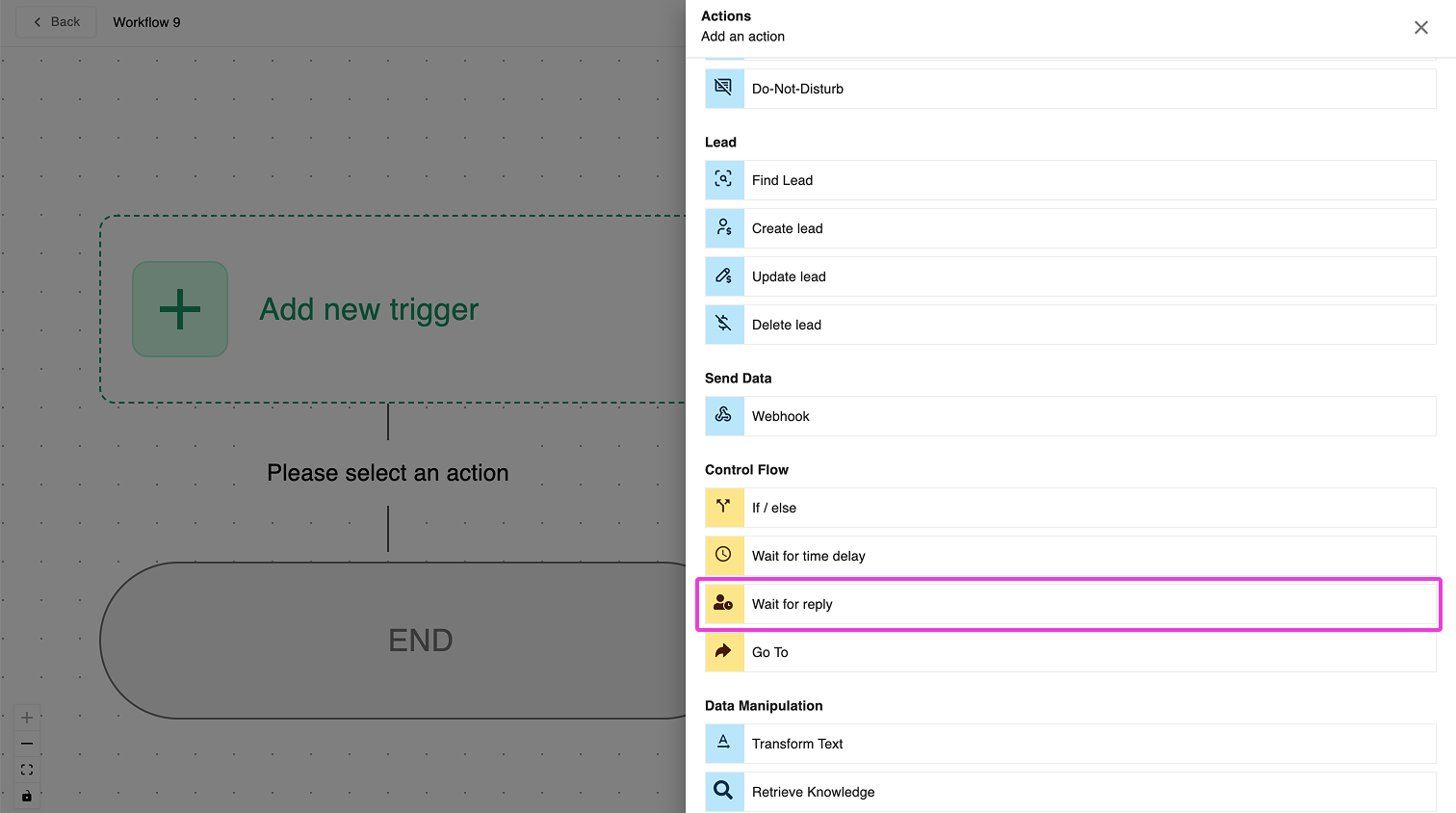
What is the Wait For Reply Action?
The Wait For Reply action pauses your workflow until the contact responds to your message or until a specified timeout period has elapsed. This action is essential for creating interactive, two-way conversations that respond intelligently to your contacts' input.
Why Use the Wait For Reply Action?
In effective automated communication, listening is just as important as speaking. The Wait For Reply action allows your workflow to:
- Create interactive conversations that respond to what your contacts actually say
- Avoid sending follow-up messages to people who have already responded
- Branch your workflow based on whether someone responds or not
- Gather valuable information directly from your contacts
- Provide a more human-like experience by waiting for and acknowledging replies
How to Configure Wait For Reply
The Wait For Reply action has two important configuration options:
1. Setting a Timeout Period
The Timeout setting determines how long the workflow will wait for a response before moving to the next step.
How to Set the Timeout:
- Select the Wait For Reply action in your workflow
- In the Timeout field, enter the maximum time you want to wait (e.g., 1 day, 3 days, 30 days)
- Save your settings
When this timeout period expires without receiving a reply, the workflow will continue to the next step.
Common Practice: After a "Wait for Reply" step, you'll typically want to add an "If / Else" conditional step to check whether the contact has replied. This creates two distinct paths in your workflow:
- If the contact replied → Follow one path (usually providing a response to their message)
- If the contact did not reply (timeout occurred) → Follow another path (typically sending a reminder or alternative message)
This branching pattern is very common but not mandatory - you can design your workflow based on your specific needs.
Why Set a Timeout?
Setting an appropriate timeout period is crucial for several reasons:
- Preventing stalled workflows: Without a timeout, workflows could remain paused indefinitely if contacts never respond
- Enabling follow-up sequences: When someone doesn't reply, you might want to send a gentle reminder or alternative offer
- Managing workflow resources: Completed workflows free up system resources for active conversations
- Maintaining engagement timelines: Some communications (like limited-time offers) need to move forward within a specific timeframe
The right timeout period depends on your specific use case:
- Short timeouts (hours to 1 day): Best for urgent matters, live support scenarios, or time-sensitive offers
- Medium timeouts (1-7 days): Appropriate for most business communications, giving contacts reasonable time to respond
- Long timeouts (7+ days): Suitable for non-urgent communications or when you expect delayed responses
2. Handling Burst Messages
The Handle Burst Messages option tells the system to wait for a brief additional period after receiving a reply before continuing the workflow.
How to Enable Burst Message Handling:
- Select the Wait For Reply action in your workflow
- Check the box for Handle Burst Messages
- If available, set the burst waiting period (typically a few minutes)
- Save your settings
When to Use Handle Burst Messages:
Enable this option when:
- People typically send multiple consecutive messages: Many people communicate in several short messages rather than one long message
- You need complete context before responding: Without this option, your workflow might continue after just the first message, potentially missing important follow-up information
- You want to avoid interrupting a contact's thought process: Responding between their burst messages can seem unnatural and disruptive
For example, when asking an open-ended question, a contact might respond with:
"I'm interested in the premium plan"
"But I have a question about pricing"
"Do you offer monthly payment options?"
Without burst message handling, your workflow would continue after the first message, potentially sending a response before receiving their full inquiry.
How It Works in Your Workflow
Here's a visual representation of how the "Wait for Reply" action typically works in a workflow:
- Your workflow sends a message to the contact
- The "Wait for Reply" action pauses the workflow
- One of two things happens:
- The contact replies within the timeout period → The workflow continues immediately
- The timeout period expires without a reply → The workflow continues after timeout
- The workflow typically continues with a conditional check (such as an "If / Else" step) that checks if the contact replied
- The workflow can then follow different paths based on whether there was a reply
This conditional branching pattern is what makes workflows truly interactive and responsive to your contacts' behavior, though the exact structure depends on your specific needs.
Real-World Use Cases
Customer Support Workflows
Create a support workflow that:
- Sends an initial inquiry about the customer's issue
- Waits for a reply (timeout: 1 day)
- Uses an If / Else condition to check if the customer replied
- If they replied:
- Analyzes their response
- Routes to the appropriate department or provides automated solutions
- If no reply (timeout occurred):
- Sends a gentle reminder message
- Offers alternative contact methods
Lead Qualification
Design a lead qualification sequence that:
- Asks specific questions about the prospect's needs
- Waits for a reply (timeout: 3 days, with burst handling enabled)
- Uses an If / Else condition to check if the prospect replied
- If they replied:
- Analyzes their response
- Tags them appropriately in your CRM
- Sends personalized follow-up content based on their specific needs
- If no reply (timeout occurred):
- Moves them to a re-engagement campaign
- Updates their status in your CRM
Event Registration Confirmation
Create an event confirmation workflow that:
- Sends event details and asks if the contact can attend
- Waits for a reply (timeout: 2 days)
- Uses an If / Else condition to check if the contact replied
- If they replied:
- Uses additional conditions to check if their response was "yes" or "no"
- For "yes" responses: Records attendance, sends calendar invite and preparation materials
- For "no" responses: Records decline, offers alternative dates or virtual attendance options
- If no reply (timeout occurred):
- Sends a reminder with the event details
- Provides a simple way to confirm (like quick reply buttons)
Best Practices for Wait For Reply
- Set realistic timeout periods based on the urgency of your communication and your audience's typical response time
- Always enable burst message handling for open-ended questions or situations where multiple messages are likely
- Create clear paths for both "replied" and "no reply" scenarios in your workflow
- Consider time zones when setting timeout periods for international audiences
- Use timeout paths thoughtfully – don't just send the same message again if someone doesn't respond
By effectively using the Wait For Reply action, you can create dynamic, responsive workflows that adapt to your contacts' actual behavior and provide more meaningful interactions.