Customize the Lead Info Panel
Reshape the Lead Info panel for your whole organisation — reorder, rename, show or hide sections, and move custom fields between them without leaving the lead view.
Prerequisites
- You are an admin in your organisation. The Customize button is only visible to admins.
- At least one custom field group exists in Settings > Custom Fields.
Changes made here apply to every user in the organisation. There is no personal layout.
Open customize mode
-
Go to Leads and open any lead.
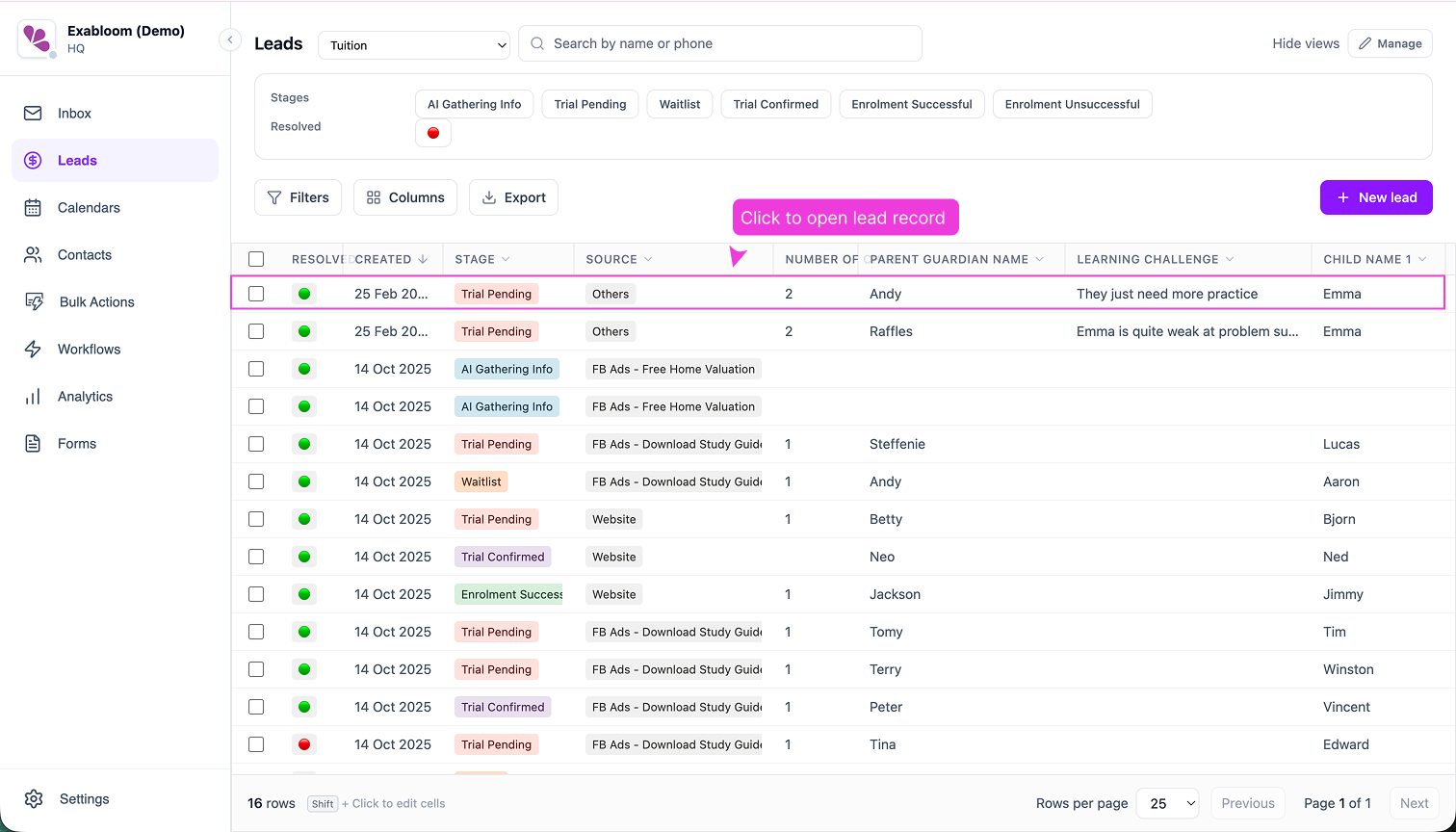
-
In the Lead Info panel header, click Customize.
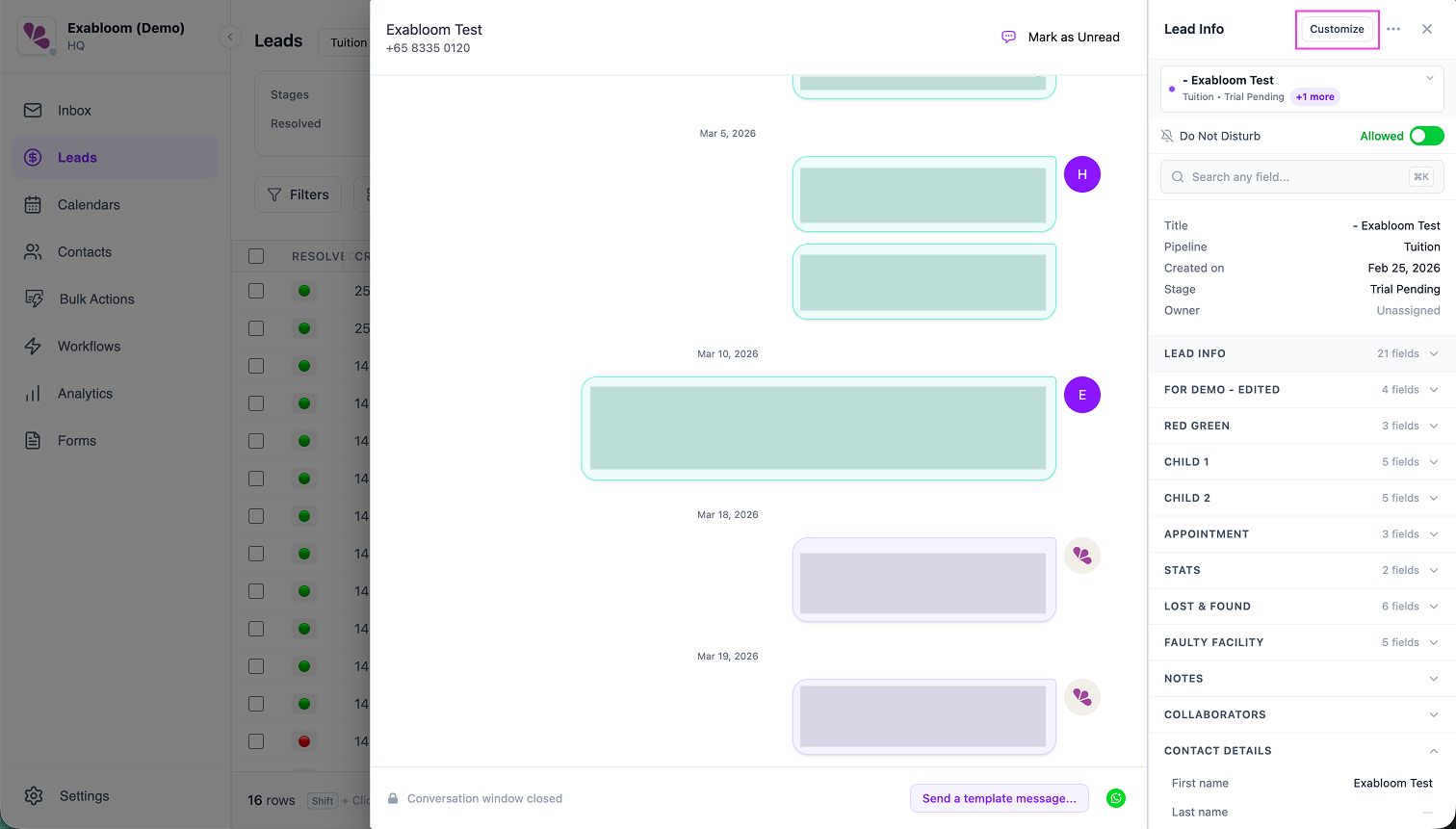
-
Confirm the banner reads Editing for your whole organisation. The header now shows Cancel and Save buttons.
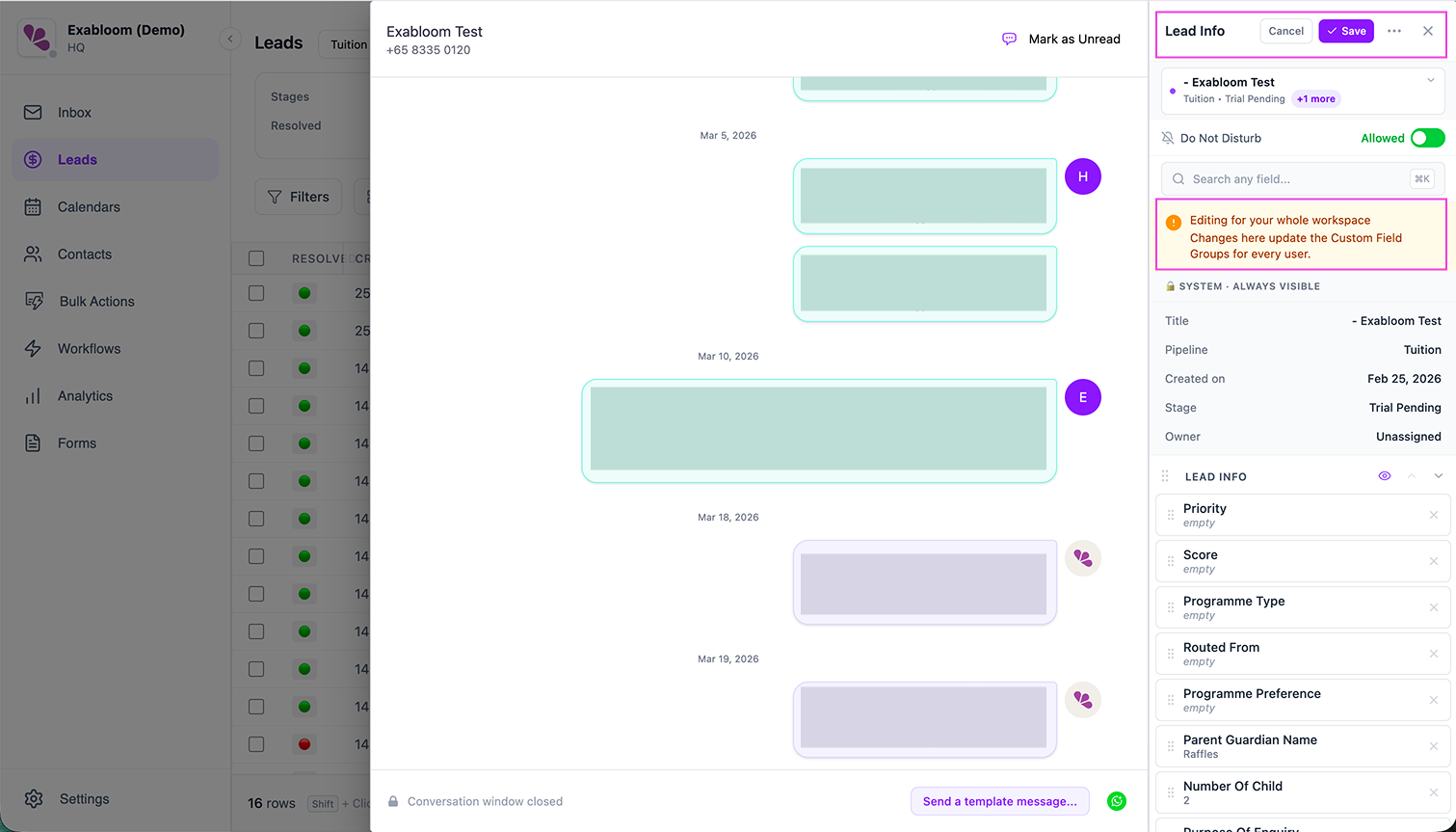
Click Save after any change described below to apply it organisation-wide.
Reorder, rename, or hide a section
- Reorder: grab the drag handle and drop the section above or below another.
- Rename: click the section label, type the new name, and press Enter. Clearing the label and pressing Enter reverts it to the default.
- Hide or show: click the eye icon on the section. Hidden sections are dimmed in customize mode and gone from the panel for every user after you save.
Move a field between sections
-
Click Add field at the bottom of the target section.
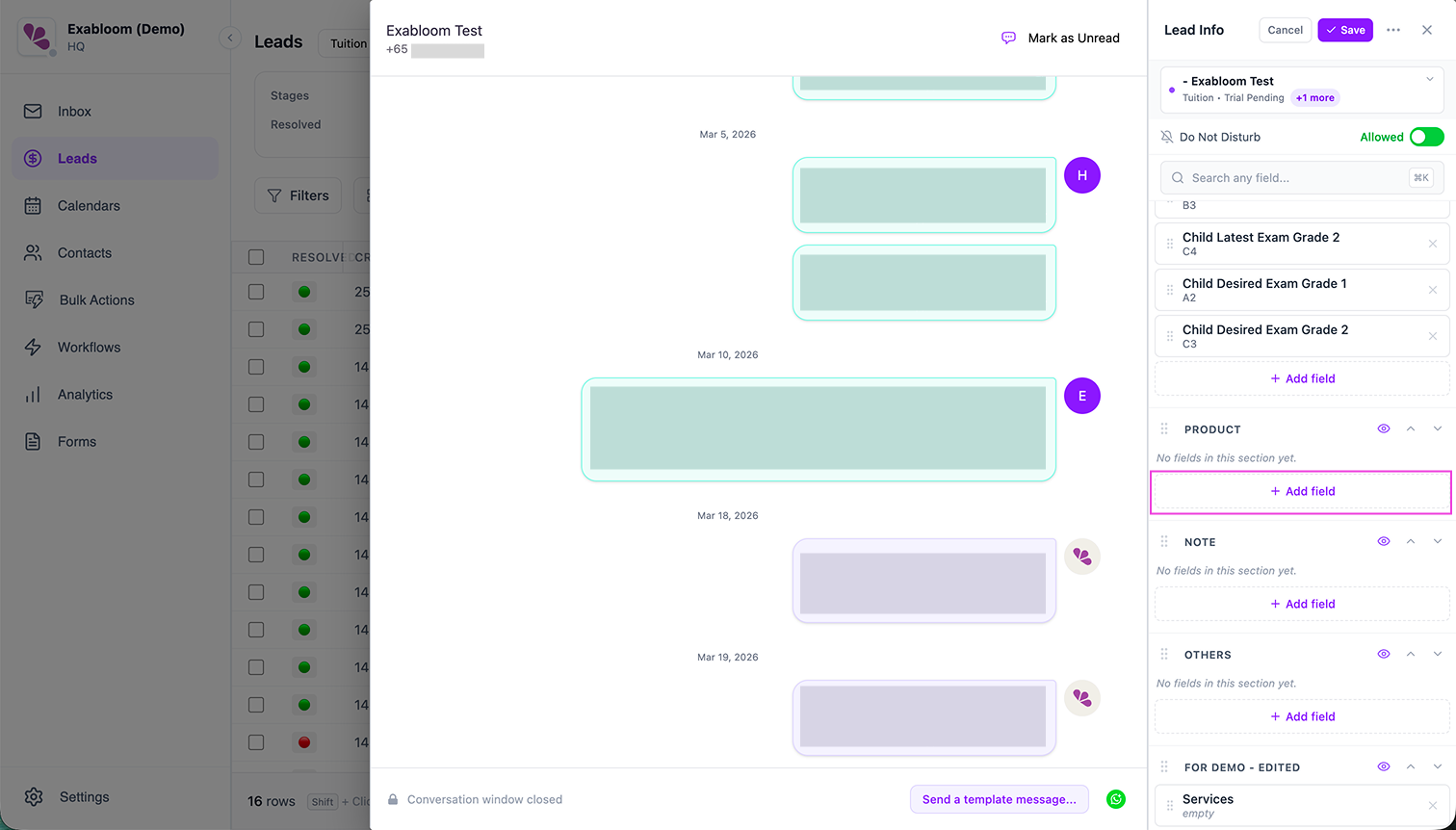
-
Pick a field. The picker groups fields under Unassigned (no section yet) and From [section] (currently in another section). Picking a field moves it — fields are never duplicated.
Remove a field
Hover a field row and click the ×. The field moves to the Unassigned list at the bottom of the panel and no longer appears on anyone's Lead Info panel until you add it back to a section.
Configure Contact Details
Contact fields are separate from lead custom fields and follow their own rules.
- Scroll to the Contact Details section.
- Required fields (First name, Last name, Phone number, Email, Tags) are labelled Required and locked — they cannot be hidden.
- Uncheck an optional field (for example, Telegram handle) to hide it organisation-wide.
- Drag a custom contact field up or down to change its order.
Contact Details visibility and order are shared with the Contact Info panel on the Contacts page.
Built-in sections
Collaborators and Notes show a Built-in badge. You can reorder or hide them, but you cannot rename them or change their fields.
Troubleshooting
The Customize button isn't showing up. Only organisation admins see it. Check your role under Settings > User Management.
A field I expected is missing from the picker. The picker lists fields that exist in Settings > Custom Fields. Create it there first.