Show or Hide Fields in a Pipeline
Control which fields are visible in your Leads table. This involves two steps: enabling field access for the pipeline, then choosing which fields to display.
Enable field access
-
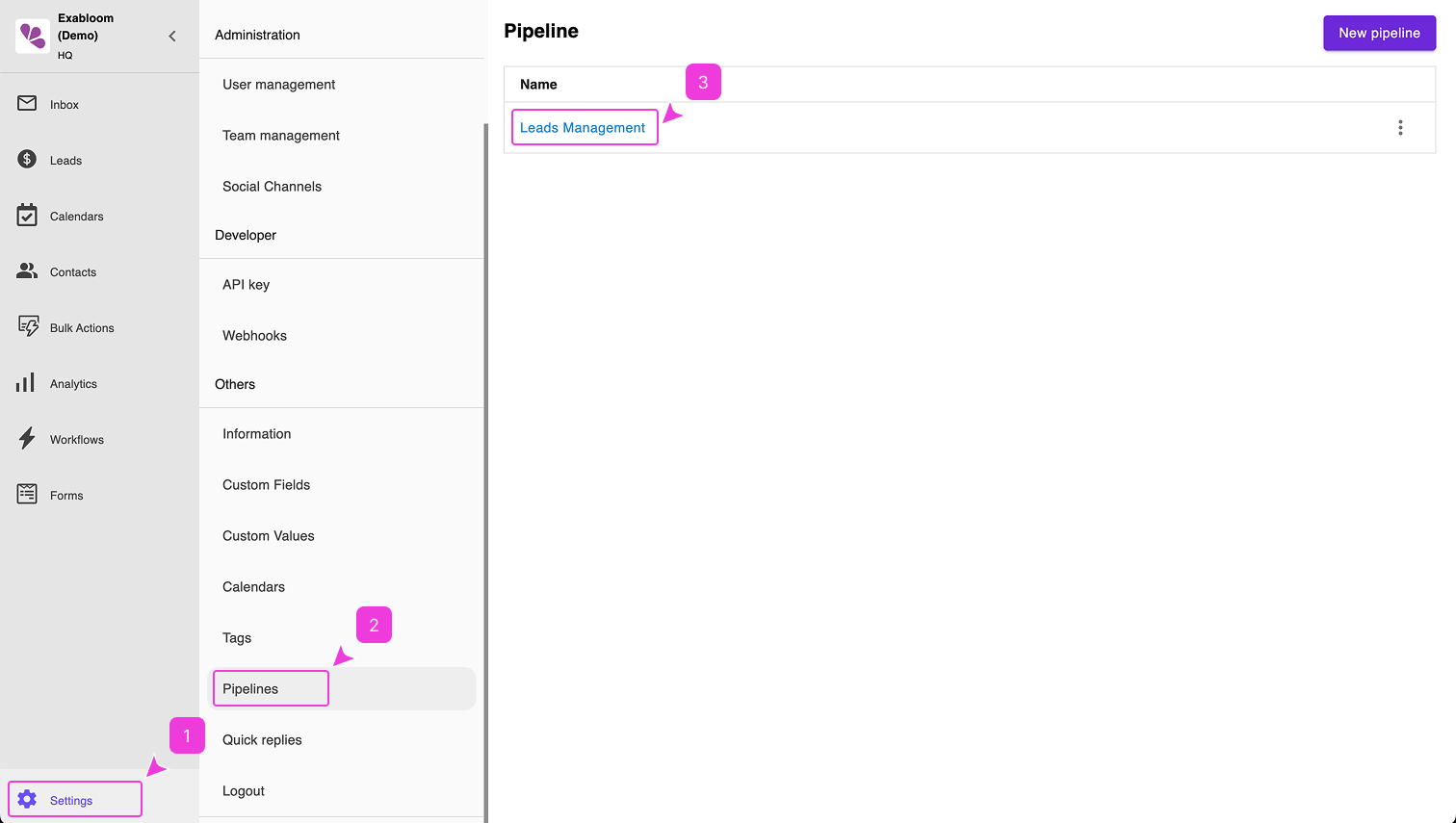
Go to Settings > Pipelines and select your pipeline.
-
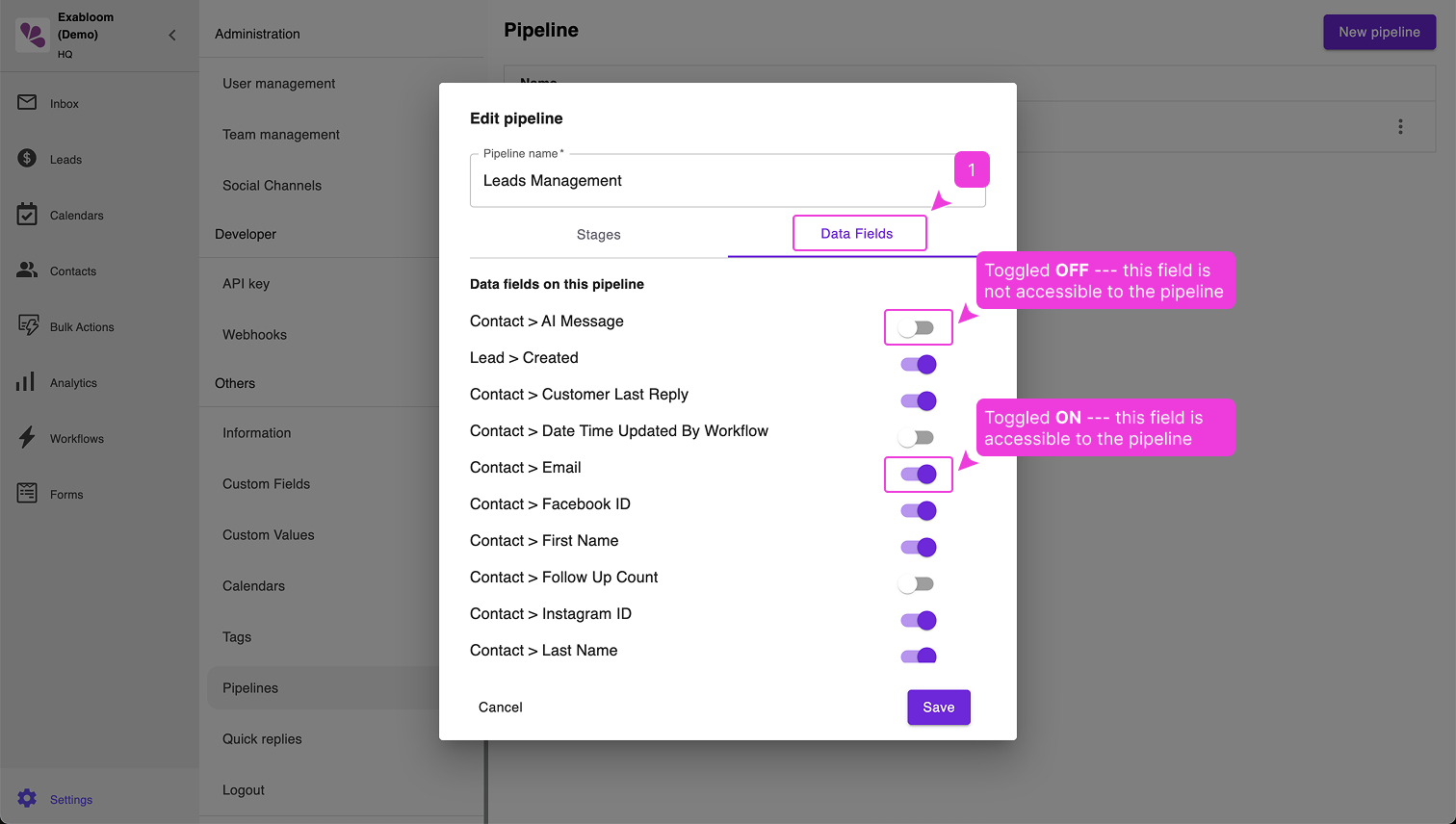
Click the Data Fields tab and toggle ON the fields you want to make available.
info
Fields toggled ON are accessible to the pipeline but may still be hidden from view until you complete the next step.
Show or hide fields in the table
-
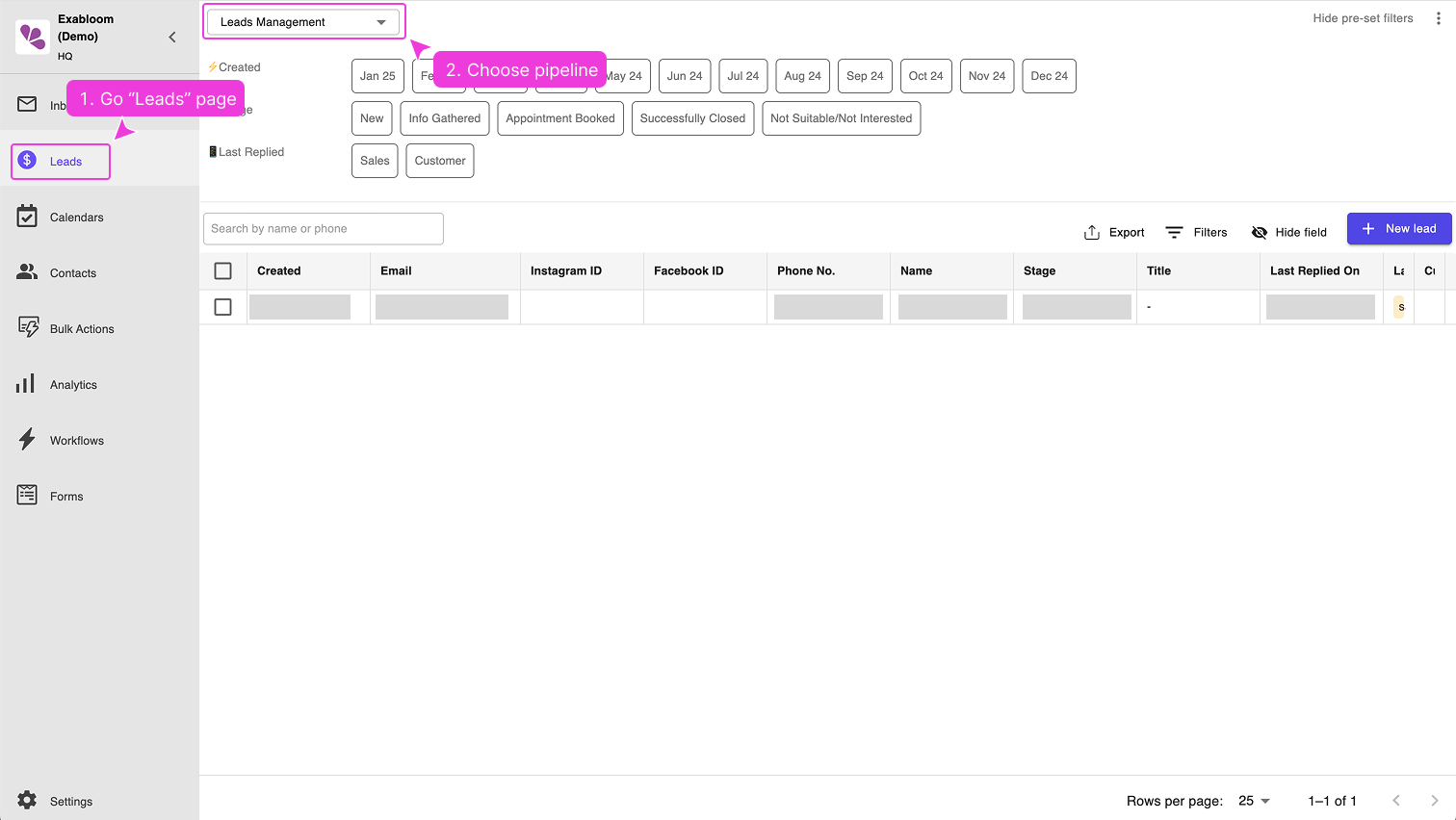
Go to Leads and select your pipeline from the dropdown.
-
Refresh the page to load any newly enabled fields.
-
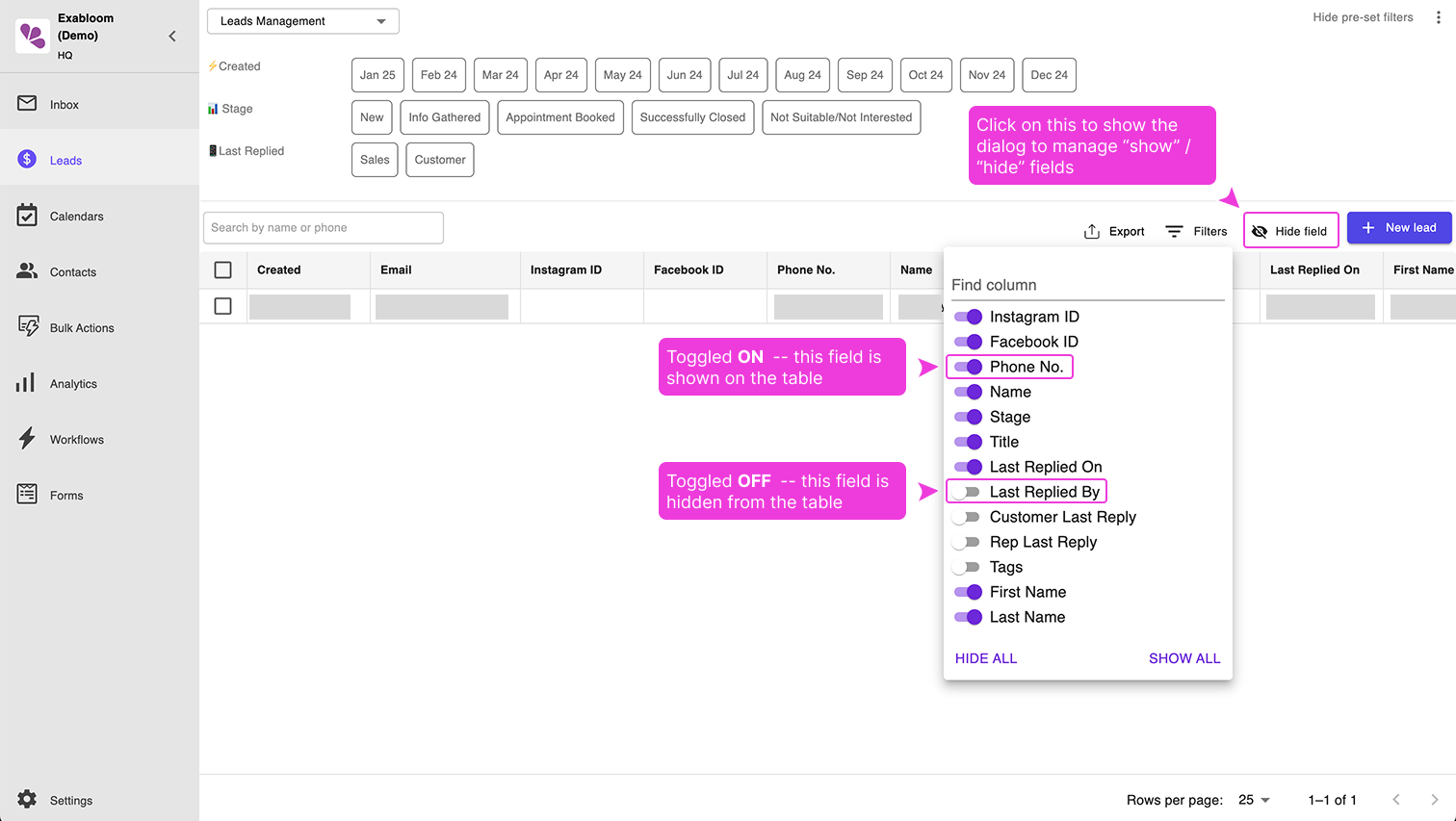
Click the Hide field button to open the field visibility manager.
-
Check or uncheck fields to show or hide them.