Pre-set Filter
How to Edit Your Leads Page Pre-Set Filters
In this guide, you’ll learn how to edit the pre-set filters on your Leads page. Whether you’re updating dates, stages, or other criteria, this step-by-step guide will walk you through the process.
Step 1: Identify Your Goal
Let say your goal is to change the pre-set filter from 2024 to 2025.

Step 2: Enter Edit Mode
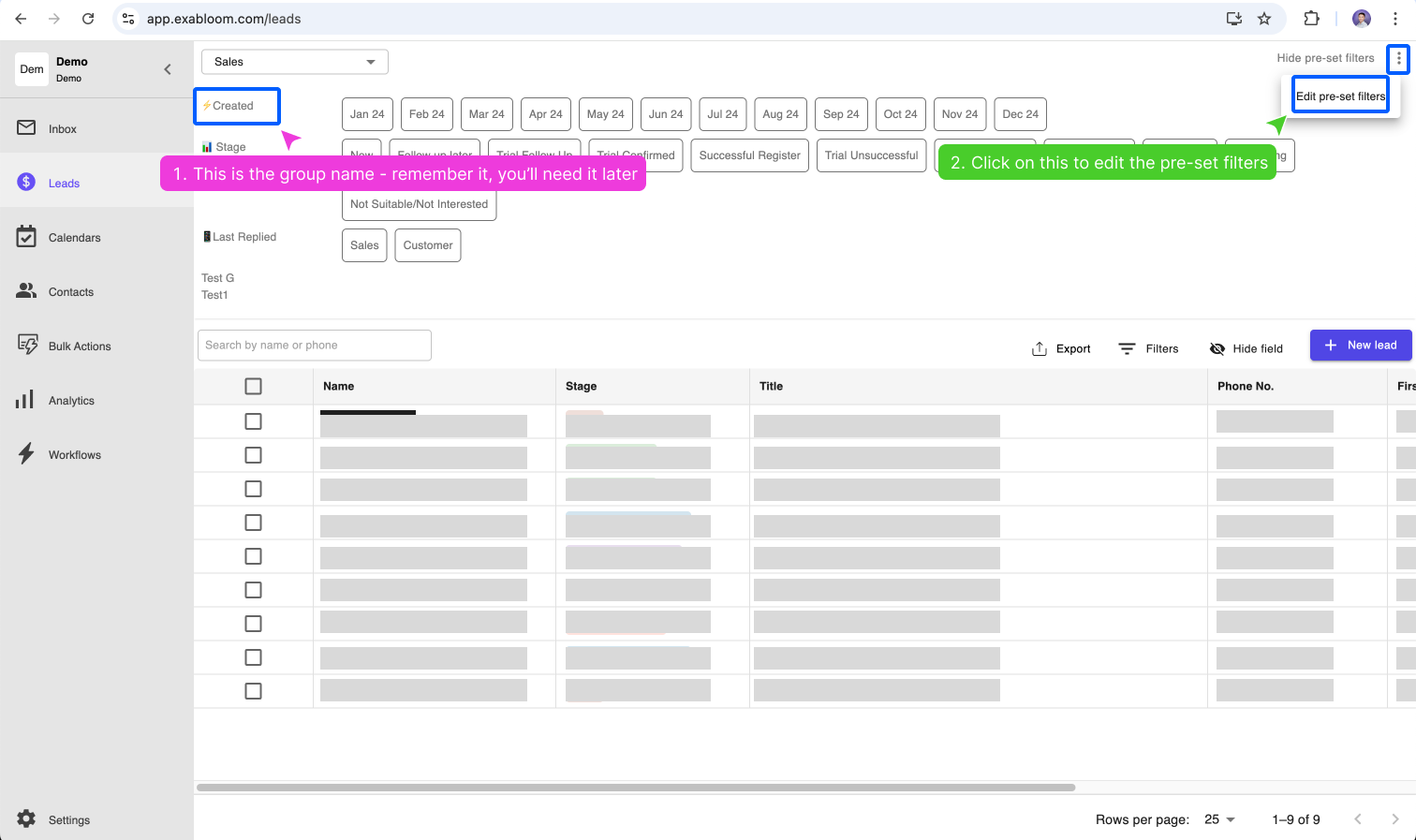
- Find the group you want to edit. For example, if you’re updating the “⚡️ Created” group, locate it on the page.
- Click the three dots (···) next to the group name.
- Select “Edit pre-set filters” to enter edit mode.

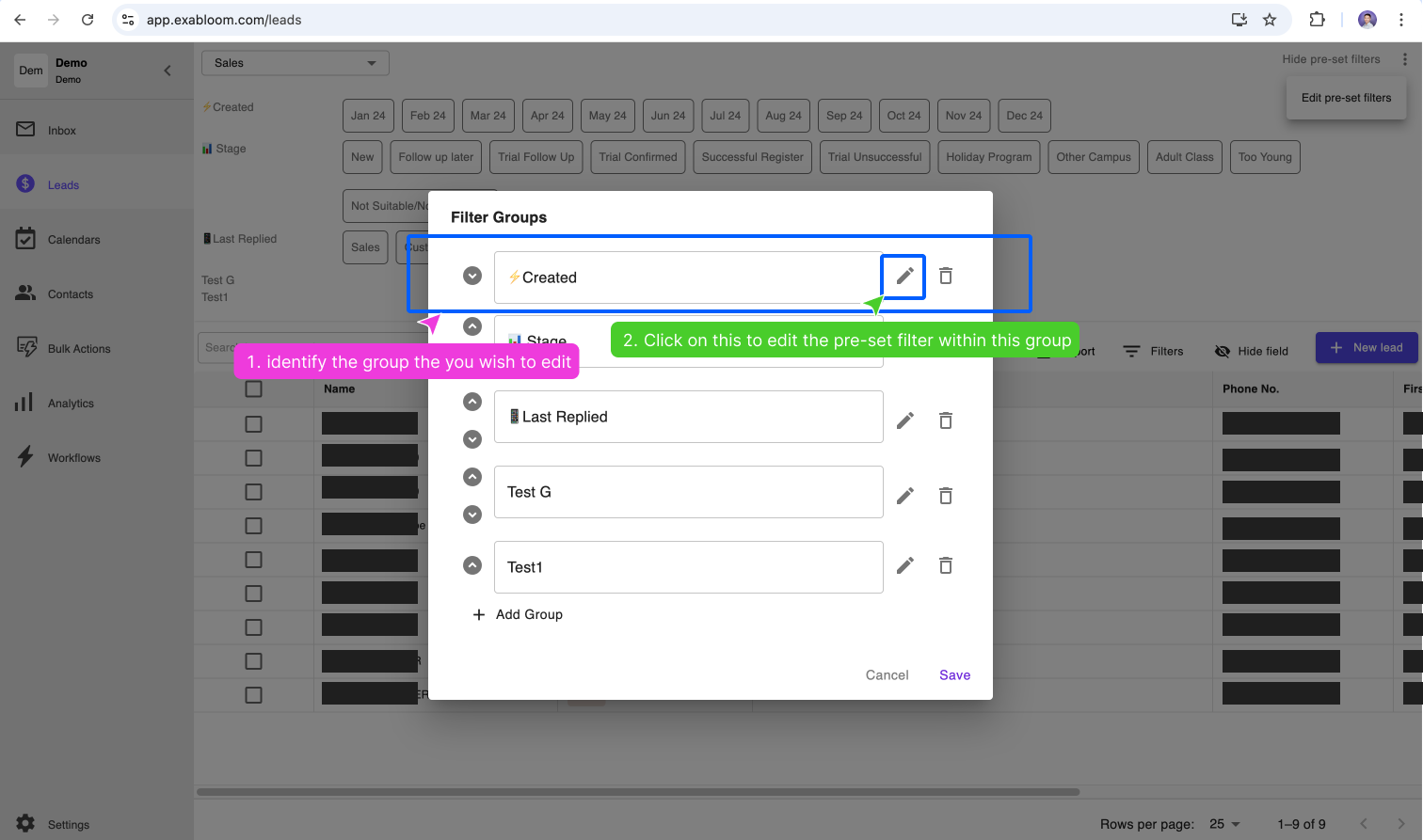
Step 3: Find the group you wish to edit
Look for the group you wish to edit. And click on the edit icon to enter edit mode to edit individual pre-set filter.

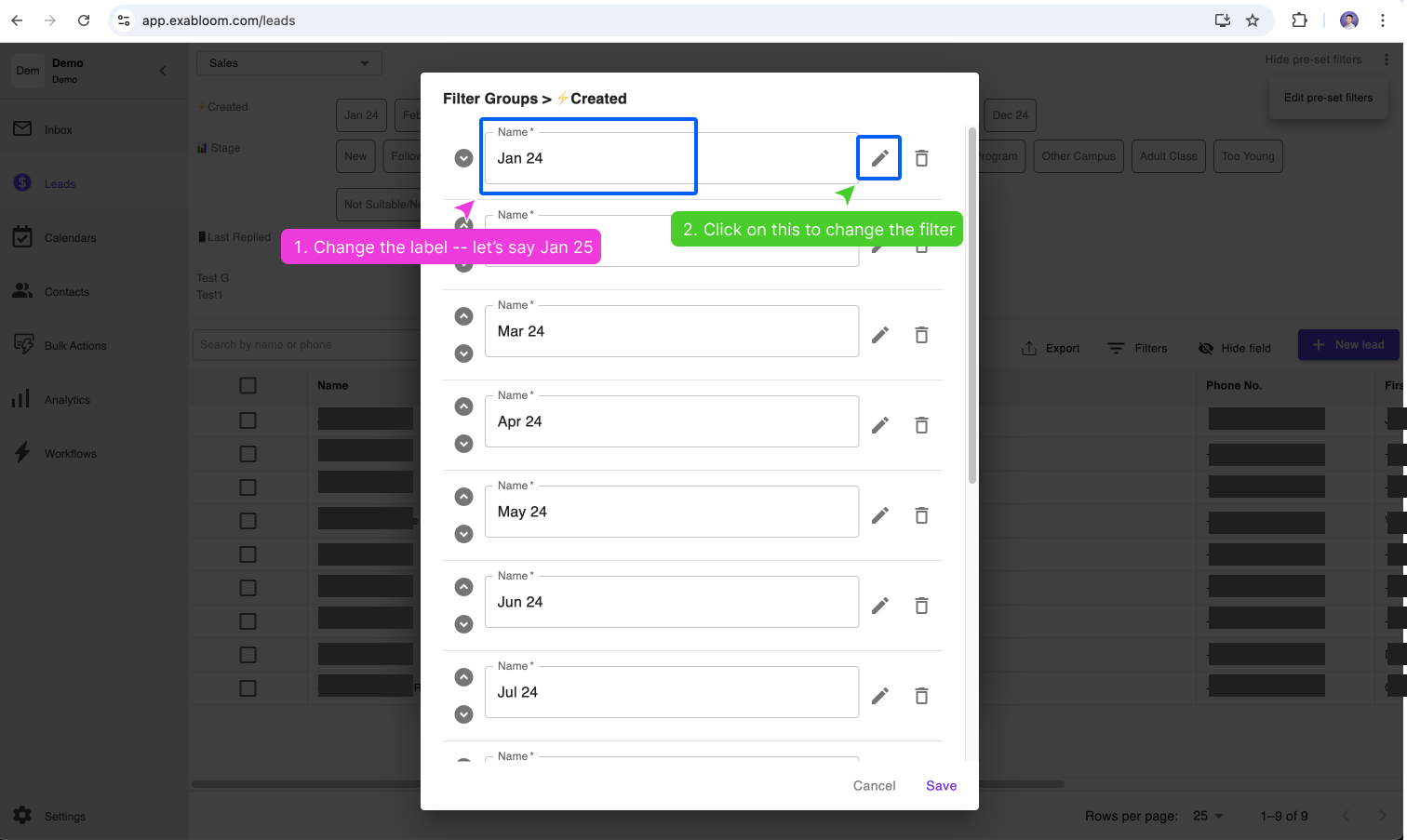
Step 4: Edit the label and enter Pre-Set Filter Edit mode
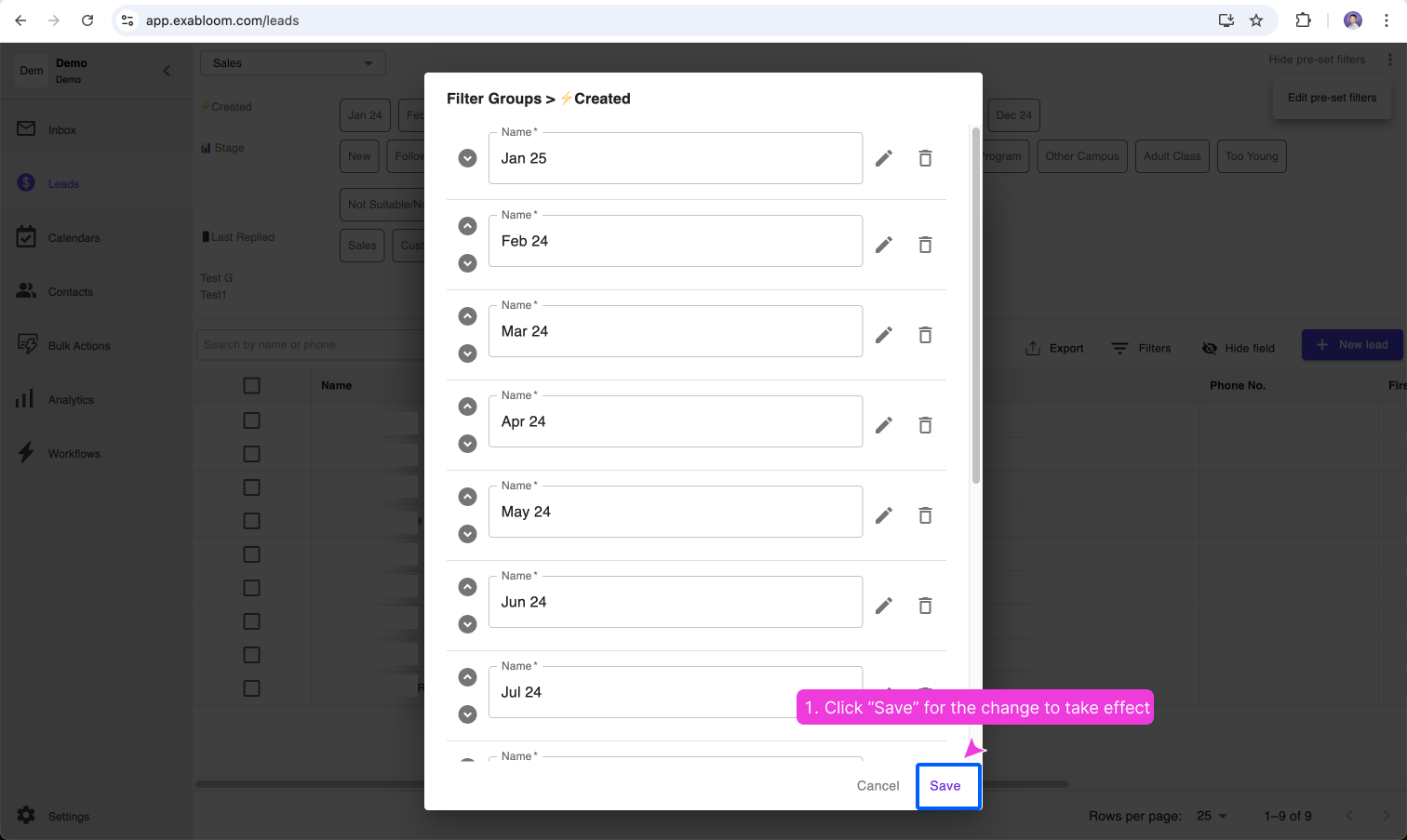
Identify the pre-set filter you wish to edit. In this example, I want to edit “Jan 24” label to “Jan 25”. Once I’ve changed the label I will click the edit icon to edit the filter for “Jan 25”.

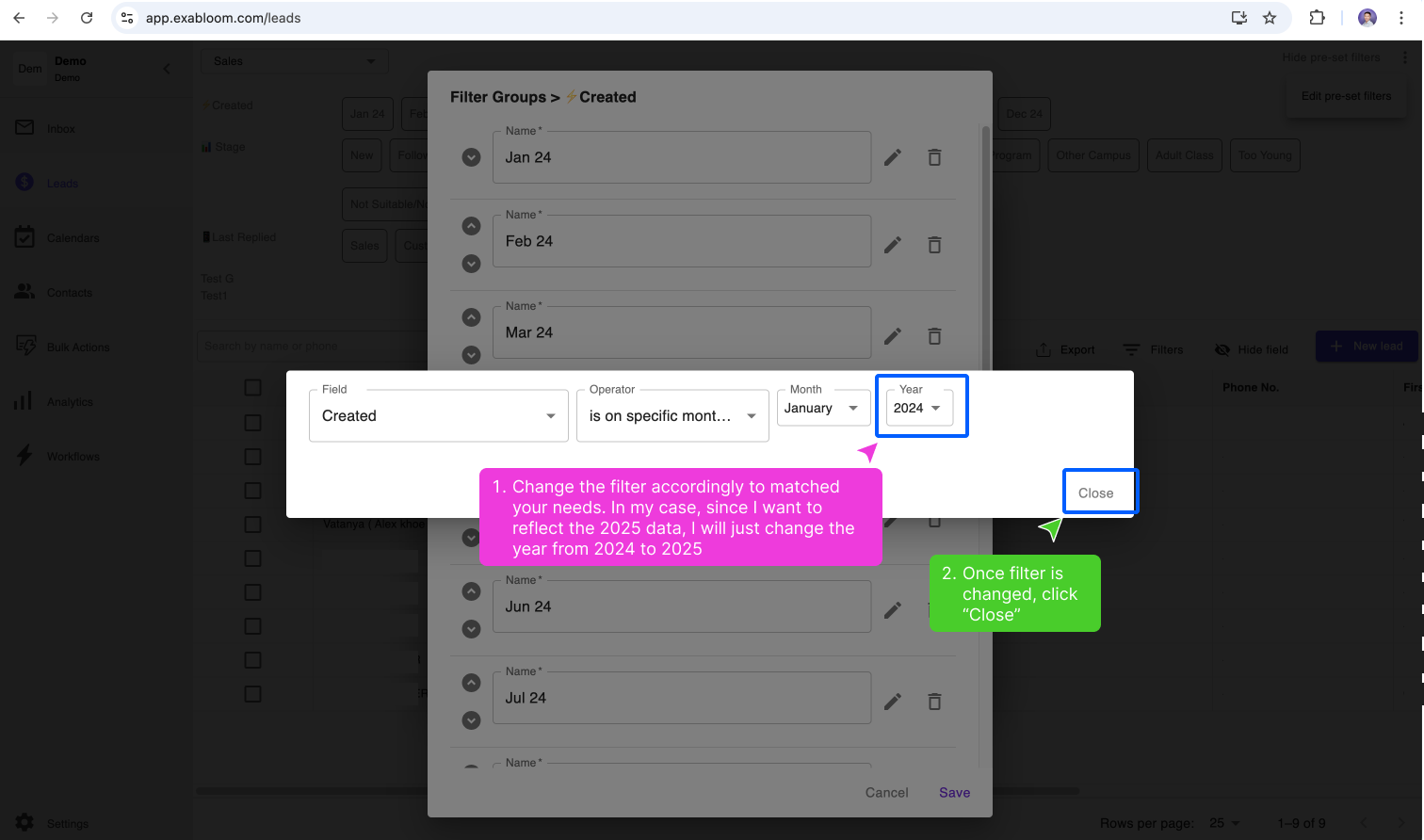
Step 5: Edit filter
Now that I am in edit filter mode, I will update the filter for “Jan 25” accordingly. In this case, I want to change the year from “2024” → “2025”. Once done, click “Close”.

Step 6: Save Your Changes
After making your updates, click “Save” to confirm the changes.

Step 7: Verify the Changes
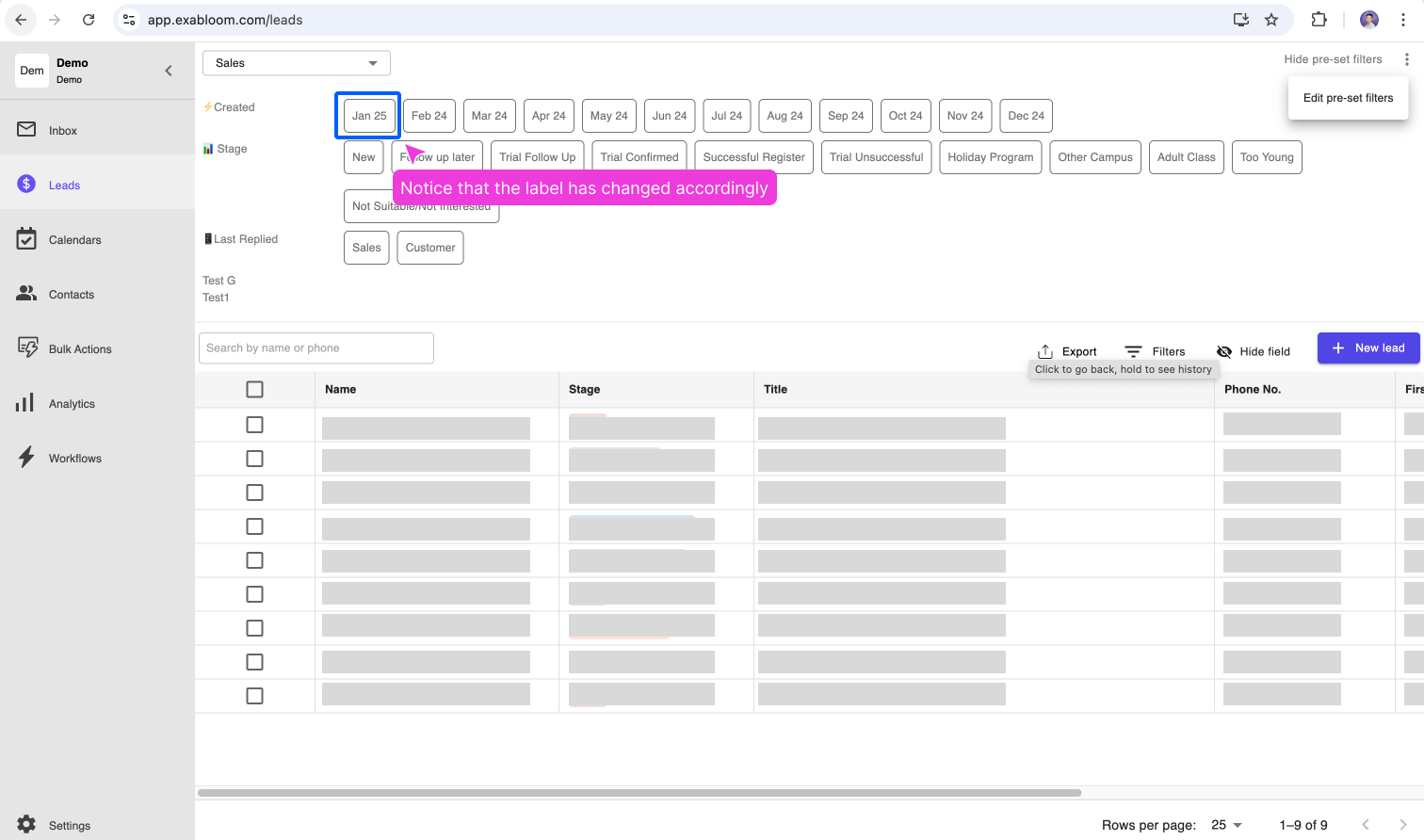
- Check that the label has updated from “Jan 24” to “Jan 25.”
- Click on “Jan 25” to confirm that the data now reflects 2025.

Congratulations! 🎉
You’ve successfully updated your pre-set filters. To edit other filters, simply repeat the same process.