Search the Lead Info Panel
Jump to any field on the Lead Info panel without scrolling the sections — including fields that are currently hidden or unassigned.
Open the field search
-
Go to Leads and open any lead.
-
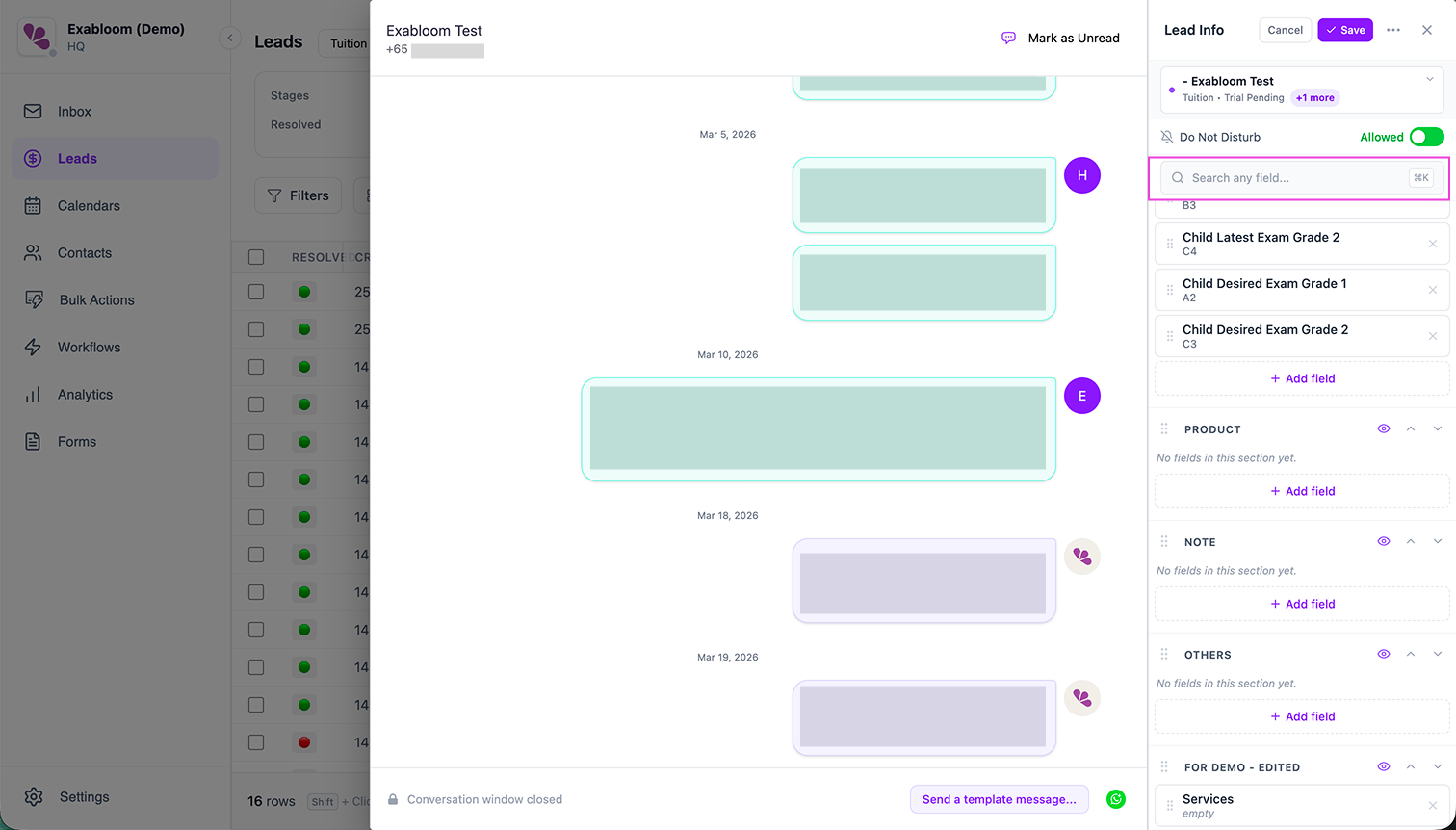
In the Lead Info panel, click the Search any field... bar at the top, or press ⌘K on macOS or Ctrl + K on Windows.
-
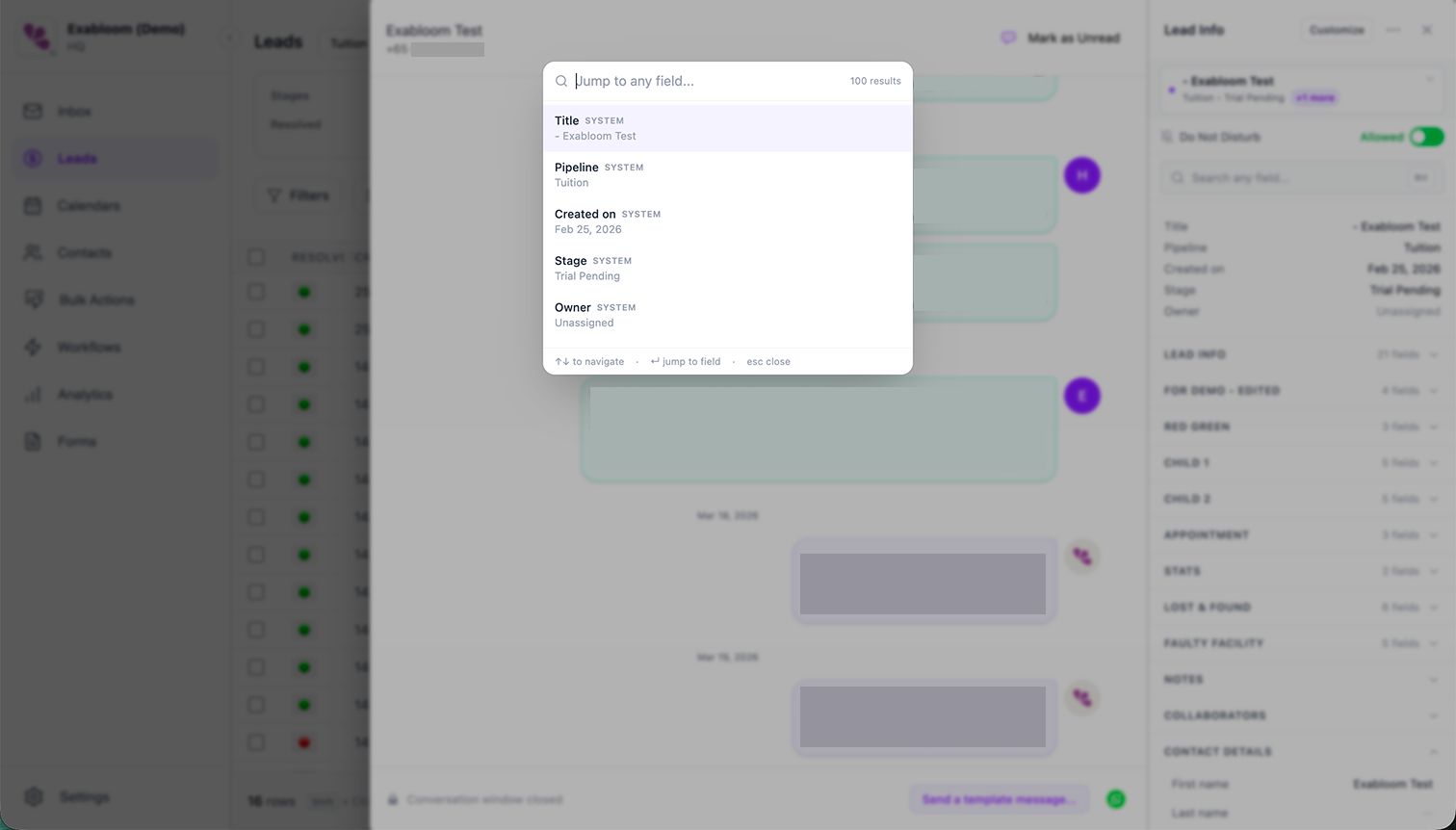
A search modal opens with a Jump to any field... input and the total result count on the right.
Find and jump to a field
-
Type any part of the field name or its section. Results filter as you type and the counter on the right updates.
-
Use the arrow keys (↑↓) to move through the list and press Enter to jump, or click a result directly.
Keyboard hints at the bottom of the modal show ↑↓ to navigate, ↵ jump to field, and esc close.
What happens when you pick a field
-
A visible field — the section expands if collapsed, the panel scrolls to the field, and the row flashes violet for about two seconds.
-
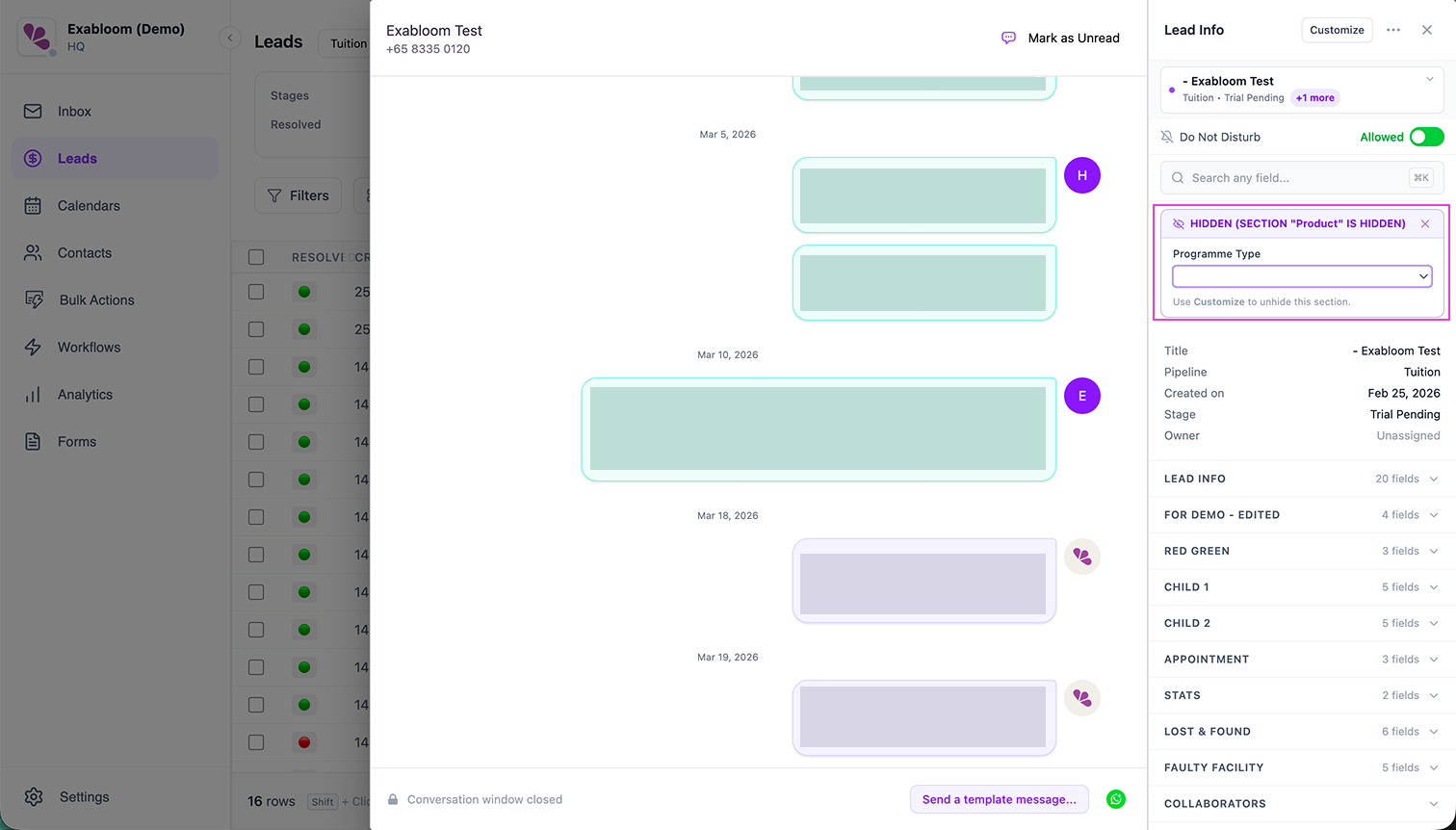
A hidden or unassigned custom field — the field opens in a floating editor at the top of the Lead Info panel so you can read and edit its value in place. Admins see a hint pointing to Customize if the field should be reassigned to a section.
Troubleshooting
⌘K or Ctrl + K does nothing. The shortcut only works when a lead is selected in the conversation. Open a lead first, then try again. If another application has claimed the shortcut system-wide, click the Search any field... bar instead.
The search bar isn't on my Lead Info panel. The bar shows only when a lead is selected. Pick a conversation that has a lead, or create a lead from the Leads page.
I searched for a field but it isn't in the results. The search covers lead system fields, lead custom fields, and contact fields. If it is missing, check that the field exists under Settings > Custom Fields.