Customize the Contact Info Panel
Reshape the Contact Info panel for your whole workspace — reorder and hide the built-in sections and control which Contact Details fields are visible.
Prerequisites
- You are an admin in your workspace. The Customize button is only visible to admins.
Changes made here apply to every user in the workspace.
Open customize mode
-
Go to Contacts and click any contact row.
-
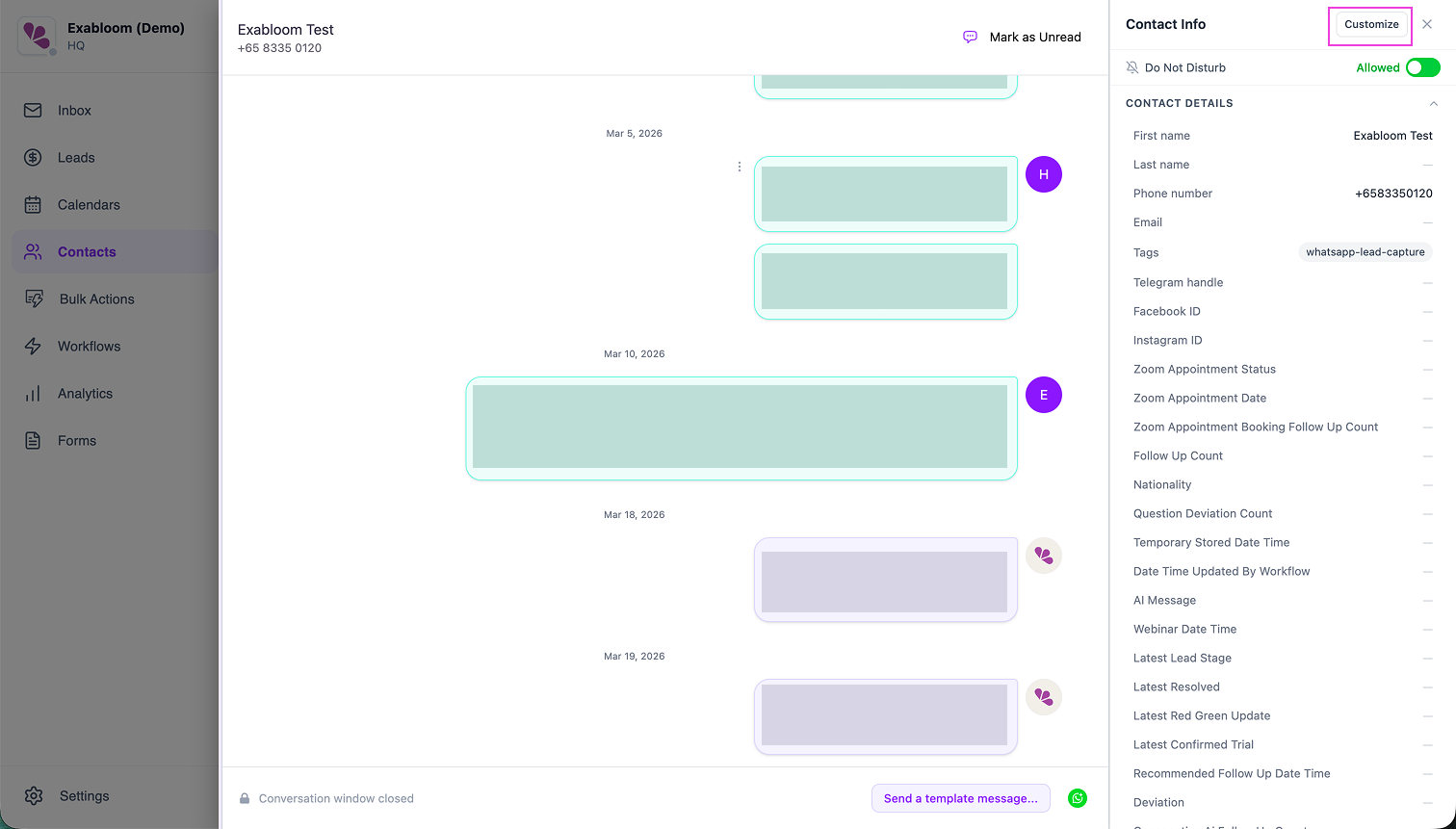
In the Contact Info panel header on the right, click Customize.
-
Confirm the banner reads Editing for your whole workspace. The header now shows Cancel and Done buttons.
Reorder Collaborators and Notes
- In customize mode, grab the Collaborators or Notes section by its drag handle.
- Drag it above or below the other and release.
- Click Done.
Both sections carry a Built-in badge — you can reorder and hide them, but you cannot rename them or change their fields.
Hide a section
- In customize mode, click the eye icon on Collaborators or Notes.
- Click Done.
The hidden section disappears from the Contact Info panel for every user. Hiding a section here does not hide it on the Lead Info panel — each panel manages its own visibility.
Configure Contact Details
- In customize mode, scroll to the Contact Details section.
- Required fields (First name, Last name, Phone number, Email, Tags) are locked and labelled Required — they cannot be hidden.
- Uncheck an optional field (for example, Facebook ID) to hide it workspace-wide.
- Drag a custom contact field up or down to change its order.
- Click Done.
Contact Details visibility and order are shared with the Lead Info panel on the Leads page. Hiding Facebook ID here also hides it there, and the other way around.
Linked Leads
Linked Leads is always visible at the bottom of the Contact Info panel and cannot be reordered or hidden. It lists every lead associated with the contact and is read-only — open the lead from the Leads page to edit it.
Troubleshooting
The Customize button isn't showing up. Only workspace admins see it. Check your role under Settings > User Management.
A Contact Details change I made here isn't reflected on the Lead Info panel. Refresh the Leads page. Contact Details visibility and order are workspace-wide — the update applies to both panels.