Send Different Responses Based On Keywords In Messages
What Will You Learn?
This guide will show you how to automatically send different WhatsApp responses depending on what your contacts say in their messages. This is perfect when you're running multiple campaigns and need to provide specific information to different customers.
Why This Matters
Imagine you're promoting both a webinar and a holiday program. When people message you about either, you want to send them the right information automatically without having to manually respond to each message.
Step-by-Step Guide
Step 1: Understand Your Campaigns
Let's say you have two different campaigns:
Campaign A: Webinar Registration When visitors click your WhatsApp widget from this campaign, they'll send:
Hi ABC Centre - I would like to sign up for your Webinar - Brain Mastery 2024
Campaign B: Holiday Program When visitors click your WhatsApp widget from this campaign, they'll send:
Hi ABC Centre - I'm interested in your Holiday Program - Brain Works. Can you send me more info about it?
Step 2: Decide What Responses to Send
For each campaign, you'll want to send a different automatic response:
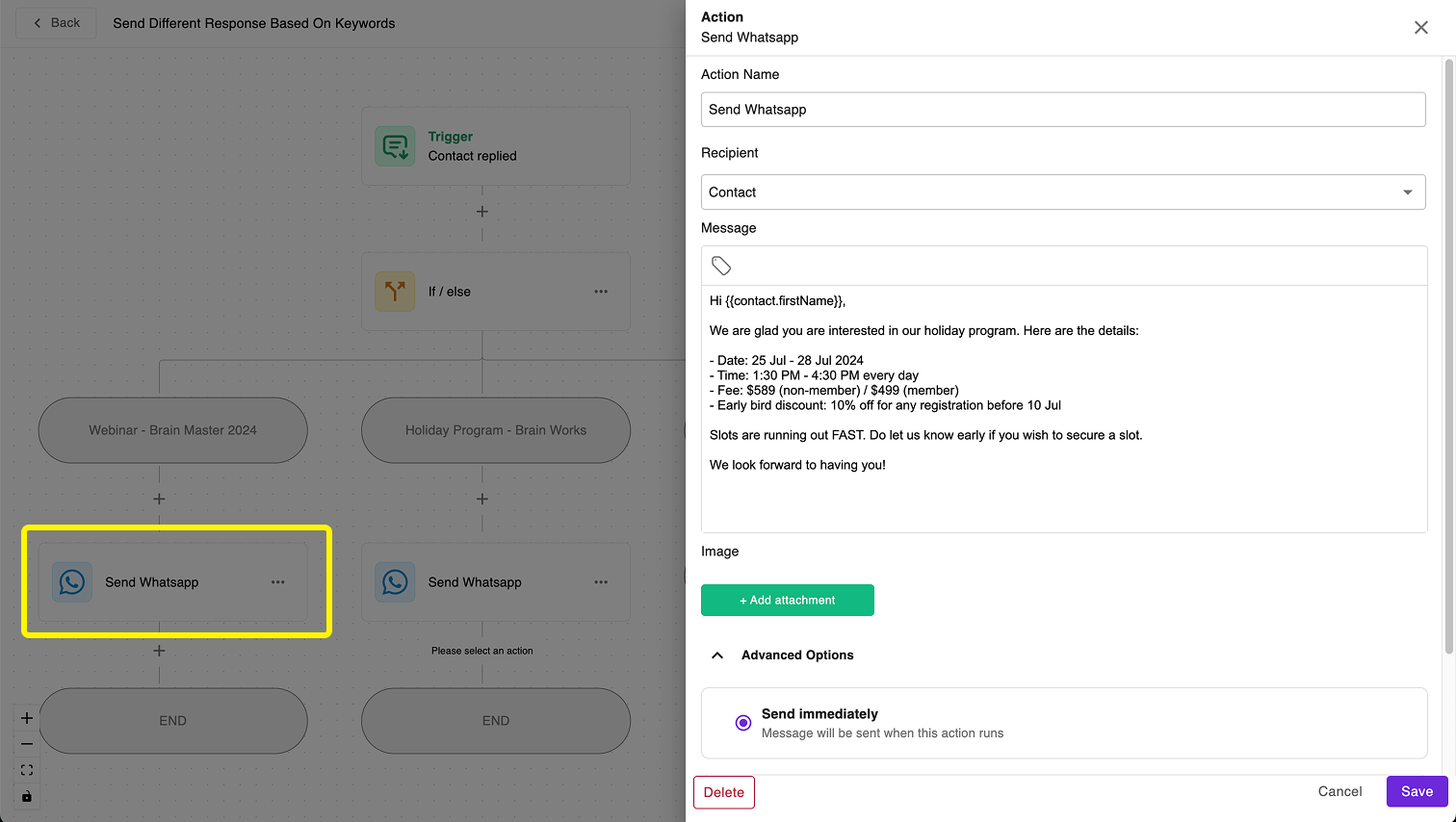
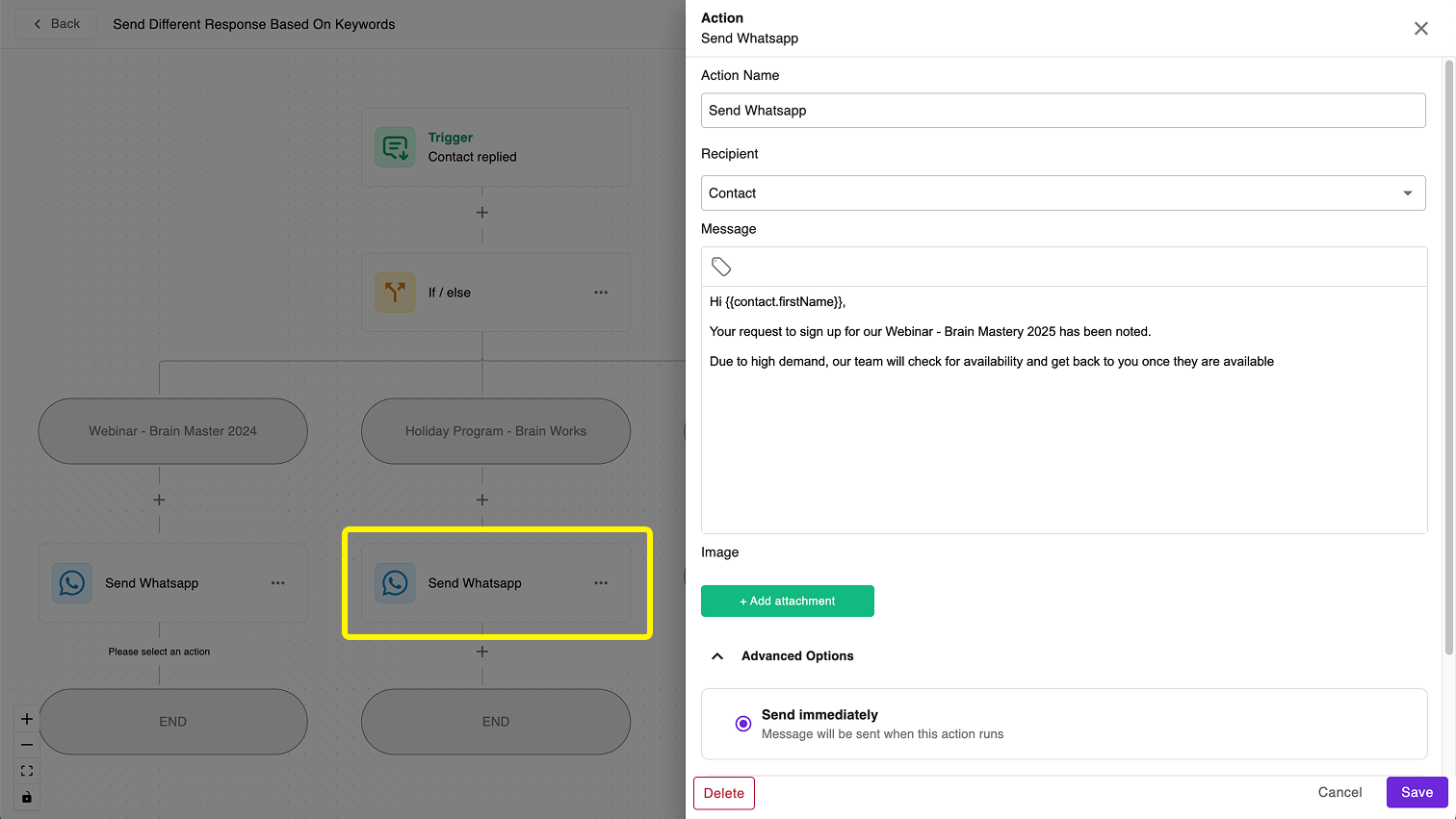
For Webinar Inquiries:
Hi {{contact.firstName}},
Your request to sign up for our Webinar - Brain Mastery 2025 has been noted.
Due to high demand, our team will check for availability and get back to you once they are available
For Holiday Program Inquiries:
Hi {{contact.firstName}},
We are glad you are interested in our holiday program. Here are the details:
- Date: 25 Jul - 28 Jul 2024
- Time: 1:30 PM - 4:30 PM every day
- Fee: $589 (non-member) / $499 (member)
- Early bird discount: 10% off for any registration before 10 Jul
Slots are running out FAST. Do let us know early if you wish to secure a slot.
We look forward to having you!
Note: When you see
{{contact.firstName}}in a message, it will be replaced with the actual first name of your contact when the workflow runs.
Step 3: Choose Your "Detector" Words
To tell which campaign a message is from, we need to look for specific phrases:
- For the Webinar:
sign up for your Webinar - Brain Mastery 2024 - For the Holiday Program:
interested in your Holiday Program - Brain Works
Tip: Choose unique phrases that won't appear in regular conversations. For example, "interested" alone is too common, but "interested in your Holiday Program - Brain Works" is specific enough.
Step 4: Build Your Workflow
Now let's set up the automatic response system:
-
Start your workflow
- Create a new workflow or open an existing one
- Select "Contact replied" as your starting point (this watches for incoming messages)
-
Add a decision step
-
Add an "IF/ELSE" step after the "Contact replied" step
-
This step will check the message content and decide which response to send
Understanding IF/ELSE: Think of an IF/ELSE step like a fork in the road. It creates different paths (branches) that your workflow can follow based on certain conditions. Only one branch will be followed for each message.
-
-
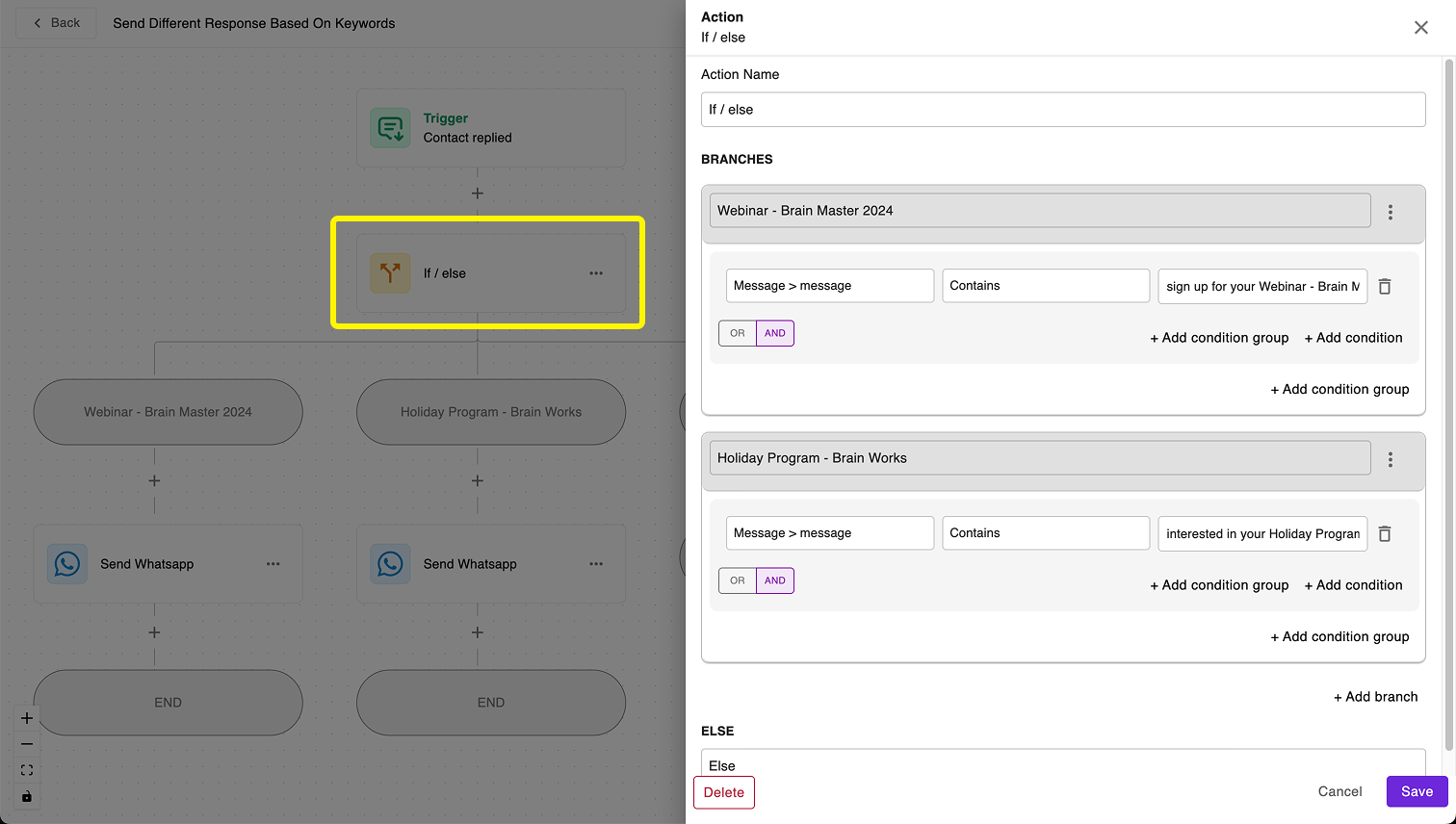
Set up your first branch (Webinar)
-
This will be the left-most branch in your IF/ELSE step
-
Name this branch: "Webinar - Brain Master 2024"
-
Set the condition as:
Message > messagecontainssign up for your Webinar - Brain Mastery 2024
Important: The system always checks the left-most branch first. If a message meets the conditions of multiple branches, only the first matching branch (from left to right) will be followed.
-
-
Set up your second branch (Holiday Program)
- This will be the branch to the right of your Webinar branch
- Name this branch: "Holiday Program - Brain Works"
- Set the condition as:
Message > messagecontainsinterested in your Holiday Program - Brain Works

-
Add response for Webinar inquiries
- Under the Webinar branch, add a "Send WhatsApp" step
- Paste the Webinar response message (shown in Step 2)

-
Add response for Holiday Program inquiries
- Under the Holiday Program branch, add a "Send WhatsApp" step
- Paste the Holiday Program response message (shown in Step 2)

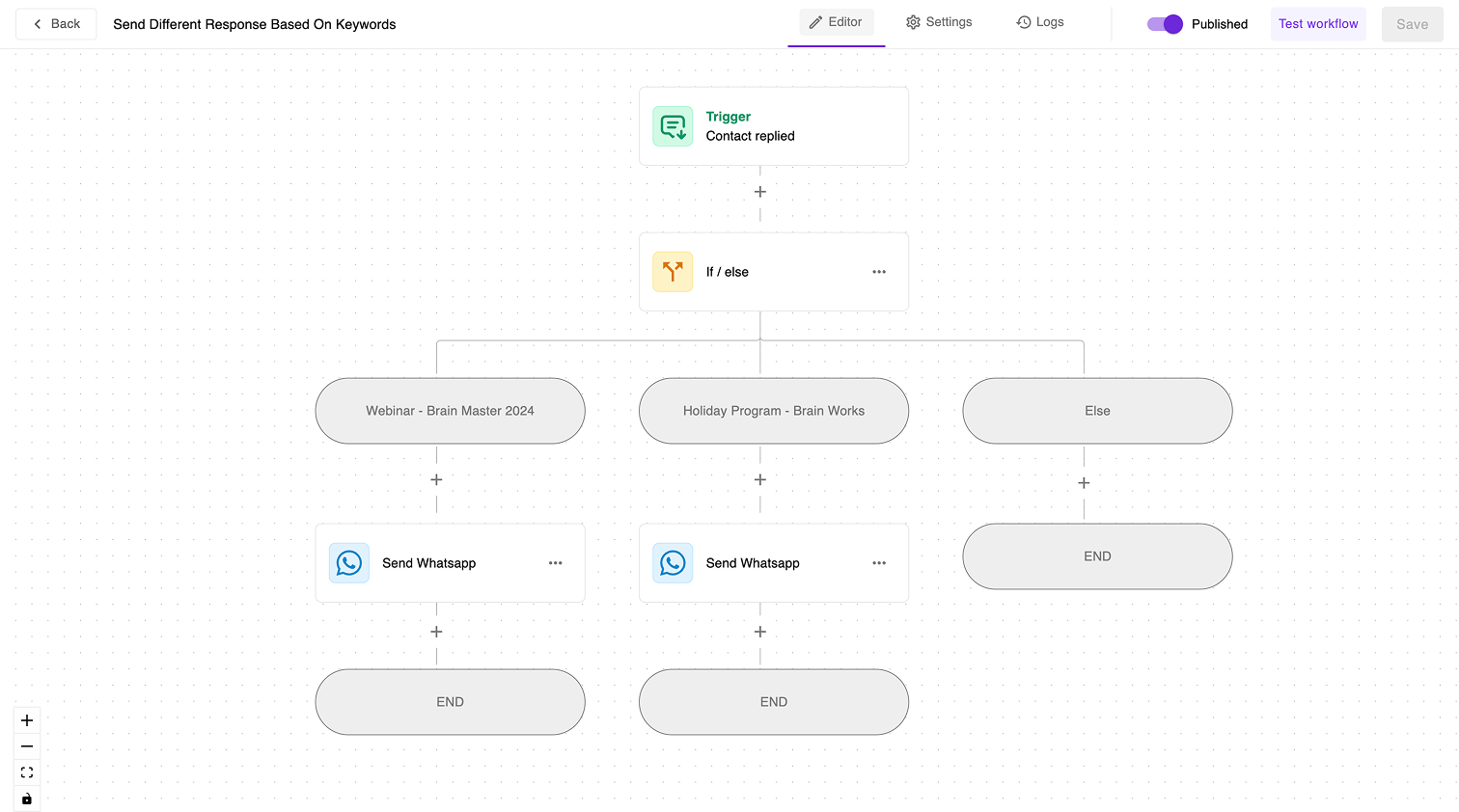
Your completed workflow will look something like this:

Step 5: Configure Workflow Settings
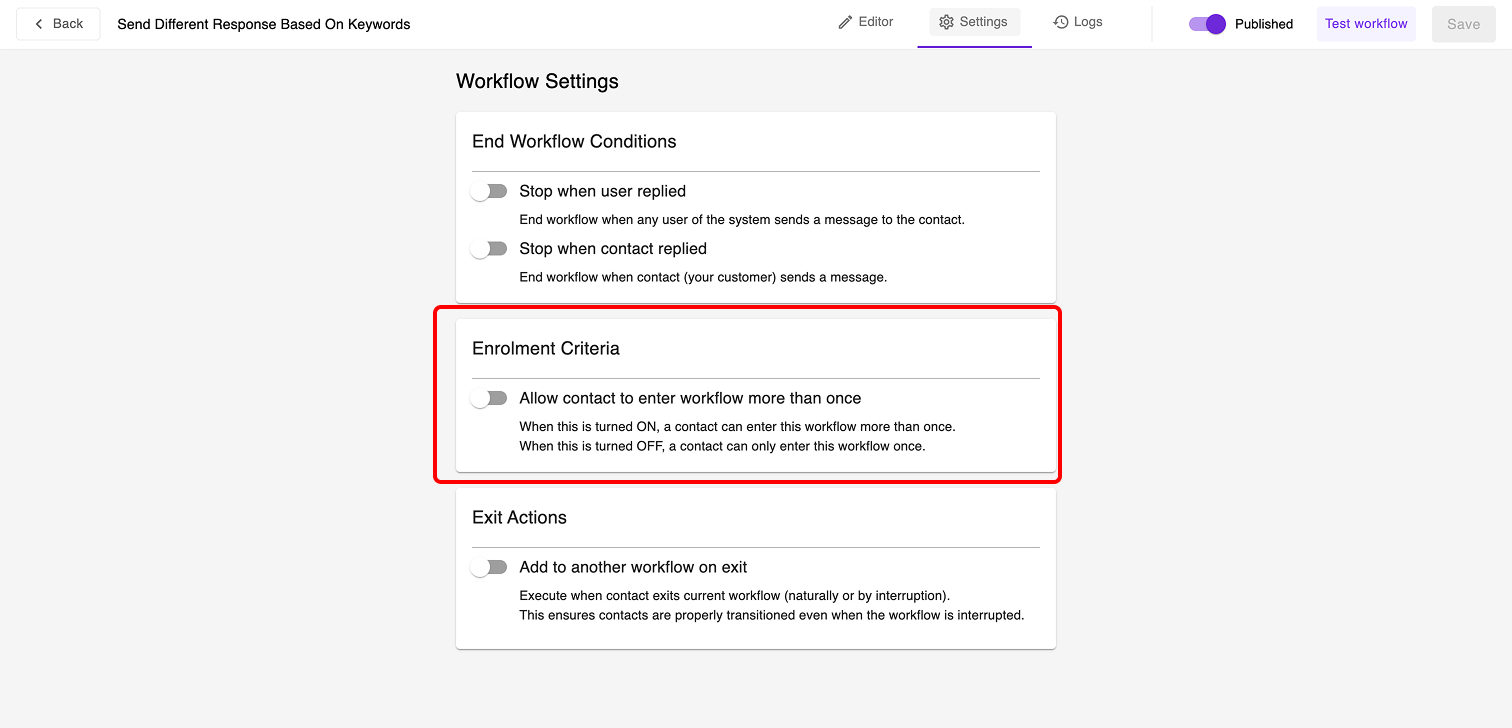
By default, a contact can only enter a workflow once. For a message-based workflow like this, you'll want to change this setting:
- Click on Settings in your workflow editor
- Find the option "Allow contact to enter workflow more than once"
- Toggle this setting to ON
- Save your changes

This ensures your contacts can trigger the workflow multiple times with different messages.
Step 6: Test Your Workflow
Before launching your campaign, it's important to test if your workflow responds correctly:
- Publish your workflow by clicking the "Publish" button
- Send a test WhatsApp message that contains the exact Campaign A template:
Hi ABC Centre - I would like to sign up for your Webinar - Brain Mastery 2024 - Check if you receive the Webinar response
- Then send another test message with the Campaign B template:
Hi ABC Centre - I'm interested in your Holiday Program - Brain Works. Can you send me more info about it? - Verify that you receive the Holiday Program response
How It Works
Think of your workflow like a mailroom sorter:
- A message arrives
- The system reads the message looking for specific phrases
- If it finds "sign up for your Webinar..." it sends the webinar response
- If it finds "interested in your Holiday Program..." it sends the program details
- This happens automatically, every time someone messages you!
Troubleshooting
Problem: The system isn't sending any automatic responses. Solution: Double-check that the phrases you're looking for match exactly what's in the incoming messages, including capitalization.
Problem: The wrong response is being sent. Solution: Your detector phrases might be too similar or too generic. Make them more unique.
Problem: Only one response is ever sent, even when a message contains both phrases. Solution: Remember that only one branch will be followed. The system checks branches from left to right, so place your most important or common condition in the left-most branch.
Problem: The workflow isn't triggering for a contact who has already received a response. Solution: Go to Workflow Settings and ensure "Allow contact to enter workflow more than once" is toggled ON.
Next Steps
Once you've set up this basic workflow, you can:
- Add more campaigns with different responses
- Separate response message into multiple messages
- Include image / video in response message
- Create lead record and attribute it to the specific campaign (e.g. having a dedicated custom field for lead record such as "Entry Point")
Remember, the key to success is choosing specific, unique phrases that clearly identify which campaign a message is from!