Out of Operating Hours - Auto Message
In this guide, you’ll learn how to set up an Away Message that is automatically sent to contacts when they message you outside of your operating hours. This workflow ensures that your contacts are informed about your availability while preventing repetitive messages from being sent.
Why Use This Workflow?
If your business operates during specific hours, you may want to inform contacts who message you outside of those hours about your availability. For example:
- Improve customer experience: Let contacts know when they can expect a response.
- Avoid missed opportunities: Automatically acknowledge messages even when you’re unavailable.
- Save time: Reduce manual effort by automating away messages.
This workflow is perfect for businesses that want to maintain professionalism and responsiveness, even outside of working hours.
What You’ll Need
To set up this workflow, you’ll use the following:
- Trigger:
Contact Replied(activates when a contact sends a message). - Actions:
IF/ELSEto check if the message is received outside operating hours.Send WhatsAppto send the away message.Update Contactto store the timestamp of the last away message sent.
- Custom Contact Field: A Date/Time field to track when the contact last received the away message.
- The field name doesn’t have to be specific—you can name it whatever you like (e.g.,
Last Notify Date,Away Message Timestamp, etc.), as long as it’s a Date/Time field.
- The field name doesn’t have to be specific—you can name it whatever you like (e.g.,
Before You Start: Check or Create the Custom Field
Before setting up the workflow, ensure that you have a Date/Time custom field in your Exabloom account. This field will store the date and time when the contact last received the away message.
How to Check or Create the Custom Field:
- Go to Settings > Custom Fields.
- Look for rows where the Object is set to
"Contact". Check if you already have a Date/Time field that you can use for this purpose.- If you do, note the field name—you’ll use it in the workflow setup.
- If you don’t, create a new custom field:
- Click Add Field.
- Name the field (e.g.,
Last Notify Dateor any name you prefer). - Set the Object to
"Contact". - Choose a Group (e.g.,
"Contact Info"or any group of your choice). - Set the Field Type to Date/Time.
- Save the field by clicking Create.
Once the custom field is ready, you can proceed with setting up the workflow.
Step-by-Step Setup
Step 1: Set Up the Trigger
- Go to the Workflow Builder in your Exabloom account.
- Click Create Workflow and name it (e.g., "Out of Hours Auto Message").
- Select the Contact Replied trigger.
Step 2: Add Filters to the Trigger
To ensure the workflow only runs when necessary, add filters to the Contact Replied trigger. These filters will check:
-
If the contact has never received an away message before:
- Add a filter to check if your Date/Time custom field (e.g.,
Last Notify Date) is empty. - Why this is important: If the field is empty, it means the contact has never received an away message, so it’s safe to send one.
- Add a filter to check if your Date/Time custom field (e.g.,
-
If it’s been at least 24 hours since the last away message:
- Add a filter to compare the time difference between
Nowand your Date/Time custom field. - Set the condition to:
[Now] - [Your Date/Time Field] > 24 hours. - Why this is important: This ensures that the same contact doesn’t receive multiple away messages within a 24-hour window, which could feel spammy or annoying.
- Add a filter to compare the time difference between
See How Filters Work in Real Scenarios (Click to Expand)
Imagine the following scenarios:
-
Scenario 1: A new contact messages you for the first time.
- The Date/Time field is empty because they’ve never received an away message before.
- The workflow triggers and sends the away message.
- The Date/Time field is updated with the current timestamp (
{{now}}).
-
Scenario 2: The same contact messages you again 15 minutes later.
- The Date/Time field is not empty, and the time difference between
Nowand the stored timestamp is less than 24 hours. - The workflow does not trigger, and no away message is sent.
- The Date/Time field is not empty, and the time difference between
-
Scenario 3: The same contact messages you again 25 hours later.
- The Date/Time field is not empty, but the time difference between
Nowand the stored timestamp is greater than 24 hours. - The workflow triggers and sends the away message.
- The Date/Time field is updated with the new timestamp (
{{now}}).
- The Date/Time field is not empty, but the time difference between
By adding these filters, you ensure that:
- New contacts receive the away message immediately.
- Existing contacts only receive the away message once every 24 hours.
- Your workflow is efficient and avoids spamming contacts.
Step 3: Add the IF/ELSE Action
The IF/ELSE action allows you to check if a message is received outside your operating hours and take appropriate actions based on the result. Here’s how to set it up:
-
Add the IF/ELSE Action:
- In your workflow, add IF/ELSE action.
- By default, the IF/ELSE action will include one branch named "Branch #1".
-
Rename the Default Branch:
- Click on the branch name "Branch #1" and rename it to "Outside Operating Hours" (or any name that makes sense to you).
-
Set the Condition:
- In the "Outside Operating Hours" branch, set the condition to check if the
Message > Created At(this is the time the system receive the message sent by the contact) is outside your operating hours (e.g., 9 AM to 6 PM). - Example condition:
Message > Created Atis before09:00 AMorMessage > Created Atis before06:00 PM
- In the "Outside Operating Hours" branch, set the condition to check if the
-
Proceed If the Condition Is True:
- If the condition evaluates to
true(i.e., the message is received outside operating hours), the workflow will proceed to the next action (e.g., sending the away message).
- If the condition evaluates to
Step 4: Send the Away Message
- Add a Send WhatsApp action under the IF branch.
- Customize the message to inform the contact of your operating hours. For example:
Hi {{contact.firstName}}, thank you for reaching out! Our operating hours are from 9 AM to 6 PM, Monday to Friday. We’ll get back to you as soon as possible. 😊
Step 5: Update the Contact’s Last Notify Date
To prevent the same contact from receiving multiple away messages within 24 hours:
- Add an Update Contact action after the Send WhatsApp action.
- Select your Date/Time custom field (e.g.,
Last Notify Date). - Set the value to
{{now}}to store the current timestamp.
This ensures the workflow won’t trigger again for the same contact within 24 hours.
How It Works
- When a contact sends a message, the Contact Replied trigger activates.
- The workflow checks:
- If the message is received outside operating hours.
- If the contact hasn’t received an away message in the last 24 hours.
- If both conditions are met, the workflow sends an away message and updates the contact’s Date/Time custom field.
Testing Your Workflow
Before using the workflow with real contacts, it’s important to test it thoroughly to ensure it works as expected. Here’s how to test your Out of Hours Auto Message workflow:
Before You Test
-
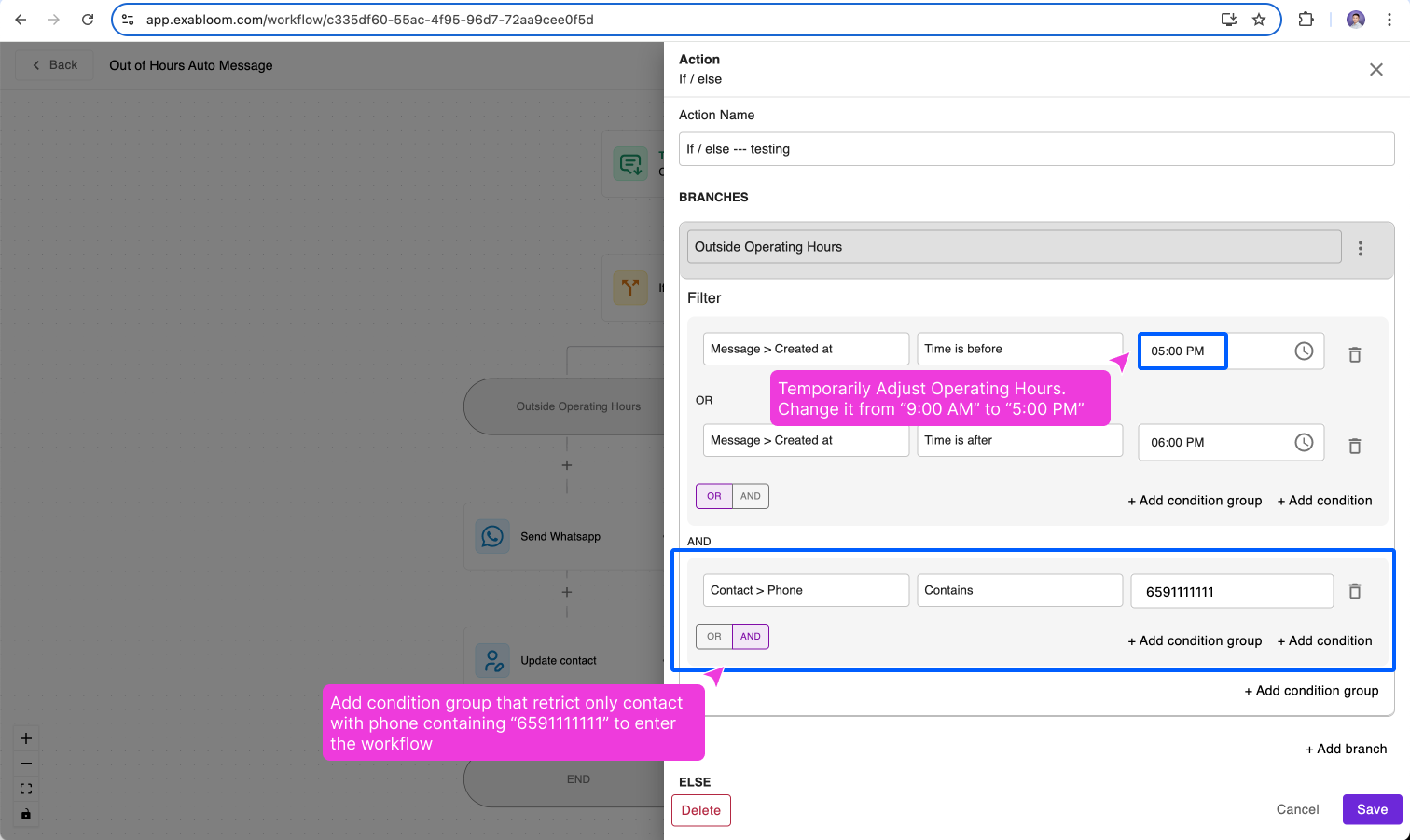
Temporarily Adjust Operating Hours:
- Let’s say the current time is 12:43 PM, and your operating hours are set to 9 AM - 6 PM. To test the workflow, you’ll need to temporarily adjust the operating hours so that the test message falls outside the operating window.
- Go to the IF/ELSE action and update the condition in the "Outside Operating Hours" branch:
- Change the condition from
Message > Created Atis before 9 AM toMessage > Created Atis before 5 PM.
- Change the condition from
- This ensures that a message sent at 12:43 PM will trigger the workflow.
-
Add a Condition Group for Testing:
- To ensure the workflow only runs for your test contact (and not real customers), add a Condition Group to the "Outside Operating Hours" branch:
- Set the operator to AND.
- Add the condition:
Contact > Phone Numberis equal to your test phone number (e.g.,+65 9222 2222).
- This ensures the workflow only sends the away message to your test contact during testing.
Screenshot of how to set 1 (Temporarily Adjust Operating Hours) and 2 (Add a Condition Group for Testing) (click to expand)
- To ensure the workflow only runs for your test contact (and not real customers), add a Condition Group to the "Outside Operating Hours" branch:
-
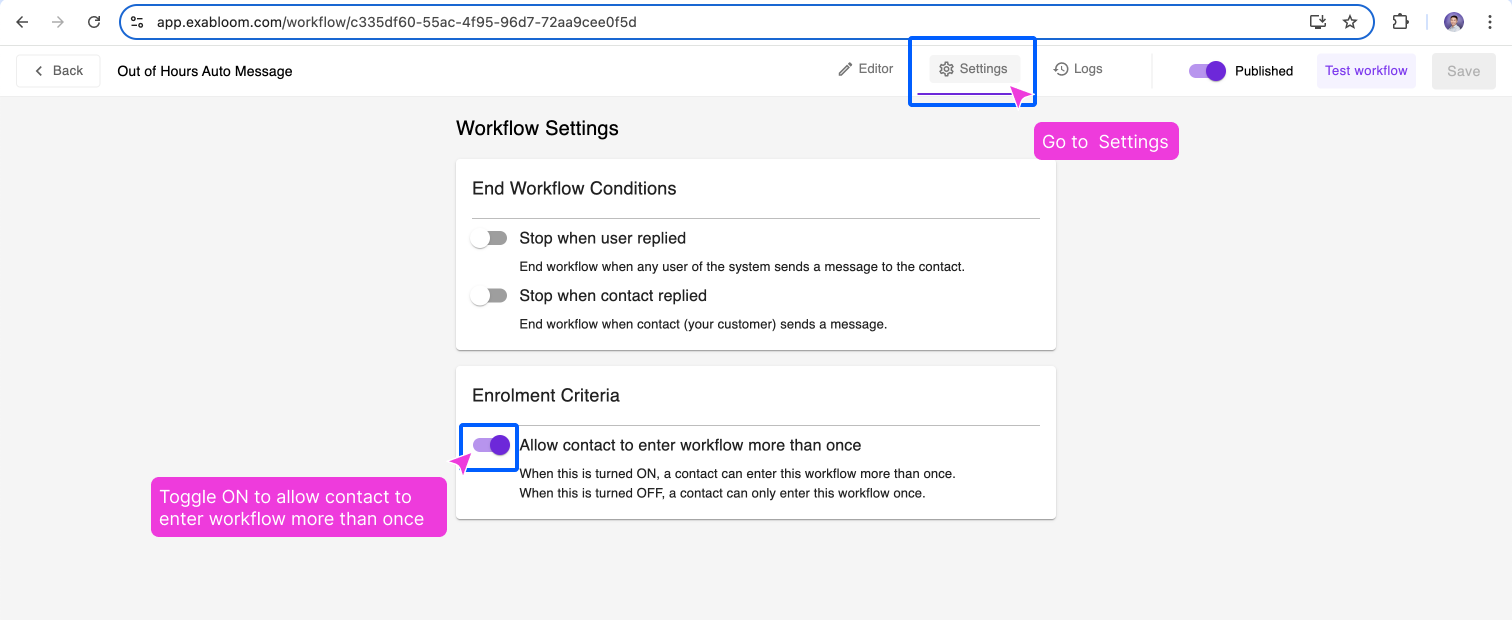
Enable Multiple Workflow Entries:
- Go to Workflow > Settings and toggle ON the option "Allow contact to enter workflow more than once".
- This ensures your test contact can trigger the workflow multiple times during testing.
Screenshot of how to set 3 (Enable Multiple Workflow Entries) (click to expand)
-
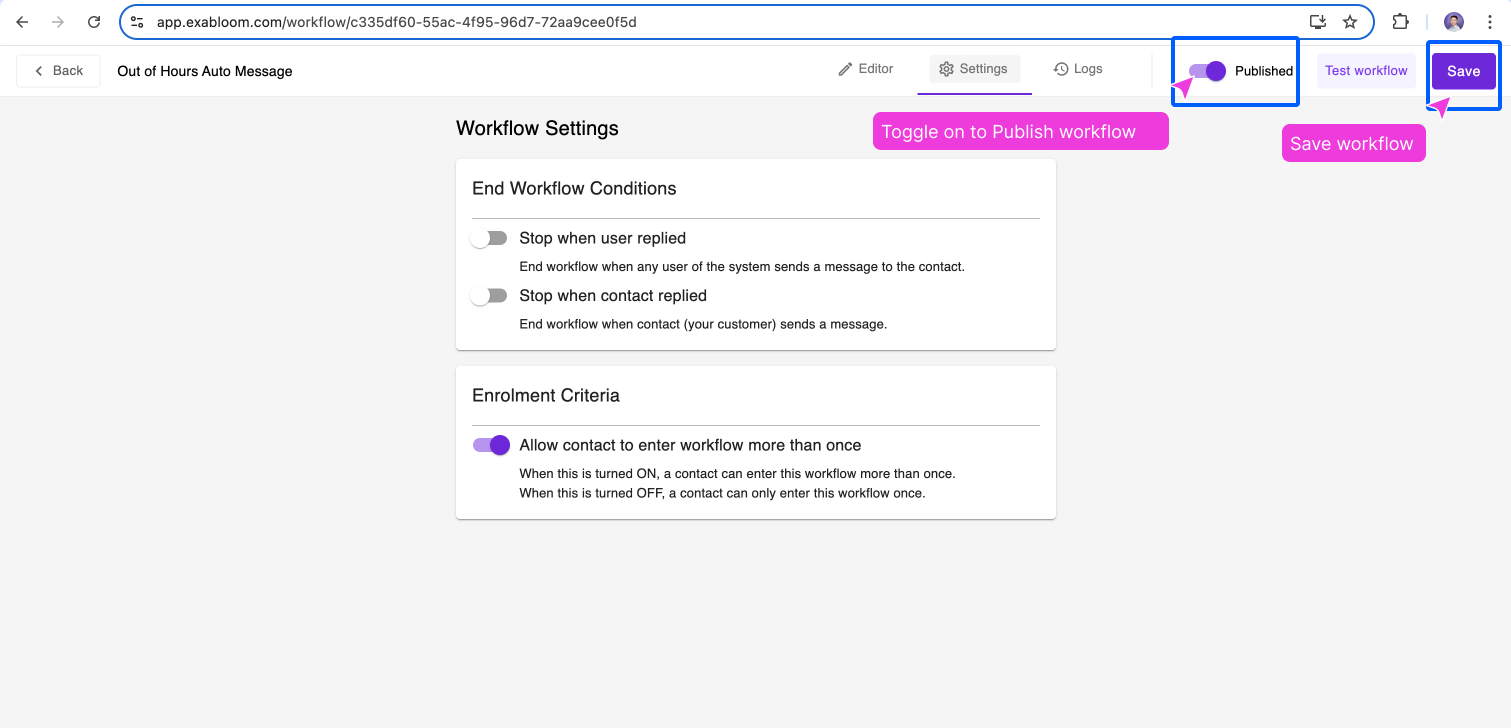
Publish the Workflow:
- Change the workflow status from Drafted to Published.
- Click Save to make the workflow live.
Screenshot of how to set 4 (Publish the workflow) (click to expand)
How to Test
-
Send a Test Message:
- Use a different WhatsApp number (e.g.,
+65 9222 2222) to send a message to the WhatsApp number connected to your Exabloom account (e.g.,+65 9111 1111). - Assuming that the operating hour is 5:00 PM - 6:00 PM, if the message is sent outside the operating hours (e.g., 12:43 PM), you should receive the away message.
- Use a different WhatsApp number (e.g.,
-
Check the Last Notify Date:
- Go to the Contacts page and search for your test contact using the test phone number (
+65 9222 2222). - Click on the contact to view their details and verify that the Last Notify Date field is updated with the current timestamp.
- Go to the Contacts page and search for your test contact using the test phone number (
-
Test the 24-Hour Window:
- Send another message from the same test contact within 24 hours.
- Verify that the workflow does not send another away message, as the contact has already received one within the 24-hour window.
-
Test After 24 Hours (Without Waiting):
- Instead of waiting 24 hours, you can manually update the Last Notify Date field for the test contact to simulate the 24-hour window:
- Go to the Contacts page and search for your test contact (
+65 9222 2222). - Click on the contact to view their details.
- Locate the Last Notify Date field and manually change the value to a date and time that is more than 24 hours ago. For example:
- If the current time is 22 Jan 2025, 1:13 PM, change the Last Notify Date to 20 Jan 2025, 1:00 PM (about 2 days ago).
- Save the changes.
- Go to the Contacts page and search for your test contact (
- Send another message from the test contact.
- Verify that the workflow sends the away message again and updates the Last Notify Date field with the current timestamp.
- Instead of waiting 24 hours, you can manually update the Last Notify Date field for the test contact to simulate the 24-hour window:
Clean Up After Testing
Once testing is complete, clean up your workflow to remove any test configurations:
-
Revert Operating Hours:
- Go back to the IF/ELSE action and update the condition in the "Outside Operating Hours" branch:
- Change the condition from
Message > Created Atis before 5 PM back toMessage > Created Atis before 9 AM.
-
Remove the Test Filter:
- Remove the Condition Group that filters for your test phone number.
-
Save and Publish:
- Save the workflow and ensure it’s still set to Published.
Publishing Your Workflow
In order for the workflow to go live, you need to publish it.
- In Workflow > Settings, under "Enrolment Criteria", toggle ON "Allow contact to enter workflow more than once". Since the contact will need to enter this workflow more than once, this option MUST be toggled ON, otherwise the contact can only enter this workflow once.
- Change the workflow status from "Drafted" -> "Published"
- Click "Save" to save the workflow -- now the workflow is LIVE
Tips and Best Practices
- Customize the Away Message: Tailor the message to match your brand’s tone and include relevant details (e.g., operating hours, contact information).
- Use Filters Wisely: Ensure the workflow only runs when necessary to avoid spamming contacts.
- Test Thoroughly: Always test your workflow with a test contact before using it with real contacts.
Extending This Workflow to Handle Special Occasions
It’s common to have occasions where you want to send out different messages, overriding your existing operating hours message. For example, during year-end breaks, Christmas breaks, or public holidays. Let’s use Christmas Break as an example.
Imagine your company is having a break from 25 Dec 2025 - 28 Dec 2025. During this period, you want to send a special message instead of the regular operating hours message. Here’s how to set it up:
- Add a New Branch to the IF/ELSE Action:
- Click on the IF/ELSE action and add a new branch.
- Name this branch "Christmas Break 2025".
- Move this branch to the leftmost position (branches are evaluated from left to right, so this ensures it’s checked first).
- Set the Condition for the Christmas Break:
- Set the condition to check if the
Message Received Timefalls between 25 Dec 2025 - 28 Dec 2025. - Example condition:
Message Received Timeis between25 Dec 2025 12:00 AMand28 Dec 2025 11:59 PM.
- Add a Custom Message for the Christmas Break:
- Under the "Christmas Break 2025" branch, add a Send WhatsApp action.
- Customize the message to inform contacts about the break. For example:
Hi {{contact.firstName}}, thank you for reaching out! Our office is closed for the Christmas break from 25 Dec to 28 Dec. We’ll respond to your message when we return on 29 Dec. Wishing you a joyful holiday season! 🎄
- Update the Contact’s Last Notify Date:
- Add an Update Contact action after the Send WhatsApp action to update your Date/Time custom field with
{{now}}.
Extending the Workflow to Handle Different Operating Hours for Each Day
If your business has different operating hours for specific days of the week, you can extend the workflow to handle these variations. For example:
- Monday and Tuesday: Off days (any message received on these days triggers the away message).
- Wednesday to Friday: Operating hours from 9 AM to 6 PM.
- Saturday and Sunday: Operating hours from 1 PM to 9 PM.
Here’s how to set it up:
Step 1: Add Branches for Each Day Group
- Add a New Branch for Monday and Tuesday (Off Days):
- In the IF/ELSE action, add a new branch and name it "Monday-Tuesday Off Days".
- Move this branch to the leftmost position (branches are evaluated from left to right, so this ensures it’s checked first).
- Set the condition to check if the
Message > Created Atfalls on a Monday or Tuesday:- Condition:
Message > Created Atis onMondayORTuesday.
- Condition:
- If the condition is
true, proceed to send the away message.
- Add a New Branch for Wednesday to Friday (9 AM - 6 PM):
- Add another branch and name it "Wednesday-Friday Operating Hours".
- Set the condition to check if the
Message > Created Atfalls on a Wednesday, Thursday, or Friday and is outside the operating hours:- Condition:
Message > Created Atis onWednesday,Thursday, orFridayANDMessage > Created Atis before 9 AM or after 6 PM.
- Condition:
- If the condition is
true, proceed to send the away message.
- Add a New Branch for Saturday and Sunday (1 PM - 9 PM):
- Add another branch and name it "Saturday-Sunday Operating Hours".
- Set the condition to check if the
Message > Created Atfalls on a Saturday or Sunday and is outside the operating hours:- Condition:
Message > Created Atis onSaturdayorSundayANDMessage > Created Atis before 1 PM or after 9 PM.
- Condition:
- If the condition is
true, proceed to send the away message.
Step 2: Customize the Away Message for Each Branch
- For Monday-Tuesday Off Days:
- Add a Send WhatsApp action under the "Monday-Tuesday Off Days" branch.
- Customize the message to inform contacts about the off days. For example:
Hi {{contact.firstName}}, thank you for reaching out! Our office is closed on Mondays and Tuesdays. We’ll respond to your message when we return on Wednesday. 😊
- For Wednesday-Friday Operating Hours:
- Add a Send WhatsApp action under the "Wednesday-Friday Operating Hours" branch.
- Customize the message to inform contacts about the operating hours. For example:
Hi {{contact.firstName}}, thank you for reaching out! Our operating hours are from 9 AM to 6 PM, Wednesday to Friday. We’ll get back to you as soon as possible. 😊
- For Saturday-Sunday Operating Hours:
- Add a Send WhatsApp action under the "Saturday-Sunday Operating Hours" branch.
- Customize the message to inform contacts about the operating hours. For example:
Hi {{contact.firstName}}, thank you for reaching out! Our weekend operating hours are from 1 PM to 9 PM. We’ll get back to you as soon as possible. 😊
Step 3: Update the Contact’s Last Notify Date
For each branch, add an Update Contact action after the Send WhatsApp action to update the Last Notify Date field with {{now}}. This ensures the workflow won’t trigger again for the same contact within 24 hours.
Step 4: Test the Extended Workflow
- Test for Each Day Group:
- Send test messages on different days and times to verify that the workflow behaves as expected:
- Monday or Tuesday: Any message should trigger the away message.
- Wednesday to Friday: Messages outside 9 AM - 6 PM should trigger the away message.
- Saturday or Sunday: Messages outside 1 PM - 9 PM should trigger the away message.
- Verify the Last Notify Date:
- Check that the Last Notify Date field is updated correctly after each test.
Example Workflow Logic
Here’s how the workflow logic will look:
- Monday-Tuesday Off Days:
- If the message is received on Monday or Tuesday, send the away message.
- Wednesday-Friday Operating Hours:
- If the message is received on Wednesday, Thursday, or Friday and is outside 9 AM - 6 PM, send the away message.
- Saturday-Sunday Operating Hours:
- If the message is received on Saturday or Sunday and is outside 1 PM - 9 PM, send the away message.
What’s Next?
Now that you’ve set up your Out of Hours Auto Message workflow and extended it to handle special occasions, you can further configure it to handle more special occasions.
Happy automating!