Distribution Analysis Guide
Distribution analysis provides a current snapshot of your lead pipeline, showing how leads are distributed across stages and custom fields. This real-time view helps you understand pipeline health and make immediate operational decisions.
Understanding Distribution Analysis
What Distribution Shows
Distribution analysis displays:
-
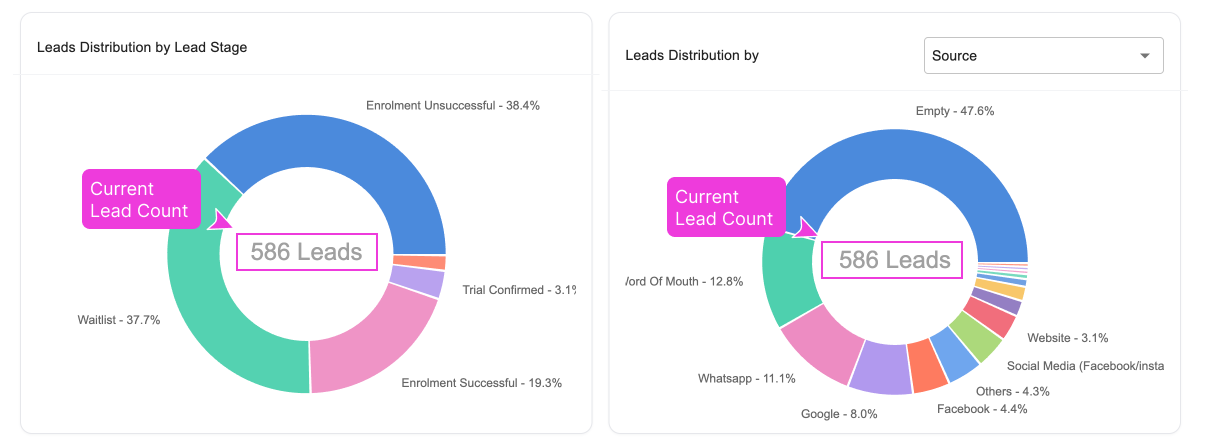
Current Lead Counts: How many leads in total and how many are in each stage right now
-
Total lead count

-
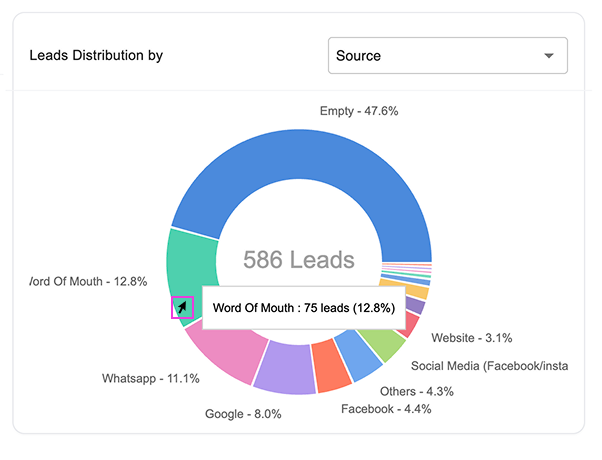
Hover your mouse over to specific part of the chart to view lead count. In this example, it shows that amongst 586 leads, 75 of them comes from "Word Of Mouth".

-
-
Percentage Breakdown: Relative distribution across your pipeline
-
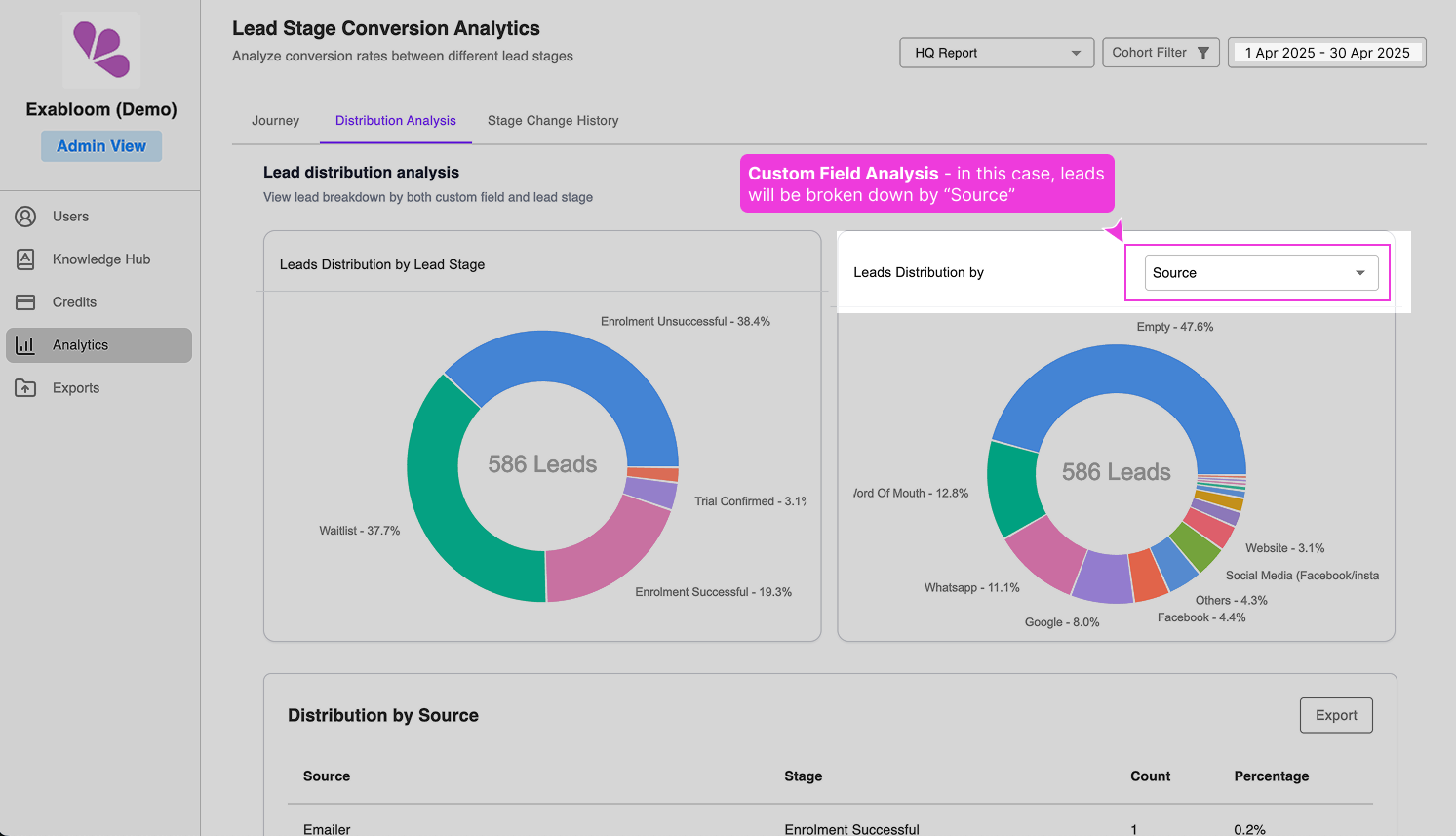
Custom Field Analysis: Lead distribution by sources, assigned users, or other criteria

-
Cross-Analysis Table: Detailed breakdown combining stages and custom fields
Default View: Stage Distribution

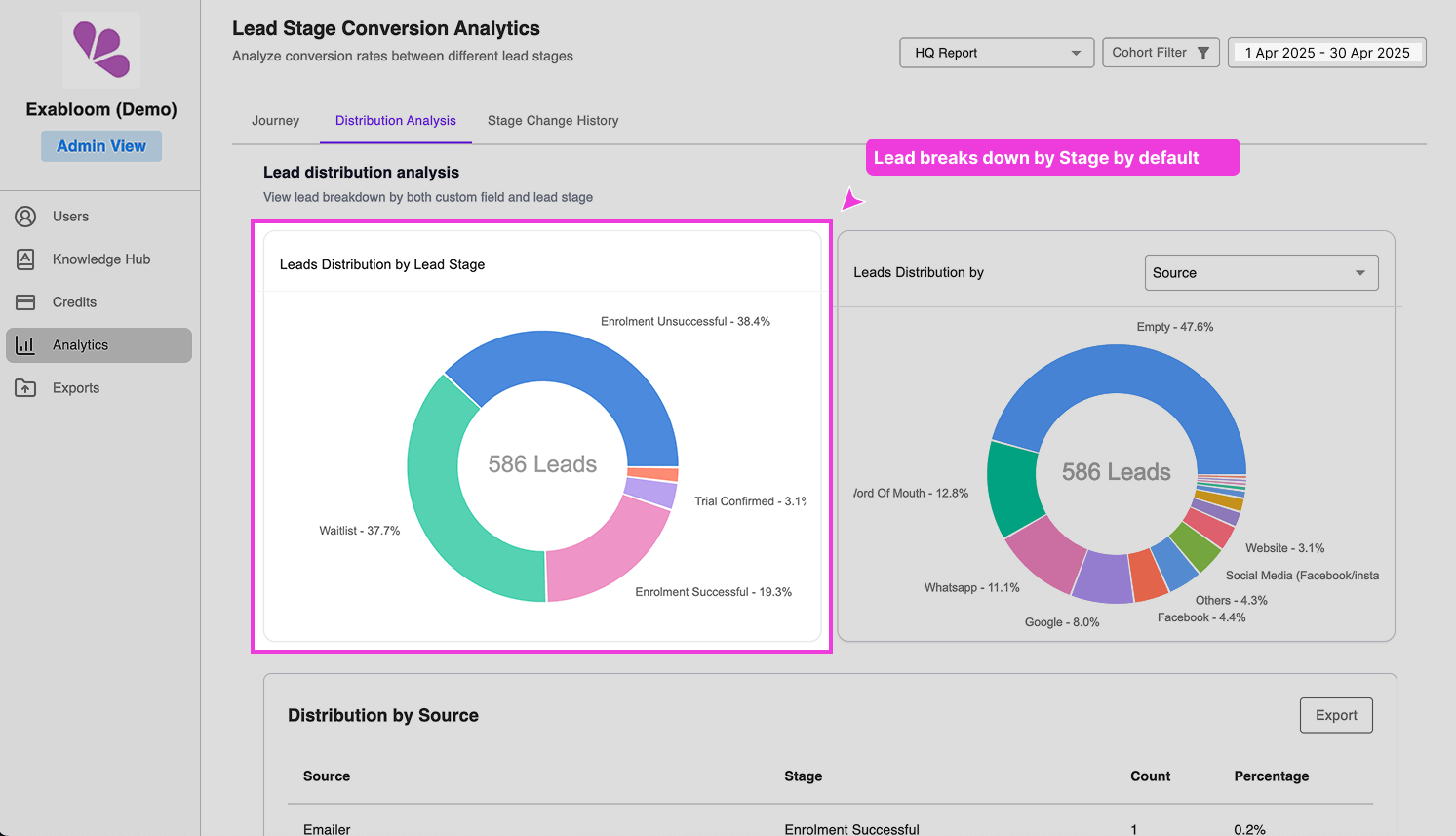
When you first open Distribution analysis, you'll see leads grouped by their current pipeline stage, showing:
- Total lead count per stage
- Percentage of total leads in each stage
- Visual representation (charts/graphs) of the distribution
Setting Up Distribution Analysis
Step 1: Select Your Report, Date Range and Cohort Filter (Optional)
- Choose your configured report from the dropdown
- Set the date range to filter leads by creation date
- Set cohort filter (optional)
- This creates the lead pool for analysis
Step 2: Choose Distribution Criteria
Default Analysis: Leads distributed by current stage
- Shows pipeline health and current workload
- Identifies stages with high lead volume
- Reveals potential bottlenecks
Custom Field Analysis: Select a field for deeper insights
- Source analysis (Google Ads, Facebook, Referrals, etc.)
- Assigned user analysis (workload distribution)
- Lead type analysis (Hot, Warm, Cold, etc.)
- Any custom field in your system
Using Stage Distribution
Reading the Stage Breakdown
Chart View: Visual representation showing:
- Relative size of each stage
- Easy identification of largest/smallest segments
- Quick visual assessment of pipeline balance
Numerical Breakdown: Exact counts showing:
- Number of leads per stage
- Percentage of total pipeline
- Actual volumes for capacity planning
Key Insights from Stage Distribution
Pipeline Health Indicators:
- Balanced Distribution: Reasonable spread across Processing stages
- Top-Heavy Pipeline: Many leads in early stages (good lead generation, potential processing bottleneck)
- Bottom-Heavy Pipeline: Many leads in final stages (may need more lead generation)
Operational Planning:
- High-Volume Stages: Where to focus resources and attention
- Low-Volume Stages: Potential process improvements or stage consolidation
- Processed Stage Volume: Overall conversion and closure rates
Using Custom Field Distribution
Selecting a Custom Field
- In the Distribution Analysis tab, find the field selector
- Choose from available fields like (your list may be different):
- Source
- Assigned User
- Lead Type
- Priority Level
- Any custom field configured in your system
Source Analysis Example
When you select "Source" as your breakdown field:
Chart Shows: Total leads from each source
- Google Ads: 150 leads
- Facebook: 100 leads
- Referrals: 75 leads
- Website: 50 leads
Table Shows: Cross-analysis of source AND current stage
- Google Ads leads in "Qualification": 45
- Facebook leads in "Proposal Sent": 20
- Referral leads in "Converted": 30
Interpreting Custom Field Results
Source Performance:
- Which sources generate the most leads?
- Which sources produce leads that progress furthest?
- Are certain sources better for specific outcomes?
User Workload Analysis:
- How are leads distributed among team members?
- Who has capacity for more leads?
- Are leads being assigned evenly?
Lead Quality Indicators:
- Do different lead types progress differently through stages?
- Which custom field values correlate with success?
The Cross-Analysis Table
Understanding the Table
The bottom table in Distribution analysis shows detailed breakdowns:
- Rows: Your selected custom field values (or stages)
- Columns: Current pipeline stages
- Cells: Exact count of leads matching both criteria
Using the Table for Deep Insights
Example: Source + Stage Analysis
Source | New | Contacted | Qualified | Proposal | Converted
Google Ads | 50 | 30 | 20 | 15 | 10
Facebook | 40 | 25 | 20 | 10 | 5
Referrals | 15 | 10 | 15 | 20 | 25
Website | 25 | 15 | 10 | 5 | 2
Insights from this table:
- Referrals have the highest conversion rate (25 converted from 85 total)
- Google Ads generates most volume but lower conversion percentage
- Website leads seem to struggle in the qualification process
Advanced Table Analysis
Conversion Rate Calculations: Compare leads entering vs. converting by source Stage Progression Patterns: See which field values correlate with stage advancement Resource Allocation: Identify where to focus efforts based on volume and success rates
Practical Applications
Daily Operations
Pipeline Reviews:
- Check current stage distribution for workload planning
- Identify stages requiring immediate attention
- Balance team assignments based on current distribution
Source Optimization:
- Focus marketing budget on highest-performing sources
- Investigate low-performing sources for improvement
- Adjust lead routing based on source characteristics
Strategic Planning
Capacity Planning:
- Predict resource needs based on distribution patterns
- Plan hiring or training based on stage bottlenecks
- Forecast pipeline outcomes based on current distribution
Process Improvement:
- Identify stages with consistently high lead volume
- Streamline processes for high-volume stages
- Consider stage modifications based on distribution patterns
Combining with Journey Analysis
Complementary Insights
Distribution First: Shows current state and immediate needs
- "We have 200 leads in qualification stage right now"
- "Google Ads is our biggest current lead source"
Journey Second: Shows how leads arrived at current state
- "Those 200 leads in qualification mostly came from contacted stage"
- "Google Ads leads typically skip our initial contact stage"
Action Planning
- Use Distribution to identify current priorities and resource allocation
- Use Journey to understand the processes that created current distribution
- Combine insights to optimize both current operations and future lead flow