Accessing Analytics
This guide walks you through the steps to access Admin View Analytics from your organization dashboard.
Prerequisites
Before accessing analytics, ensure you have:
- Admin permissions for your organization
- At least one lead pipeline configured
- Some lead data in your system
Step-by-Step Access
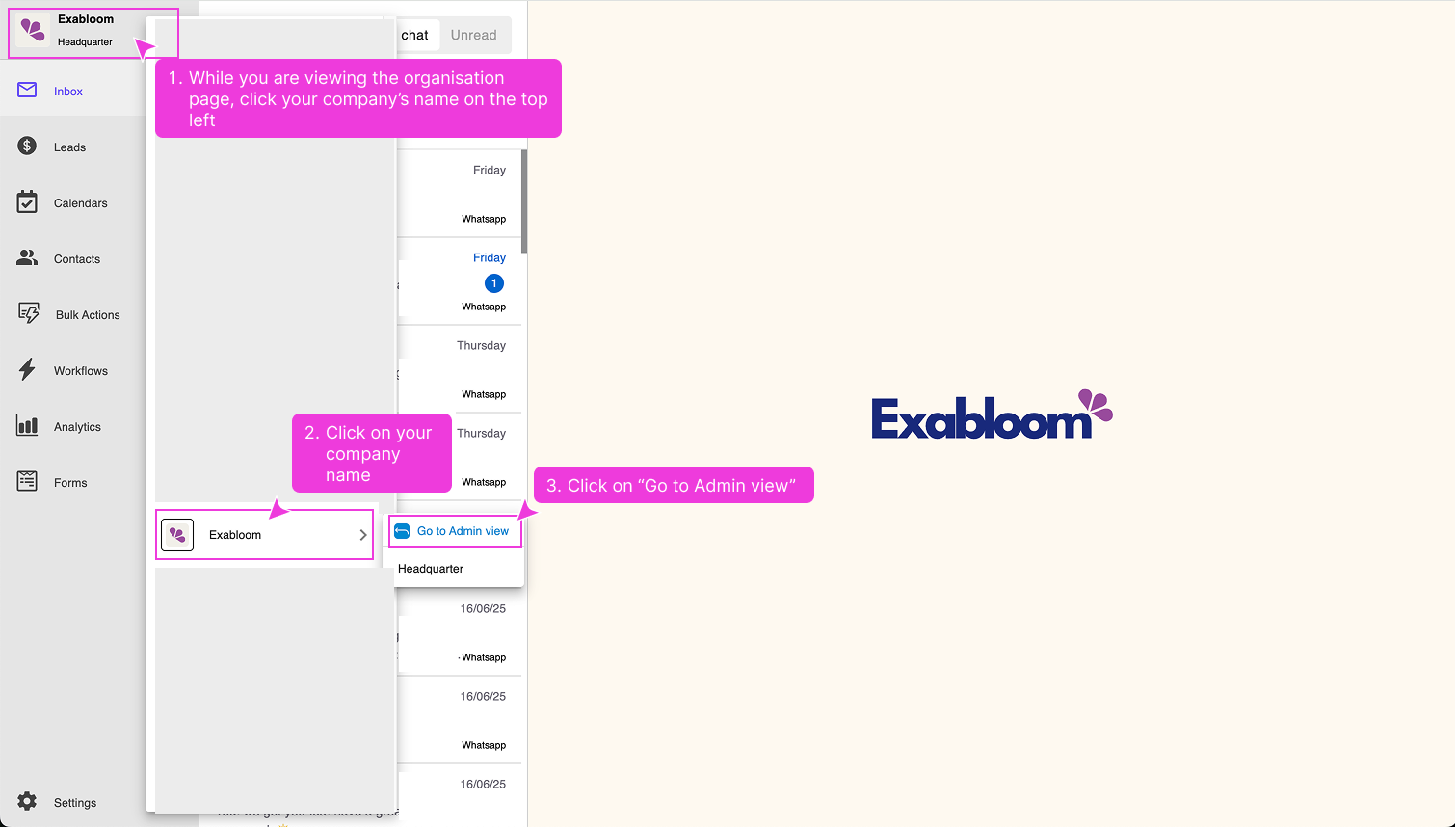
Step 1: Navigate to Admin View

From your regular organization view, switch to admin controls. Look for the admin toggle or menu option in your main navigation.
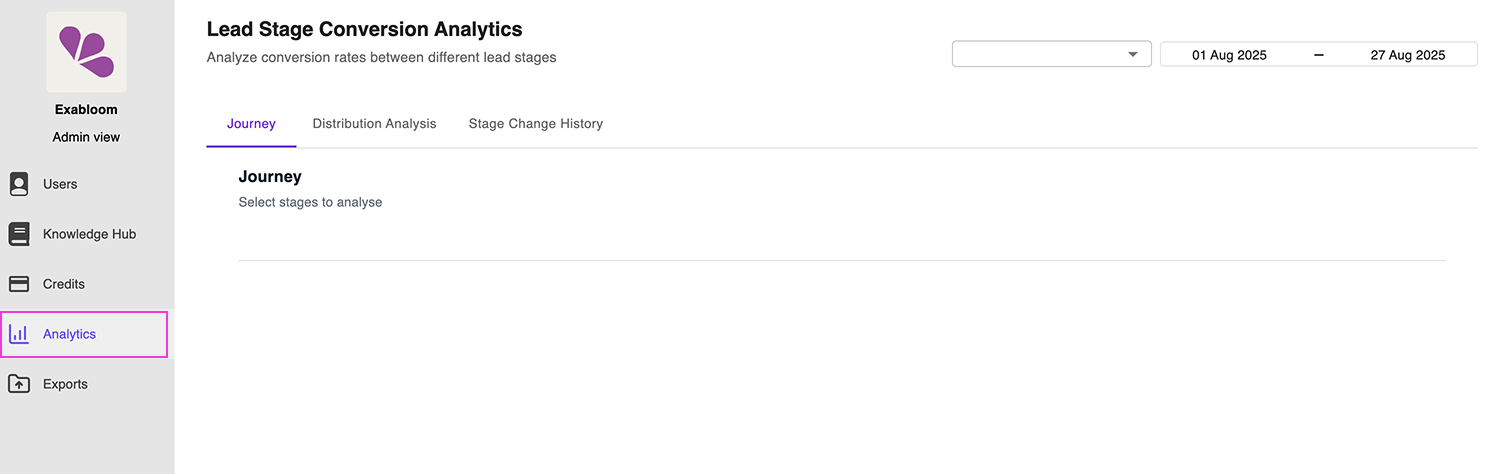
Step 2: Open Analytics

Once in Admin View, locate and click on Analytics in the main menu. This will open the analytics dashboard.
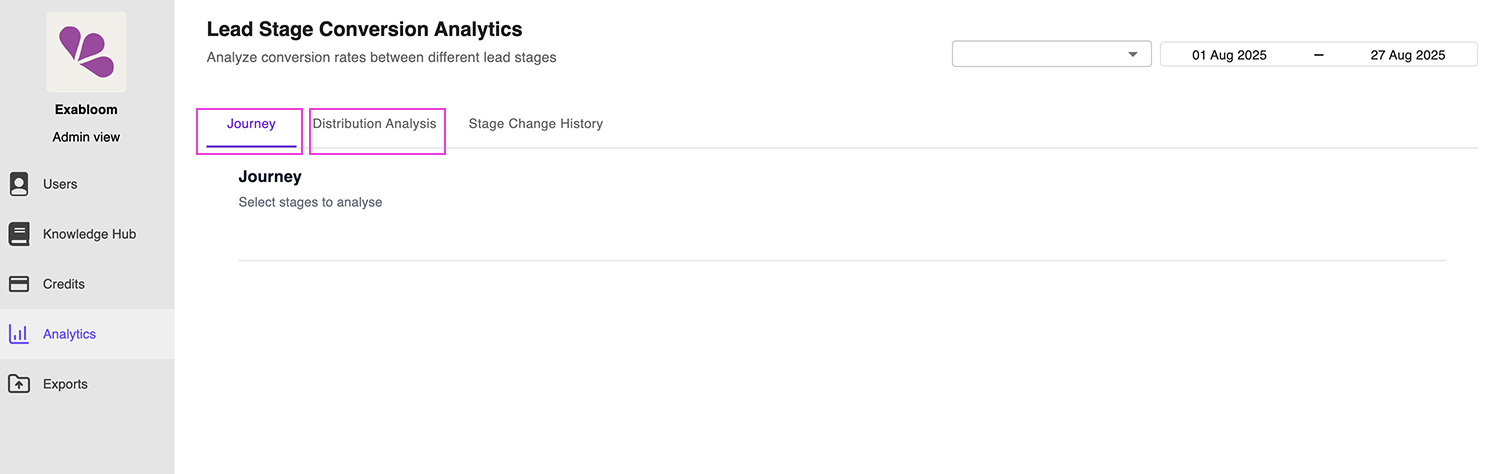
Step 3: Explore the Interface

You'll now see the analytics interface with two main tabs available:
- Journey: For analyzing lead progression paths
- Distribution Analysis: For current lead distribution insights
What You'll See
When you first access analytics:
- The interface may show sample data or be empty if no reports are configured
- You'll have options to create new reports or select existing ones
- Date range controls will be available in the top right
- Tab navigation will be prominent at the top
Troubleshooting Access Issues
Can't find Admin View?
- Check that you have admin permissions
- Look for "Admin," "Settings," or "Management" options in your main menu
- Contact your system administrator if admin access is restricted
Analytics menu not visible?
- Verify your admin permissions include analytics access
- Try refreshing the page after switching to Admin View
- Check if analytics features are enabled for your organization
Next Steps
Once you've successfully accessed analytics:
- Understand the available tabs
- Create your first report
- Start analyzing your lead data