Creating Your First Analytics Report
Before you can analyze your leads, you need to create an analytics report that defines the scope and parameters for your analysis.
Starting a New Report
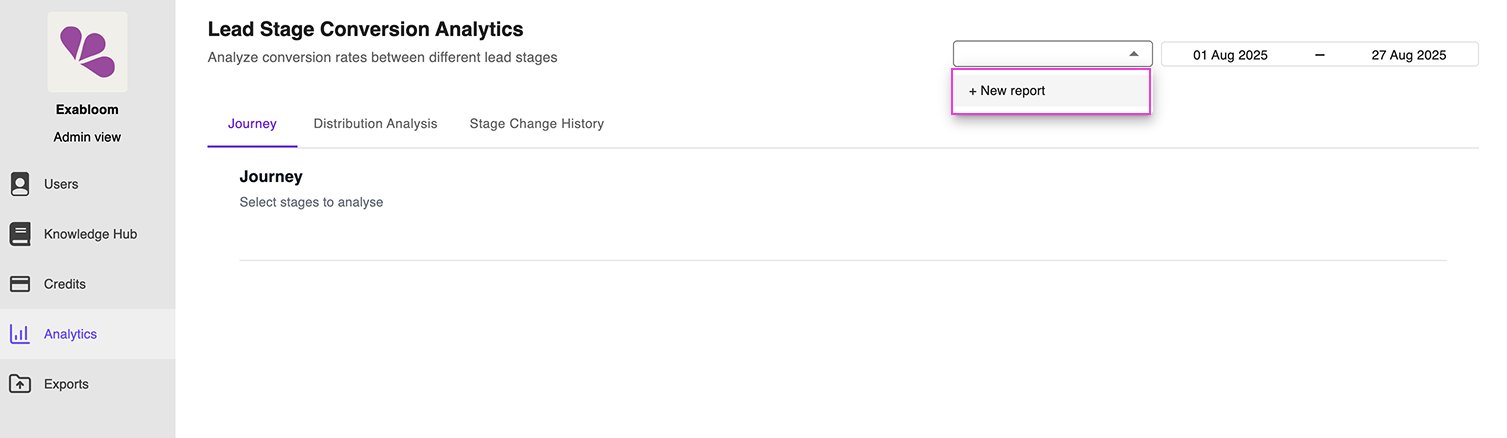
Step 1: Access Report Creation

- In the analytics dashboard, locate the dropdown menu to the left of the date range picker
- Click the dropdown and select New Report
- You'll be guided through the report setup process
Step 2: Name Your Report
Enter a descriptive name for your report that clearly indicates:
- What data it covers (e.g., "Q4 Lead Analysis")
- The scope (e.g., "All Locations Pipeline Review")
- The purpose (e.g., "Source Performance Analysis")
Good Examples:
- "Monthly Lead Journey - All Locations"
- "Q1 Distribution Analysis - Main Pipeline"
- "Source Performance - Education Pipeline"
Configuring Report Scope
Account Scope Selection
Choose how broad you want your analysis to be:
Single Location
- Analyzes leads from one specific account/location only
- Best for location-specific insights
- Simpler data set for focused analysis
Multiple Locations
- Aggregates leads across selected accounts/locations
- Provides organization-wide insights
- More comprehensive but potentially more complex data
Lead Pipeline Selection
Select the specific lead pipeline you want to analyze:
- Only one pipeline per report
- Choose the pipeline most relevant to your analysis goals
- You can create multiple reports for different pipelines
Stage Categorization
This is the most critical part of report setup. You must categorize your stages into two groups:
Processing Group
Definition: Stages where leads are actively being worked on and may change or progress
Characteristics:
- Leads regularly move between these stages
- Represent your active sales/nurturing process
- Require correct chronological ordering
Examples:
- "New Lead"
- "Contacted"
- "Qualified"
- "Proposal Sent"
Processed Group
Definition: Final destination stages where leads rarely change
Characteristics:
- Terminal stages in your pipeline
- Leads typically remain in these stages
- Order doesn't matter for analysis purposes
Examples:
- "Converted/Won"
- "Lost/Declined"
- "Unqualified"
- "Inactive"
Setting Stage Order
Critical: Processing Group Order
For Processing stages, the order must reflect your actual business workflow:
Correct Order Example:
1. Initial Contact (where most leads start)
2. Qualification (first processing step)
3. Proposal (second processing step)
4. Negotiation (final processing step)
Why Order Matters:
- Journey analysis relies on correct stage progression
- Incorrect order will show misleading conversion paths
- Analytics will not accurately represent your actual process
Processed Group Order
The order of Processed stages doesn't impact analytics, so arrange them however makes sense for your team.
Completing Setup
Final Steps
- Review your stage categorization and ordering
- Verify the account scope and pipeline selection
- Click Finish to create your report
What Happens Next
Once created, your report will:
- Become available in the report dropdown
- Use your stage configuration for all analysis
- Be ready for both Journey and Distribution analysis
Important Considerations
Date Range Impact
Remember that date ranges filter leads by their creation date, not when they moved through stages.
Report Modifications
After creation, you may need to create a new report if you want to:
- Change stage categorization
- Modify the Processing stage order
- Switch between single and multiple location scope
Next Steps
With your report created, you're ready to: