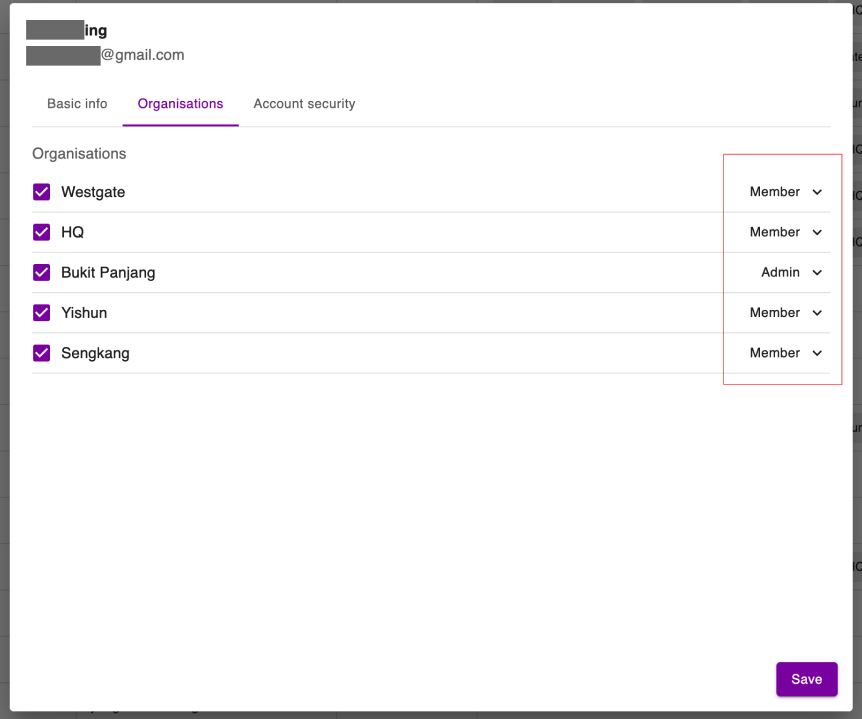
Manage Users
Manage who has access to your organization and what role they have. This page is only accessible to admins.
Access the User Management page
-
Click your company logo in the top-left corner.
-
Select Go to Admin view.
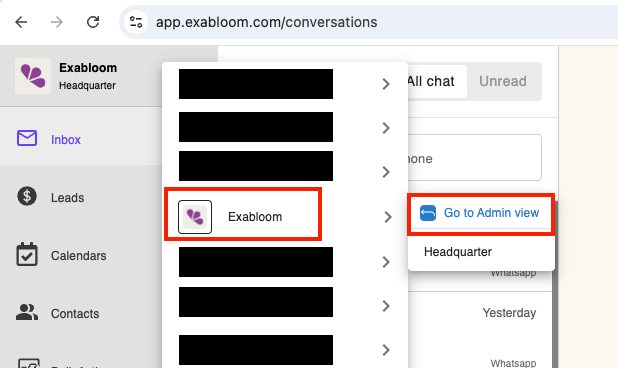
You are now on the User Management page.
Add a user
-
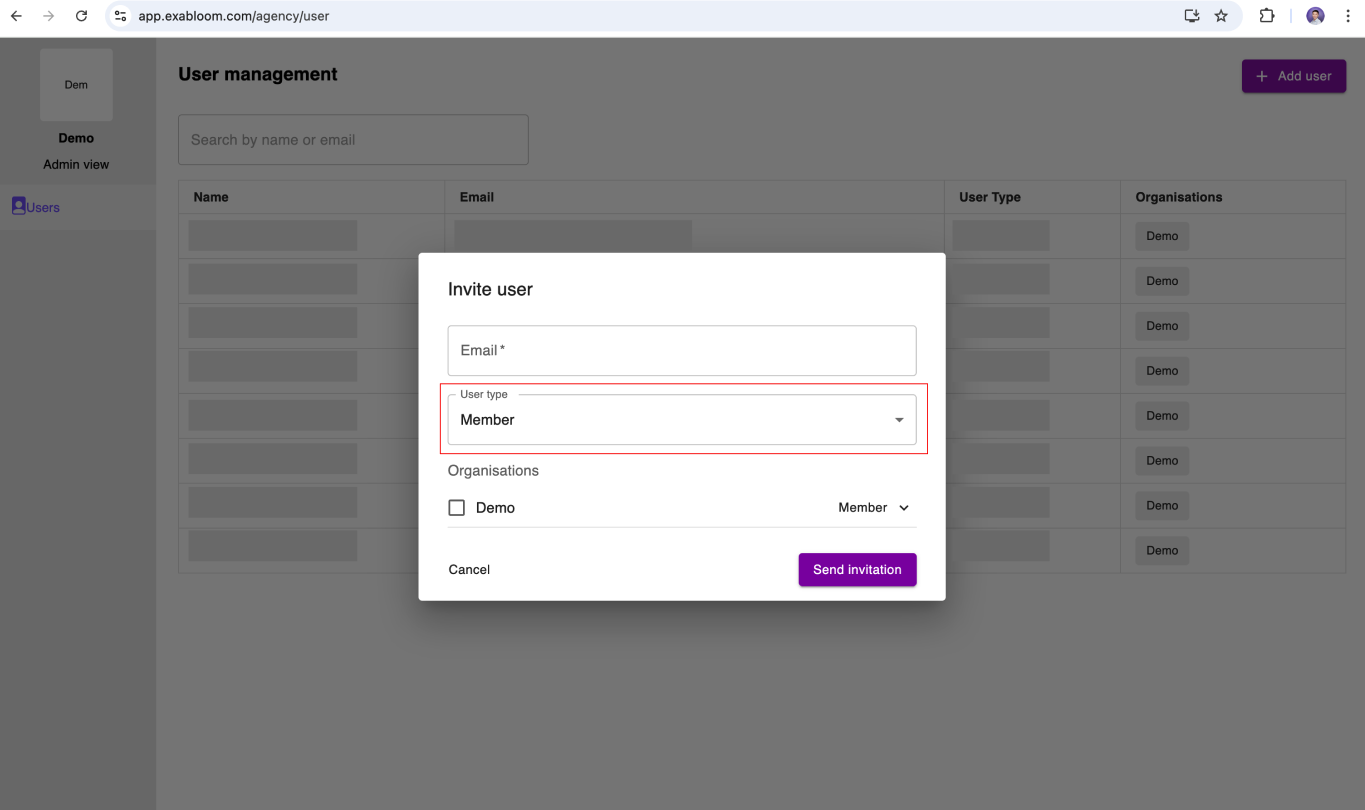
Click + Add User in the top right.

-
Enter the user's email address.
-
Assign the user to one or more organizations with a role:
- Admin — full administrative access to the assigned organizations
- Member — standard access within the assigned organizations
Example: Organization access
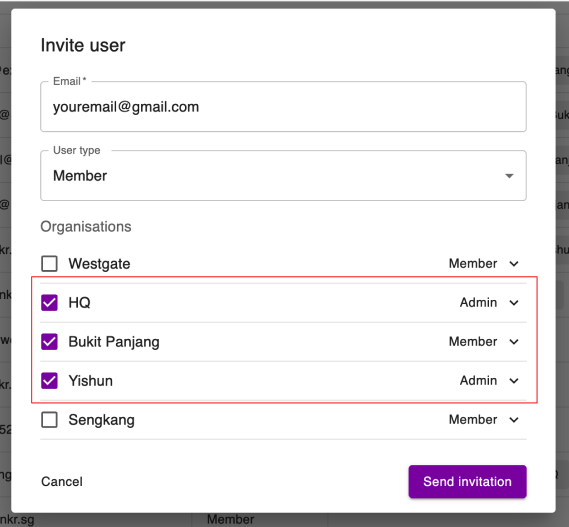
Your company has locations: HQ, Westgate, Bukit Panjang, Yishun, and Sengkang.
If you invite a user and assign:
- HQ — Admin
- Bukit Panjang — Member
- Yishun — Admin
That user will have admin access in HQ and Yishun, and member access in Bukit Panjang. They will not see Westgate or Sengkang.
-
Click Send Invitation. The user will receive an invitation email.
User didn't receive the email? Check that the email address is valid and ask the user to check their spam folder.
Remove a user from an organization
-
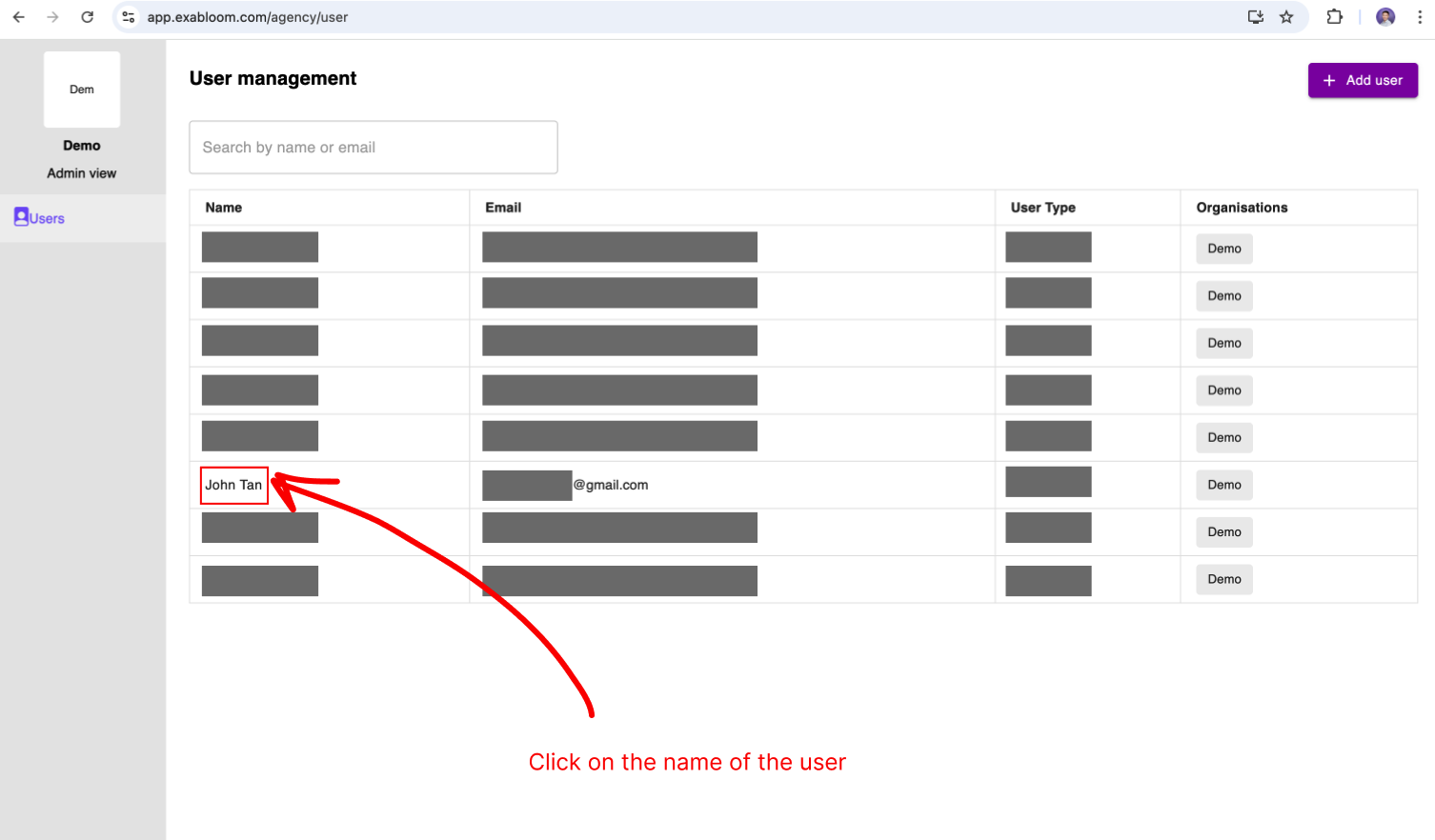
On the User Management page, click the user's name.
-
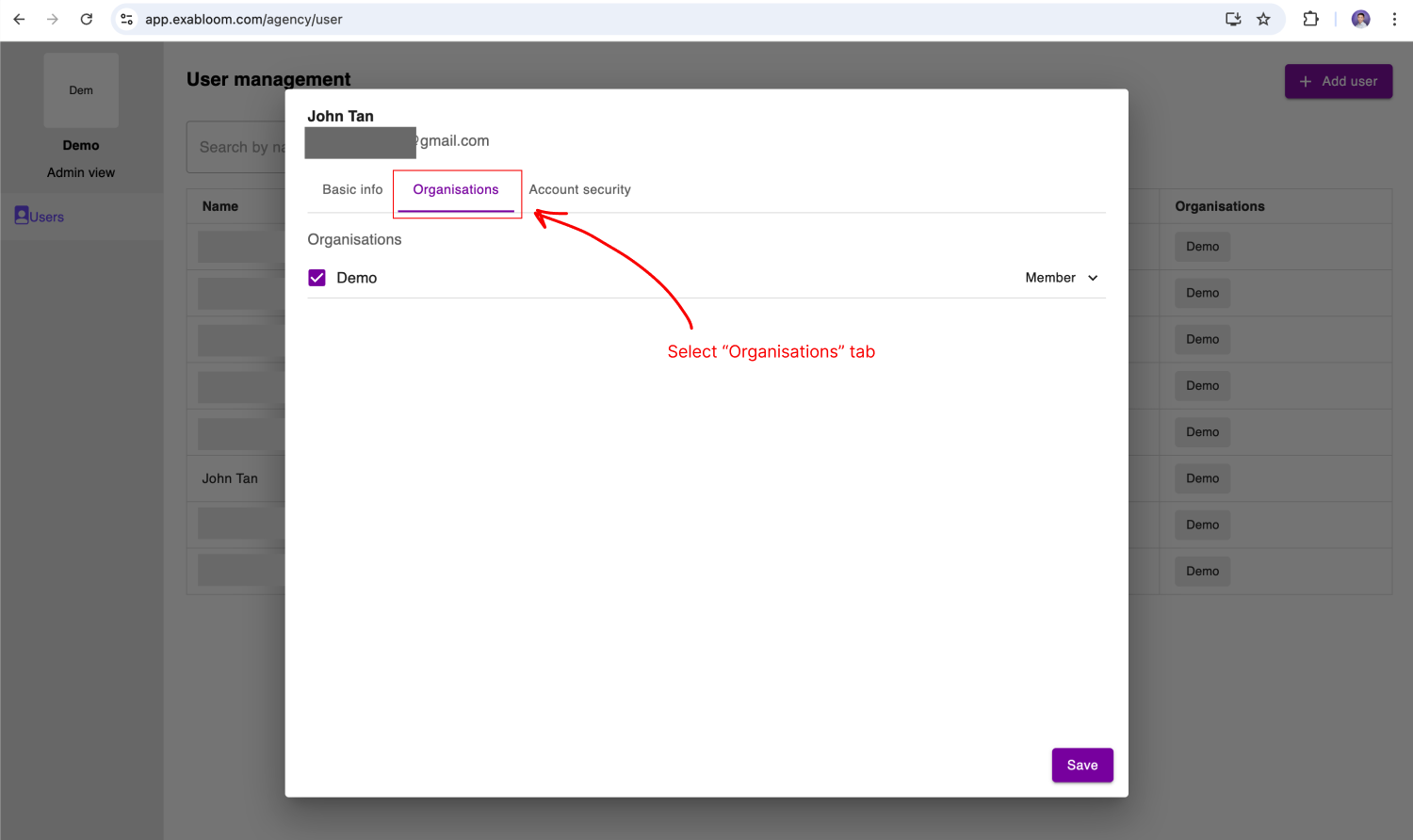
Go to the Organizations tab.
-
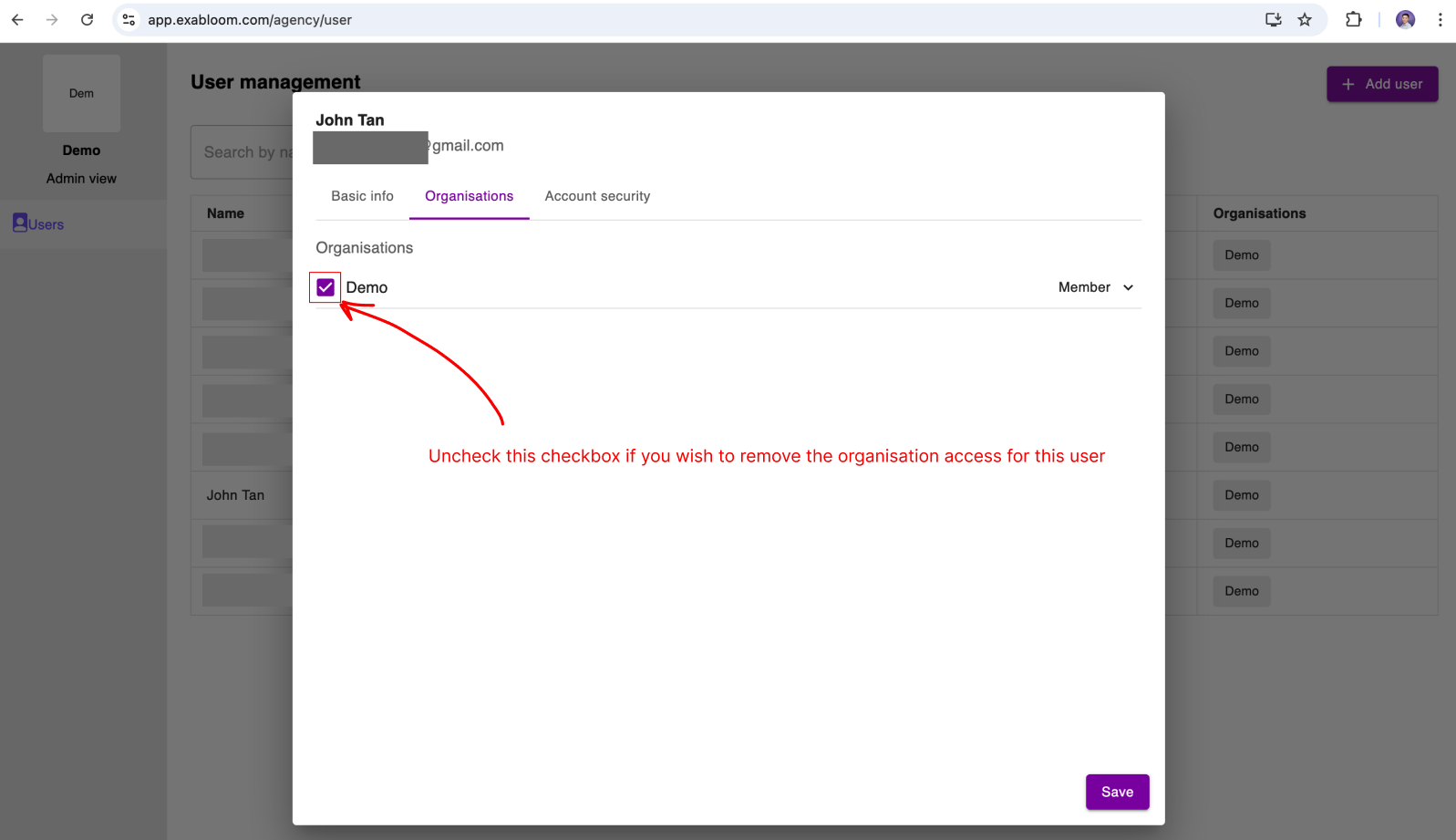
Uncheck the organizations the user should no longer access.
 warning
Removing access to all organizations will prevent the user from signing in.
-
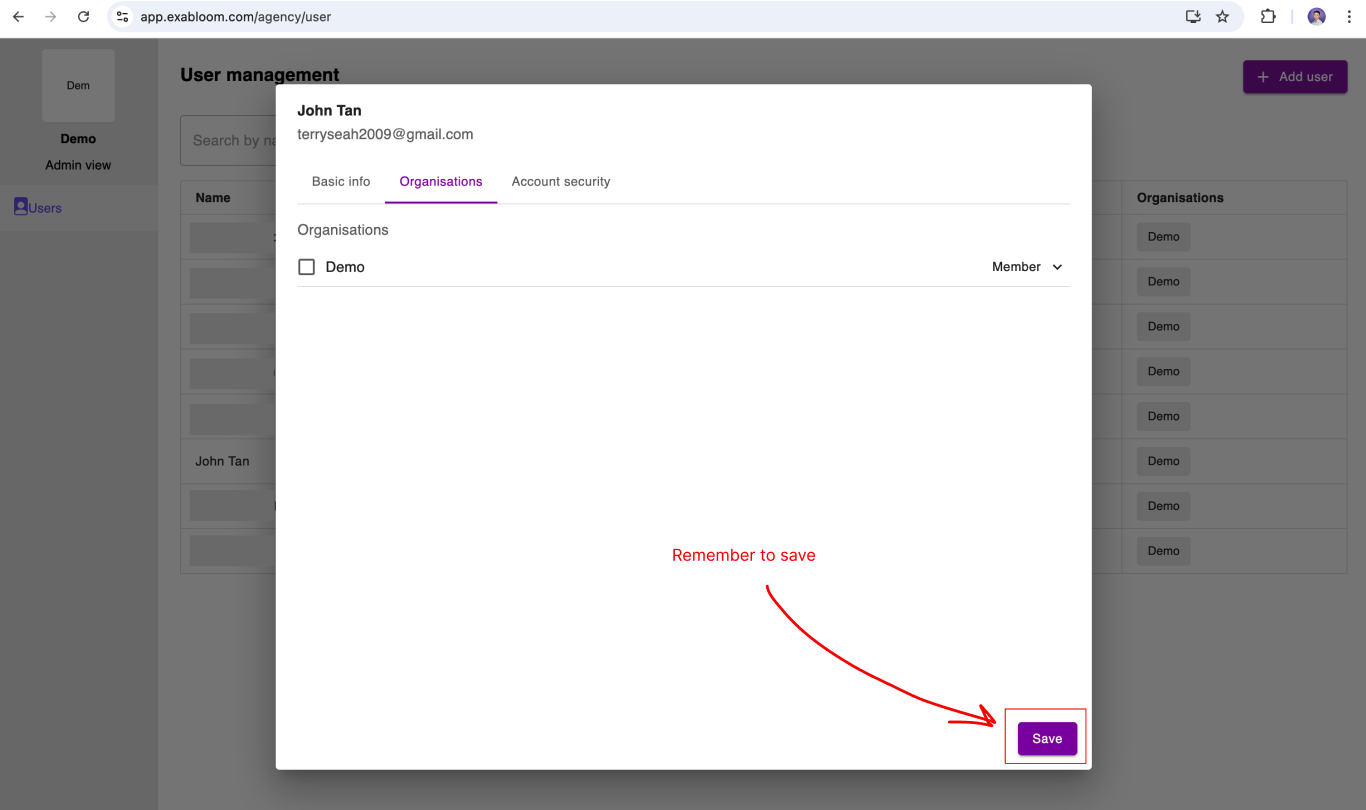
Click Save.
Check a user's role
-
On the User Management page, click the user's name.
-
Go to the Organizations tab to view their role in each organization.