Grant Pipeline Permissions
What This Guide Does
This guide shows you how to grant pipeline access permissions to team members. Pipeline permissions control which data and workflows users can access in your organization.
Prerequisites
Before starting, make sure you have:
- Admin access to your organization
- Permission to manage users
- The target user identified
Note: Only organization admins can grant pipeline permissions.
Step-by-Step Instructions
Step 1: Go to Admin View
Navigate from the regular organization view to admin controls.
How to do it:
- Go to your organization page
- Click your company name in the top-left corner
- Select "Go to Admin view" from the dropdown
You should now see the admin dashboard with "Users" and other administrative options.
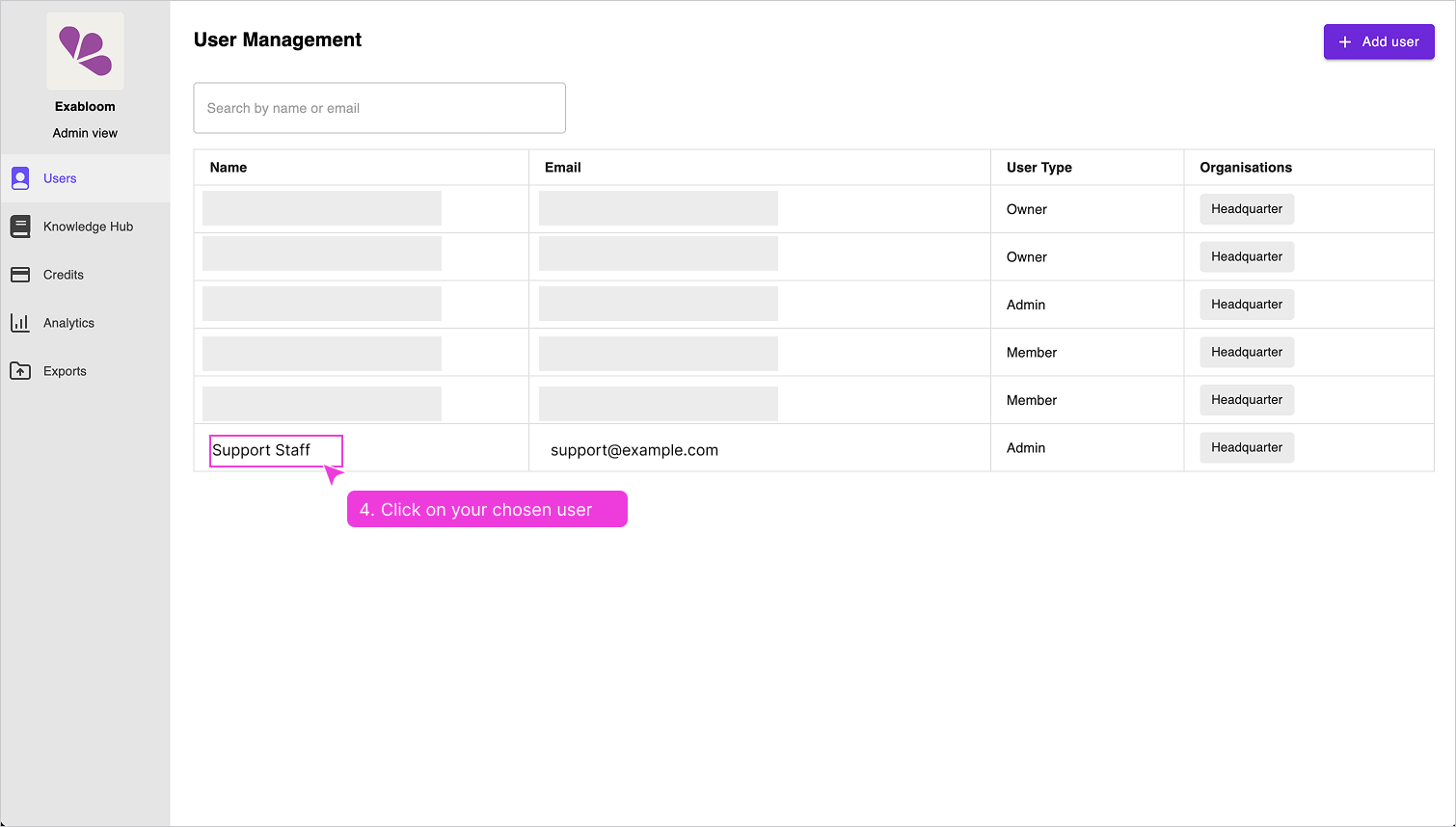
Step 2: Select the User

Find and open the profile of the user who needs pipeline access.
How to do it:
- Make sure you're on the "Users" page
- Find the user in the list or use search
- Click on the user's name to open their profile
You should see the user's profile page with tabs including "Pipeline access."
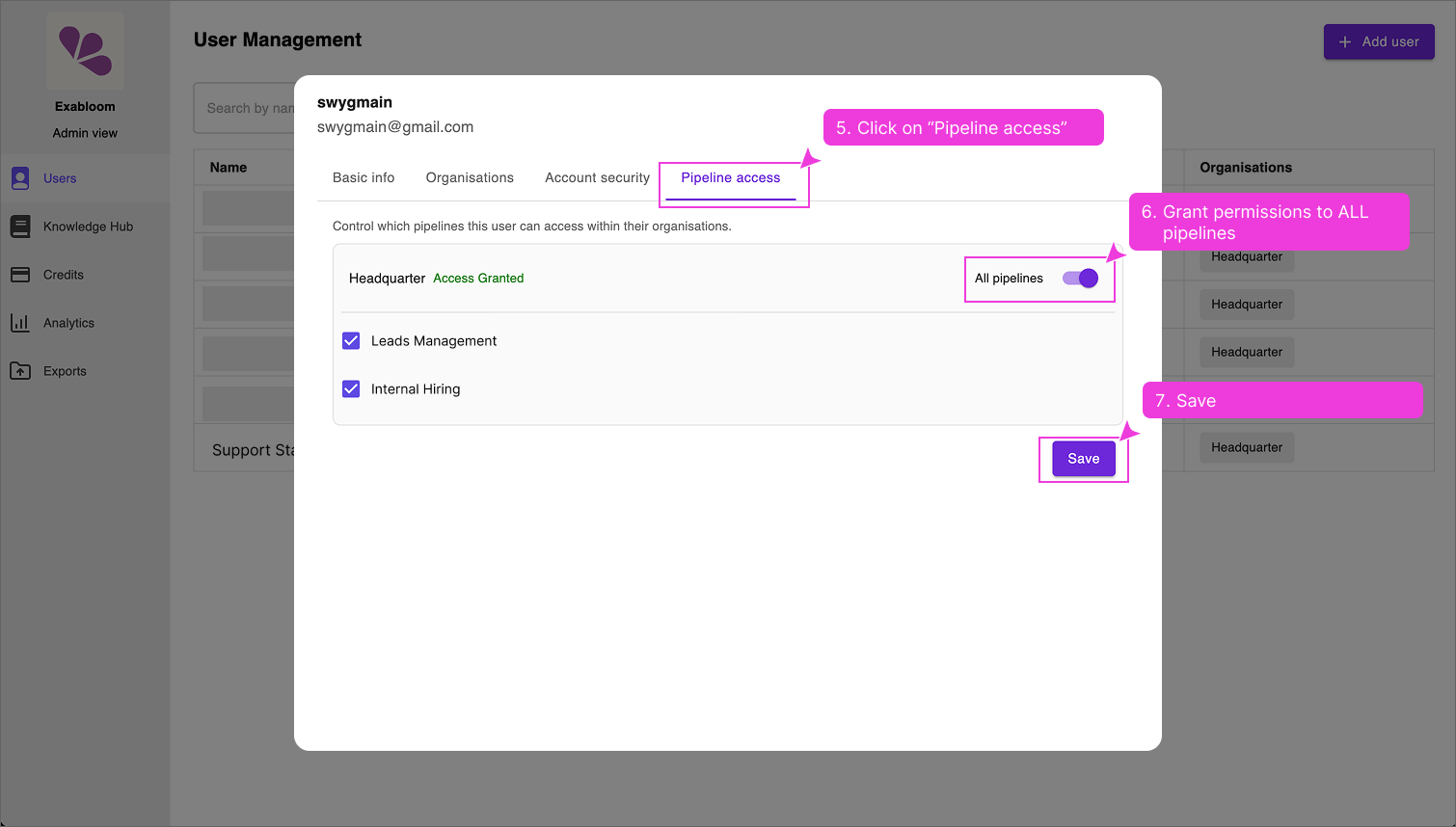
Step 3: Grant Pipeline Access

Enable pipeline permissions and save the changes.
How to do it:
- Click the "Pipeline access" tab
- Toggle "All pipelines" to ON
- Click "Save"
The user now has access to all pipelines. They may need to refresh their browser or log back in to see the changes.
Alternative: Selective Access
If you don't want to grant access to all pipelines:
- Leave "All pipelines" turned OFF
- Check the boxes next to specific pipelines the user needs
- Click "Save"
Use selective access for enhanced security or when users only need specific pipeline data.
Verification
After completing the steps:
- User profile shows "Access Granted"
- Save confirmation appeared
- User can log in and access the expected pipelines