Quick reply using saved messages
Save time by re-using saved messages
With quick replies, you can create shortcuts for the messages you frequently send to your customers. This can include images.
Set quick replies
-
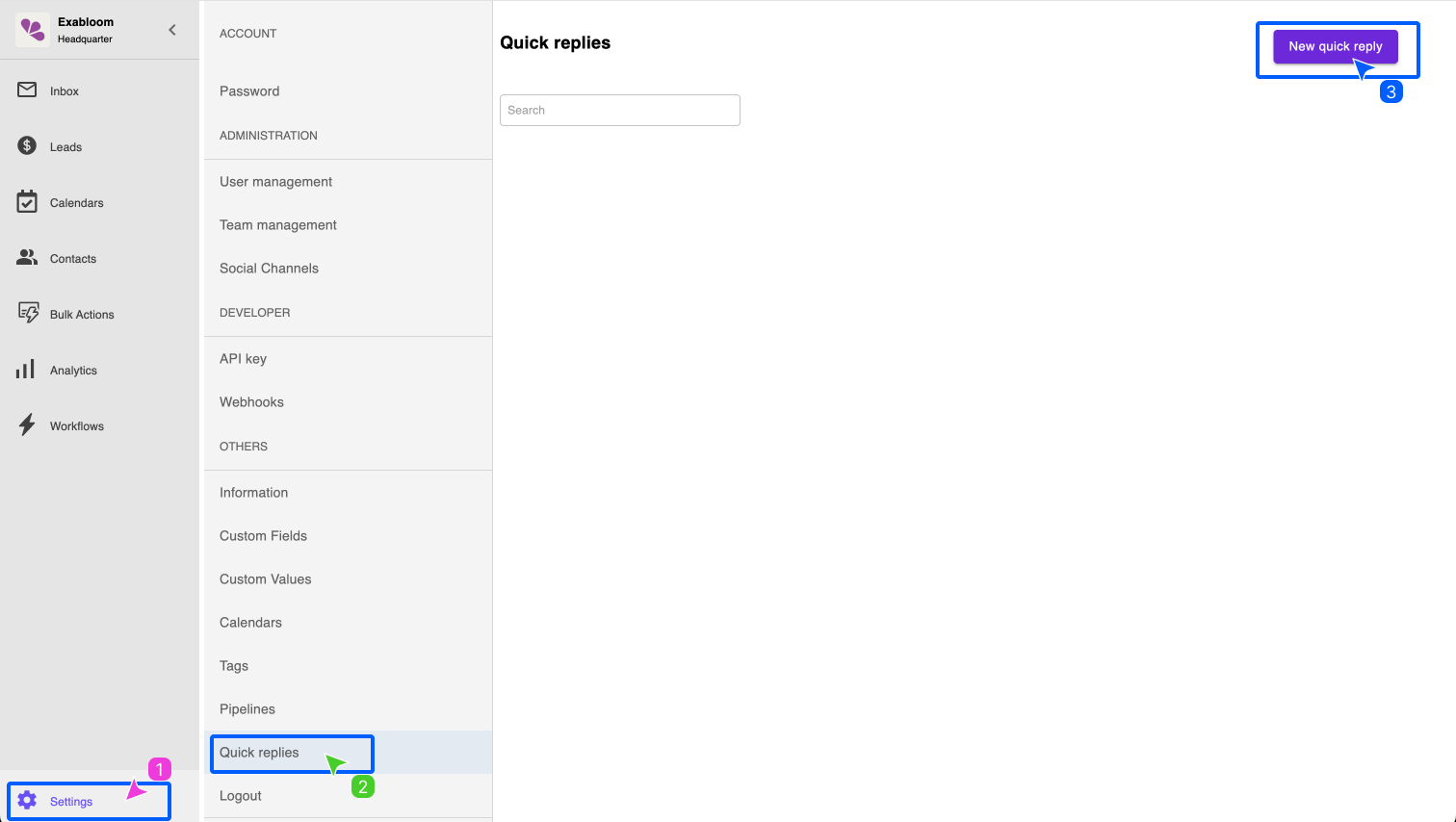
Go to Settings > Quick replies, and click "New quick reply"

-
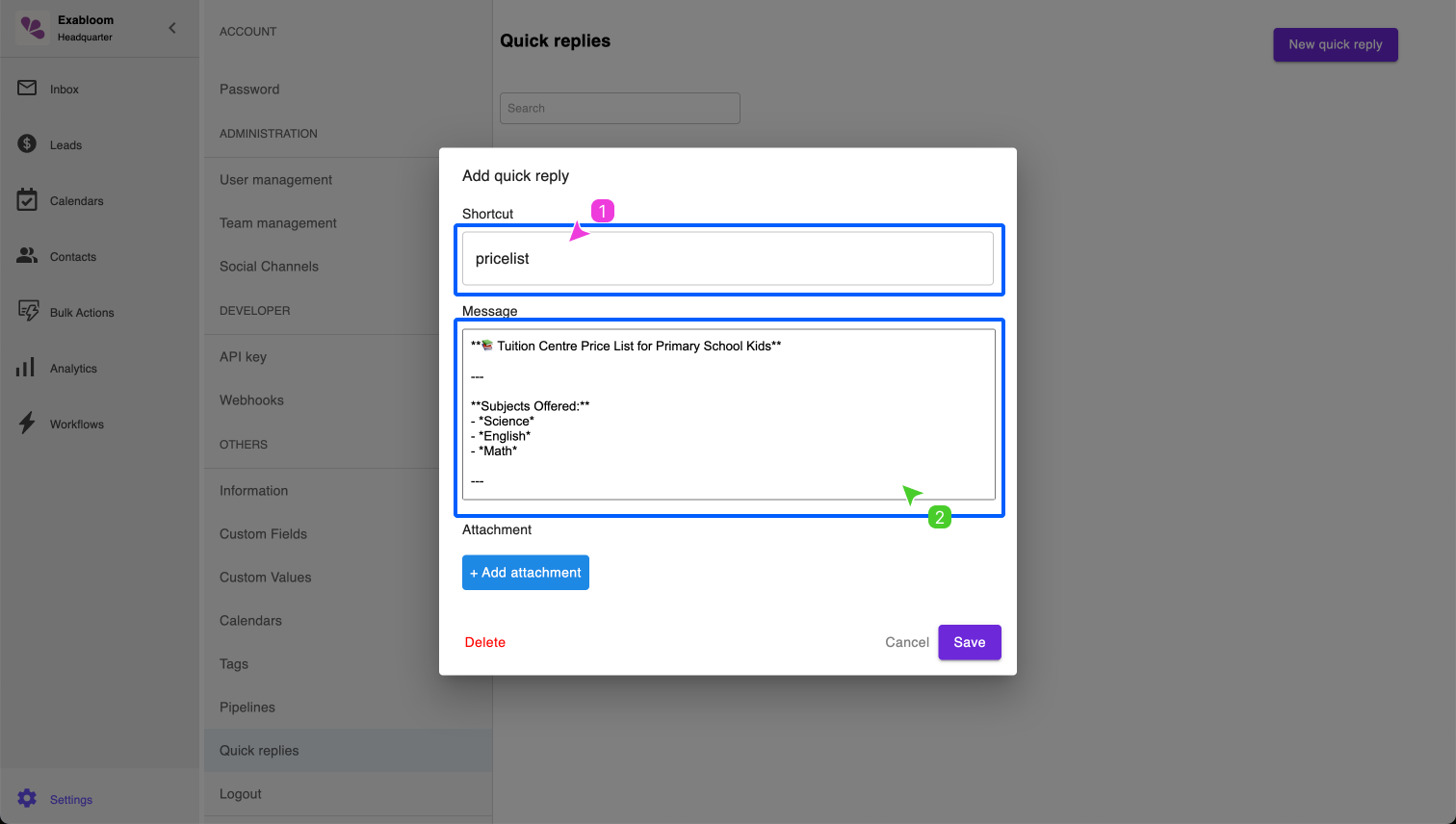
Fill in the "Shortcut" and "Message" and click "Save"

Shortcut formatting rules
The shortcut value must follow this format:
- Shortcuts can’t include spaces.
- The maximum length of a quick reply shortcut is 25 characters.
- Keywords may not contain spaces or any non-alphabetic, non-numeric characters.
-
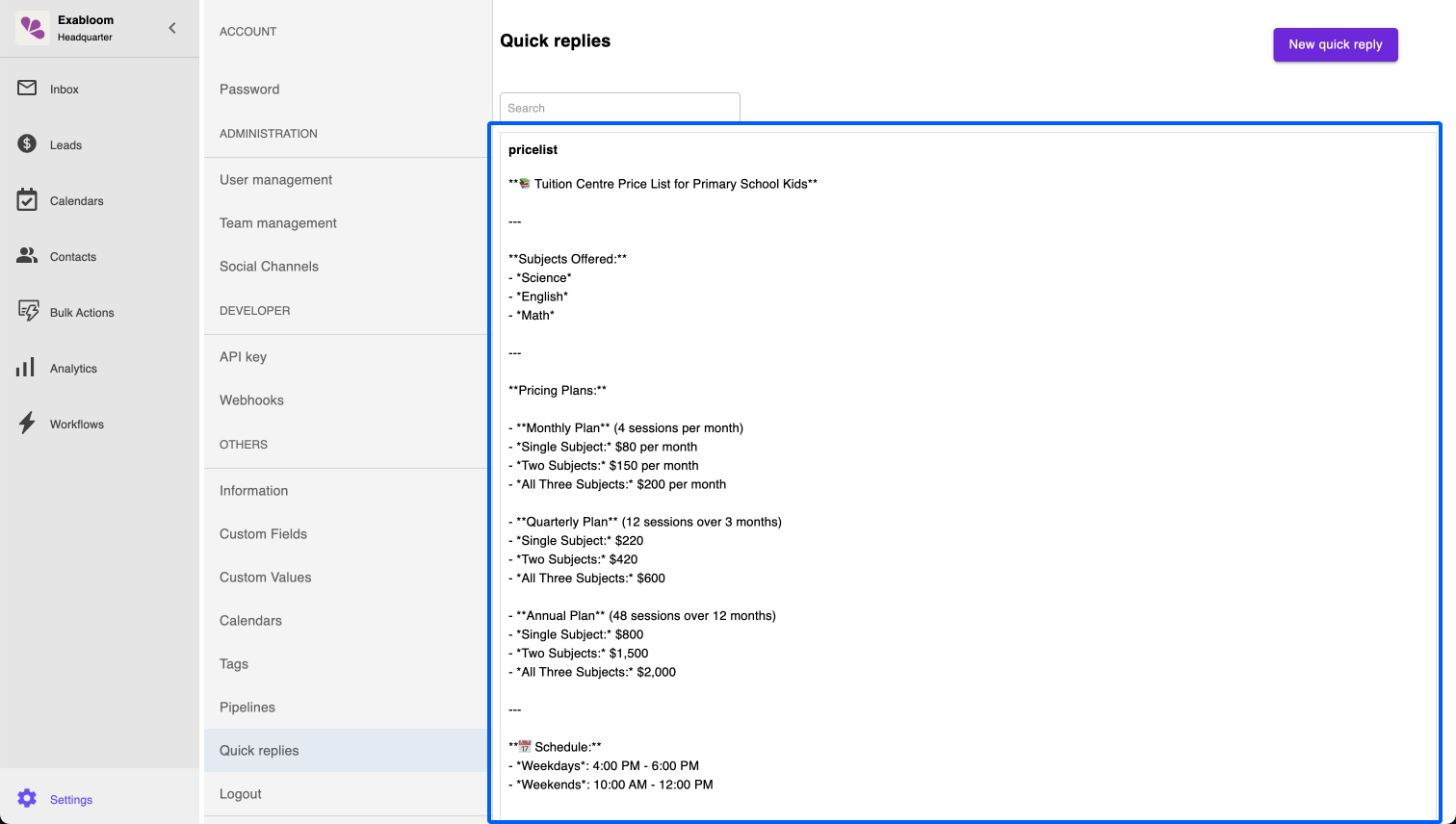
Once saved, you'll see your newly created quick reply message added to the list

How to use quick reply message
In conversation window, there are two ways to use quick reply message:
-
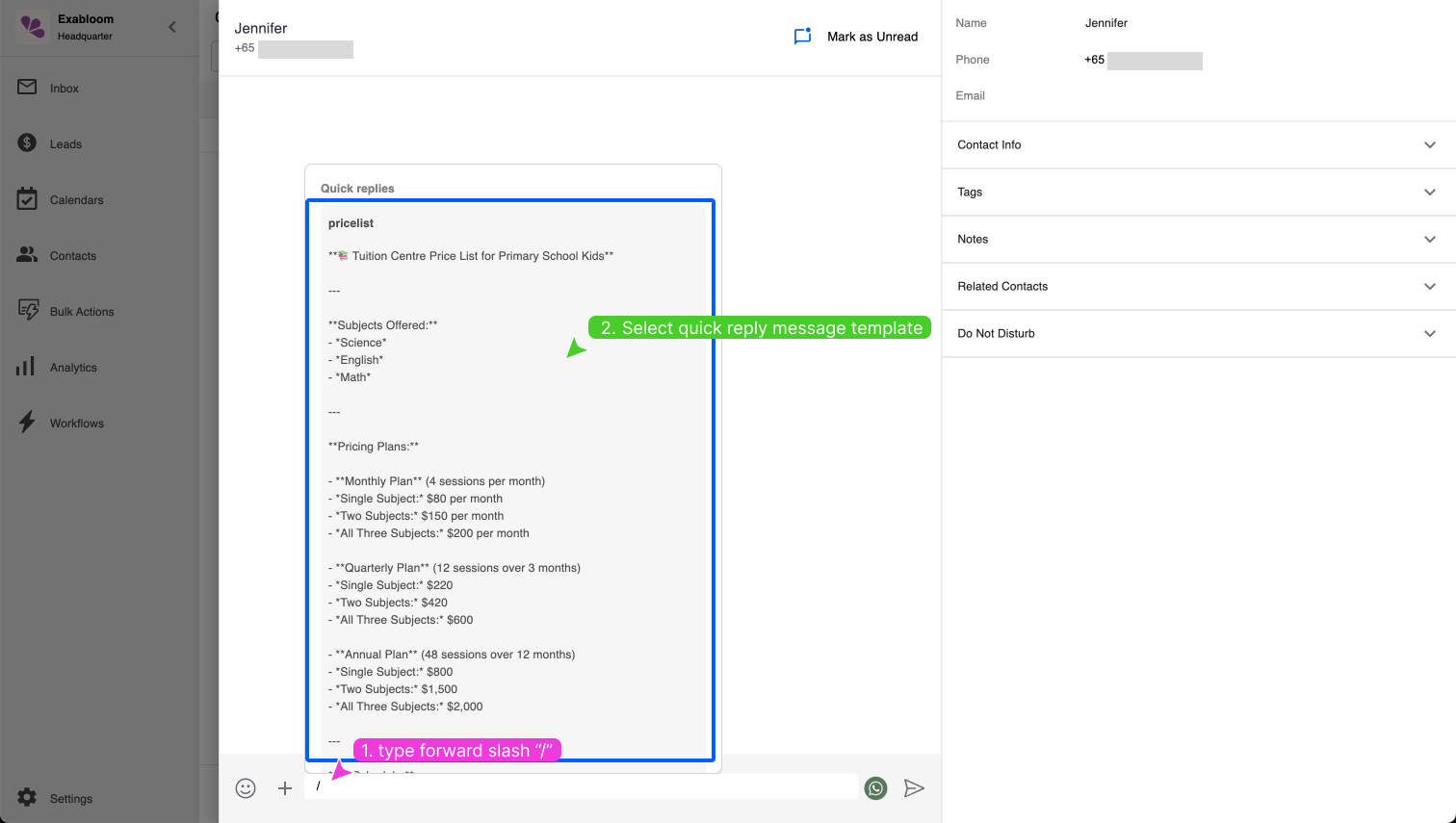
Method A: type forward slash
/in the chat box and select the quick reply message
-
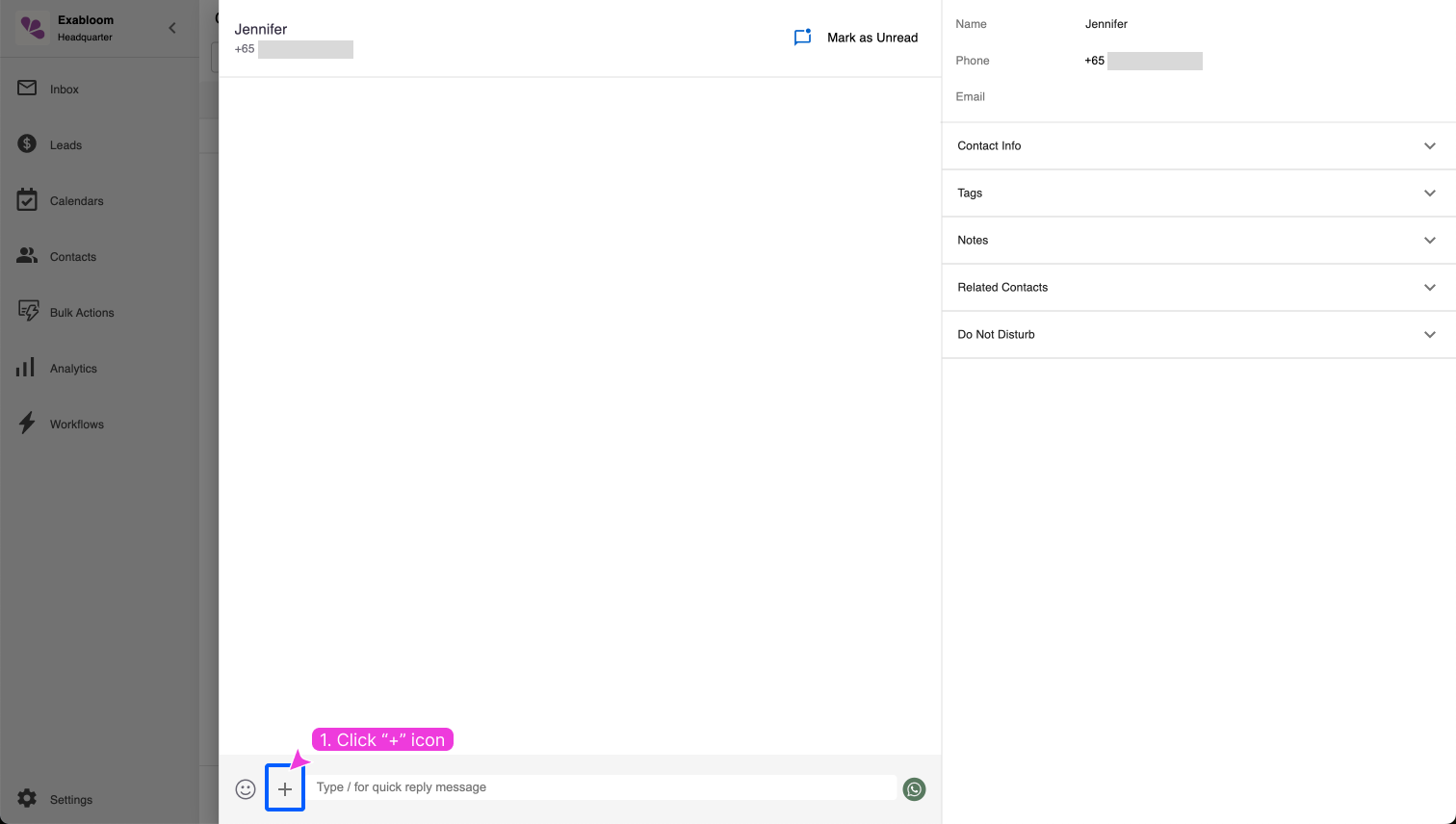
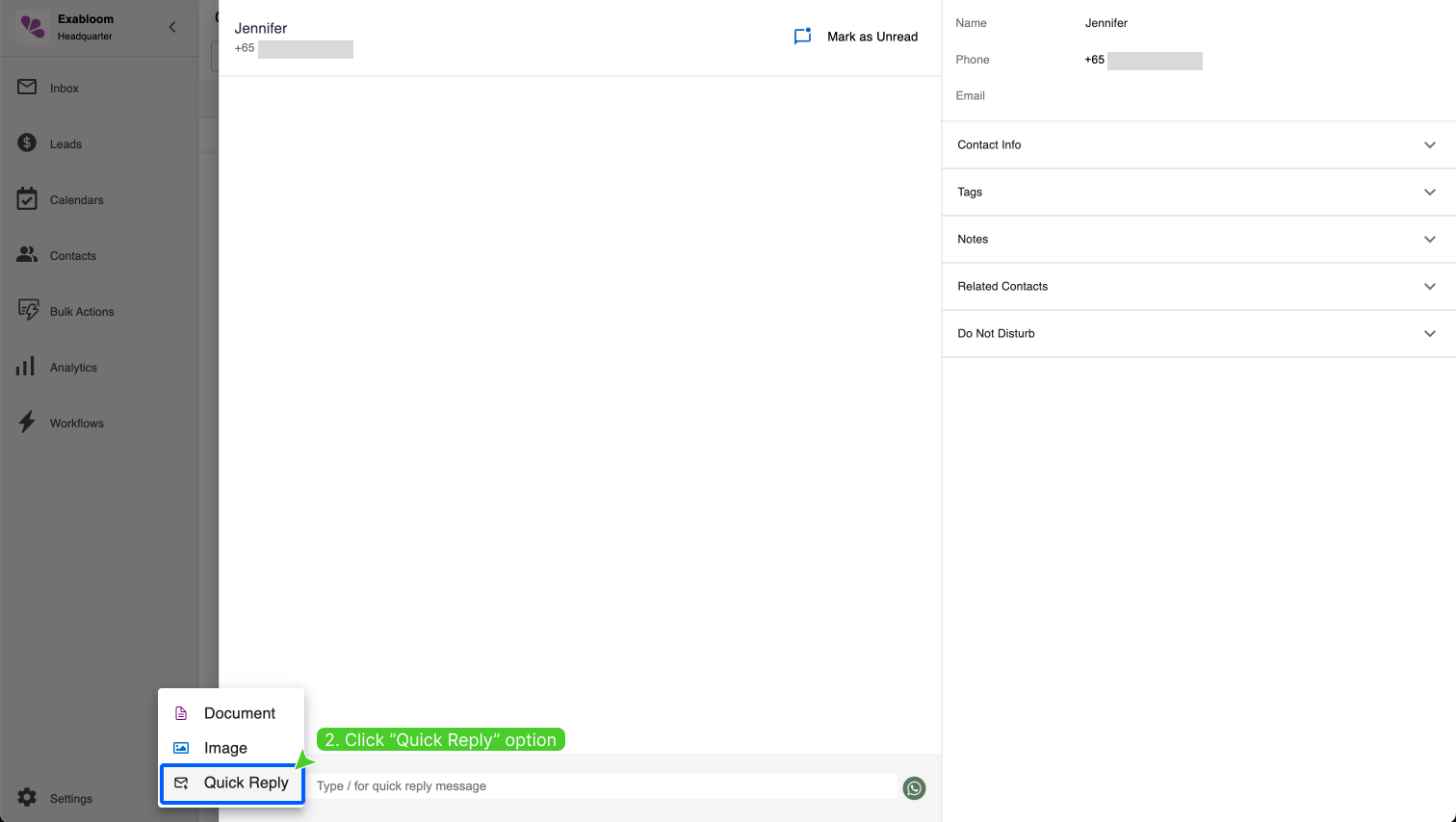
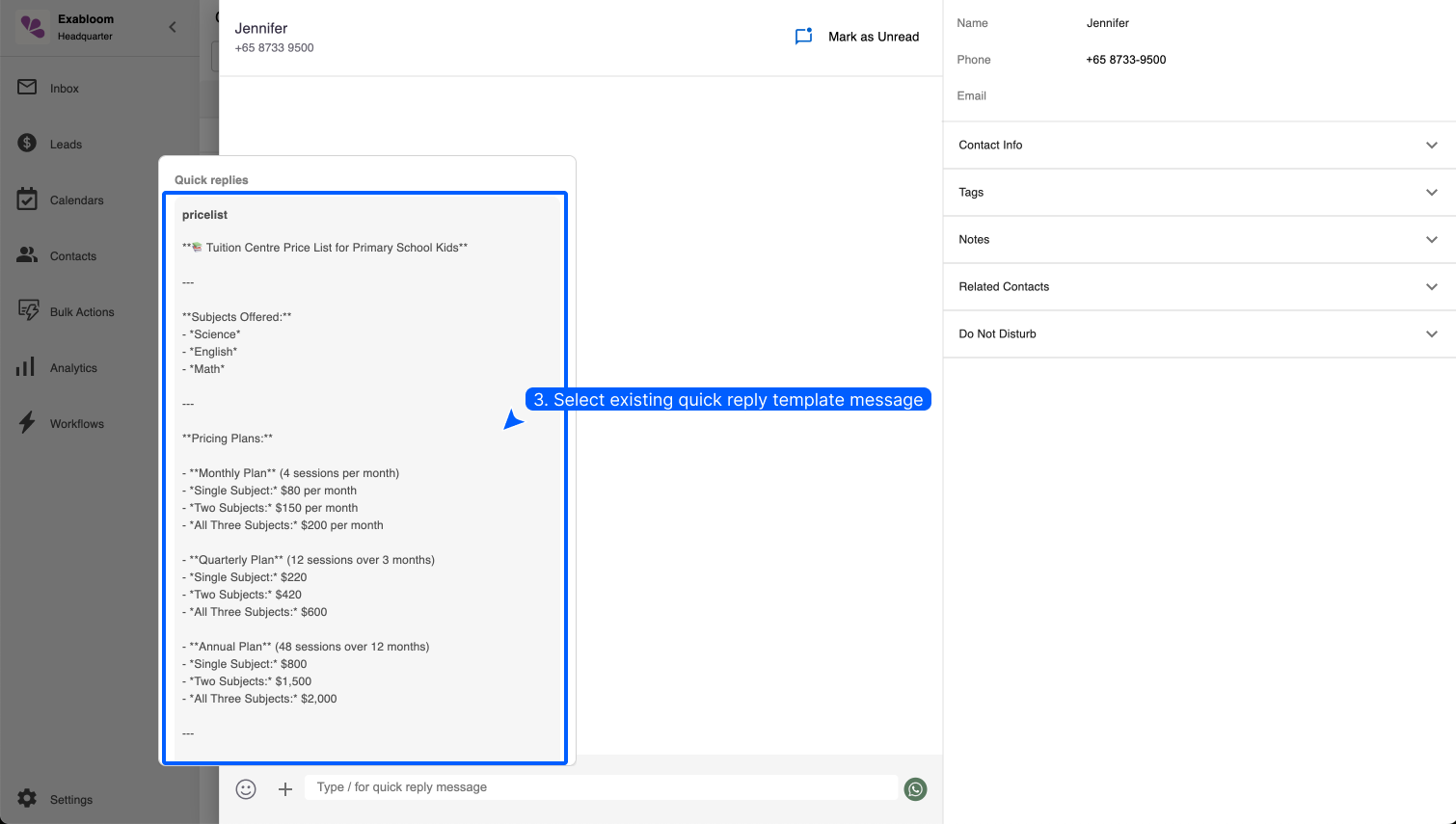
Method B: click on "+" icon in chat box > select the "Quick replies" > select the quick reply message


Use shortcut find your quick reply message
If you have many quick reply message, it can get quite tedious to manually scroll and identify the correct quick reply message.
You can quickly use search for quick reply message using shortcut.
It's much easier to learn how to use the shortcut by looking at example.
So here's an example.
Example Scenario Let's say you have these quick reply messages with these shortcuts:
-
faqteacherselection -
faqteacherqualification -
pricelist
In chat box, when you type forward slash /, it shows all the quick reply messages.

When you type /faq, it shows faqteacherselection and faqteacherqualification.

When you type /faqteacherq, it shows faqteacherqualification.

That's how you narrow down the results to quickly find the quick reply message using shortcut.