Bulk Send Messages
The system will continue sending messages even if your computer goes into sleep mode.
Send message blasts to multiple contacts safely and efficiently
Which Section Do You Need?
Choose the approach that matches your situation:
| Your Goal | Go to Section |
|---|---|
| Send to existing contacts - Message contacts already in your system | Standard Bulk Messaging → |
| Send to newly imported contacts - Message contacts just uploaded via CSV | Imported Contacts Messaging → |
| Avoid sending duplicates - Skip contacts who received previous messages | Exclude Previous Recipients → |
⚠️ Important: WhatsApp Bulk Messaging Risks
Before sending bulk messages, understand that WhatsApp may restrict accounts when recipients mark messages as spam. Exabloom provides the tools, but has no control over WhatsApp's policies.
Quick Risk Assessment
| Message Type | Risk Level | Examples | Best Practice |
|---|---|---|---|
| Marketing Messages | 🔸 Higher Risk | "Buy now for 50% off!" | Only send to opted-in contacts |
| Service Messages | 🔹 Lower Risk | "Your appointment is tomorrow" | Include specific, relevant details |
Golden Rules for Bulk Messaging
- Get Permission First - Only message contacts who agreed to receive messages
- Make It Personal - Include names and relevant context
- Provide Value - Ensure your message is helpful, not just promotional
- Start Conservative - Use small batches (1-5 messages) with longer intervals
Before sending, ask: "Would I find this message helpful or annoying?" If someone didn't expect your message, they're more likely to mark it as spam.
Standard Bulk Messaging
Use this method to send messages to contacts already in your Exabloom system.
How It Works
- Go to Contacts or Leads page
- Select contacts using checkboxes (✓)
- Click "Send Message" to open configuration
- Set up your campaign using the table below
- Send and monitor your campaign
Configuration Settings Explained
| Setting | What It Means | Recommended Value |
|---|---|---|
| Campaign Name | Label for tracking this send | "Follow-up Campaign - [Date]" |
| Start Time | When to begin sending | Now or schedule for later |
| Messages Per Group | How many contacts get messages simultaneously | 1-2 (safer for delivery) |
| Wait Between Groups | Pause between message batches | 5+ minutes (reduces spam risk) |
| Active Days | Which days messages can be sent | Business days if appropriate |
| Sending Hours | Time window for daily sends | 8 AM - 8 PM (recipient-friendly) |
| Skip Previous Recipients | Exclude contacts from earlier campaigns | Enable for follow-ups |
Real Example
Let's say you want to message 10 existing customers:
Campaign: "January Newsletter Follow-up"
Selected: 10 contacts
Settings:
- Messages per group: 2
- Wait time: 10 minutes
- Sending window: 9 AM - 5 PM
- Active days: Monday-Friday

Schedule:
Monday 9:00 AM → Send to contacts 1-2
Monday 9:10 AM → Send to contacts 3-4
Monday 9:20 AM → Send to contacts 5-6
Monday 9:30 AM → Send to contacts 7-8
Monday 9:40 AM → Send to contacts 9-10
Use 1 message per group with 5-minute intervals. Yes, it's slower (100 contacts = ~8 hours), but it's much safer for your WhatsApp account.
Monitoring Your Campaign
After clicking "Send":
- Go to Bulk Actions page
- Find your campaign by name
- Monitor status: Pending → In Progress → Completed
- Check for any errors or failed sends
Messaging Imported Contacts
This section is specifically for sending messages to contacts you've just imported via CSV. Why separate instructions? Newly imported contacts are higher risk because they might not expect your message.
Step-by-Step Process
Step 1: Import Your Contacts
Import contacts via CSV file. Need help? See our Contact Management Guide.
Step 2: Find Your Import Results
-
Go to Bulk Actions page
-
Look for your contact import (it will show import date/time)
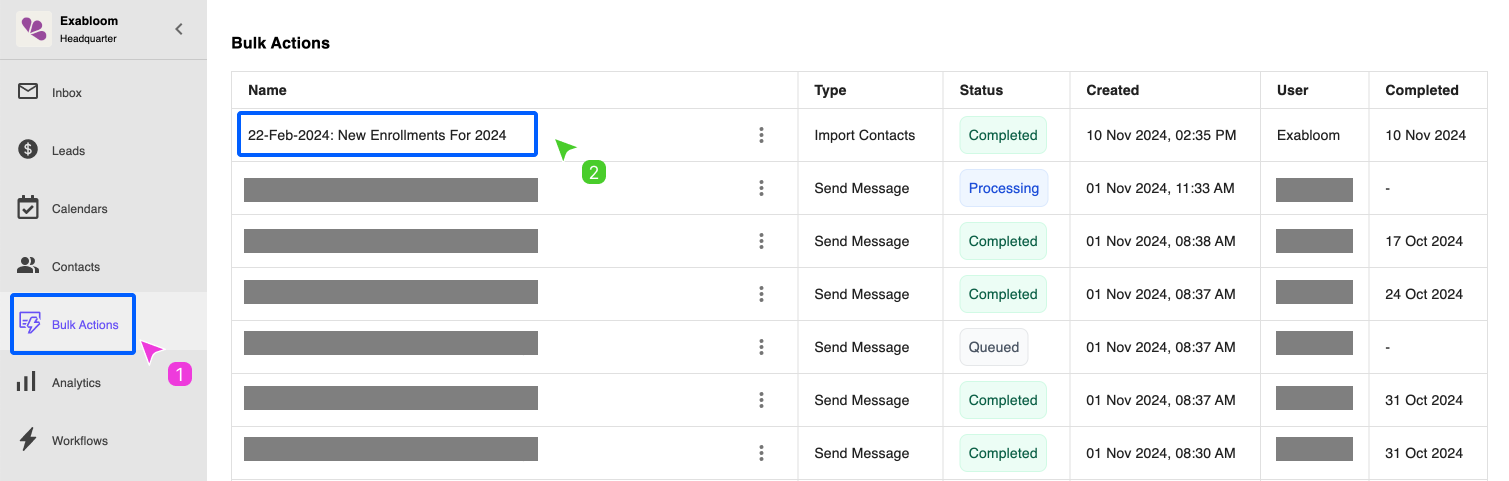
Step 3: View Only Successful Imports
-
Click "View contacts" dropdown on your import
-
Select "Only success contacts"
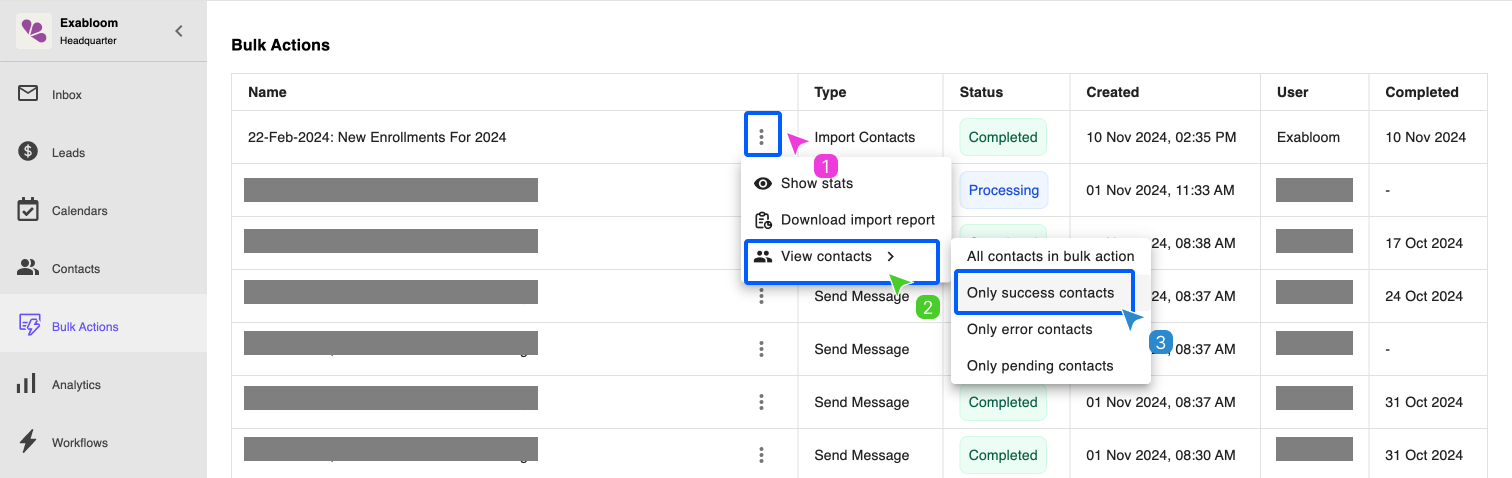
Why this step? Some contacts might fail import due to invalid phone numbers. This ensures you only message successfully added contacts.
Step 4: Review the Filtered List
You'll see only your imported contacts. The page shows how many were successfully imported.
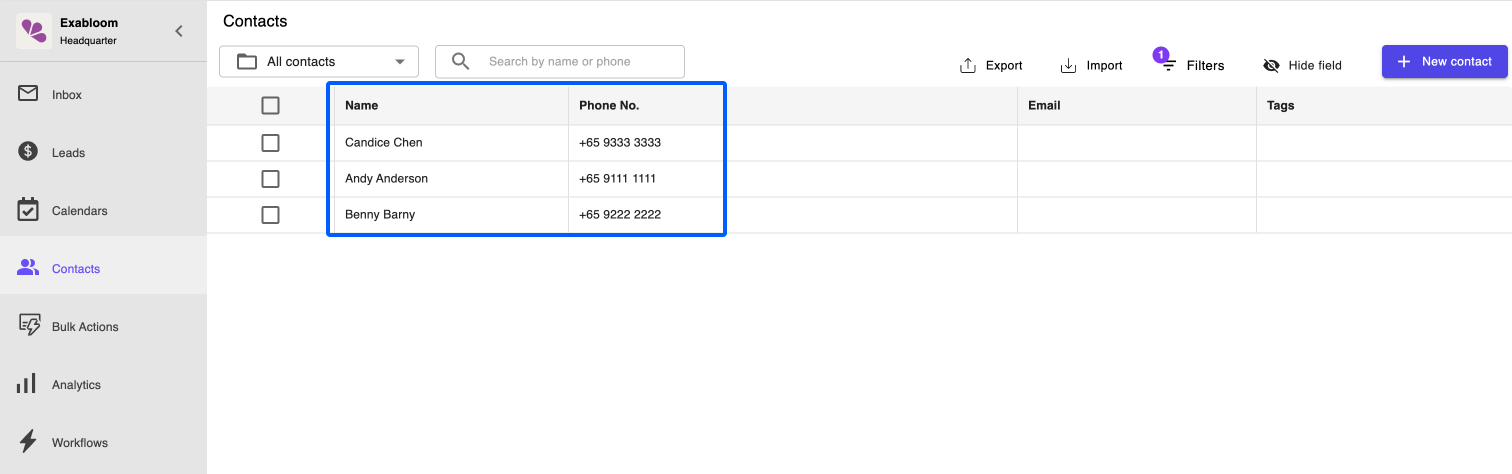
Step 5: Select All Imported Contacts
-
Click the checkbox at the top-left of the table
-
Choose "Select from all pages" (important if you have multiple pages)
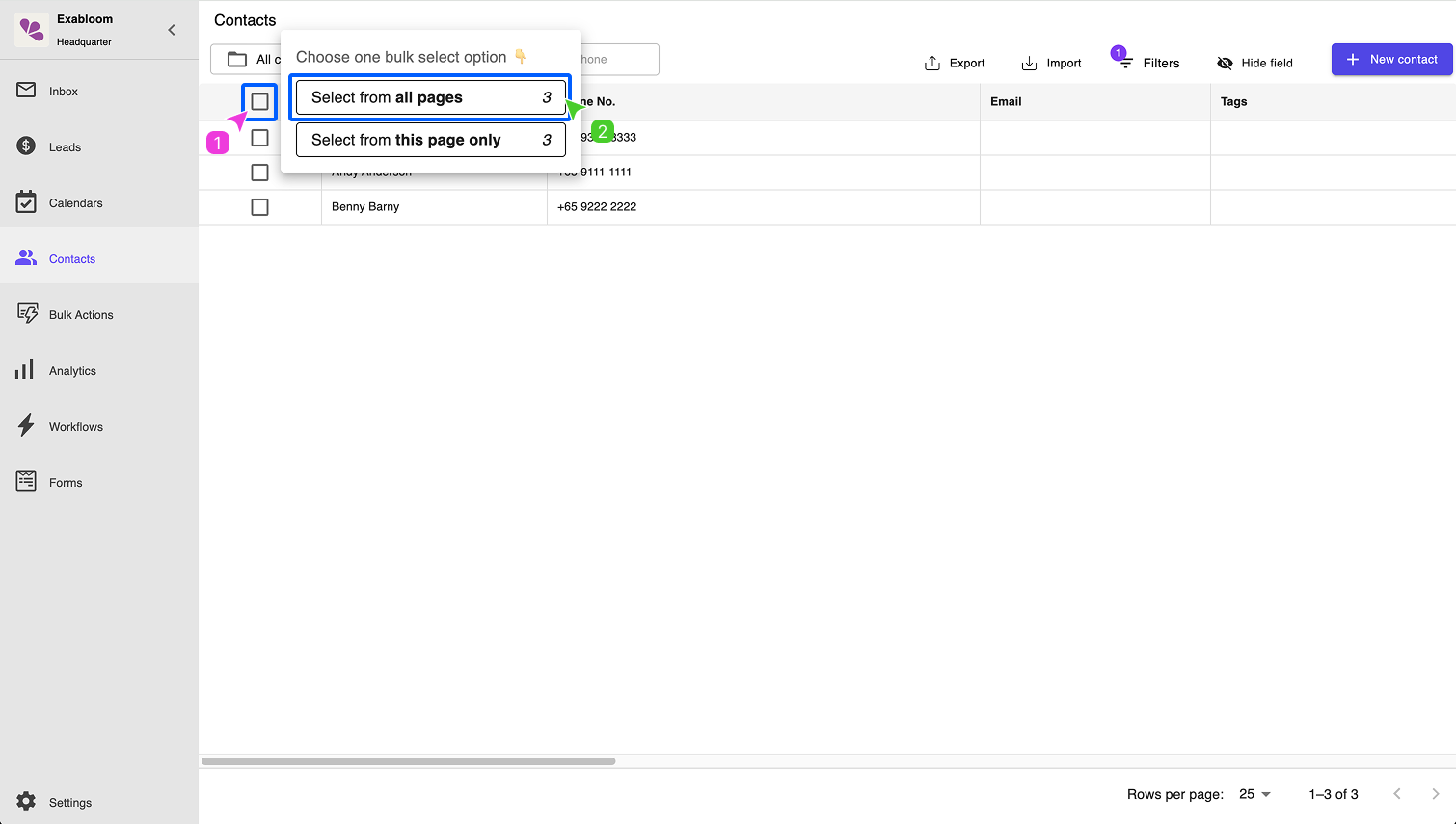
Why all pages? Large imports split across multiple pages. This ensures you don't miss anyone.
Step 6: Configure Safe Settings
-
Click "Send Message"
-
Use these extra-safe settings to mitigate chances of getting marked as spam:
- Campaign Name: "Welcome Import - [Date]"
- Messages per group: 1 (safest option)
- Wait time: 5+ minutes
- Sending hours: 9 AM - 6 PM
- Active days: Monday-Friday
Craft a message - you can use WhatsApp formatting here.
WhatsApp Text FormattingYou can format text in your messages just like in WhatsApp:
- *bold text*: bold text
- _italic text_: italic text
- ~strikethrough~:
strikethrough - `Code`:
code - Create lists by starting each line with a hyphen (-) and a space
Example Message with Formatting:
Hi {{contact.firstName}}! This is *[Your Business Name]*. You recently signed up for updates on our website.

*Welcome to our community!* 🎉

Here's what you get:
- Weekly tips and tricks
- Exclusive member discounts
- Early access to new features

Your starter guide: `www.yoursite.com/guide`

We'll send you updates ~daily~ weekly. Reply *STOP* anytime to opt out.

Thanks for joining us!
_– The [Business] Team_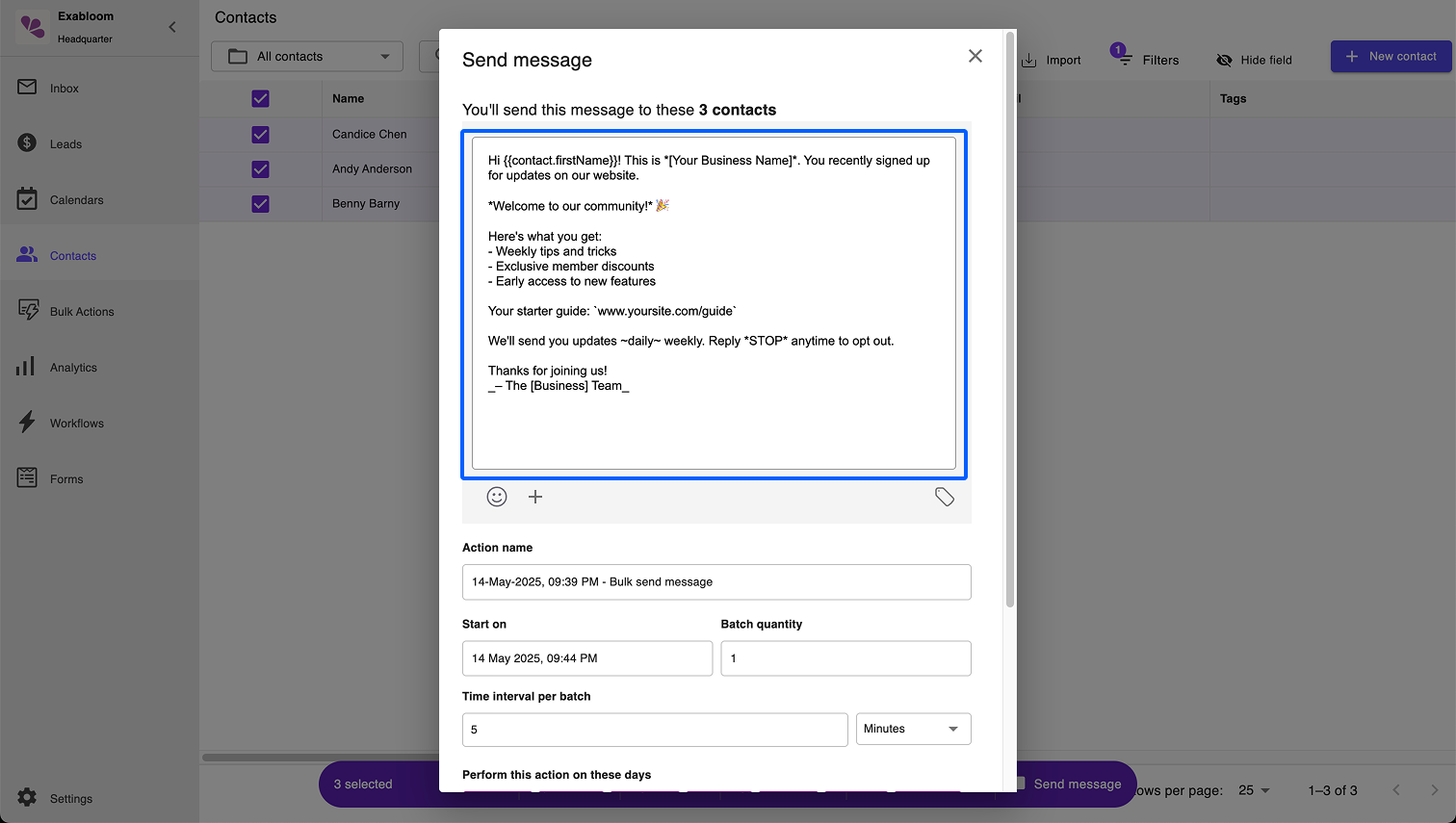
Step 7: Send and Monitor Closely
- Click "Send message" to schedule the campaign
- Go to Bulk Actions to monitor
Excluding Previous Recipients
Avoid sending duplicate messages by excluding contacts who received previous campaigns.
Contact exclusion works for campaigns created after October 19, 2024.
When to Use This Feature
- Follow-up campaigns - Don't re-message people who got your first campaign
- Segmented sends - Send different messages to different groups
- Error recovery - Retry failed sends without duplicating successful ones
How to Exclude Previous Recipients
- During message configuration, look for "Exclusion Options"
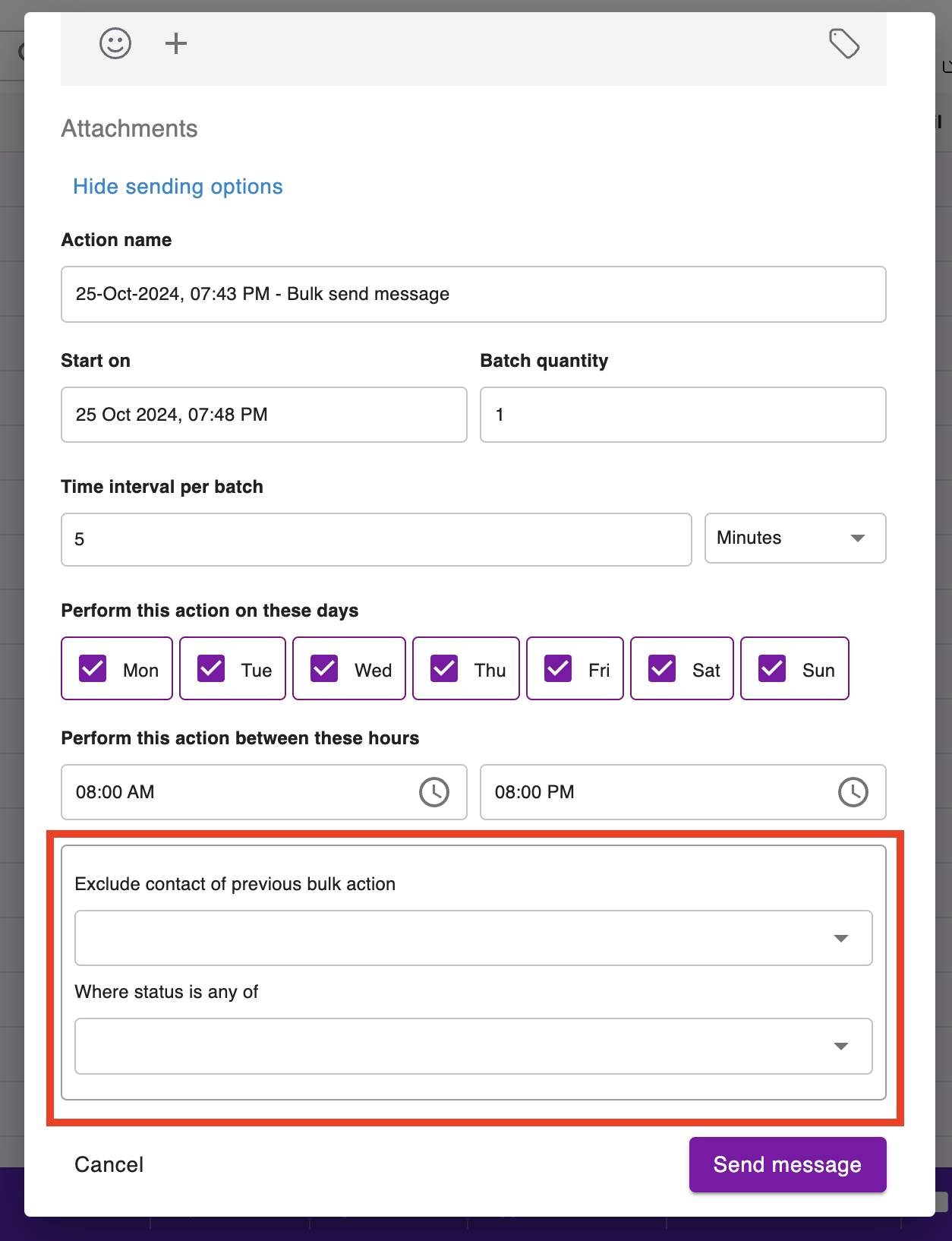
- Select previous campaigns to exclude from
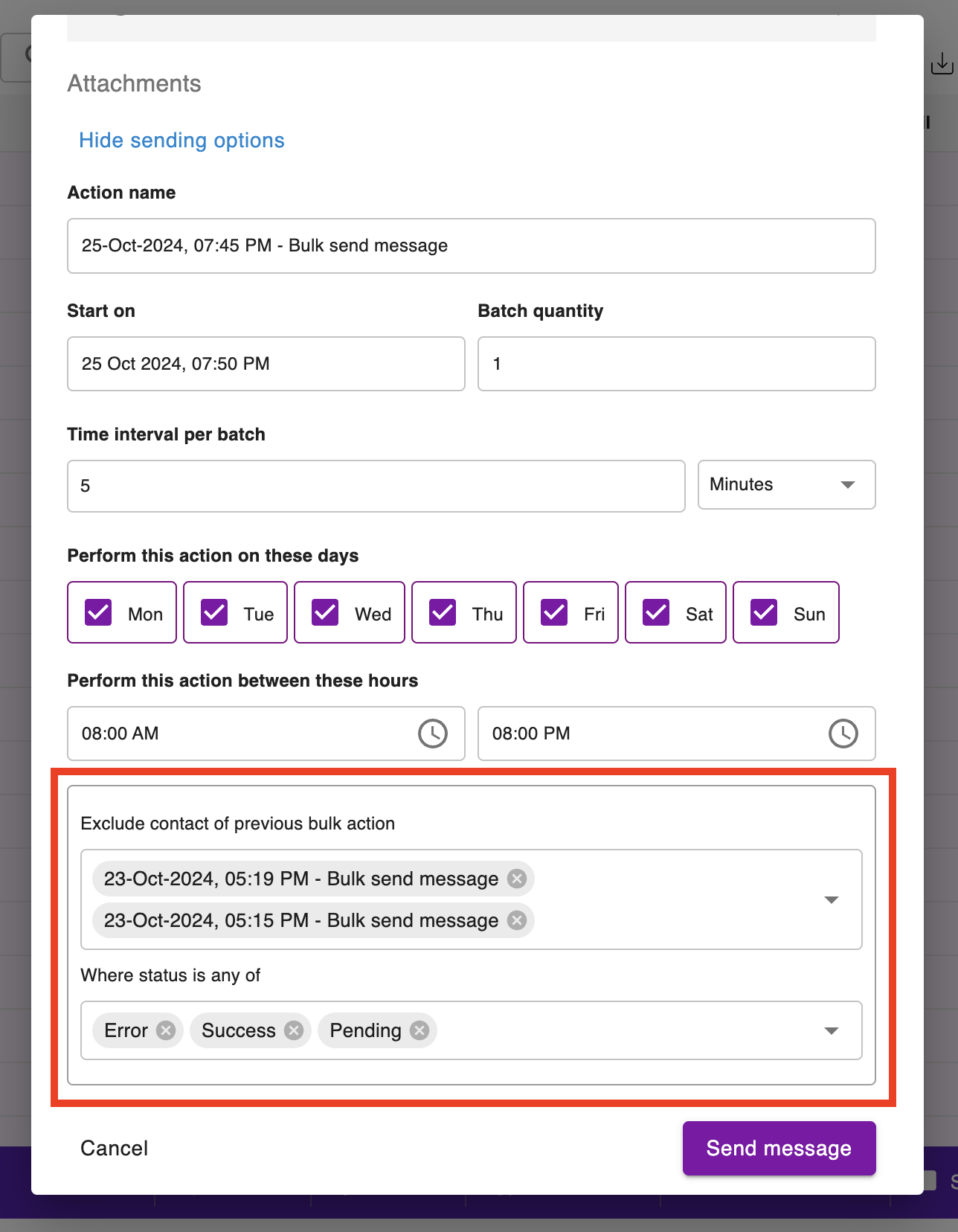
- Choose which statuses to exclude:
- "Success" - Skip contacts who received the message
- "Error" - Skip contacts where delivery failed
- "Pending" - Skip contacts still waiting for delivery
Most Common Setup: Select "Error", "Success", and "Pending" to exclude all contacts from the previous campaign regardless of delivery status.
Example Scenario
Campaign 1: Welcome message to 100 imported contacts
- 95 successful deliveries
- 5 errors
Campaign 2: Follow-up message
- Exclude all 100 contacts from Campaign 1
- Send to different contact set or retry errors only
Troubleshooting & FAQ
General Questions
Q: My campaign is taking forever. Is this normal?
A: Yes! Conservative settings mean slower delivery. 100 contacts with 1-per-batch and 5-minute intervals takes about 8 hours. This is intentional for safety.
Q: Can I speed up my campaign after it starts?
A: No, you can't change settings after starting. You can:
- Cancel the current campaign
- Exclude contacts who already received messages
- Start a new campaign with different settings
Q: What if my computer turns off?
A: No problem! Exabloom runs in the cloud. Your campaign continues even if your computer is off.
Delivery & Safety Questions
Q: How do I know if I'm being marked as spam?
A: Warning signs include:
- High error rates (>10%)
- Messages showing as "failed" in Bulk Actions
- WhatsApp warnings in your app
- Sudden drops in delivery rates
Q: Is it safe to include links?
A: Links trigger additional WhatsApp security scans. Many users successfully include links, but it does increase scrutiny. Consider your risk tolerance.
Q: How can I reduce spam risk?
A: Follow these practices:
- Use small batches (1-3 messages)
- Wait 5+ minutes between batches
- Only message opted-in contacts
- Send during reasonable hours (8 AM - 8 PM)
- Provide clear value in your messages
Import-Specific Questions
Q: Why be extra careful with imported contacts?
A: Imported contacts haven't had recent WhatsApp interaction with you. They might not remember signing up or expect your message, making them more likely to report spam.
Q: Should I message failed imports?
A: No. Failed imports usually have invalid phone numbers. Attempting to message them will likely result in errors and hurt your delivery rates.
Q: When should I send to imported contacts?
A: Best practice is within 24-48 hours of import, while they still remember signing up for your service.
Always think from your recipients' perspective. Would they find your message helpful and expected? This mindset will keep you out of trouble and improve your communication effectiveness.