Send WhatsApp When Form Submits

⏱️ Estimated time: 15-20 minutes

Prerequisites

Before starting, make sure you have:

  • Completed the previous guide: "Create Your First Form"
  • A working form named "Contact Us"
  • WhatsApp connected to Exabloom
  • Tested your form at least once

What You'll Accomplish

By the end of this guide, your form will automatically send a personalized WhatsApp message to anyone who submits it. This creates instant engagement and shows professionalism!

Real-world example: A visitor fills out your "Contact Us" form → They immediately receive a WhatsApp message saying "Thanks for your interest! We'll get back to you within 24 hours."


Create Your WhatsApp Automation

Step 1: Create a New Workflow

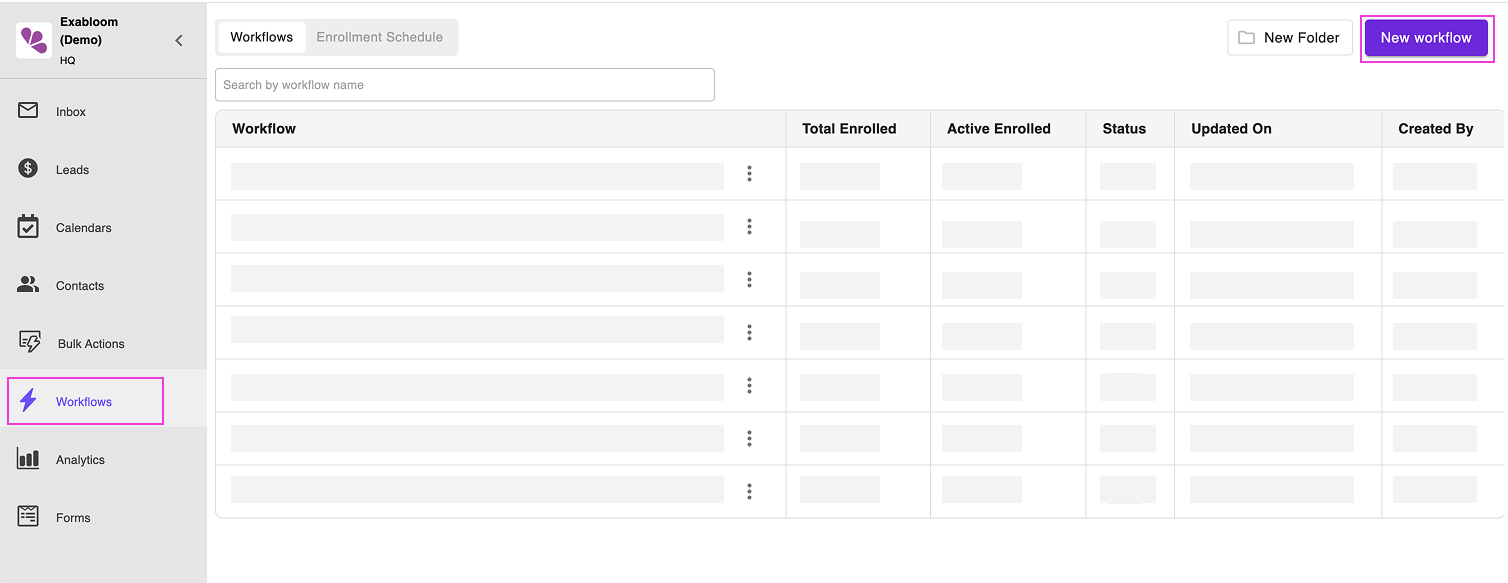
  1. Navigate to Workflows

    Go to "Workflows" and click "New Workflow"

    navigate-to-workflow.png

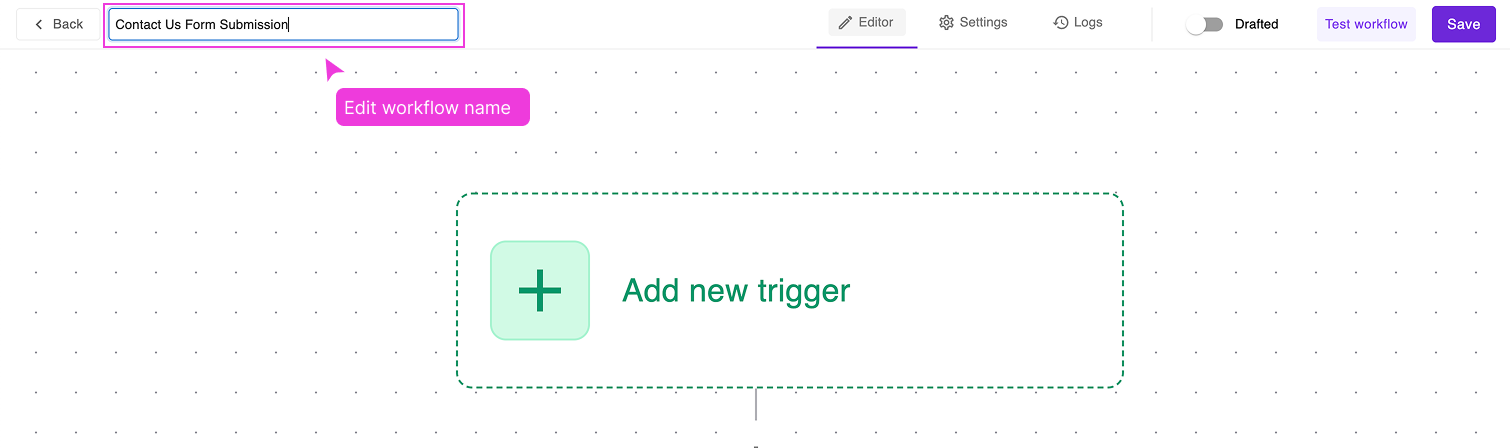
  2. Name Your Workflow

    Change the workflow name to something descriptive like "Contact Us Form Submission"

    edit-workflow-name.png

    💡 Why good names matter: You'll likely create many workflows. Clear names help you find and manage them later.

Step 2: Set Up the Trigger

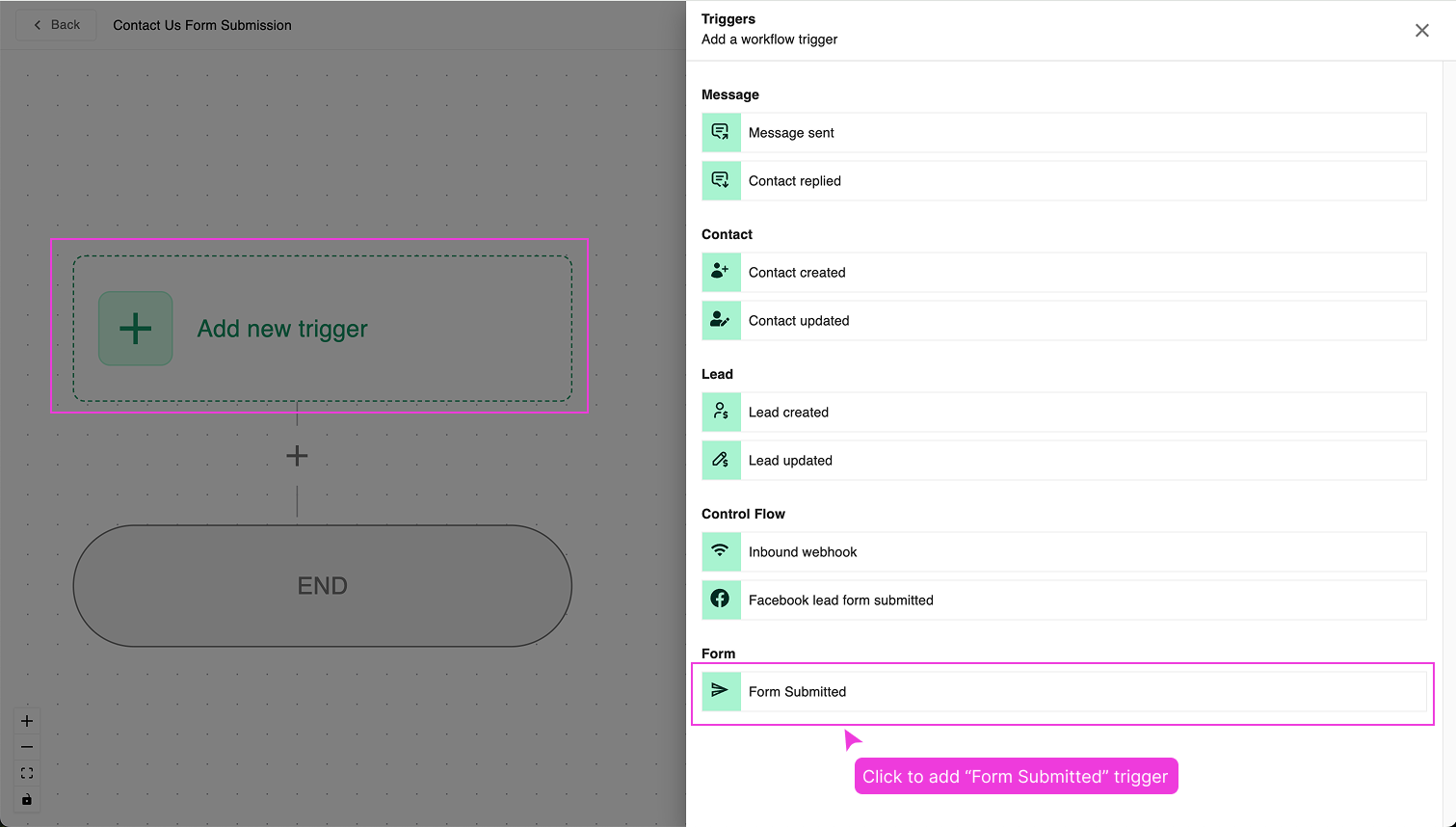
  1. Add the Form Trigger

    Click "Add new trigger" → Select "Form Submitted"

    add-form-submitted-trigger.png

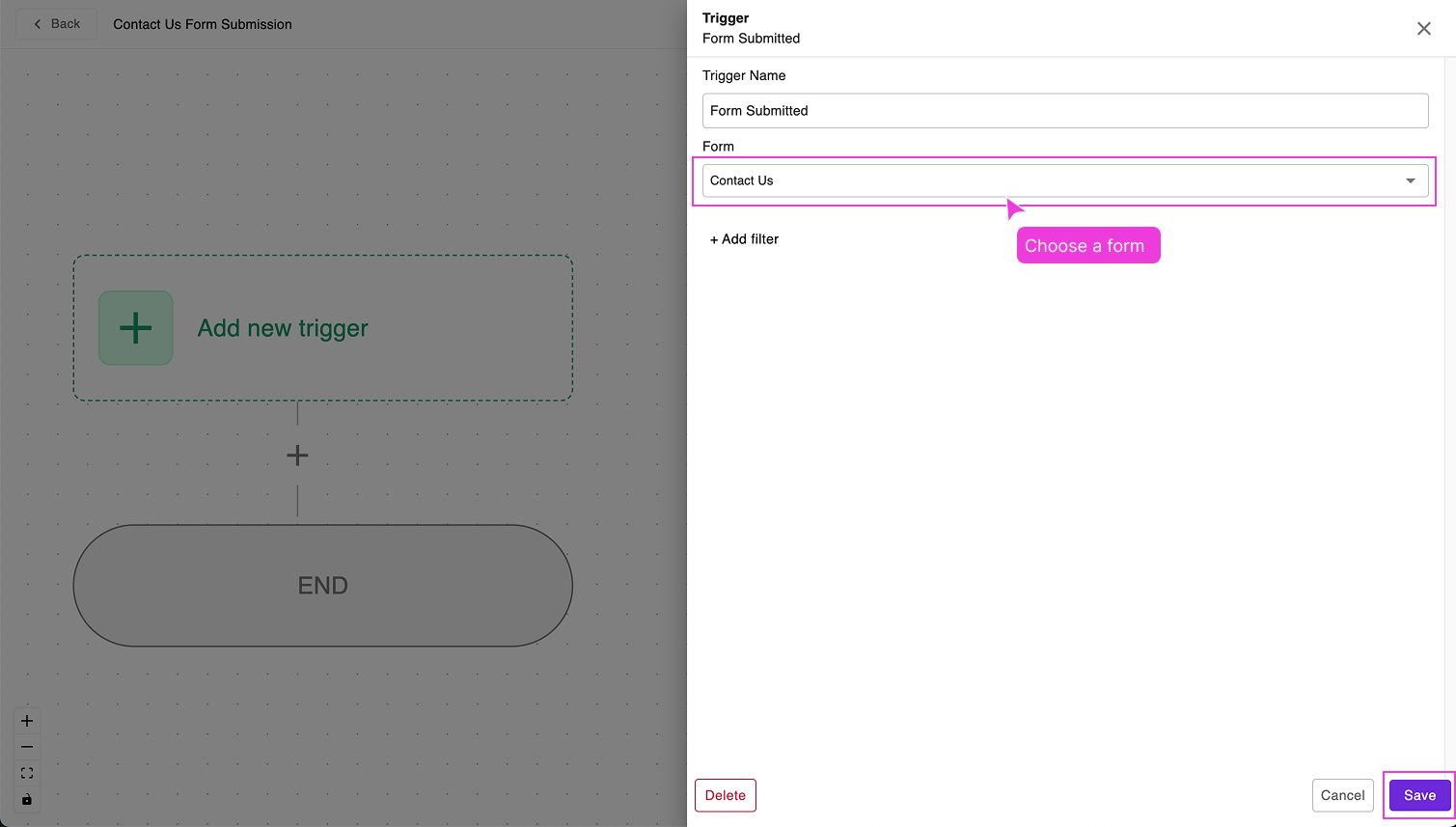
  2. Configure the Trigger

    In the "Form Submitted" settings:

    • Set "Form" to "Contact Us" (or whatever you named your form)
    • Click "Save" in the bottom right

    set-up-form-submitted-trigger.png

    What this does: Every time someone submits your Contact Us form, this workflow will activate.

Step 3: Add WhatsApp Action

  1. Add the WhatsApp Action

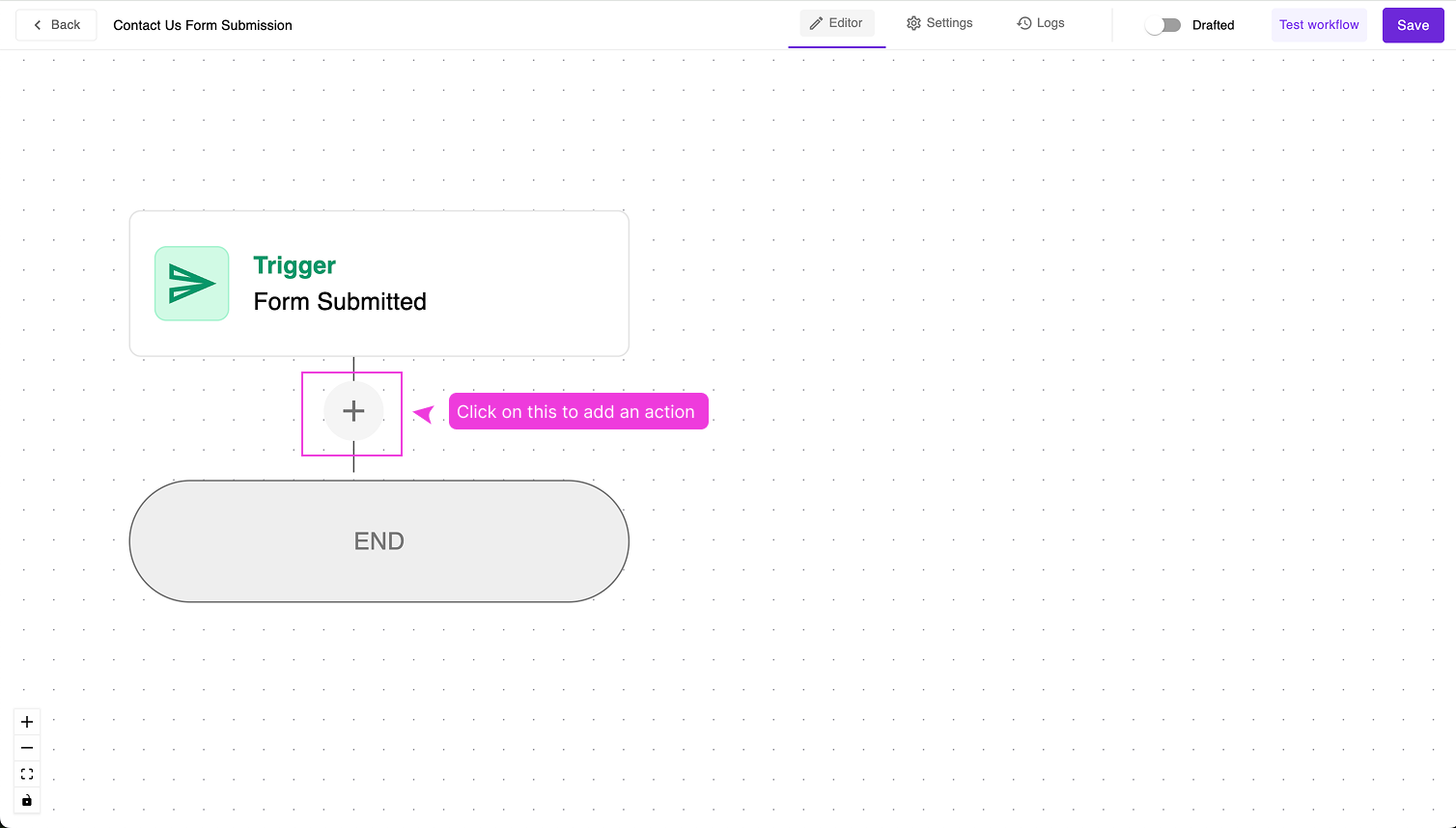
    Click the plus icon (+) below the trigger to add an action

    add-action.png

    Select "Send WhatsApp" from the action options.

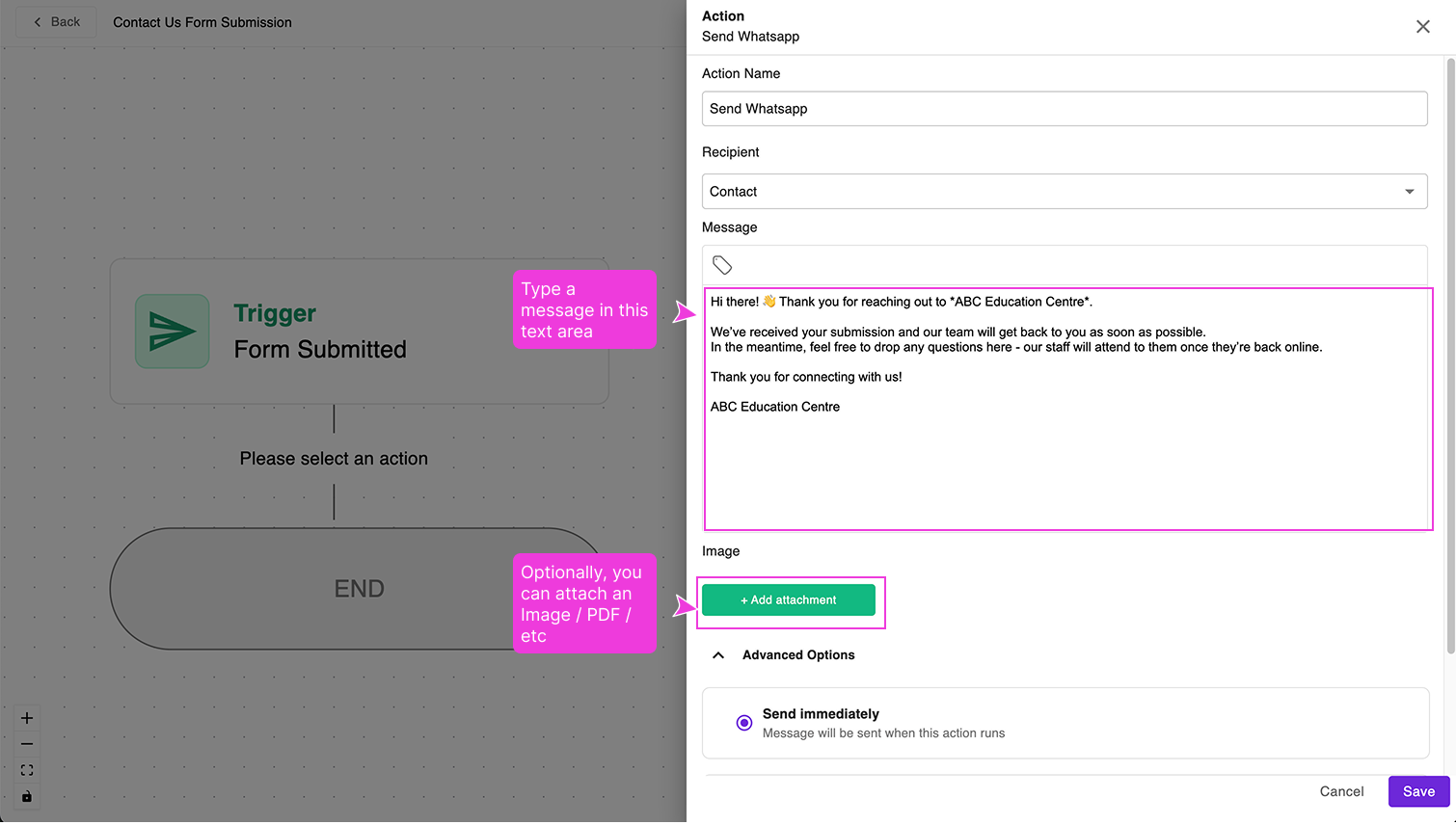
  2. Configure Your Message

    In the "Send WhatsApp" settings, craft your message. Here are some effective templates:

    Professional Template:

    Hi there! 👋 

    Thanks for reaching out through our website. We've received your message and will get back to you within 24 hours.

    Best regards,
    [Your Business Name]

    Personal Template:

    Hello! 

    Thank you for your interest in our services. I personally review every inquiry and will respond to you shortly.

    - [Your Name]

    set-up-send-whatsapp-action.png

    Optional: Add attachments like your business brochure or price list using "Add attachment"

    Click "Save" when you're done.

Step 4: Publish Your Workflow

  1. Activate the Workflow

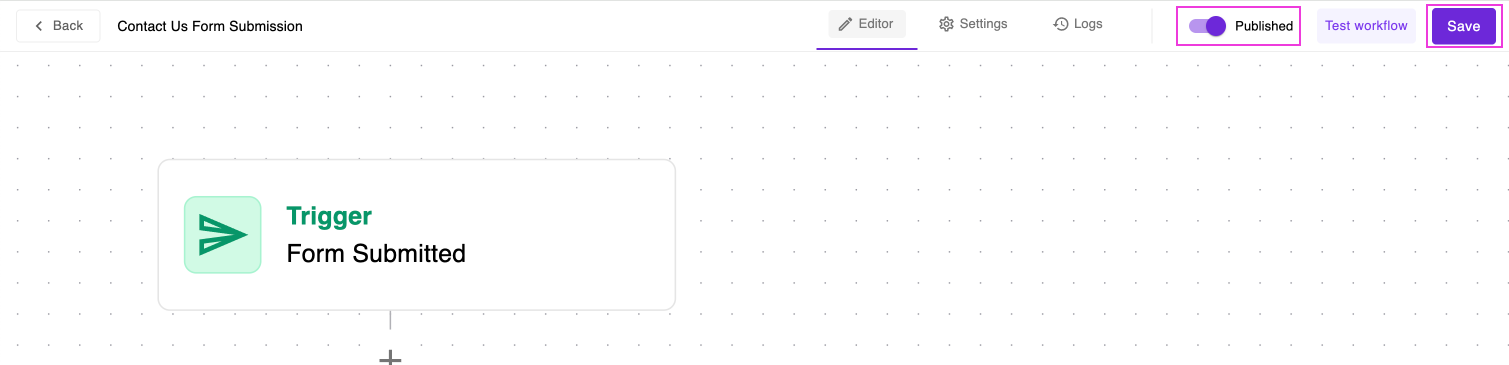
    Toggle "Published" to ON, then click "Save"

    publish-and-save.png

    🎉 Your automation is now live!

Test Your Setup

Important: Always test before going live with real customers.

Testing Process

  1. Submit Your Form Again

    Go back to your form preview and submit another test entry using your phone number.

  2. Check Your WhatsApp

    Within 2-3 minutes, you should receive the WhatsApp message you configured.

  3. Verify the Workflow Worked

    Success indicators:

    • WhatsApp message received
    • Message content matches what you wrote
    • Message came from your business WhatsApp number

Troubleshooting

Not receiving WhatsApp messages?

  • Verify your WhatsApp Business account is properly connected
  • Check that the workflow is published (toggle should be green/on)
  • Ensure you used a valid phone number in the form
  • Wait up to 5 minutes - sometimes there's a delay

Workflow not triggering?

  • Confirm the form name in the trigger matches your actual form name exactly
  • Make sure you clicked "Save" after publishing
  • Check that the form submission was successful

Wrong message content?

  • Edit the workflow → modify the WhatsApp action → save and republish

Message going to wrong number?

  • The WhatsApp goes to the phone number entered in the form
  • Make sure you're testing with your own phone number

What You've Achieved

🎊 Congratulations! You now have:

  • A working contact form
  • Automatic WhatsApp confirmations for every submission
  • Professional follow-up that happens instantly
  • A foundation for more advanced automations

Before Moving to the Next Guide

Checklist:

  • Workflow is published and active
  • Successfully tested WhatsApp automation
  • Received test WhatsApp message
  • Message content looks professional

Next Guide: Create Lead When Form Submits →

Learn how to automatically create sales leads from form submissions to track and manage your opportunities.