Quick Start: Create Your First Form
⏱️ Estimated time: 10-15 minutes
What You'll Accomplish
By the end of this guide, you'll have created a working contact form that automatically saves visitor information to your contacts database. Perfect for collecting leads from your website!
Exabloom's form builder allows you to build forms by simply dragging elements where you want them. From simple contact forms to complex information-gathering flows with conditional logic, Exabloom's form builder makes building forms intuitive and effortless.
After reading this guide, you should know how to:
- Create a professional contact form
- Test your form to ensure it works
- Troubleshoot common issues
Create Your Contact Form
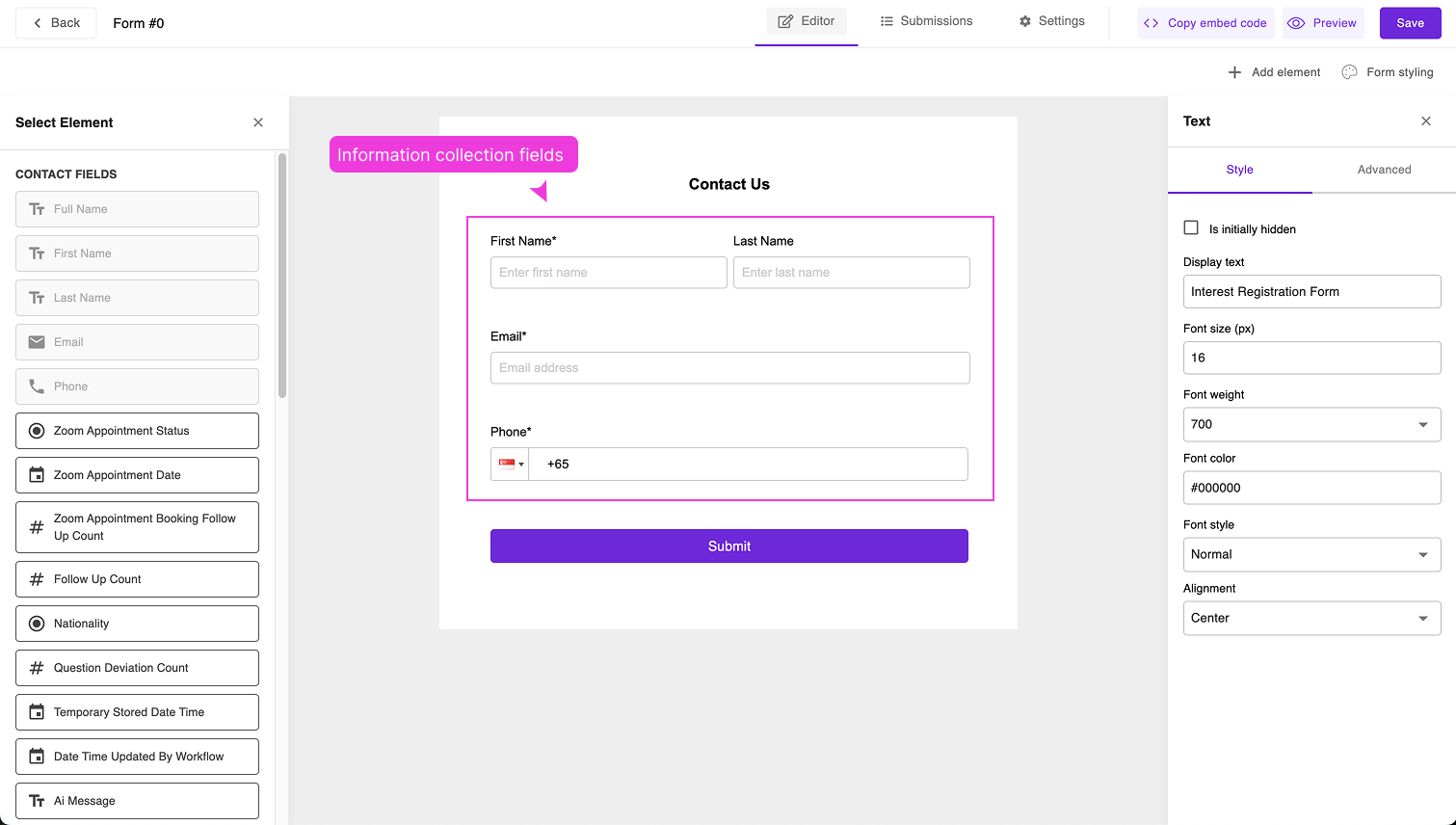
The most common use-case is collecting contact information from website visitors. Let's create a form that captures the essential details: First Name, Last Name, Phone, and Email.
Step-by-Step Instructions
-
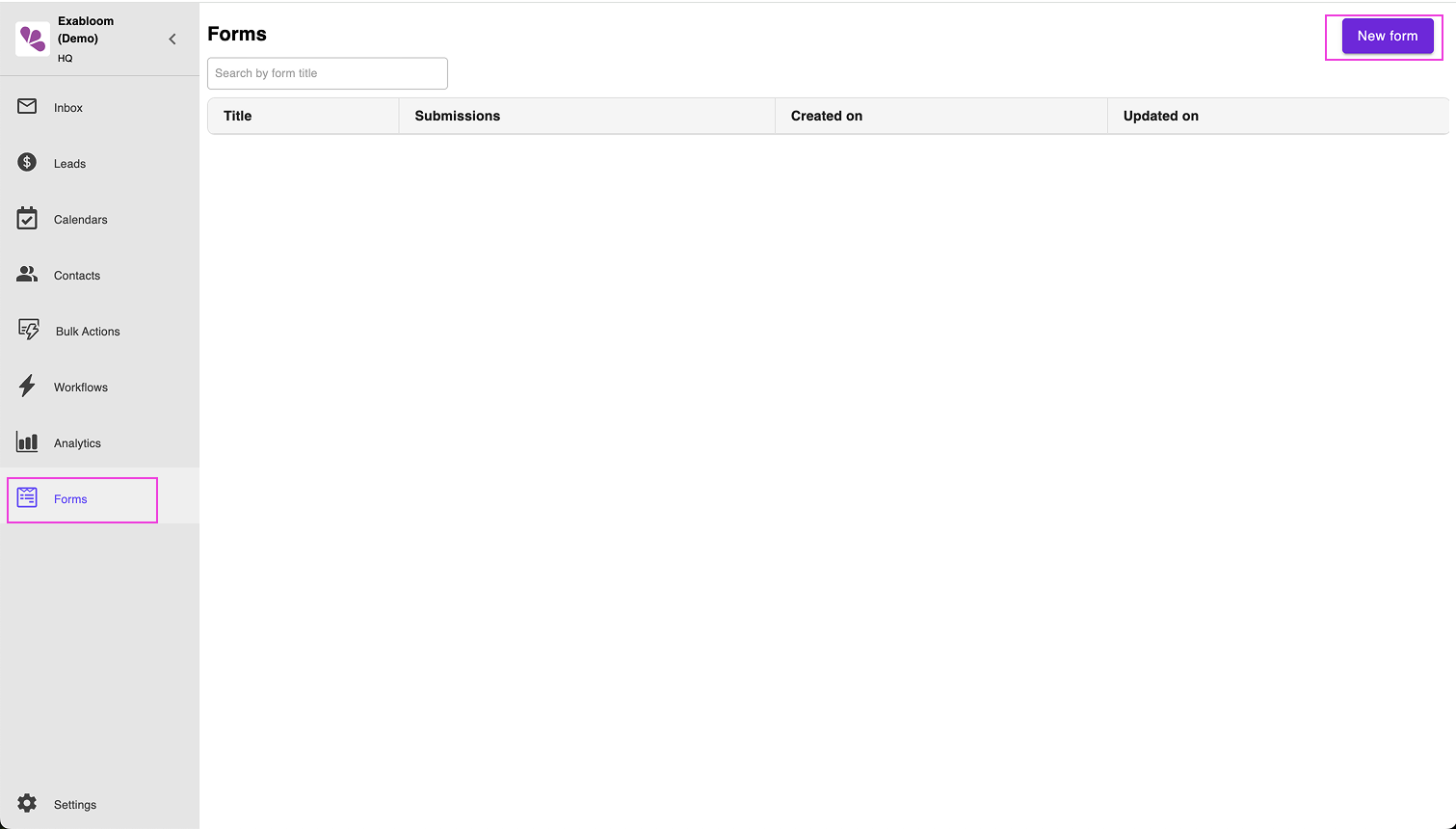
Navigate to Forms
Go to "Forms" and click "New" to start creating a new form

-
Review the Default Fields
Great news! The form comes pre-populated with the exact contact fields you need:
- First Name
- Last Name
- Phone

💡 Pro tip: These are the most effective fields for lead generation - they give you enough information to follow up without overwhelming your visitors.
-
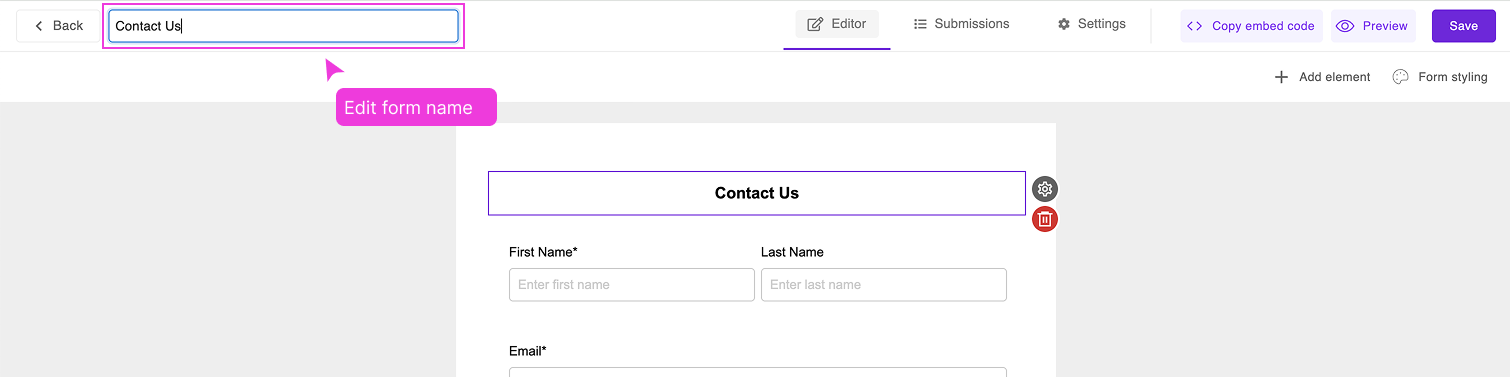
Name Your Form
Give your form a clear, descriptive name like "Contact Us" or "Get In Touch"

-
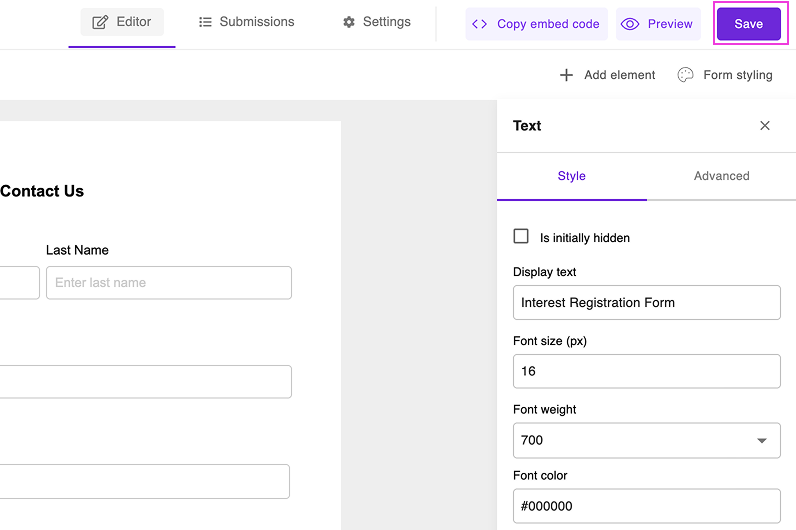
Save Your Work
Click "Save" to store your form

✅ You've successfully created your first form!
Test Your Form (Important!)
Testing ensures everything works before you share your form with real visitors.
Testing Steps
-
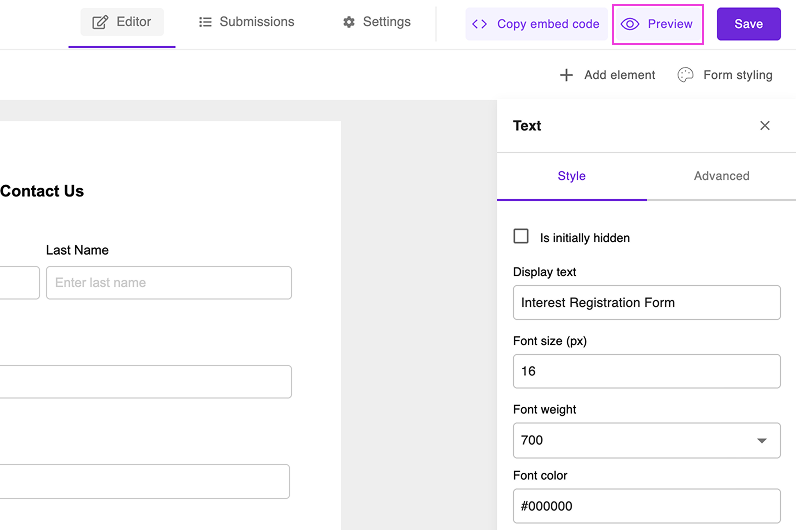
Open the Preview
Click "Preview" to open your form in a new tab

-
Submit Test Information
Fill out the form with your own details:
- Use your real phone number (you'll need this for the next guide)
- Use a valid email address
- Fill in all required fields
-
Verify the Submission
After submitting, check that your contact appears in the "Contacts" page
🎉 Success! You should see your test contact listed there.
Troubleshooting
Form not saving?
- Check that all required fields have labels
- Make sure you clicked "Save" after naming the form
Contact not appearing in Contacts page?
- Wait 30-60 seconds and refresh the page
- Ensure you filled in all required fields during testing
- Check that the form submission showed a success message
What Happens Next?
Currently, your form only creates a contact record. In the next guide, we'll make it much more powerful by automatically sending a WhatsApp message whenever someone submits your form!
Before You Continue
✅ Checklist - Make sure you have:
- Created a form named "Contact Us"
- Successfully tested the form with your own information
- Confirmed your test contact appears in the Contacts page
- Your real phone number ready for the next guide
Next Guide: Send WhatsApp When Form Submits →
This will teach you how to automatically send confirmation messages to anyone who fills out your form.