Setting Up Your Website WhatsApp Chat Widget
Welcome! This guide will help you add a WhatsApp chat button to your website, making it super easy for visitors to contact you directly. Don't worry if you're not technical – we'll walk through everything step by step.
What is a WhatsApp Chat Widget?
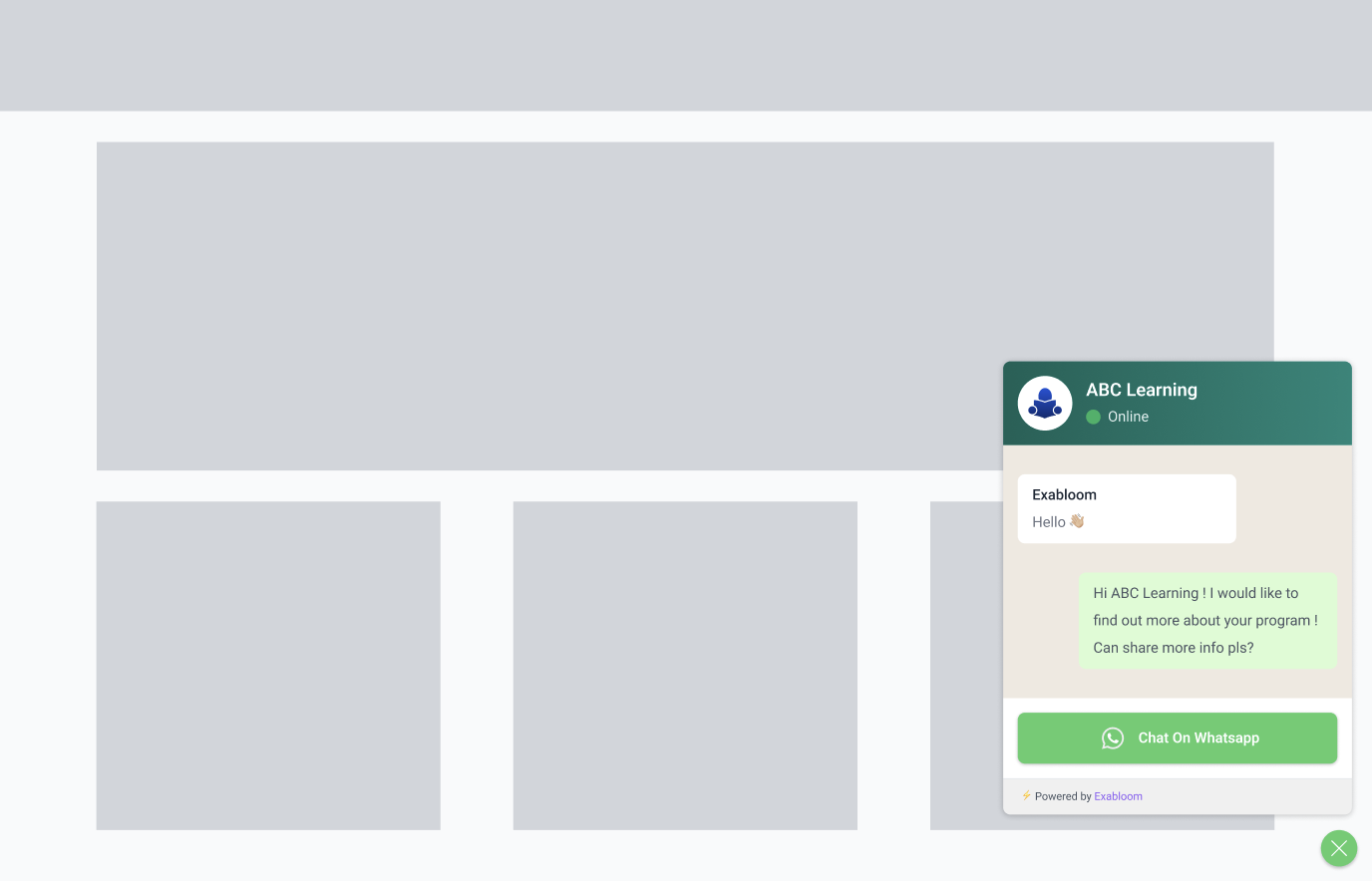
Image: Single phone display
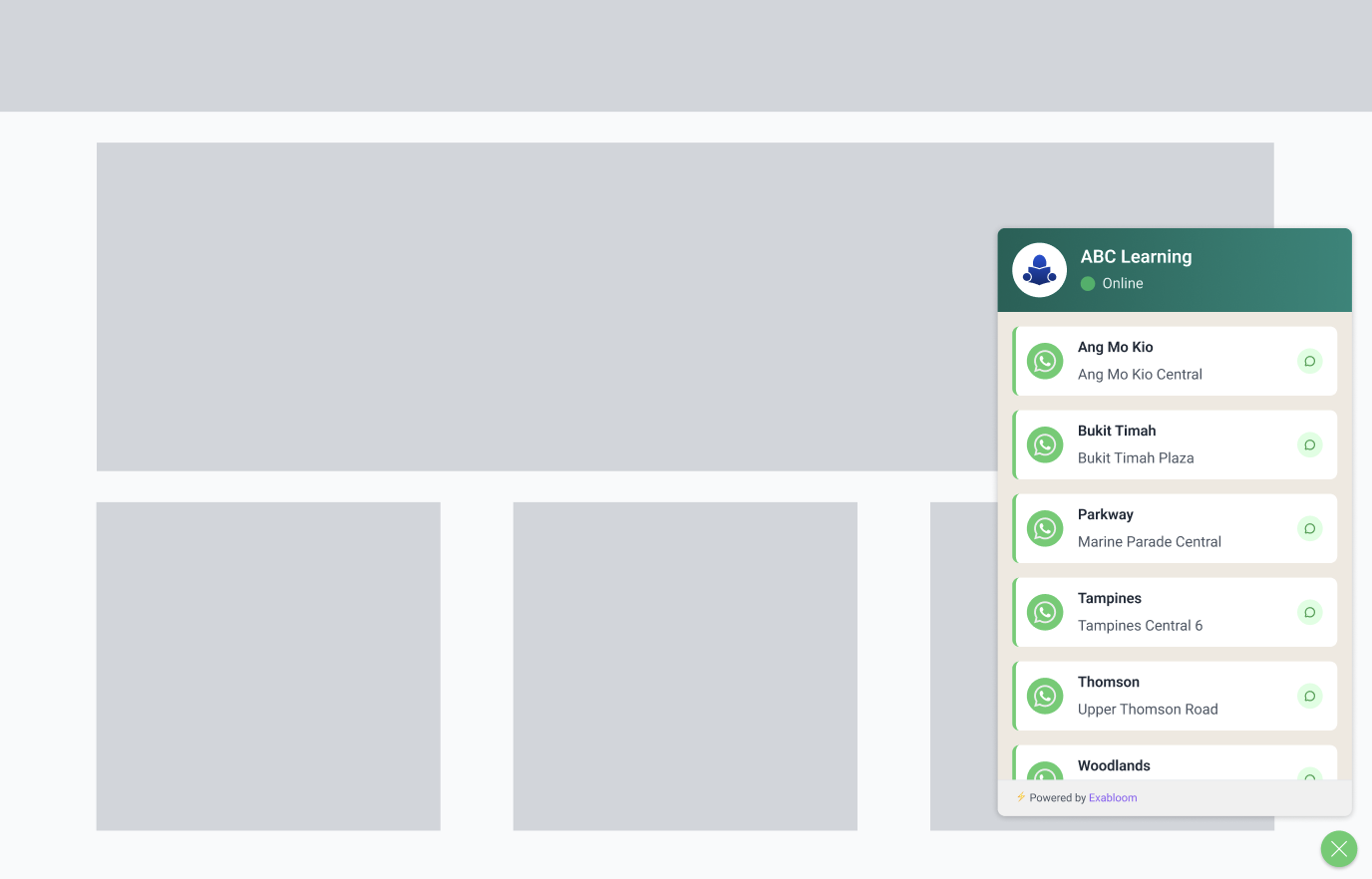
Image: Multi phone display
A WhatsApp chat widget is a small chat button that appears on your website. When someone clicks it, they can instantly message you on WhatsApp – just like texting, but for business.
Imagine having a friendly receptionist sitting on every page of your website, ready to help visitors contact you instantly. That's exactly what this widget does, but it connects them directly to your WhatsApp!
Why Your Business Needs This
If you regularly chat with customers on WhatsApp, adding this widget to your website is like putting up a big "Come talk to us!" sign. Here's why it's so powerful:
Capture Every Lead: When someone visits your website, you want to connect with them immediately. This widget helps you:
- Get their name and phone number for your contact list (essential for growing your business)
- Start conversations while their interest is hot (people have very short attention spans online)
- Make sure your advertising money doesn't go to waste – even if they don't buy immediately, you'll have their contact information
Meet Customers Where They Are: Most people already use WhatsApp daily, so they're comfortable chatting there instead of filling out contact forms.
How is This Different from Regular Chat Widgets?
Traditional chat widgets have some frustrating limitations:
The Old Way: Every time you want to change something (like your phone number or welcome message), you need to call your web developer. This costs time and money.
The Exabloom Way: Once this widget is installed on your website, you can change everything yourself through a simple control panel. No developer needed!
This widget appears instantly when someone visits your page – no awkward 3-second delays like other chat widgets. We achieve this by storing the widget files on servers all around the world, so they load super quickly no matter where your visitors are located.
How Visitors Will Use Your Chat Widget
The WhatsApp button will appear in the bottom-right corner of your website (on both phones and computers).
For Your Visitors, It's Simple:
- They see the WhatsApp button on your website
- They click or tap it
- They're instantly taken to WhatsApp to chat with you directly
Single vs. Multiple Numbers: You can set this up to either:
- Single Number: Everyone chats with one main business number
- Multiple Numbers: Visitors choose which location or department to contact (great if you have multiple store locations)
Step-by-Step Setup Guide
Step 1: Access Your Chat Widget Settings
First, we need to get to the control panel where you can customize your chat widget.
-
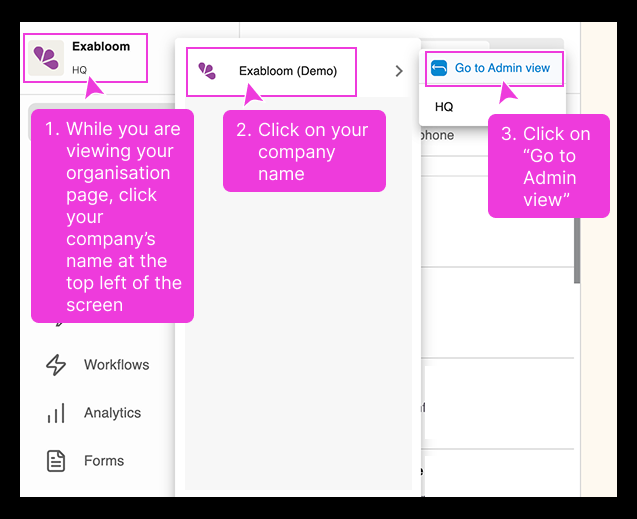
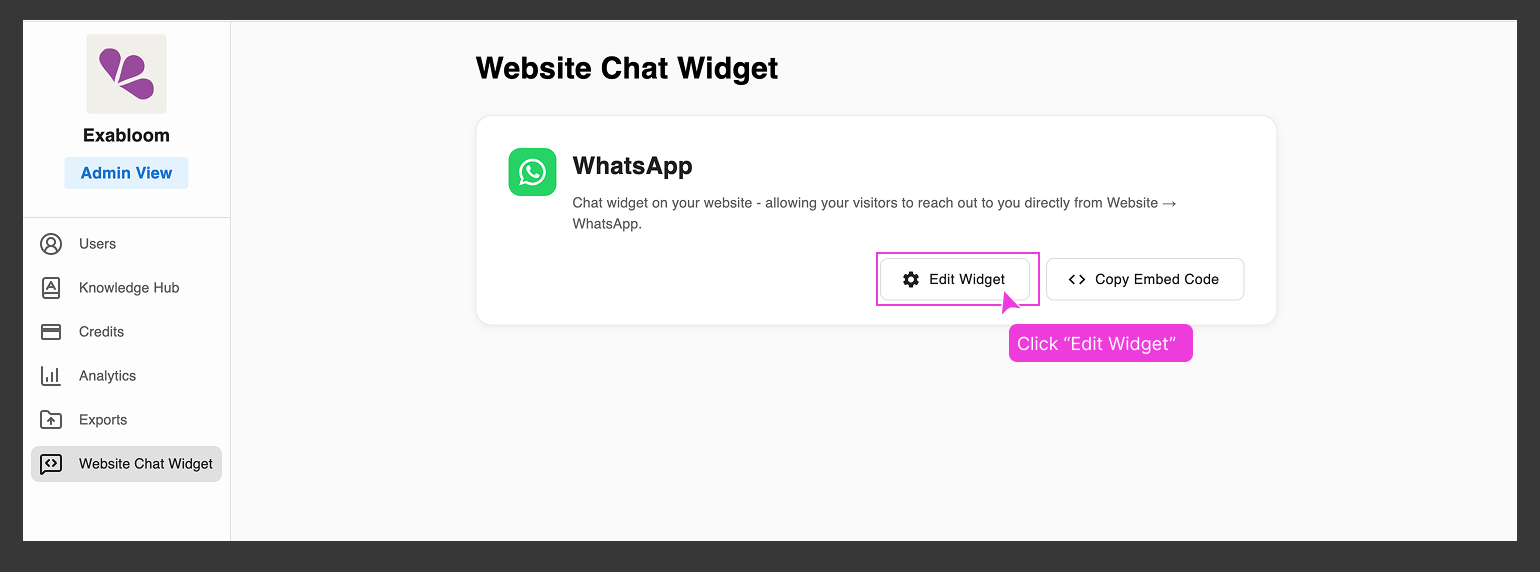
Go to your Admin View

-
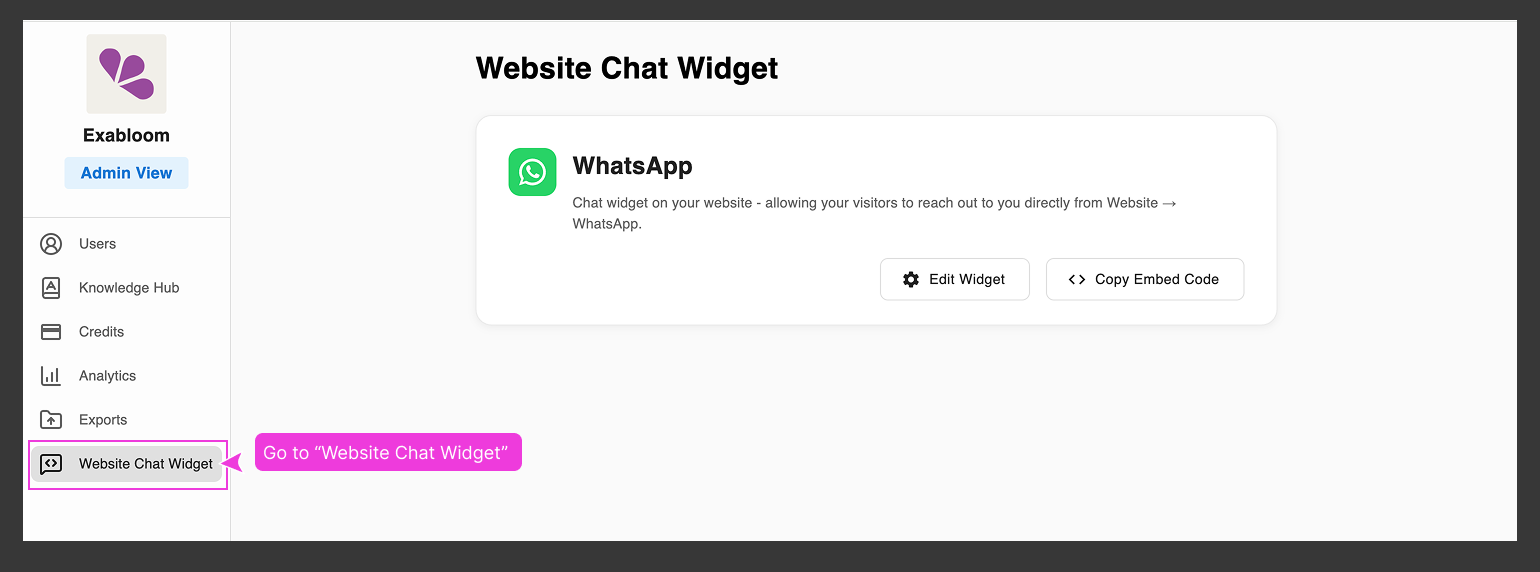
Find "Website Chat Widget" in the left menu and click it

Step 2: Configure Your Chat Widget
Now we'll customize how your chat widget looks and behaves.
-
Start Editing
Look for the "WhatsApp" chat widget and click "Edit Widget"

-
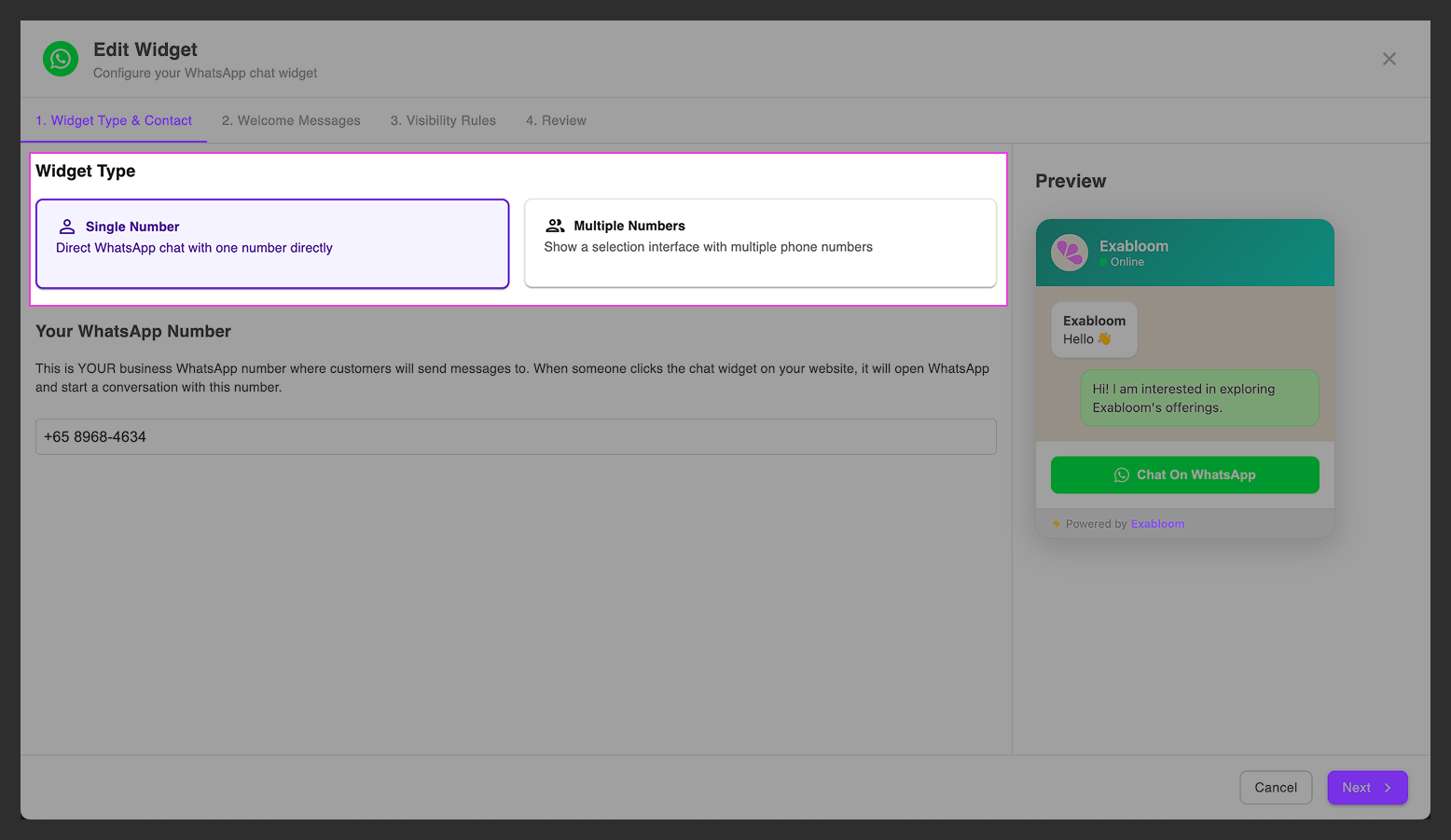
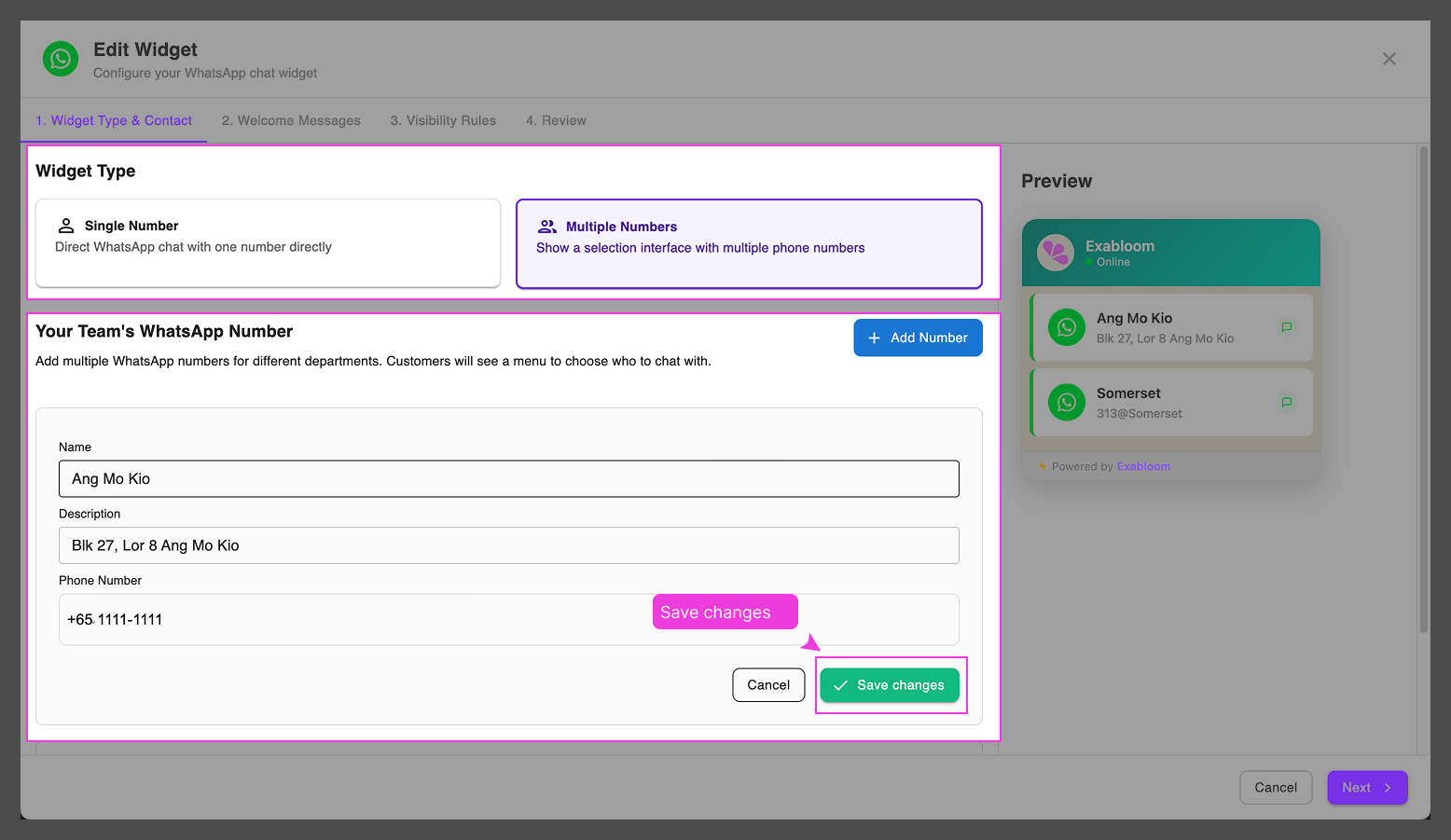
Choose Single or Multiple Phone Numbers
What's the difference?- Single Number: All visitors will chat with the same WhatsApp number (perfect if you are managing all leads in one main contact)
- Multiple Numbers: Visitors can choose who to contact (great for businesses with multiple locations or departments)
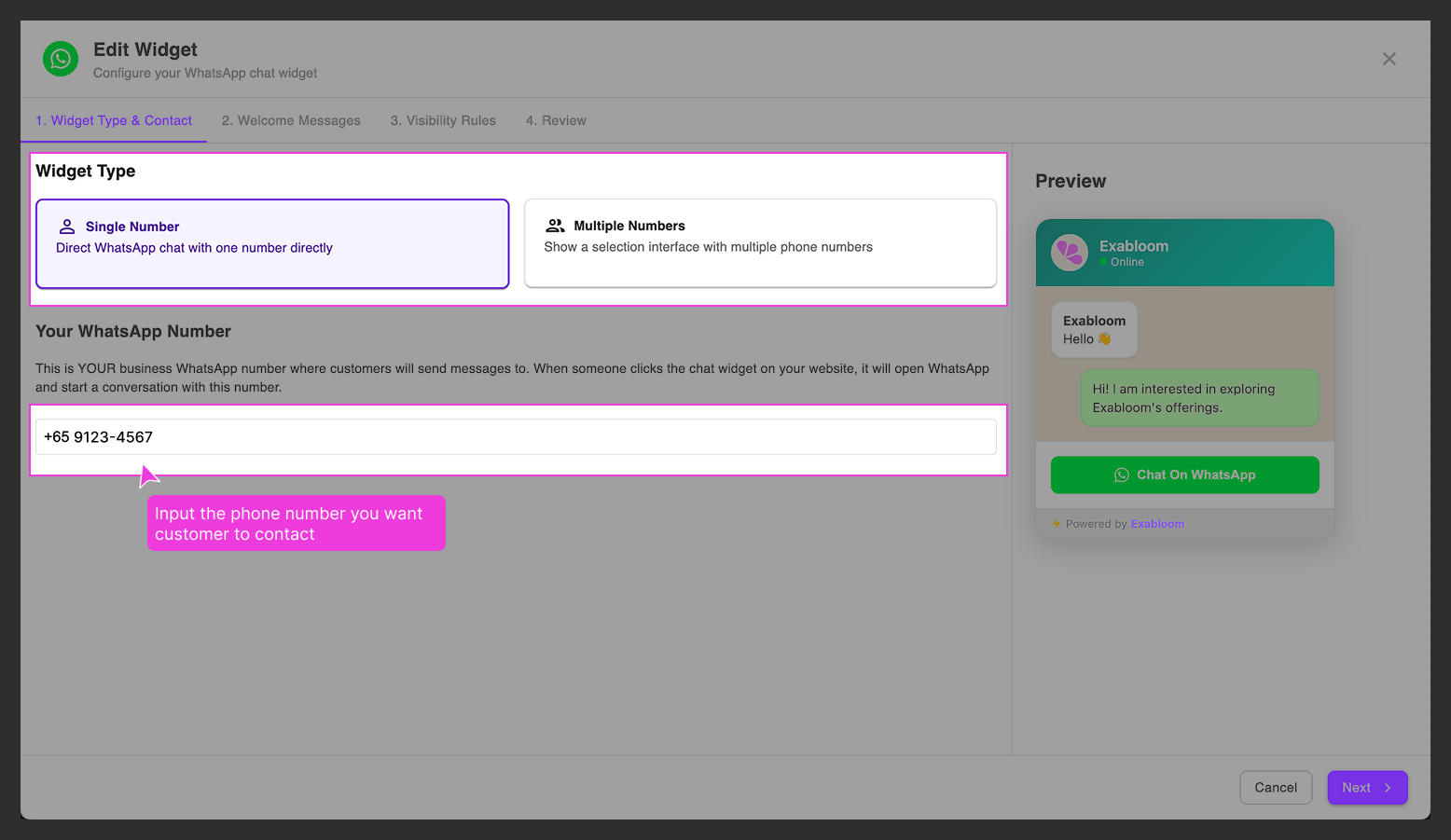
Setting up Single Phone Number
If you choose Single Number, simply enter the WhatsApp number you want customers to contact.

Make sure to include your country code (like +1 for US, +65 for Singapore) when entering your WhatsApp number.
Setting up Multiple Phone Numbers
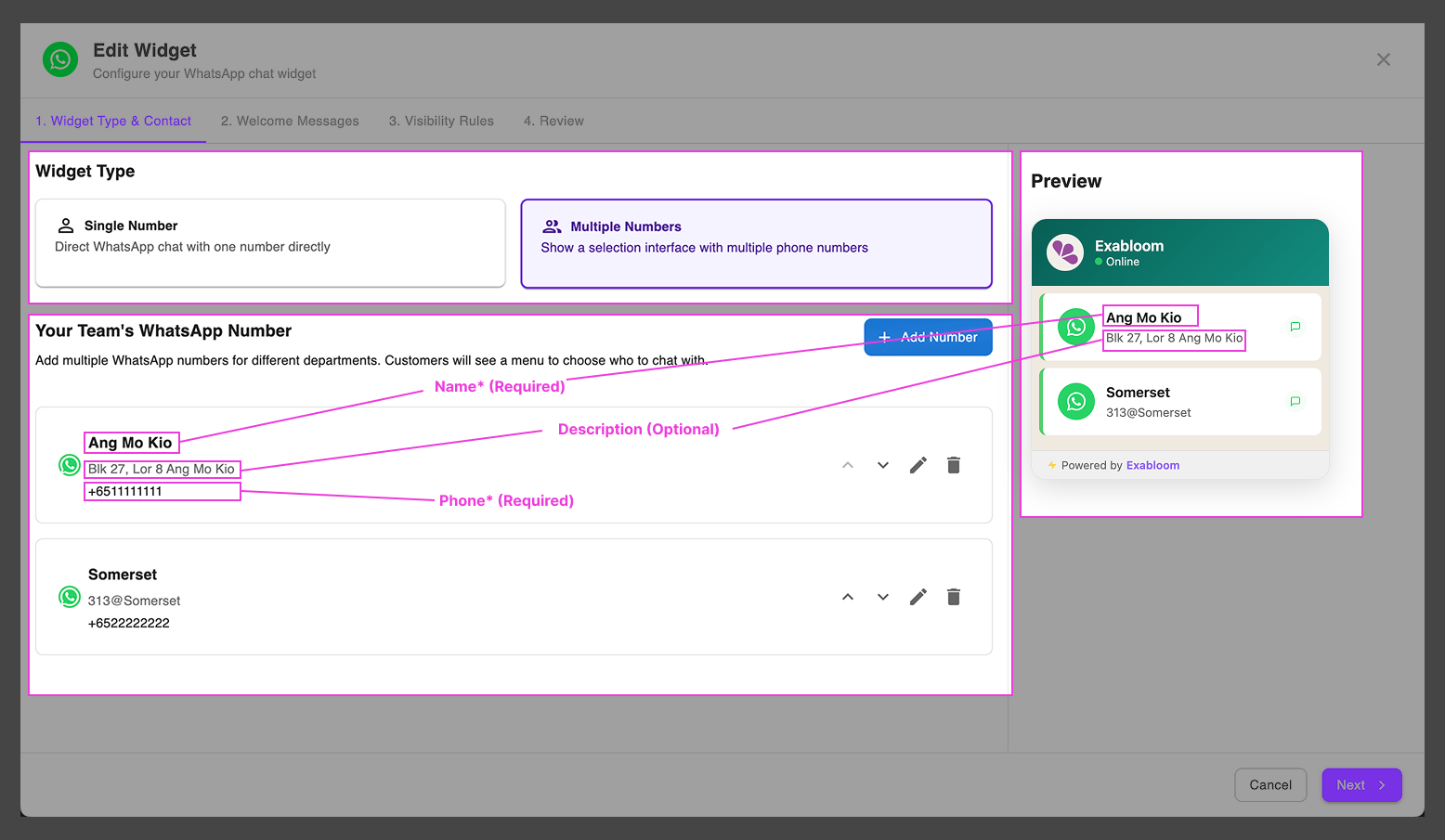
If you choose Multiple Numbers, you can add several phone numbers. For each number, you'll need to provide:
- Name (required): Like "Downtown Store" or "Sales Team"
- Description (optional): Like "Open 9AM-6PM" or "For product questions"

To add a new number: Click the "+ Add Number" button

To edit an existing number: Click the pencil icon next to the number you want to change

After making changes, click "Save Changes" and check the preview on the right to see how it will look.

To reorder numbers: Use the up/down arrows to change which number appears first

The first number in your list will be the default option that visitors see. Put your most important contact number at the top!
-
Set Your Welcome Message
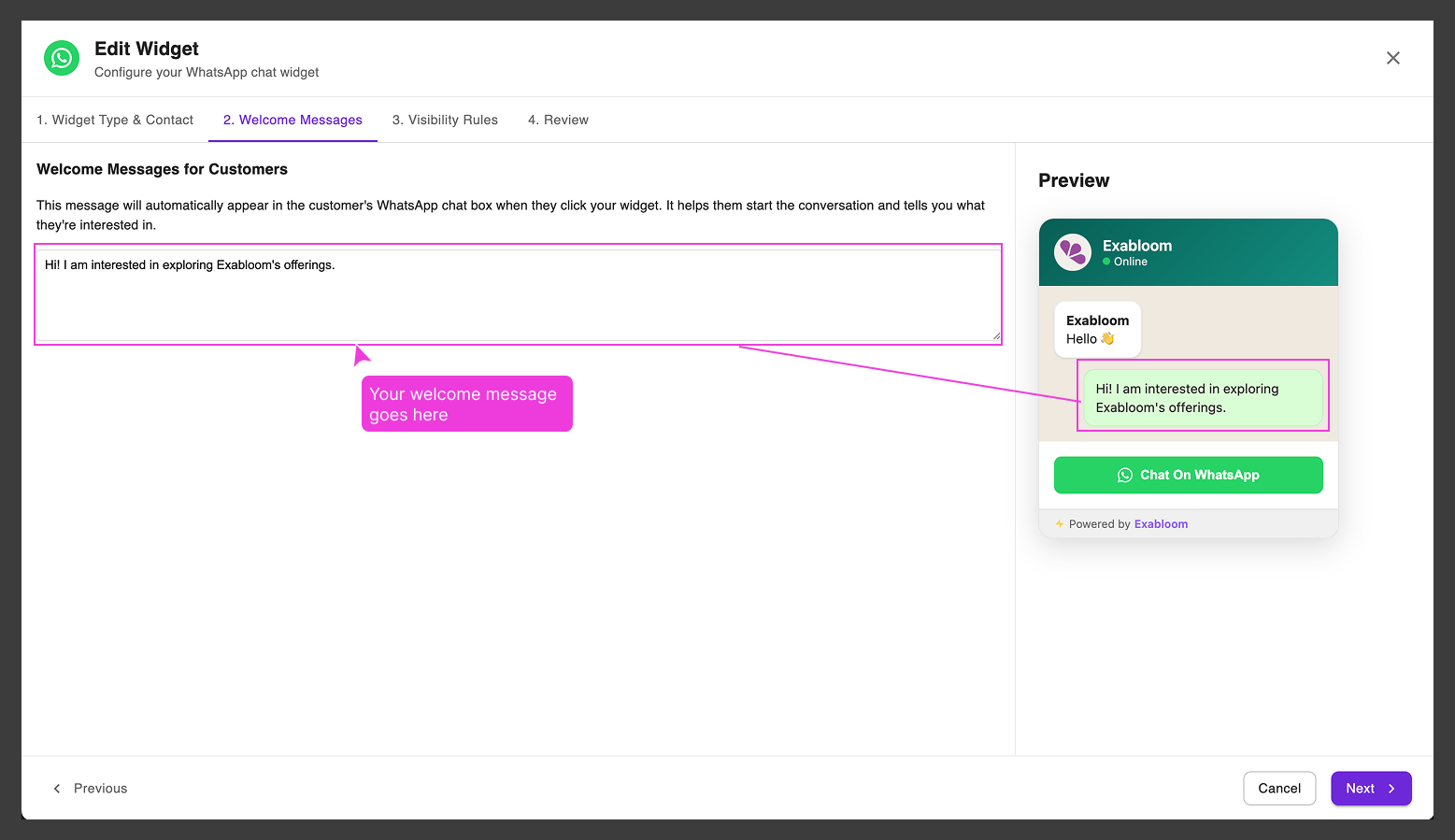
This is the message that will automatically appear in the WhatsApp chat box when someone clicks your widget. Think of it as a friendly greeting.
noteThis message is just a suggestion – visitors can still change it to ask about whatever they need. But having a good welcome message helps start the conversation!
Good welcome message examples:
- "Hi! I'm interested in learning more about your services."
- "Hello! I found your website and have a question."
- "Hi there! I'd like to get a quote for..."
-
Set Visibility Rules
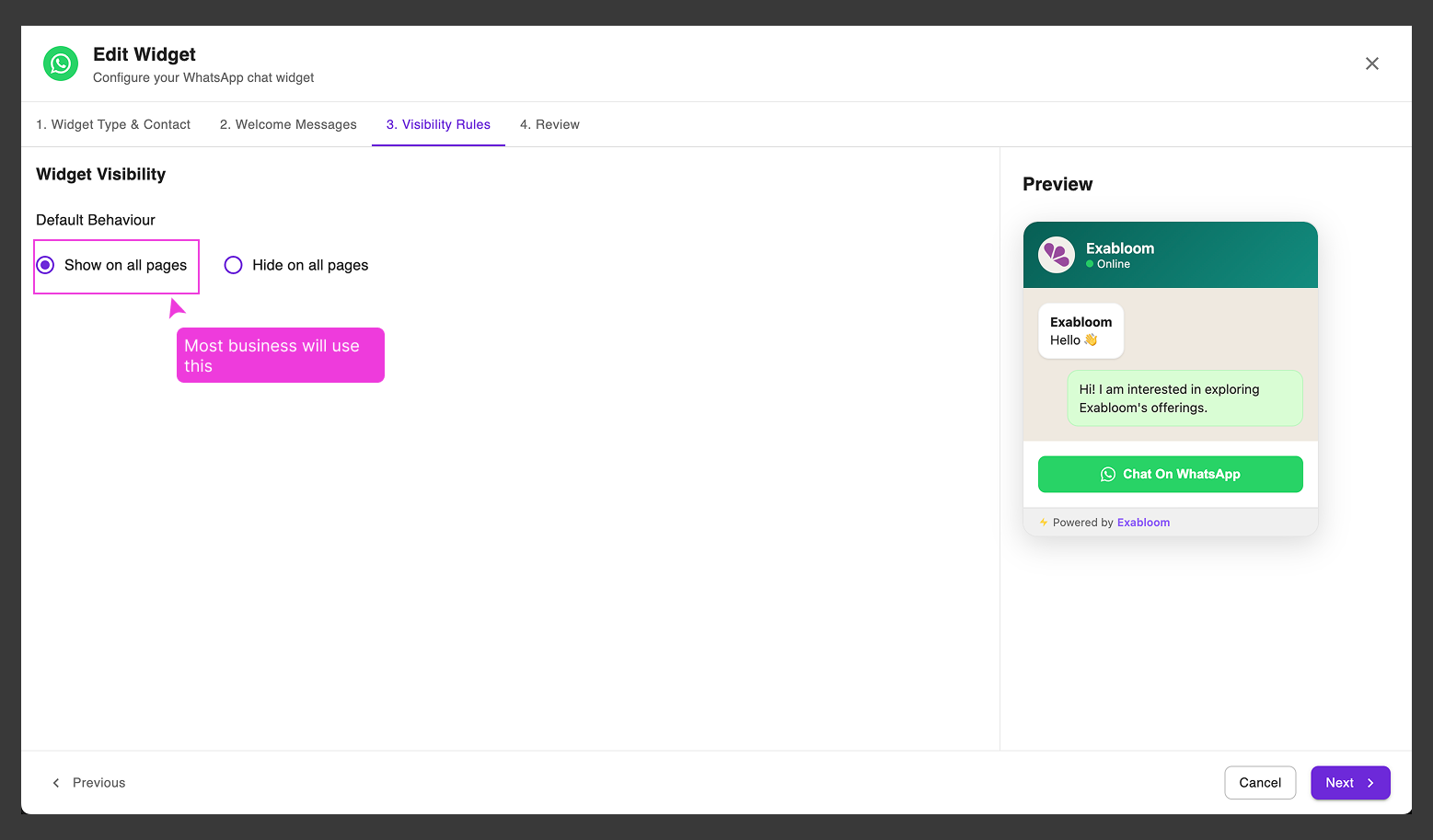
Keep this as "Show on all pages" so the chat widget appears everywhere on your website.

-
Review and Save
Take a moment to review all your settings, then click "Save Widget" to apply your changes.
Step 3: Add the Widget to Your Website
This final step involves adding code to your website. If you're not comfortable with website code, you'll want to ask your web developer to help with this part.
-
Get Your Embed Code
-
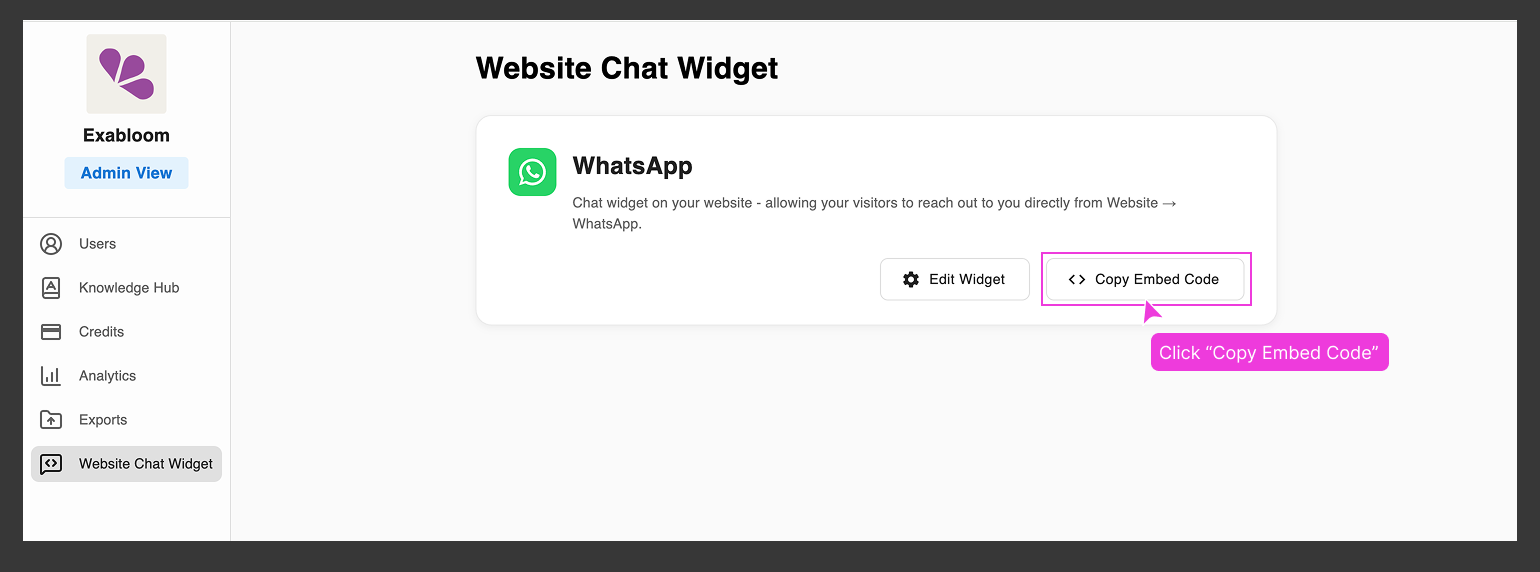
Go back to "Admin View"
-
Navigate to "Website Chat Widget"
-
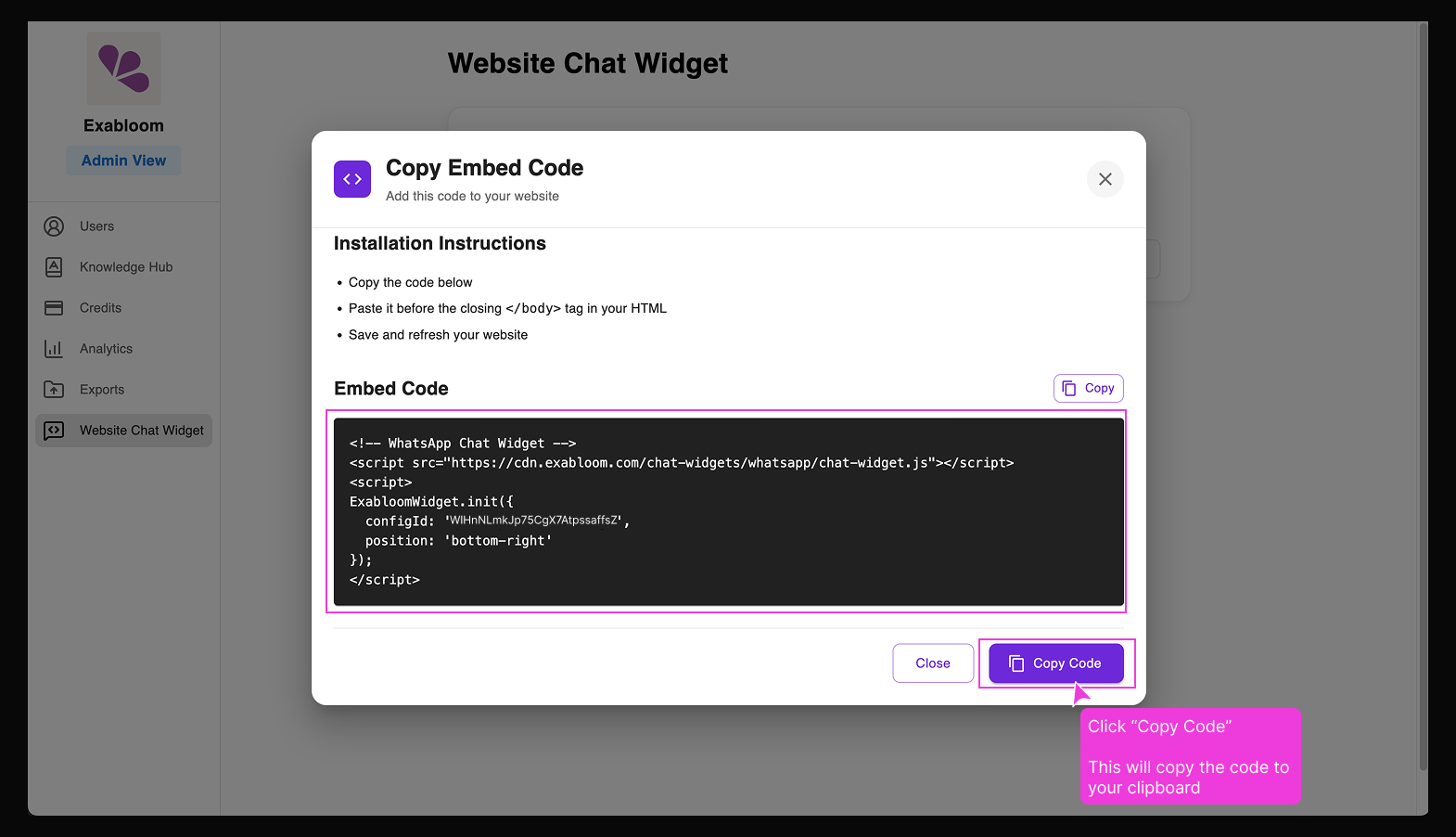
Find your WhatsApp chat widget and click "Copy Embed Code"

-
A popup will show you the special code that needs to be added to your website

-
-
Add the Code to Your Website
The code needs to be pasted into the
<body>section of every page where you want the chat widget to appear.What does this mean?Your website is built using special code called HTML. The
<body>section is where all the visible content goes. Adding our code there makes the chat widget appear on your pages.If you are using "Elementor"
Step 1: Embed Code
- On left panel, locate "Elementor", click on it and click "Custom Code"
- Click "Add New"
- Give it a title (e.g. "Exabloom Chat Widget")
- Paste the chat widget script
- Set location to
Body End - Publish
Step 2: Remove existing chat widget If you are using any chat widget beforehand, you will need to remove it. To remove it, simply follow theset steps:
- On left panel, locate "Plugins"
- Identify the plugin that represent your previous chat widget
- Decativate it
-
Test It Out
Once the code is added, visit your website. You should see the WhatsApp chat button in the bottom-right corner of every page.
After installation, try clicking the chat button yourself to make sure it opens WhatsApp and shows your welcome message correctly.
You're All Set!
Congratulations! Your WhatsApp chat widget is now live on your website. Visitors can now contact you instantly with just one click, helping you capture more leads and provide better customer service.
Remember, you can always come back to the Admin View → Website Chat Widget section to update your phone numbers, welcome message, or other settings without needing a developer!