Disconnect WhatsApp

Why Disconnect WhatsApp?
You may need to disconnect your WhatsApp account if you’re switching to a new number, troubleshooting issues, or no longer using the integration. This guide will walk you through two methods to safely disconnect your WhatsApp from the platform:

  1. Disconnecting via Exabloom Web App
  2. Disconnecting via WhatsApp Mobile App

Method 1: Disconnect via Exabloom Web App

Step 1: Log in to Your Account

  1. Go to app.exabloom.com/login and log in using your credentials.

Step 2: Navigate to Social Channels

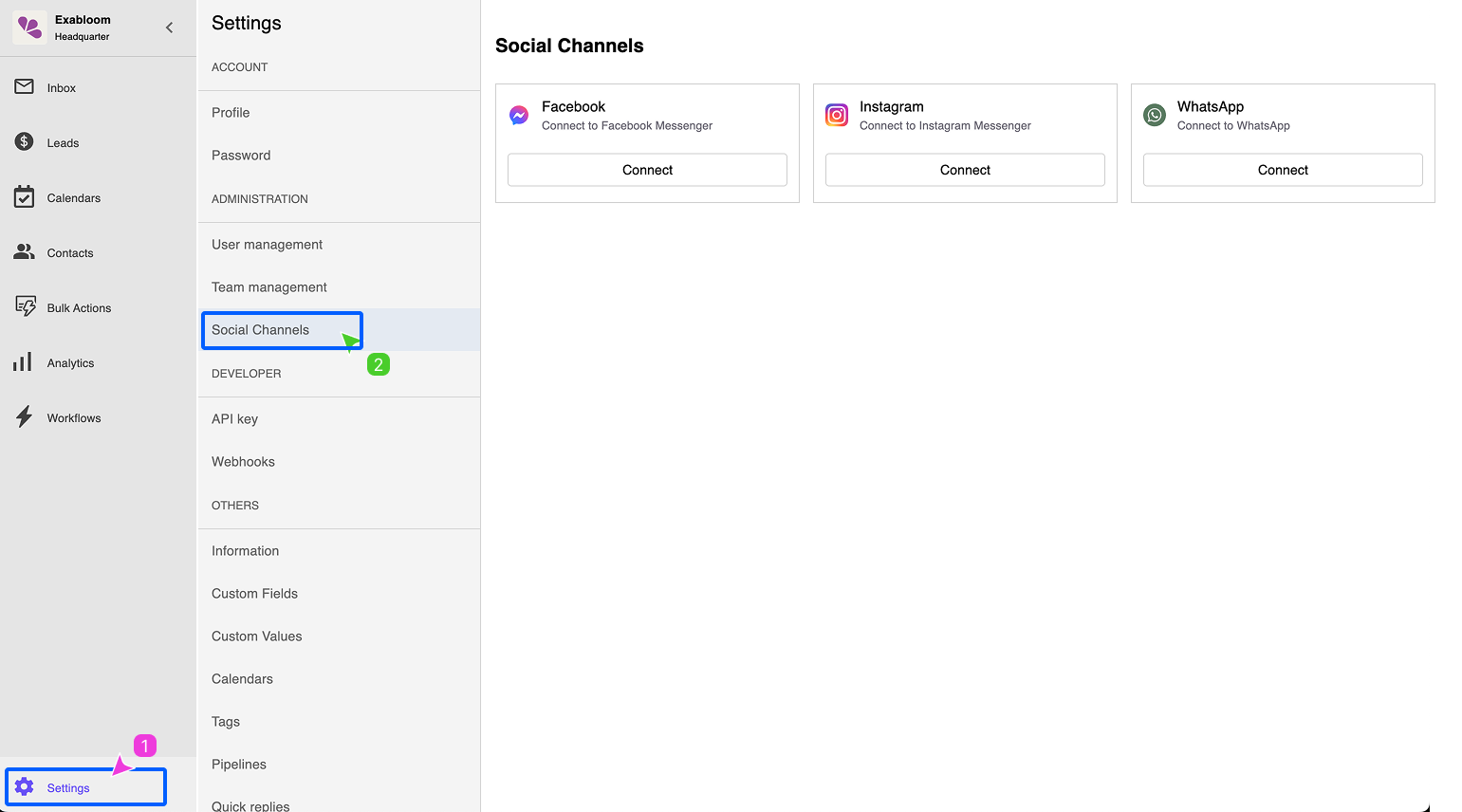
  1. Once logged in, click on Settings in the menu, then select Social Channels.

    settings-social-channel.png

    tip

    If you don’t see the “Social Channels” option, click this link to go directly: https://app.exabloom.com/settings/social-channels.


Step 3: Locate Your WhatsApp Connection

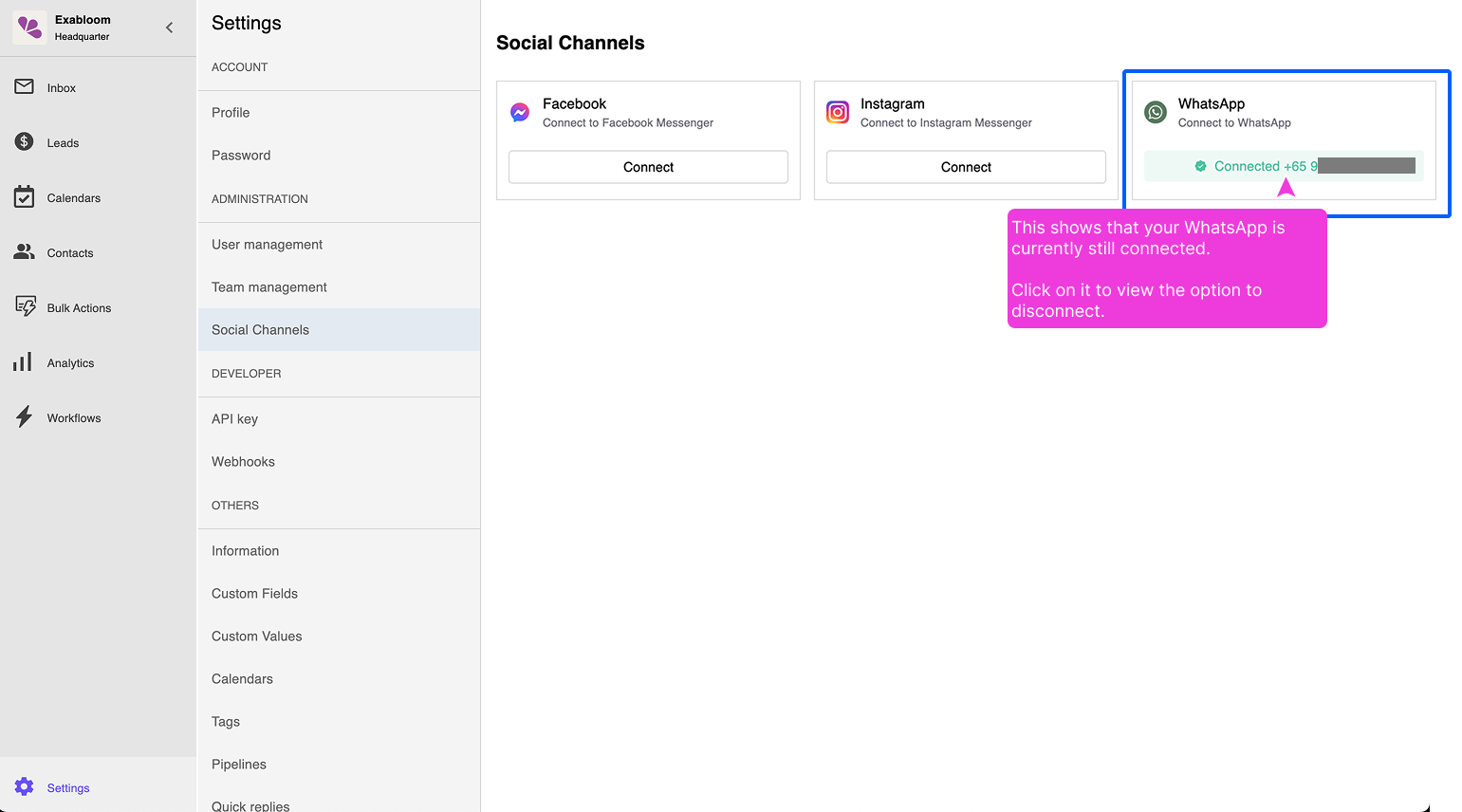
  1. Under WhatsApp, you’ll see your WhatsApp number with a "Connected" button (e.g., "Connected +xx xxxx xxxx"). Click the "Connected" button to proceed.

    locate-social-media.png


Step 4: Disconnect WhatsApp

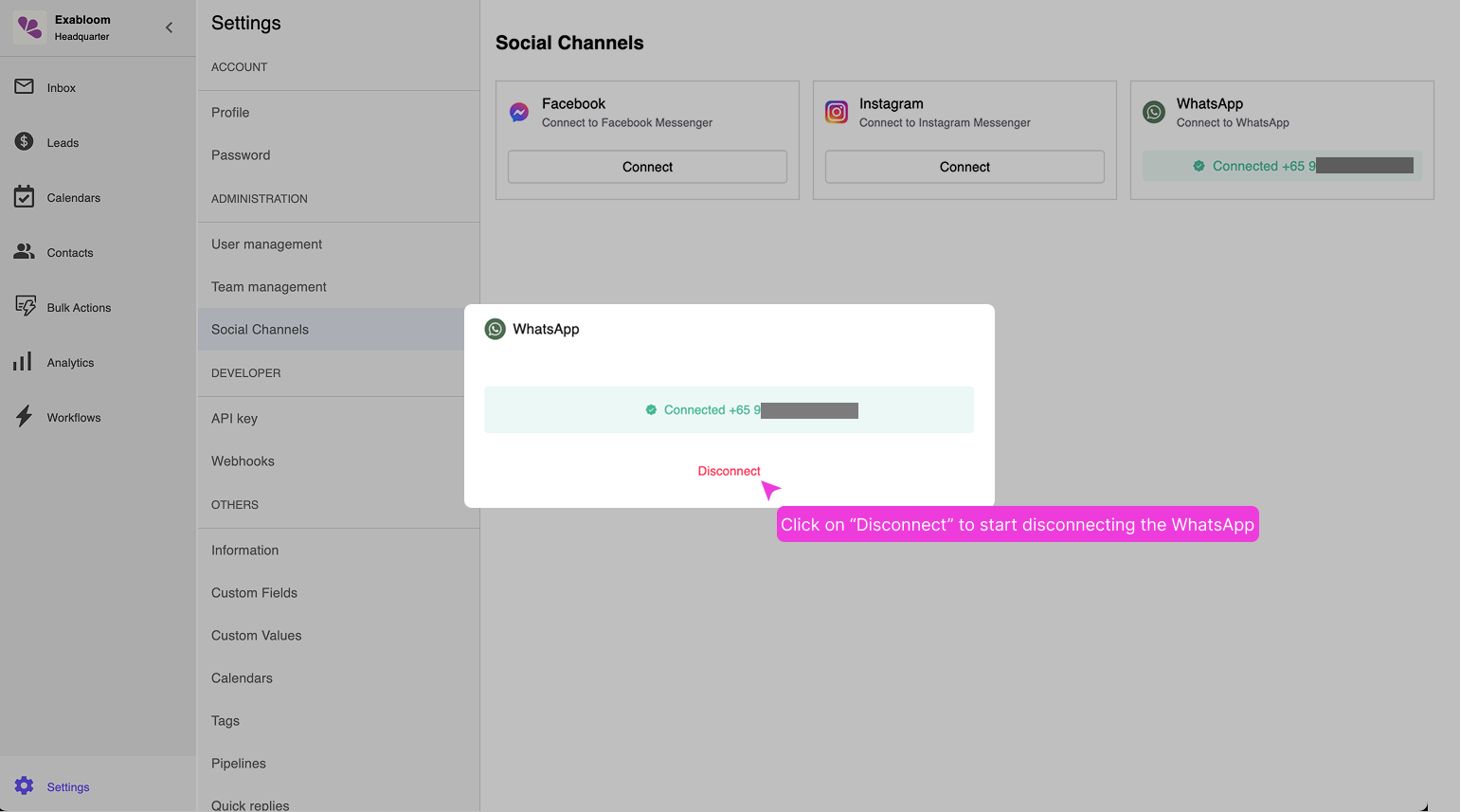
  1. Click Disconnect to begin the process.

    attempt-to-disconnect-.png

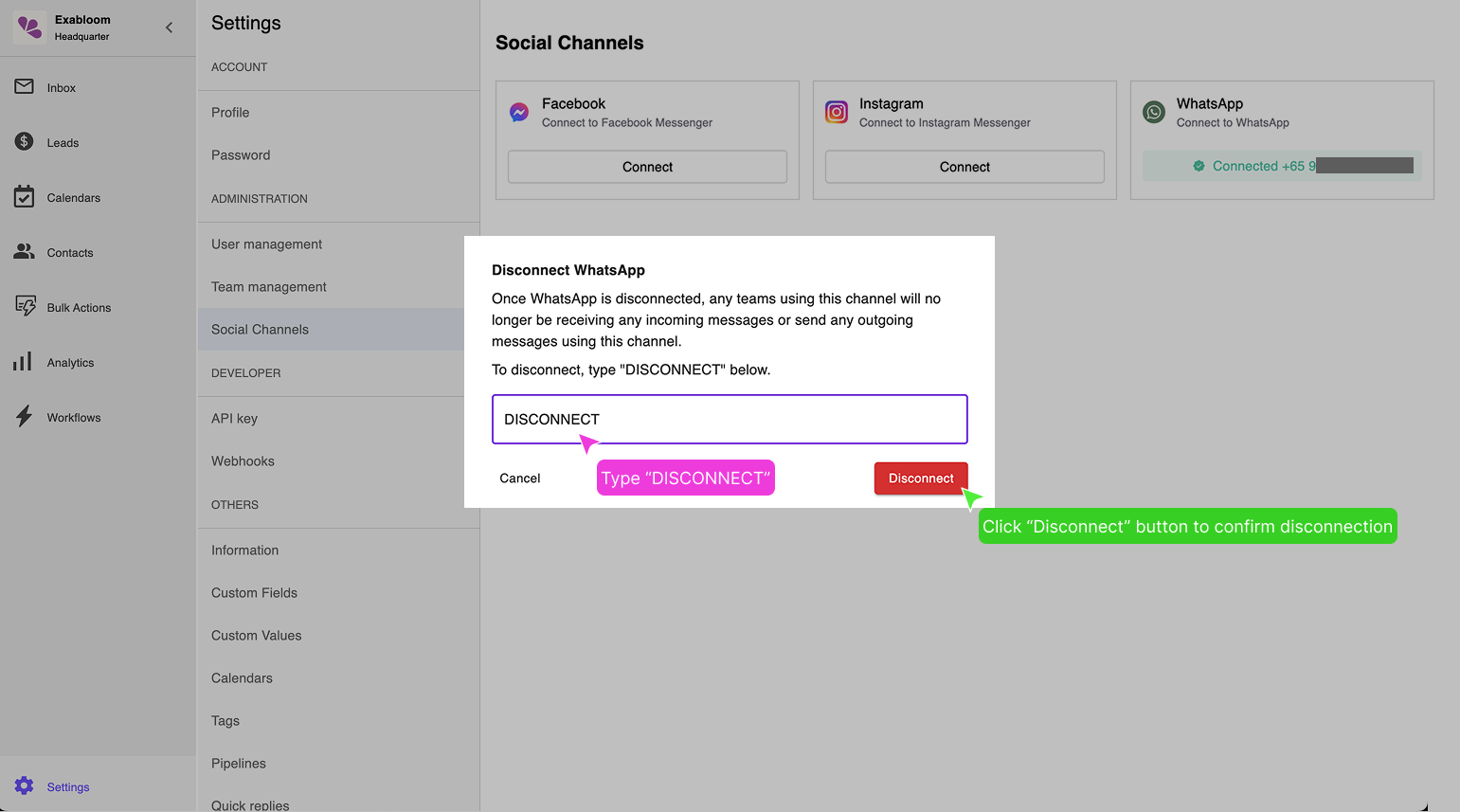
  2. A confirmation box will appear. Type DISCONNECT in the input field and click the Disconnect button to confirm.

    confirm-disconnect.png

    note

    Once disconnected, you’ll no longer see "Connected” under WhatsApp. This means your WhatsApp account is no longer linked.


Method 2: Disconnect via WhatsApp Mobile App

If you prefer to disconnect WhatsApp directly from your phone, follow these steps:

Step 1: Open WhatsApp on Your Phone

  1. Open the WhatsApp app on your mobile device.

Step 2: Go to Linked Devices

  1. Tap on the Settings menu (gear icon) in the bottom right corner (iOS) or top right corner (Android).
    Then, select Linked Devices.

  1. Look for the device labeled Web or Desktop in the list of linked devices. This represents your connection to Exabloom. Tap on it to view details.

  2. Tap Log Out or Unlink Device to disconnect.

    note

    WhatsApp uses generic labels like "Web" or "Desktop" for linked devices. If you’re unsure which device to unlink, check the last active time or disconnect all devices to ensure Exabloom is fully disconnected.

    For more details, refer to WhatsApp’s official guide: How to Unlink a Device.


Troubleshooting Tips

  • Disconnect Button Not Working (Web App)?
    Try refreshing the page or logging out and back into your account. If the issue persists, contact support.

  • WhatsApp Still Shows as Connected?
    Wait a few moments and refresh the page. If the problem continues, repeat the disconnection steps.

  • Can’t Find the Correct Device (Mobile App)?
    If you’re unsure which device represents Exabloom, you can disconnect all linked devices. To do this, tap Log Out from All Devices (if available) or manually unlink each device.


You’re Done!
Your WhatsApp account is now disconnected.