Connect WhatsApp
Connect your WhatsApp account to Exabloom by scanning a QR code.
Steps
-
Sign in to app.exabloom.com.
-
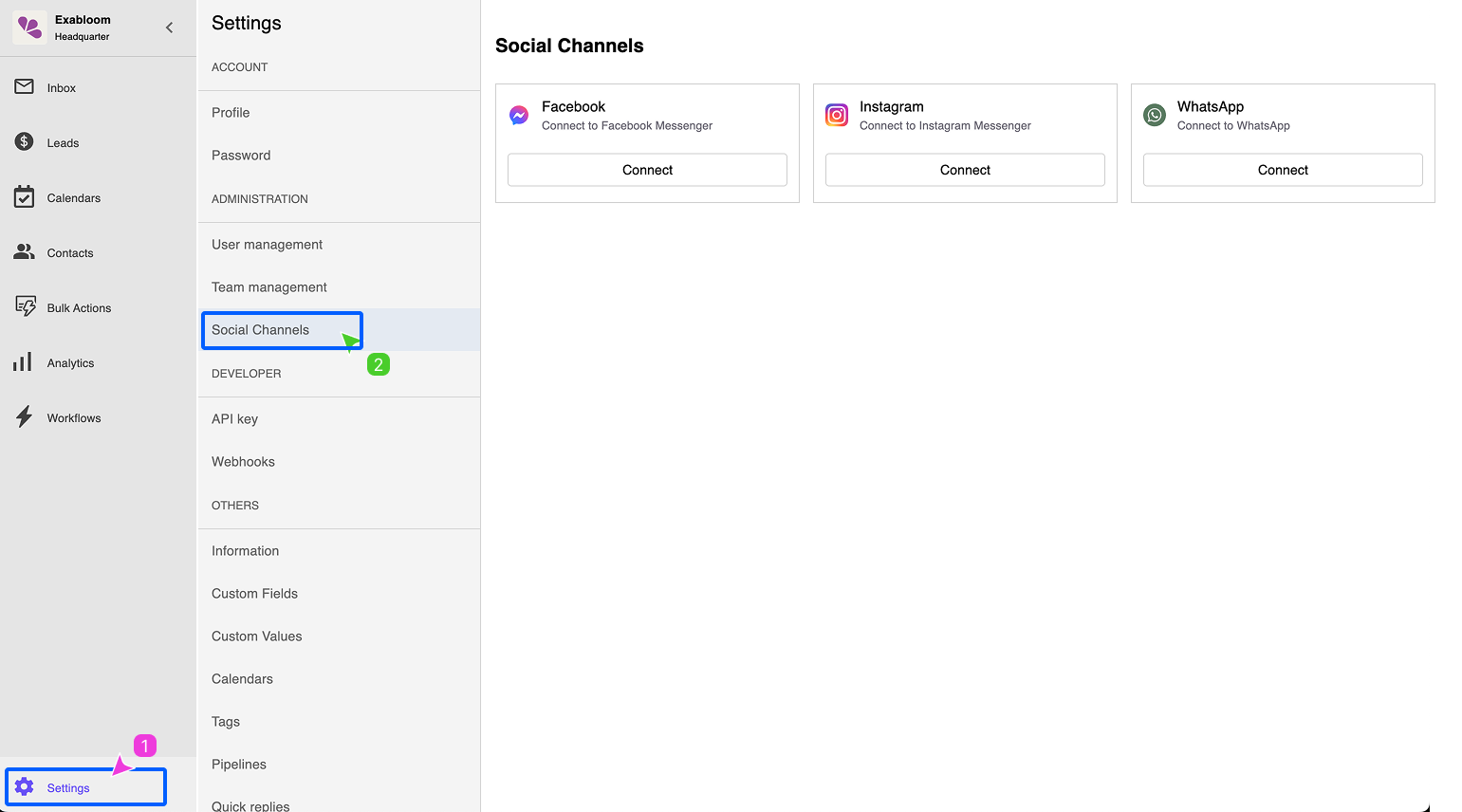
Go to Settings > Social Channels.
 info
infoIf you don't see Social Channels, go directly to app.exabloom.com/settings/social-channels.
-
Click Connect next to WhatsApp.
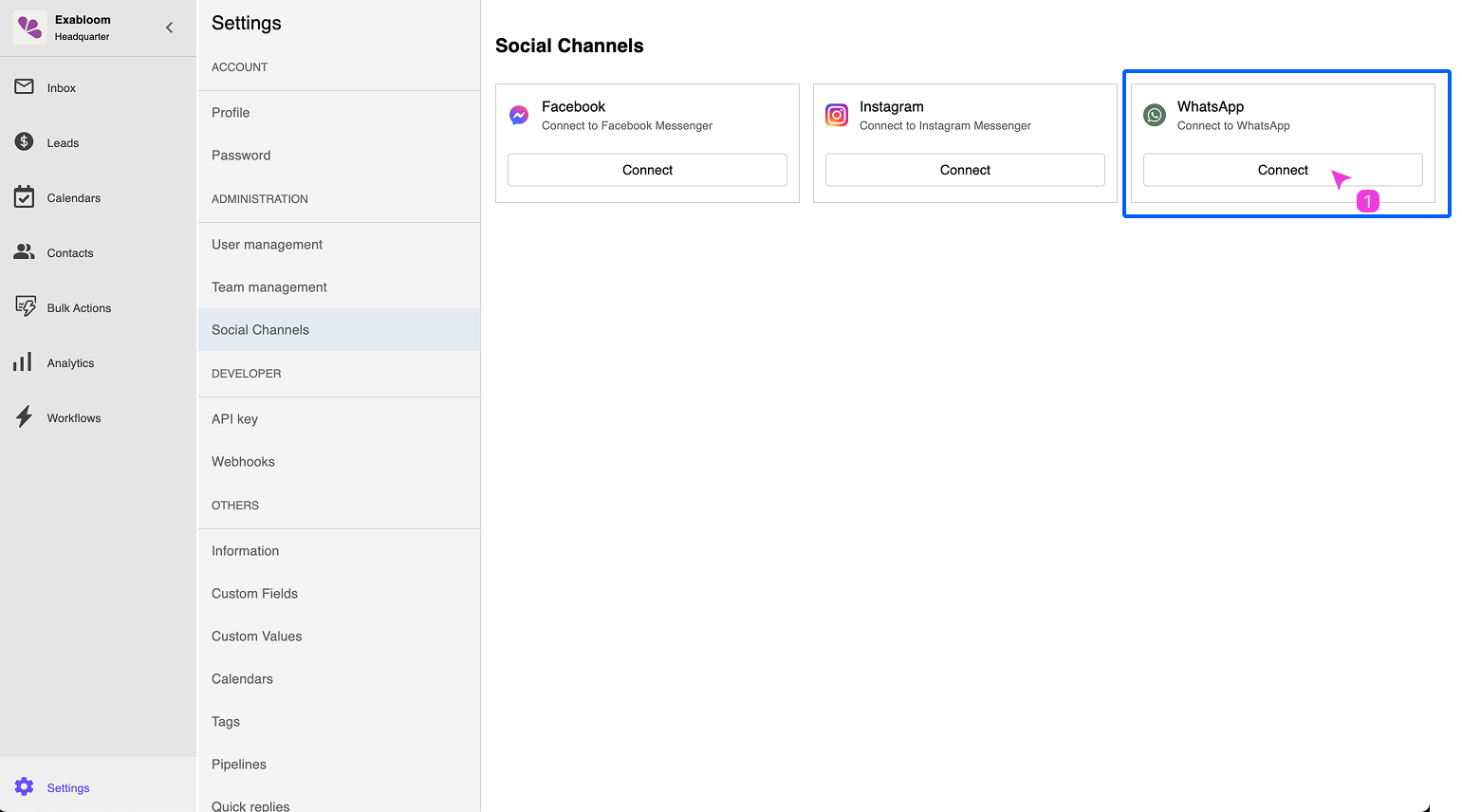
Don't see the Connect button?
Your WhatsApp may already be connected. A connected account looks like this:
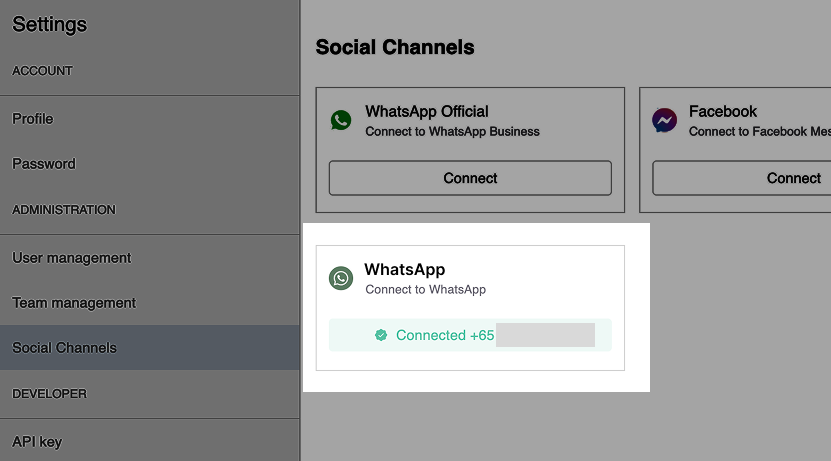
To reconnect, click the Connected button to disconnect first, then click Connect.
-
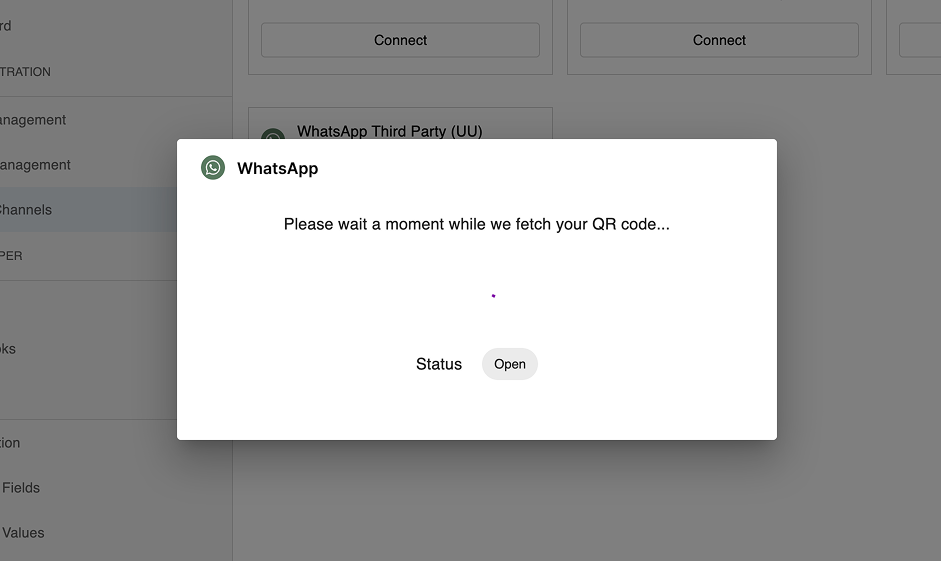
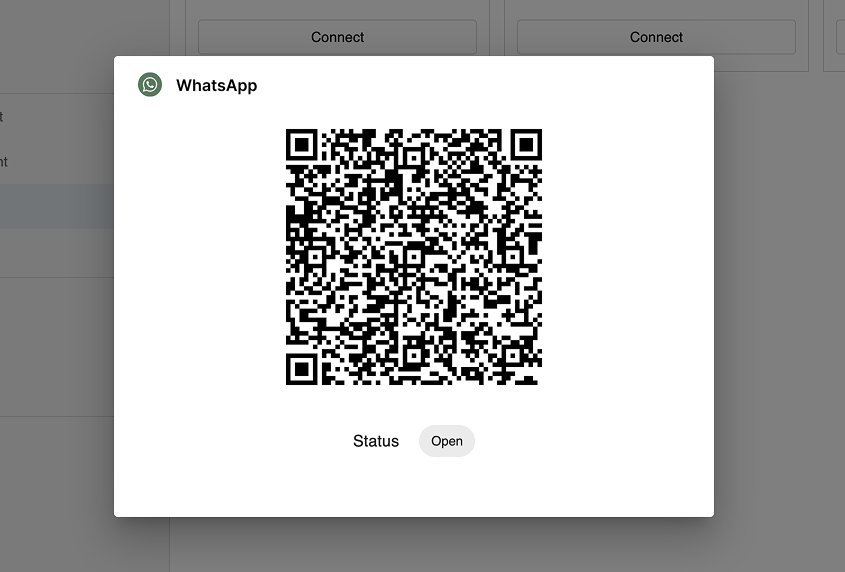
Wait about 1 minute for the QR code to appear.
-
Open WhatsApp on your phone and scan the QR code.
 warning
The QR code refreshes every 60 seconds. Scan it directly from the screen — a screenshot may expire before it can be used.
-
Wait 1–2 minutes for the connection to complete.
-
Once connected, your WhatsApp number appears under Social Channels.