Connecting Facebook Ads to Exabloom
Welcome! This guide will help you connect your Facebook Ads account to Exabloom so that whenever someone fills out a form from your Facebook ad, Exabloom can automatically follow up with them.
Imagine someone sees your Facebook ad and submits their contact information. Without this connection, you'd have to manually check Facebook for new submissions and then reach out to each person yourself. With this integration, Exabloom gets notified instantly and can take action automatically—like sending a welcome message or creating a lead record—so no potential customer slips through the cracks.
The setup process has several important steps across two different platforms (Exabloom and Meta Business Suite). Please follow each step carefully and don't skip ahead. Setting aside 20–30 minutes of uninterrupted time will help ensure everything connects properly.
Before You Begin: What You'll Need
Before starting, make sure you have:
- A Facebook account with the right permissions. The account you use to log in must have Full Control over:
- The Ads Account that contains your Instant Form
- The Facebook Page where your ads are running
If you're not the owner of the Facebook Page or Ads Account, ask your administrator to either grant you Full Control access or to complete this setup process themselves.
Part 1: Connect Facebook Ads to Exabloom
In this section, you'll give Exabloom permission to communicate with your Facebook Ads account.
Step 1: Open the Integrations Page in Exabloom
- Open your web browser and go to app.exabloom.com/login.
- Log in with your Exabloom credentials.
- If you manage multiple organisations, switch to the one you want to connect to Facebook Ads.
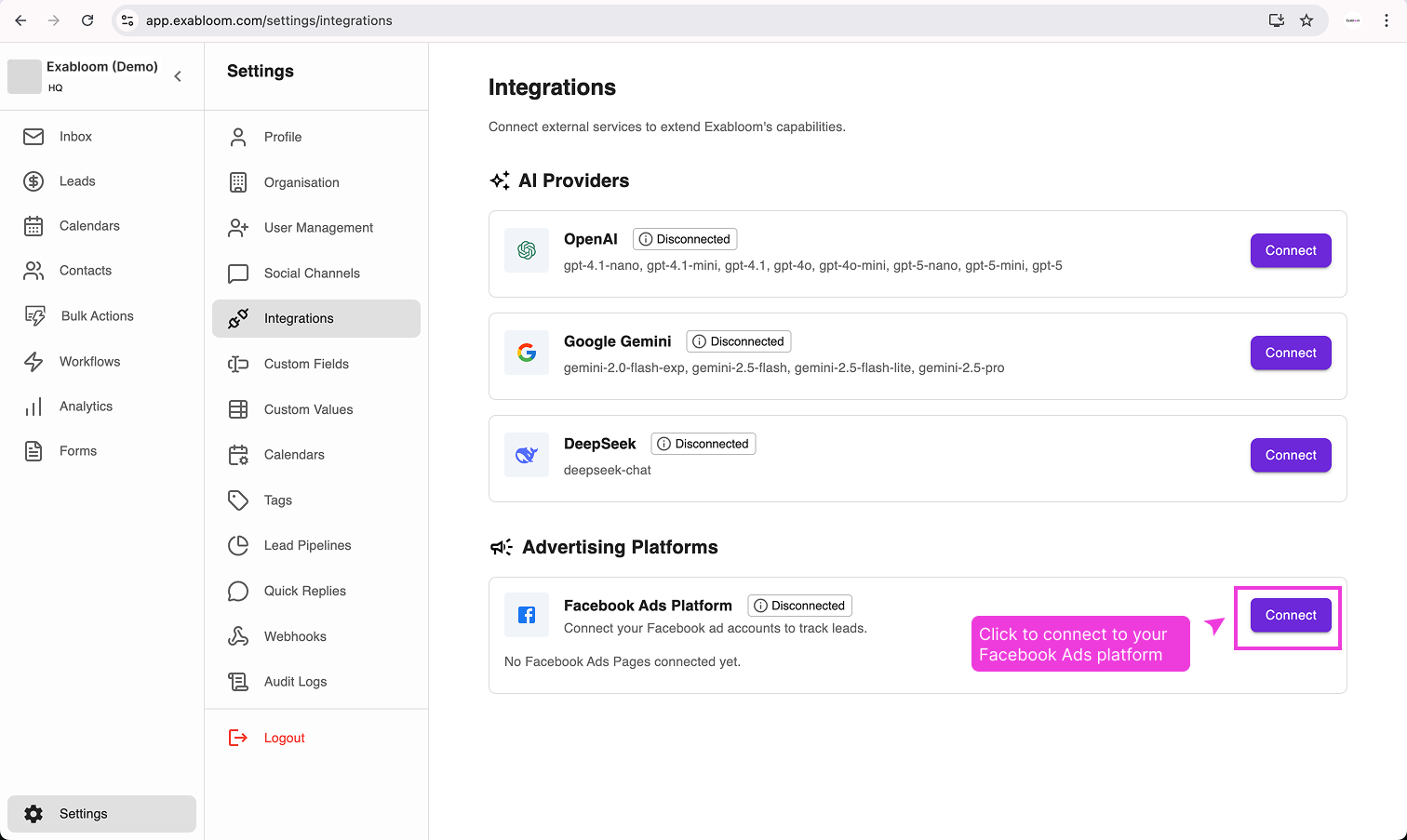
- Click Settings in the menu, then click Integrations.
Step 2: Start the Facebook Connection
- Find Facebook Ads Platform in the list of available integrations.
- Click the Connect button.

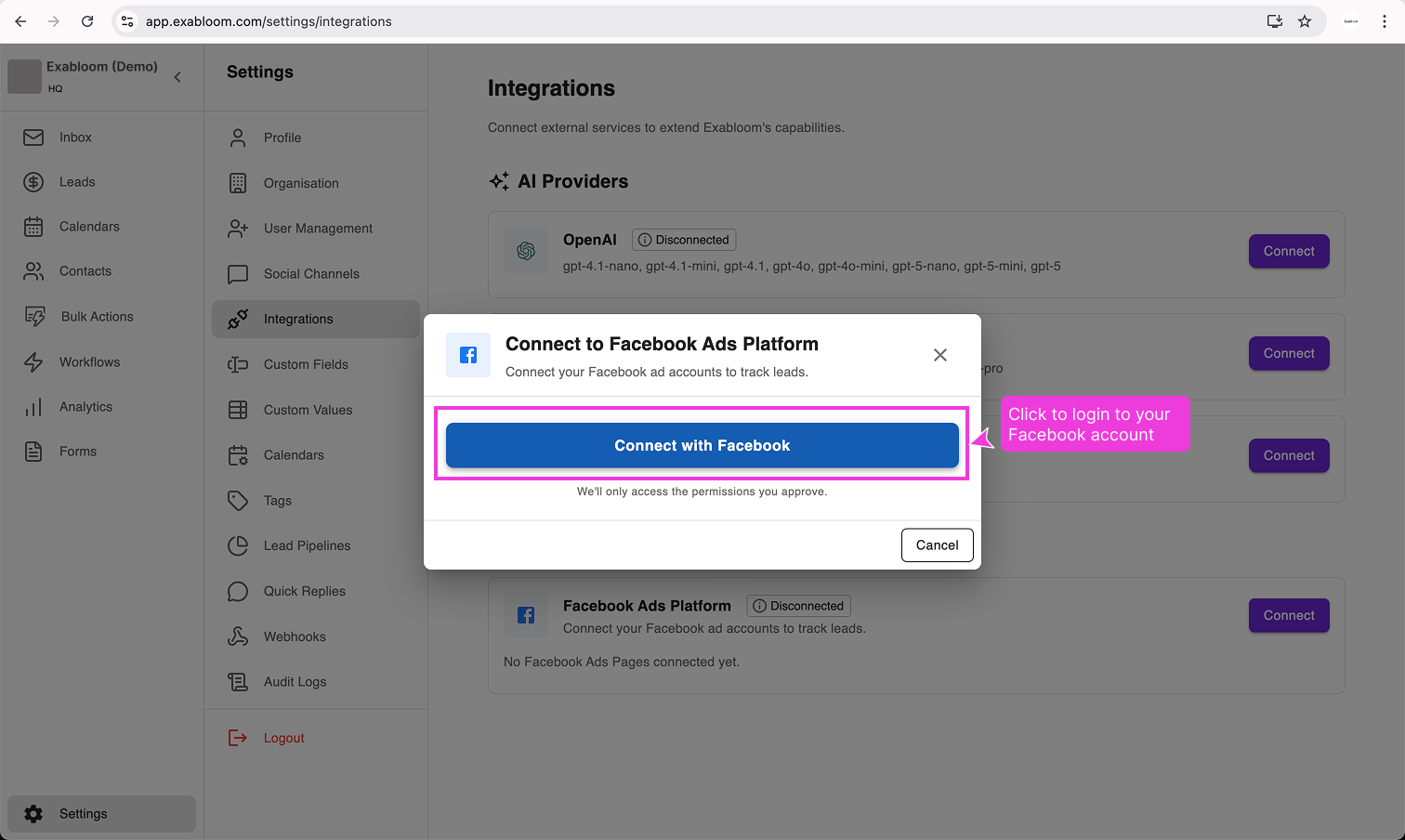
Step 3: Log In to Facebook
A Facebook login window will appear.
- Click Continue or Log in to proceed.
- Enter your Facebook credentials (the account with Full Control permissions).

Step 4: Select Your Business and Page
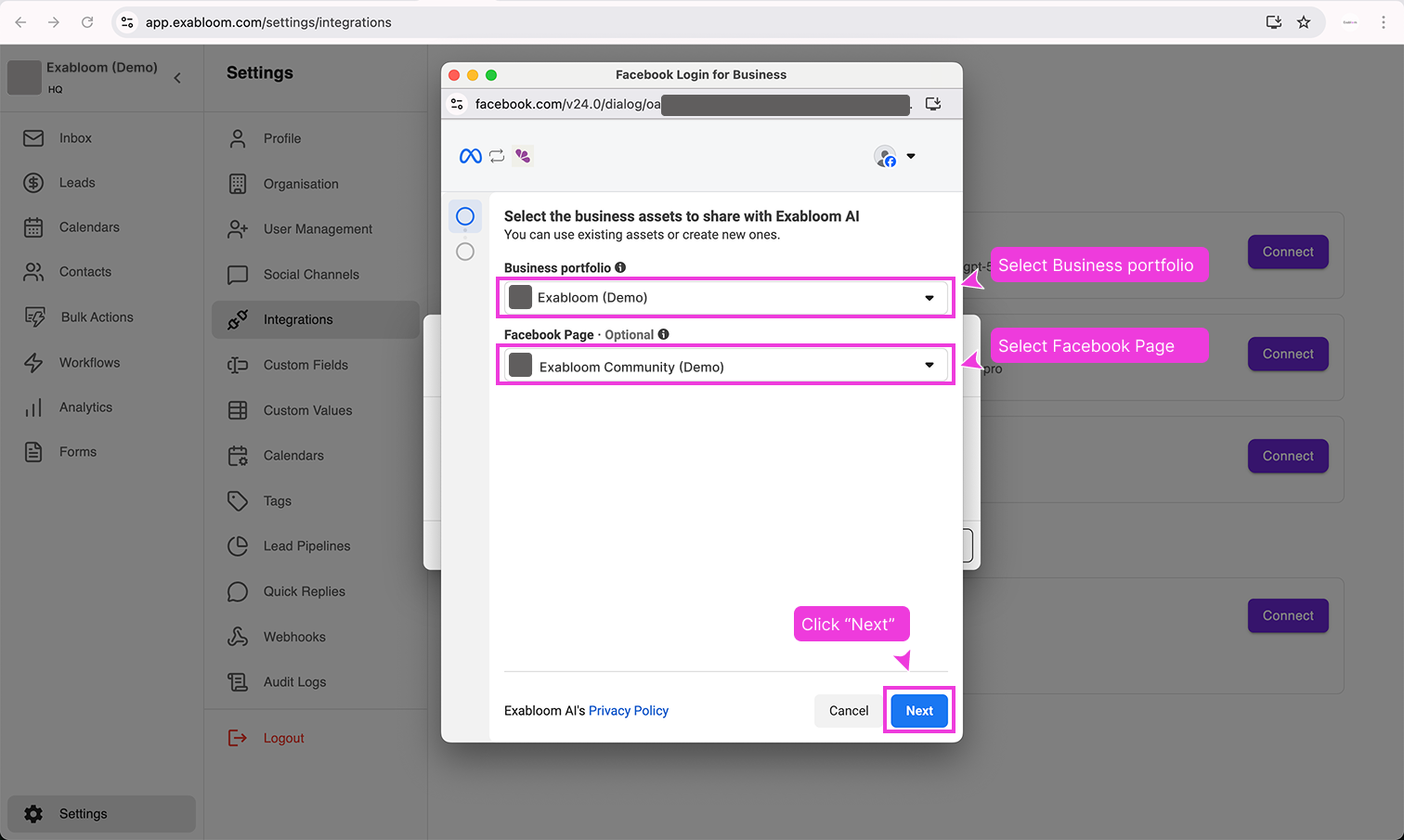
Facebook will ask you to choose which business assets to connect.
- Select the Business Portfolio (sometimes called Business Account) that manages your ads.
- Select the Facebook Page where your ads are running.
- Click Next.

Step 5: Grant Permissions
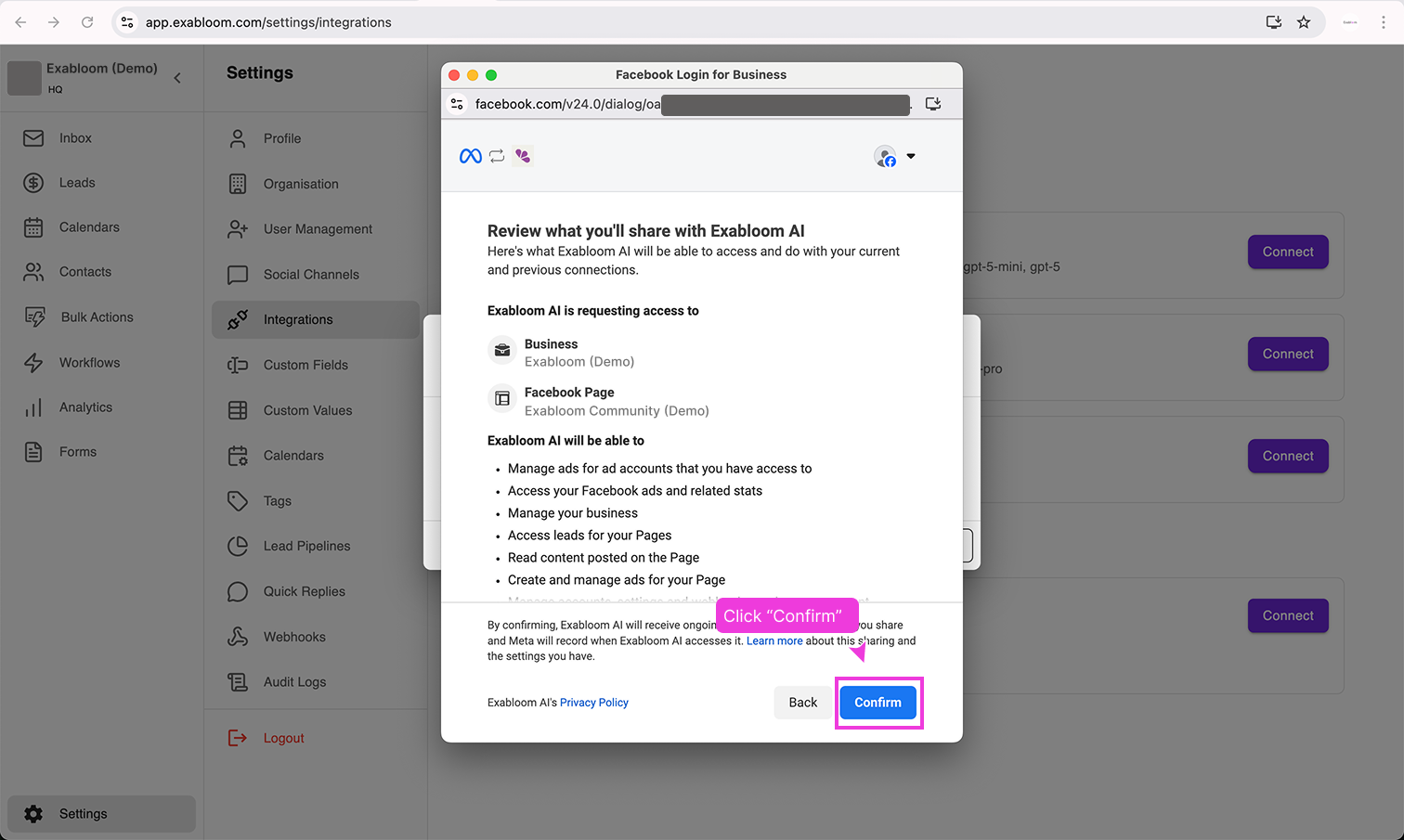
Facebook will show you a list of permissions that Exabloom needs.
- Review the permissions list.
- Click Confirm to allow Exabloom to access the necessary information.

These permissions allow Exabloom to see when someone submits a form through your Facebook ad. Without them, Exabloom won't know when you have a new lead.
Step 6: Finish the Facebook Login
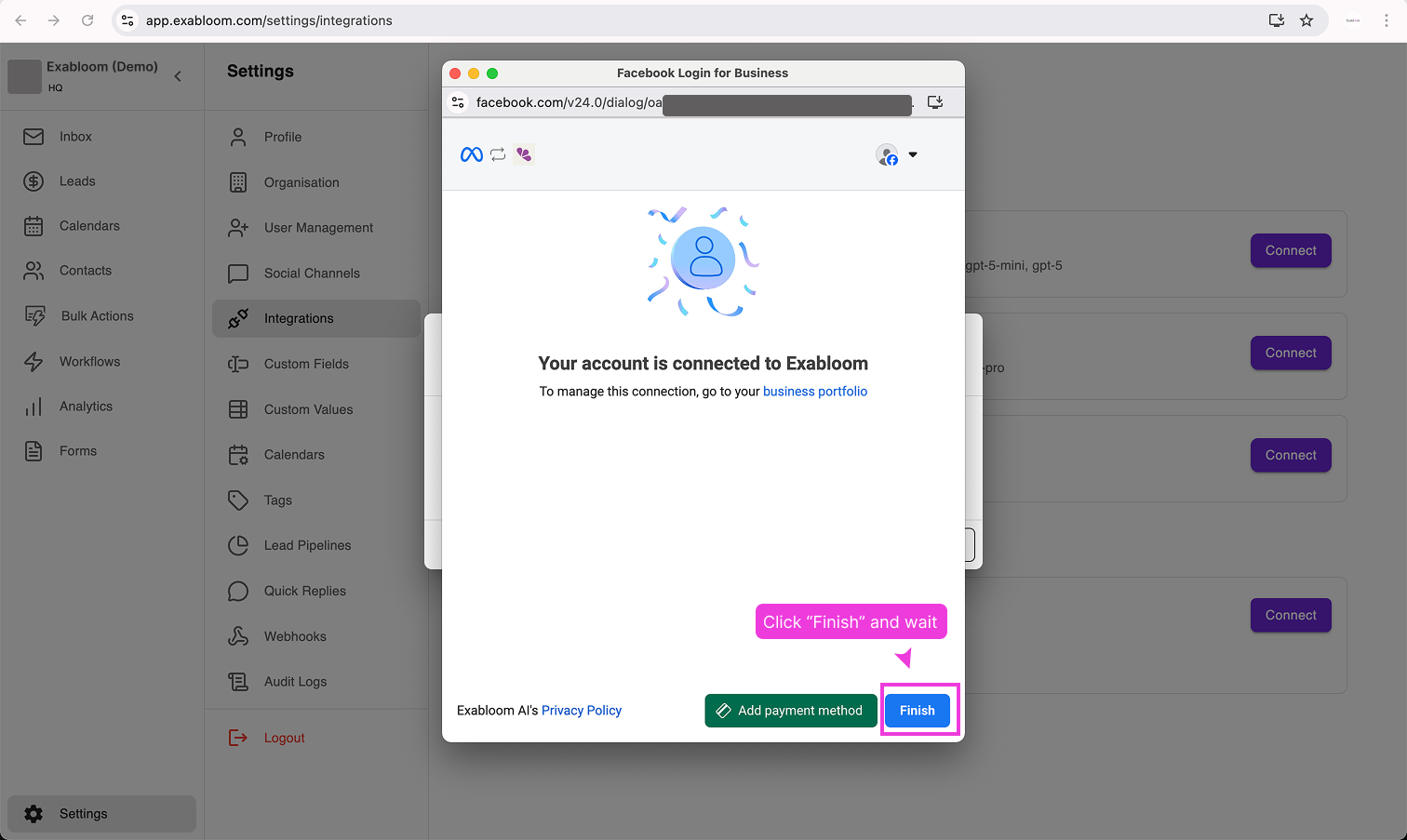
- Click Finish to complete the Facebook login process.

After clicking Finish, wait for the page to fully load and return you to Exabloom. Closing the browser too early can interrupt the connection process, and you may need to start over.
Step 7: Verify the Connection
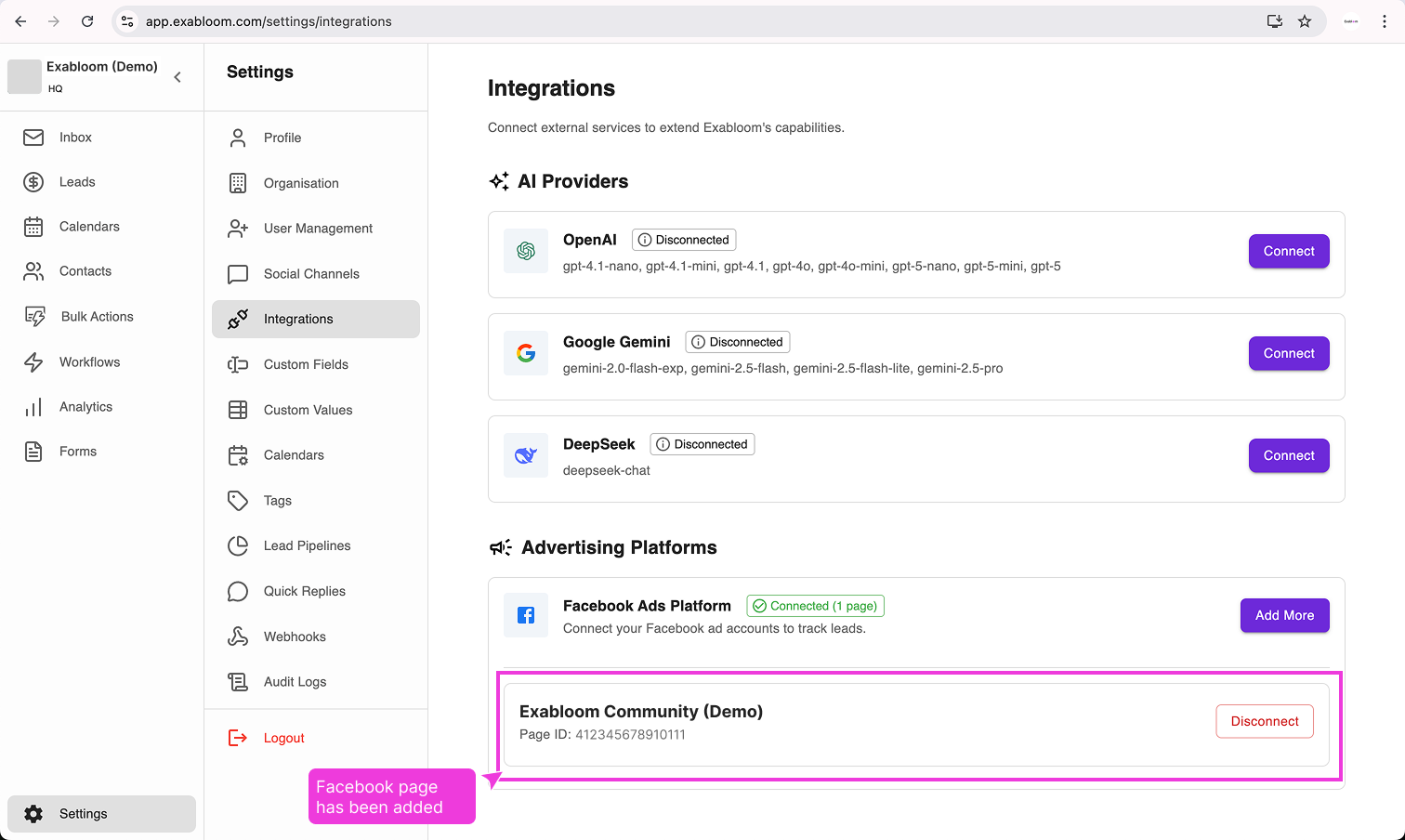
Once the connection is complete, you should see your Facebook Page listed in Exabloom.

If you don't see your Facebook Page listed, try refreshing the page. If it still doesn't appear, go back to Step 2 and try connecting again.
Part 2: Grant Exabloom Access to Your Leads
You've connected your accounts, but there's one more step: you need to tell Meta (Facebook's parent company) that Exabloom is allowed to receive your lead information.
Think of it like this: In Part 1, you introduced Exabloom to Facebook. In Part 2, you're giving Exabloom a special visitor pass that allows it to actually receive the lead data. Without this pass, Facebook won't share the information.
Step 1: Open Meta Business Suite Settings
- Open a new browser tab and go to business.facebook.com.
- Log in if prompted.
- Make sure you're viewing the same Business Portfolio you connected in Part 1.
- Click Settings (usually in the bottom-left corner or under a gear icon).
Step 2: Navigate to Leads Access
You should now be on the Business Portfolio settings page.

-
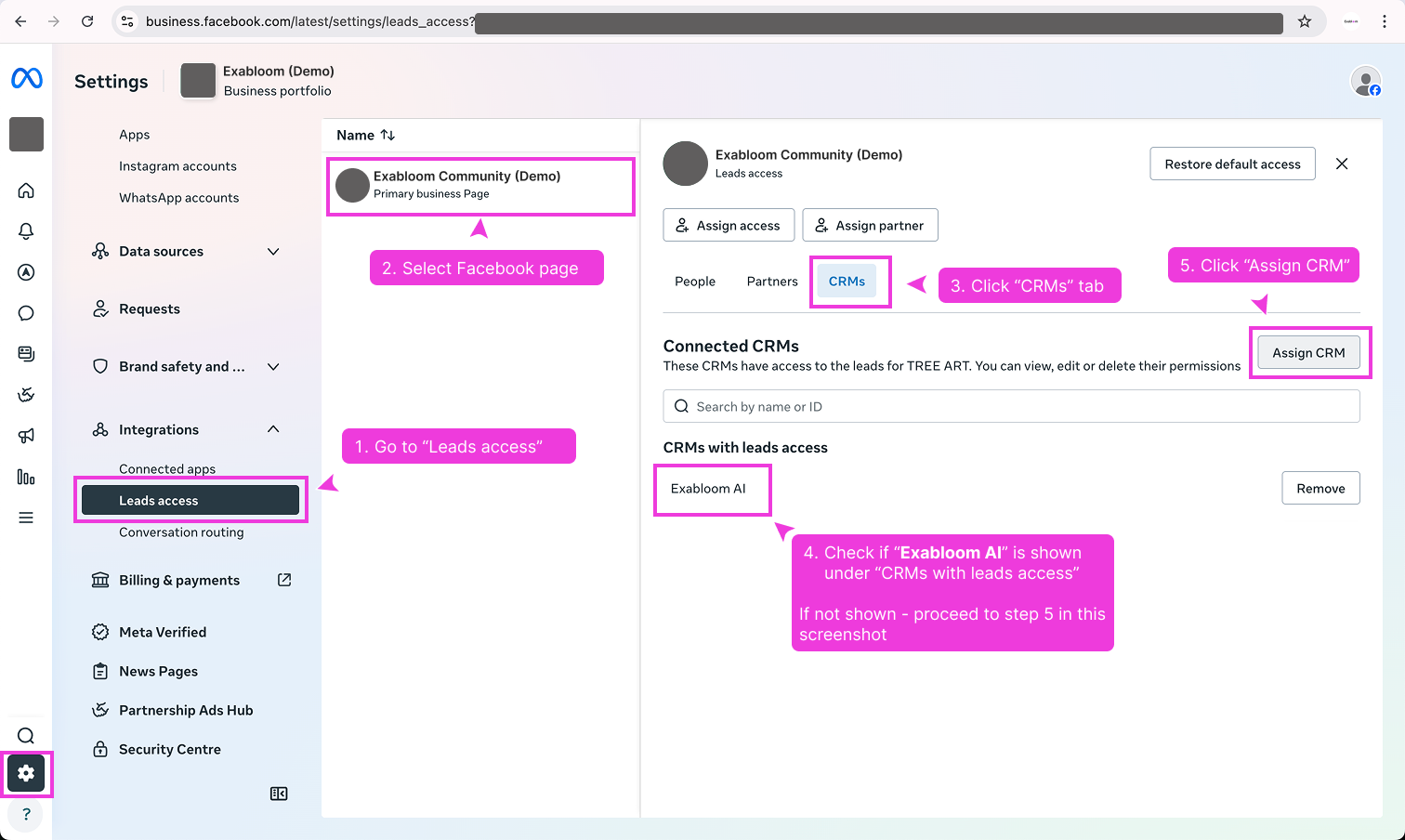
In the left sidebar, click Leads access.
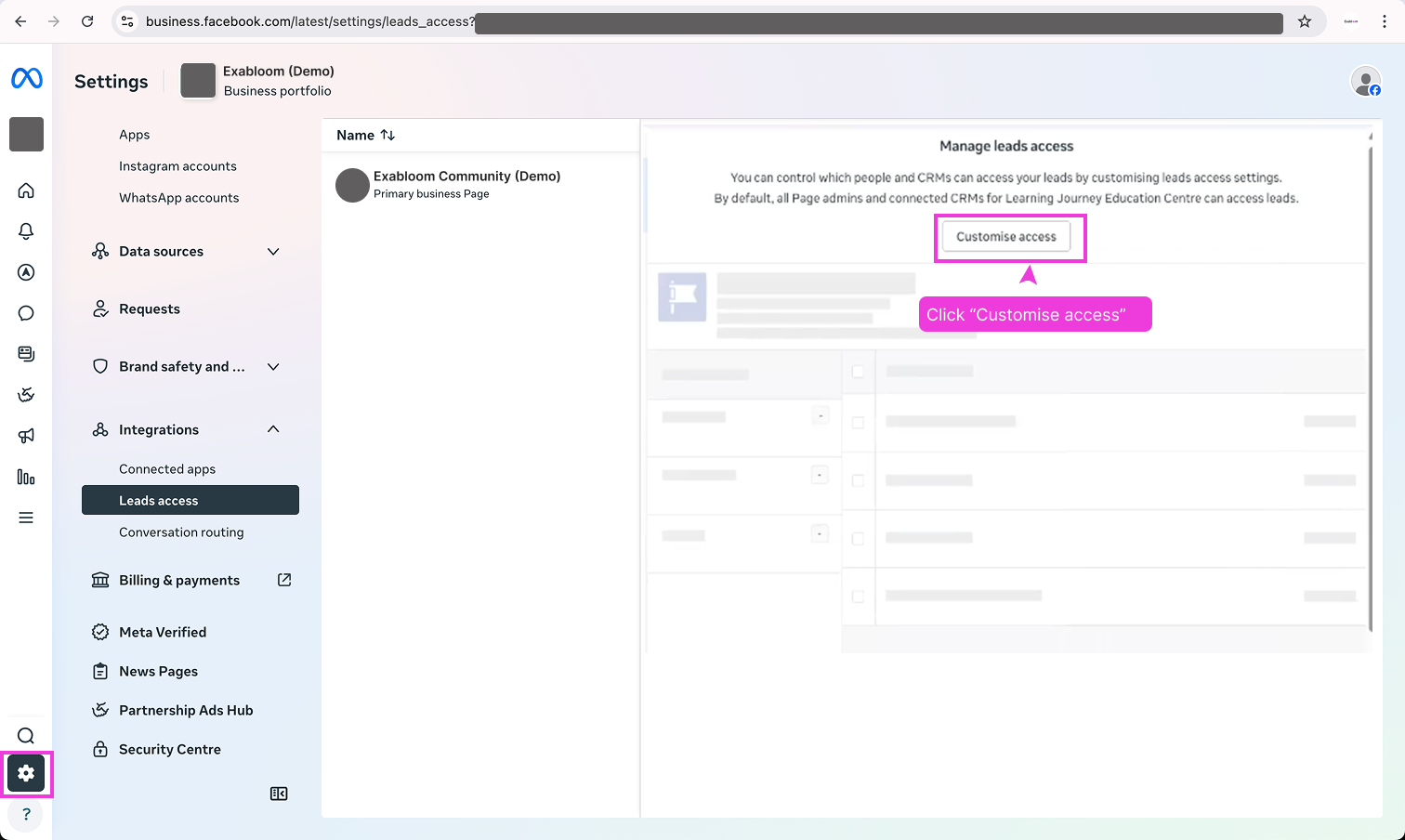
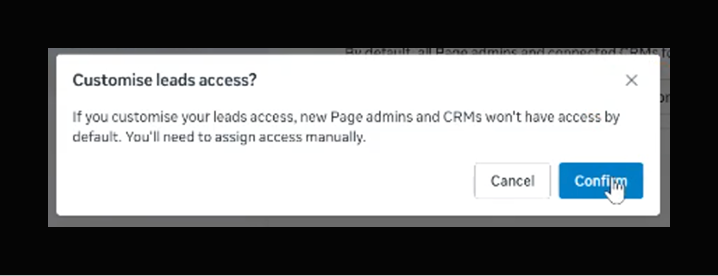
If you see this "Customise access" option, do this 👇🏼

When prompted, click "Confirm"

-
Select your Facebook Page from the dropdown or list.
-
Click the CRMs tab.
-
Look under CRMs with leads access for Exabloom AI.
- If you see Exabloom AI listed: Great! You can skip to Part 3.
- If Exabloom AI is NOT listed:
- Click the Assign CRM button.
- Find Exabloom AI in the list of available CRMs.
- Click on it to grant leads access.
Part 3: Create a Test Workflow
Now we need to verify that everything is working correctly. To do this, we'll create a simple workflow in Exabloom that listens for form submissions, then we'll send a test submission to see if it gets through.
A workflow is like a set of automatic instructions. You tell Exabloom: "When this happens, do that." In this case, we're saying: "When someone submits a Facebook form, create a lead record."
Step 1: Create a New Workflow
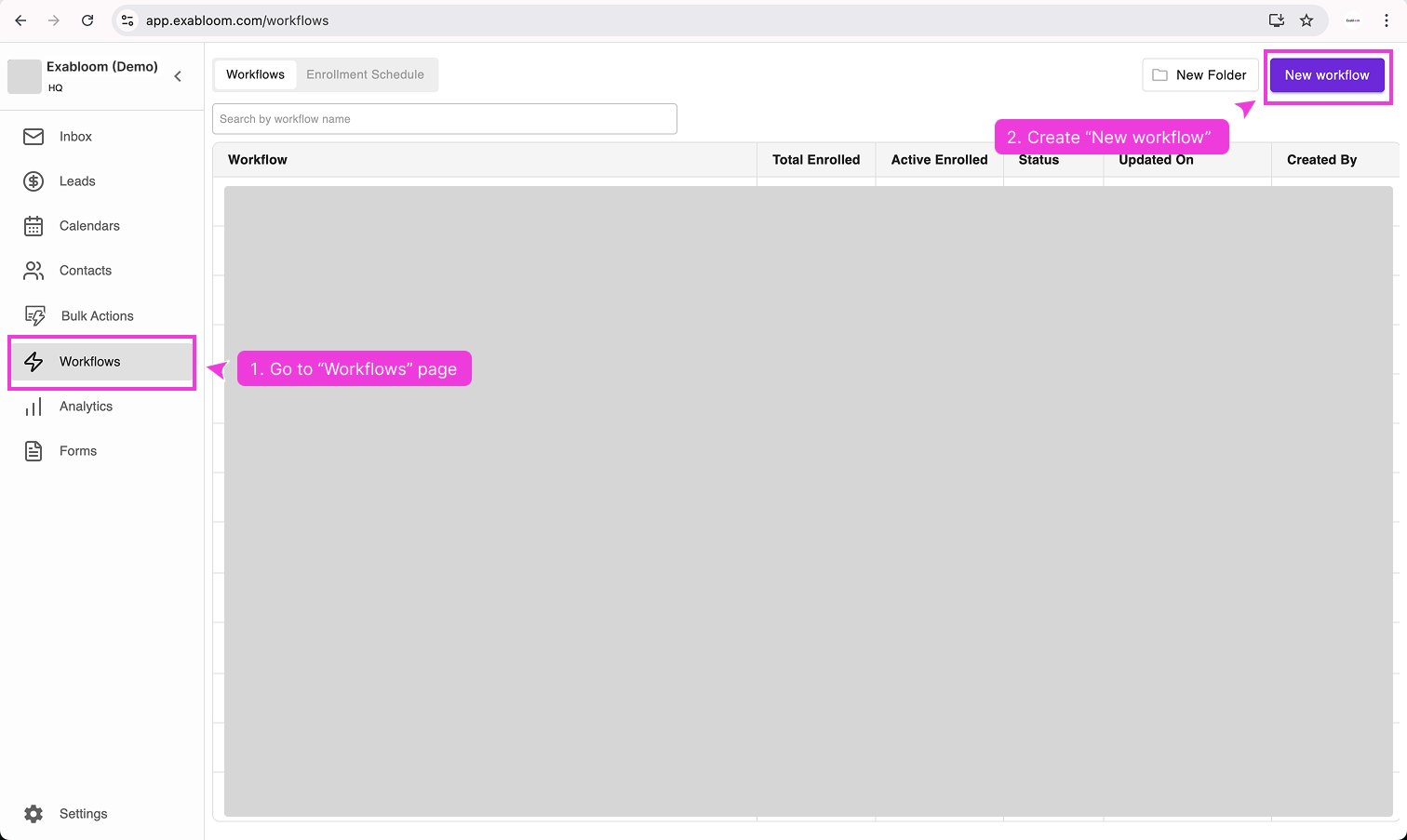
- In Exabloom, click Workflows in the main menu.
- Click the button to create a new workflow.

Step 2: Name Your Workflow
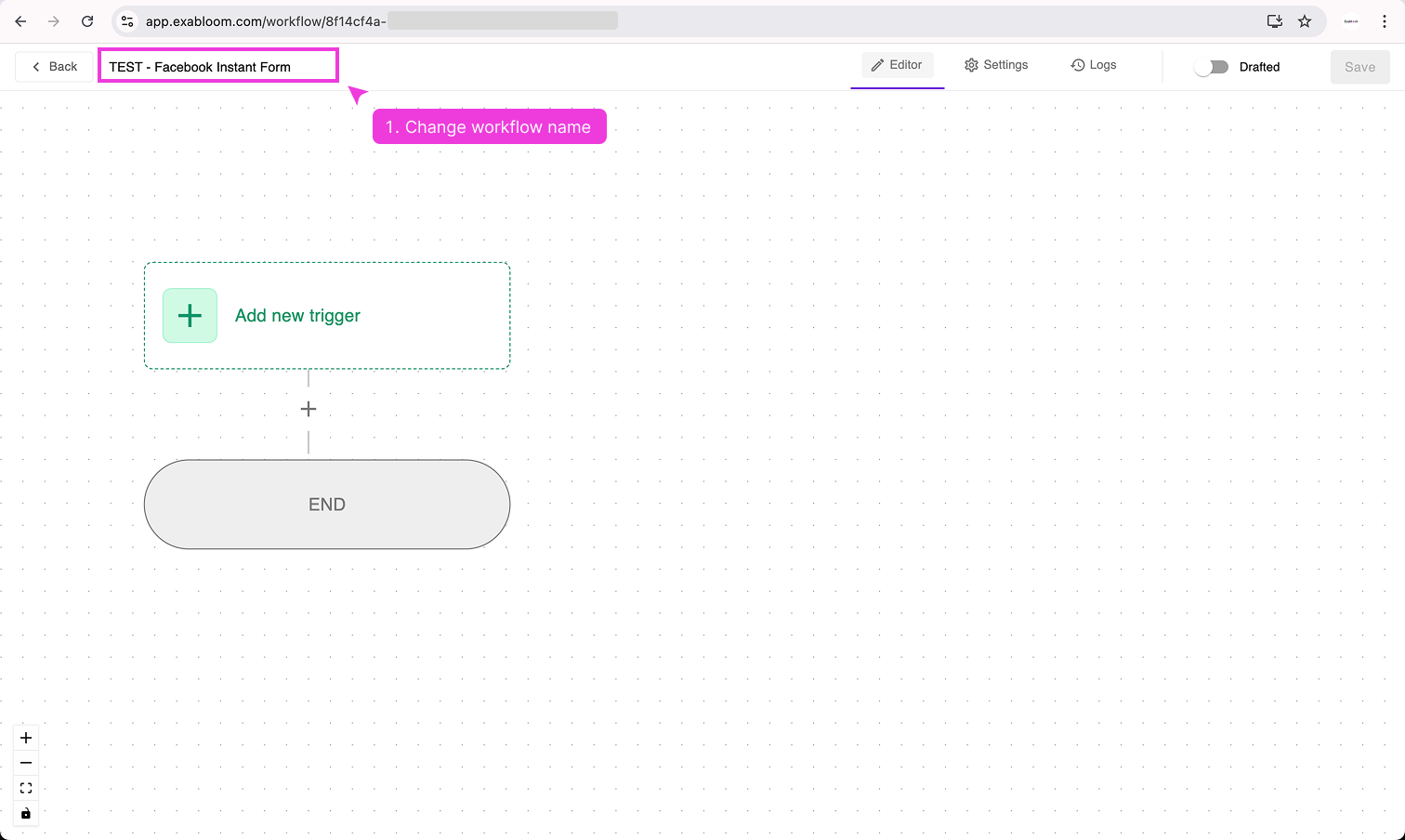
- Click on the workflow title to rename it.
- Enter: TEST - Facebook Instant Form

Adding "TEST" to the beginning makes it easy to identify this as a test workflow. You can delete it or rename it later once you've confirmed everything works.
Step 3: Set Up the Trigger
A trigger tells the workflow when to start running.
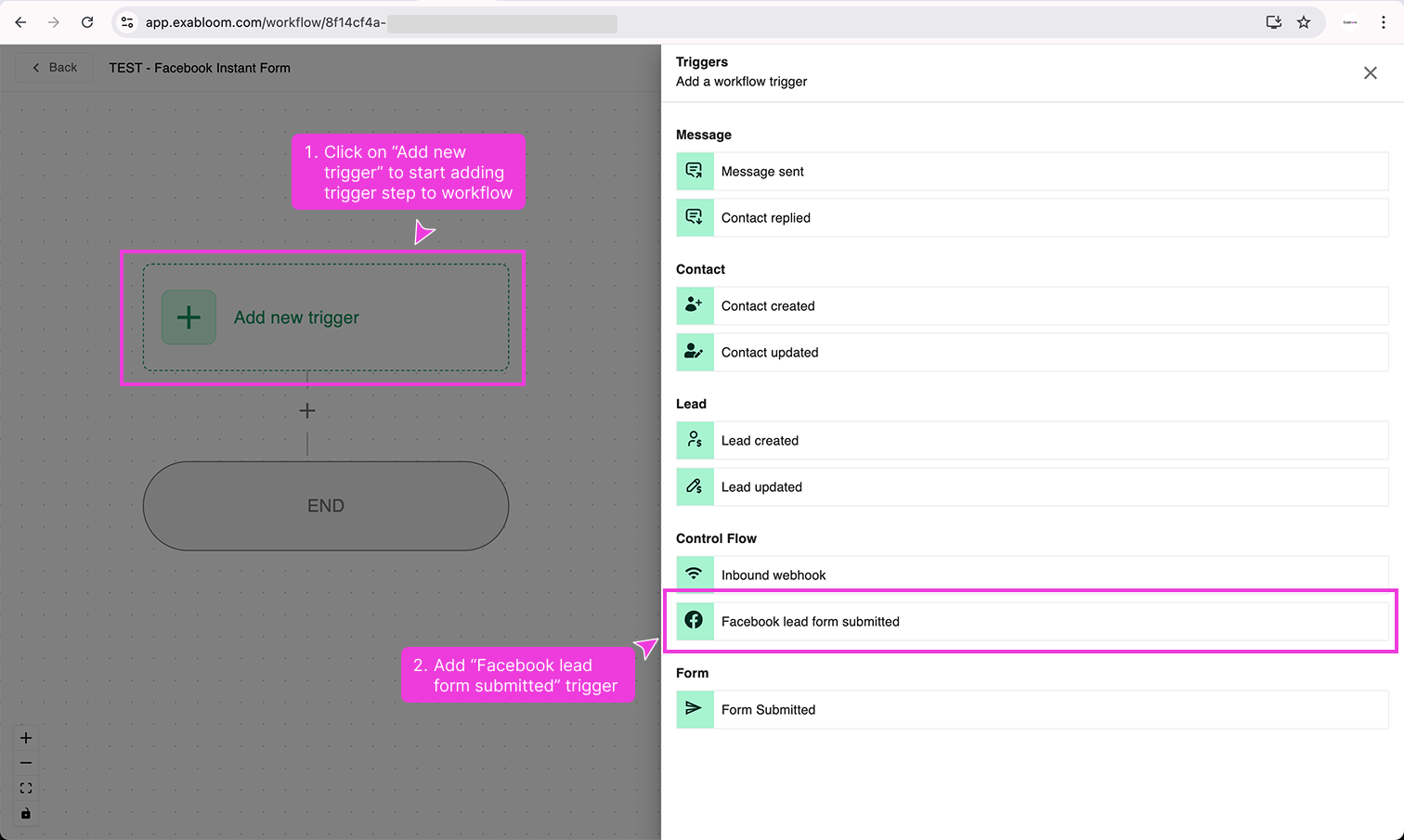
- Click to add or edit the trigger.
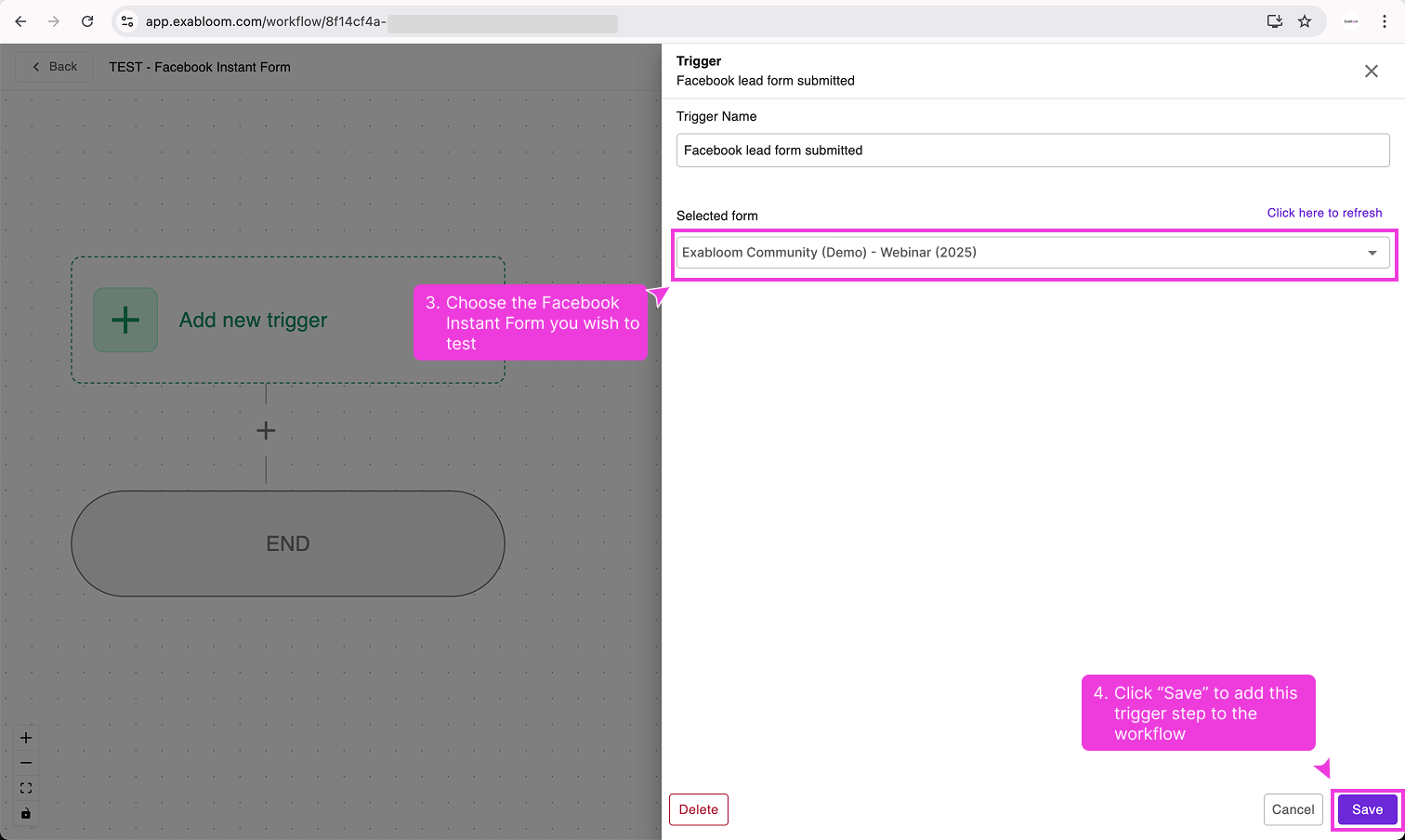
- Choose Facebook lead form submitted from the list of available triggers.

Step 4: Select Your Form
- In the trigger configuration, find the form selection dropdown.
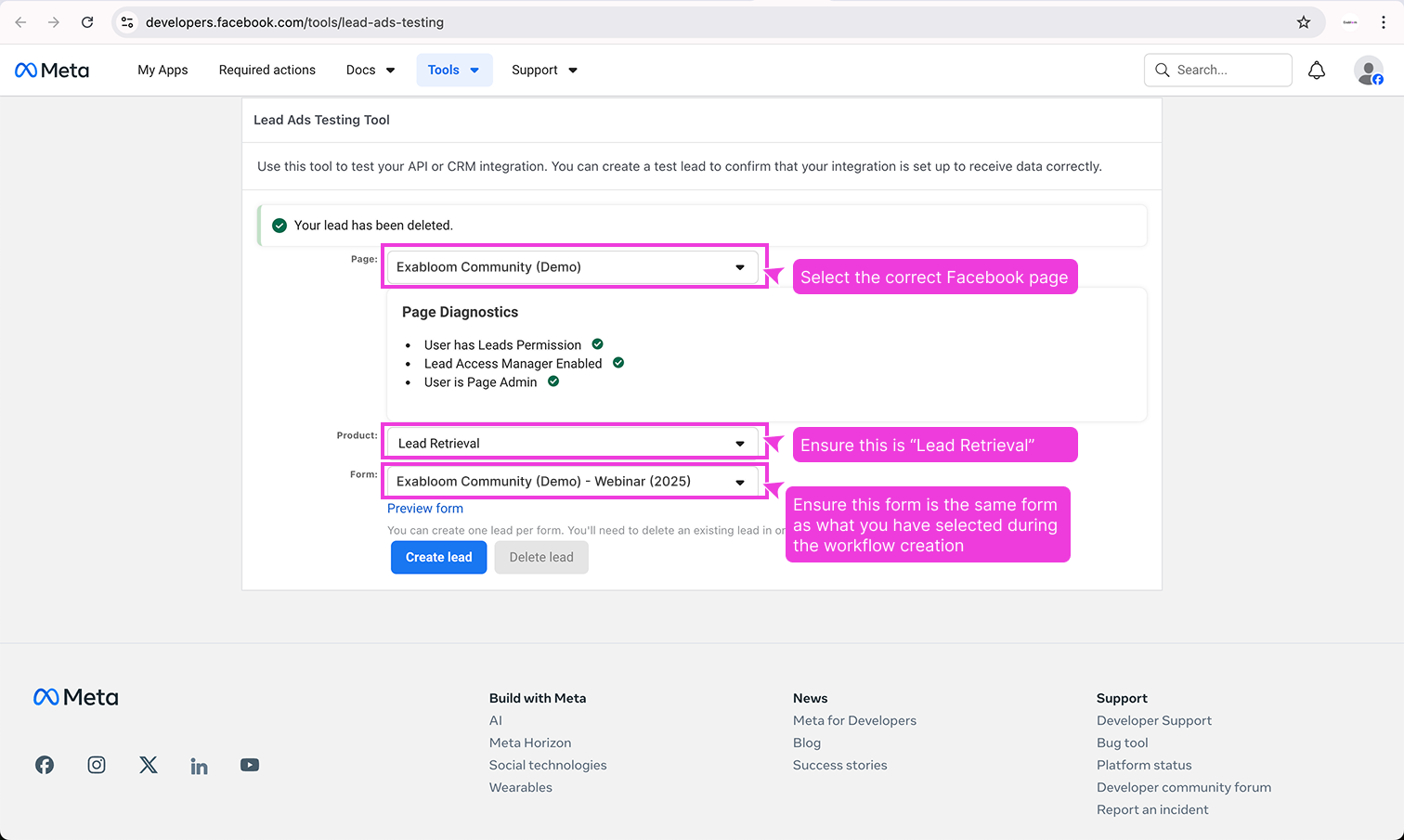
- Select the specific Facebook Instant Form you want to test (for example, "Exabloom Community (Demo) - Webinar (2025)").

Step 5: Configure the "Find Contact" Step
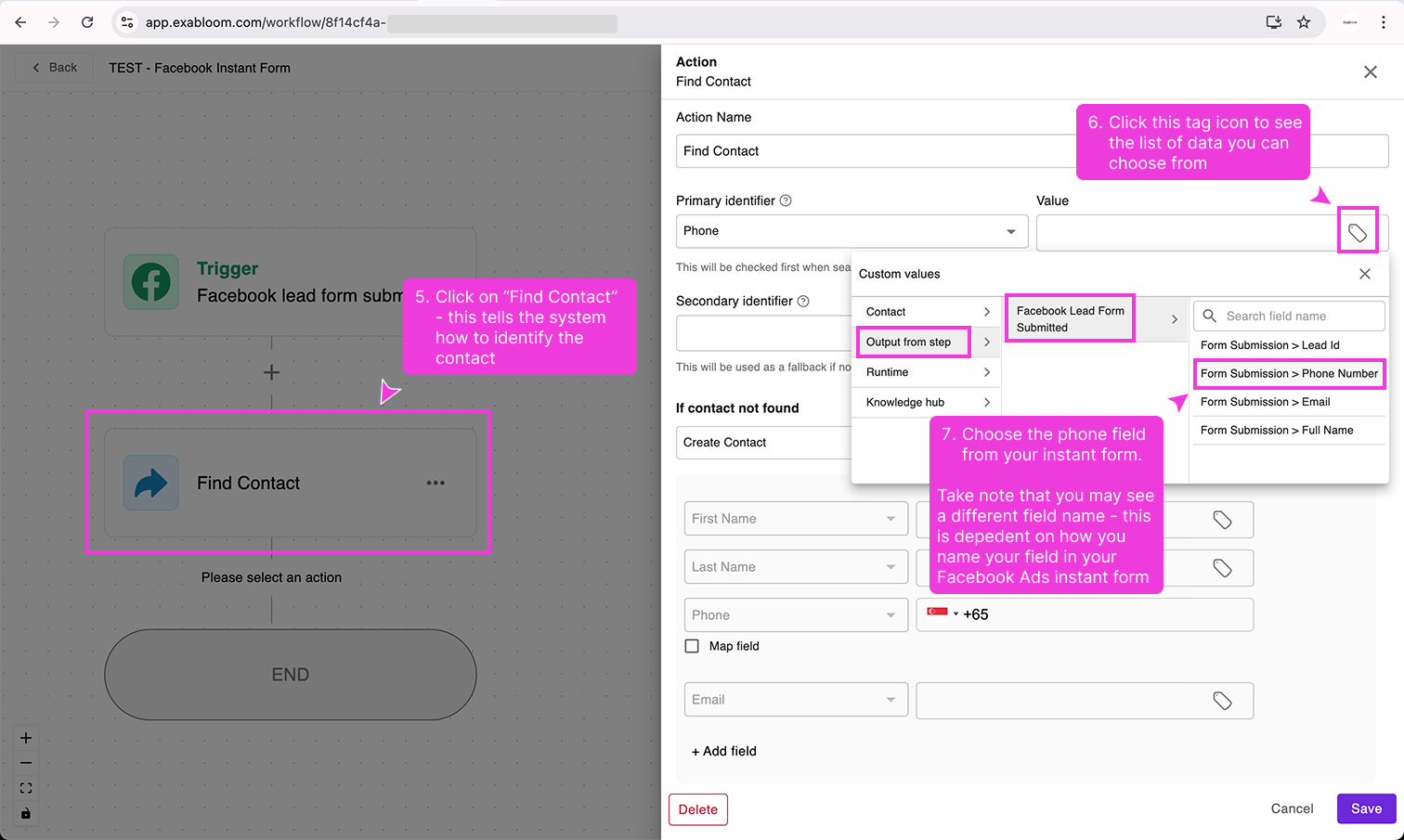
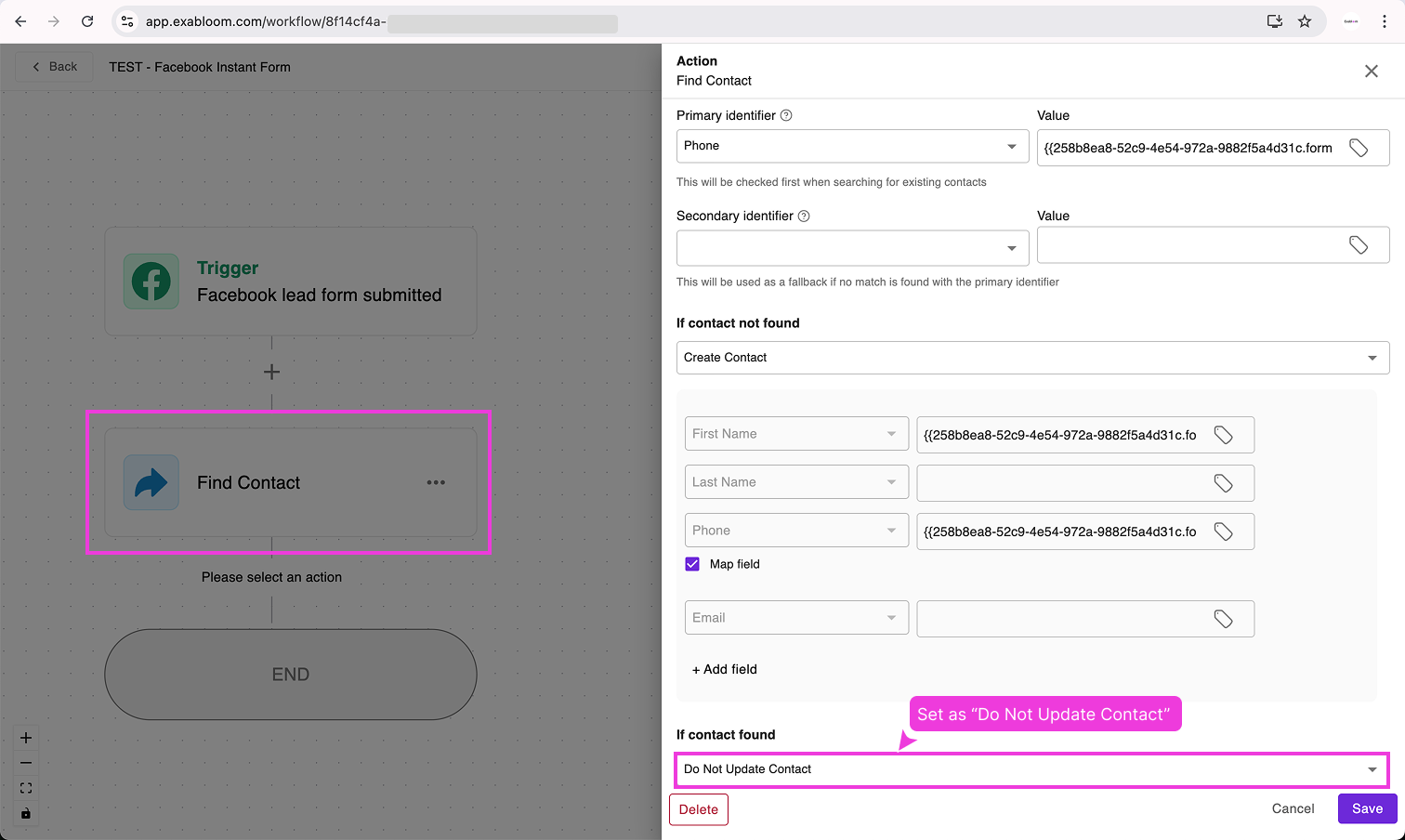
After adding the trigger, you'll notice a Find Contact step appears automatically. This step checks if the person who submitted the form already exists in your contacts.
- Click on the Find Contact step to configure it.
- For Primary Identifier, you need to tell Exabloom which piece of information to use for matching. Click to map a value.
- Select the phone number field from your Facebook Instant Form.

Once mapped, it should look something like this:

Mapping is like drawing a line between two pieces of information. You're telling Exabloom: "The phone number from the Facebook form should be matched to the phone number in my contacts." This way, Exabloom knows how to connect the dots.
Step 6: Set Up "Create Contact If Not Found"
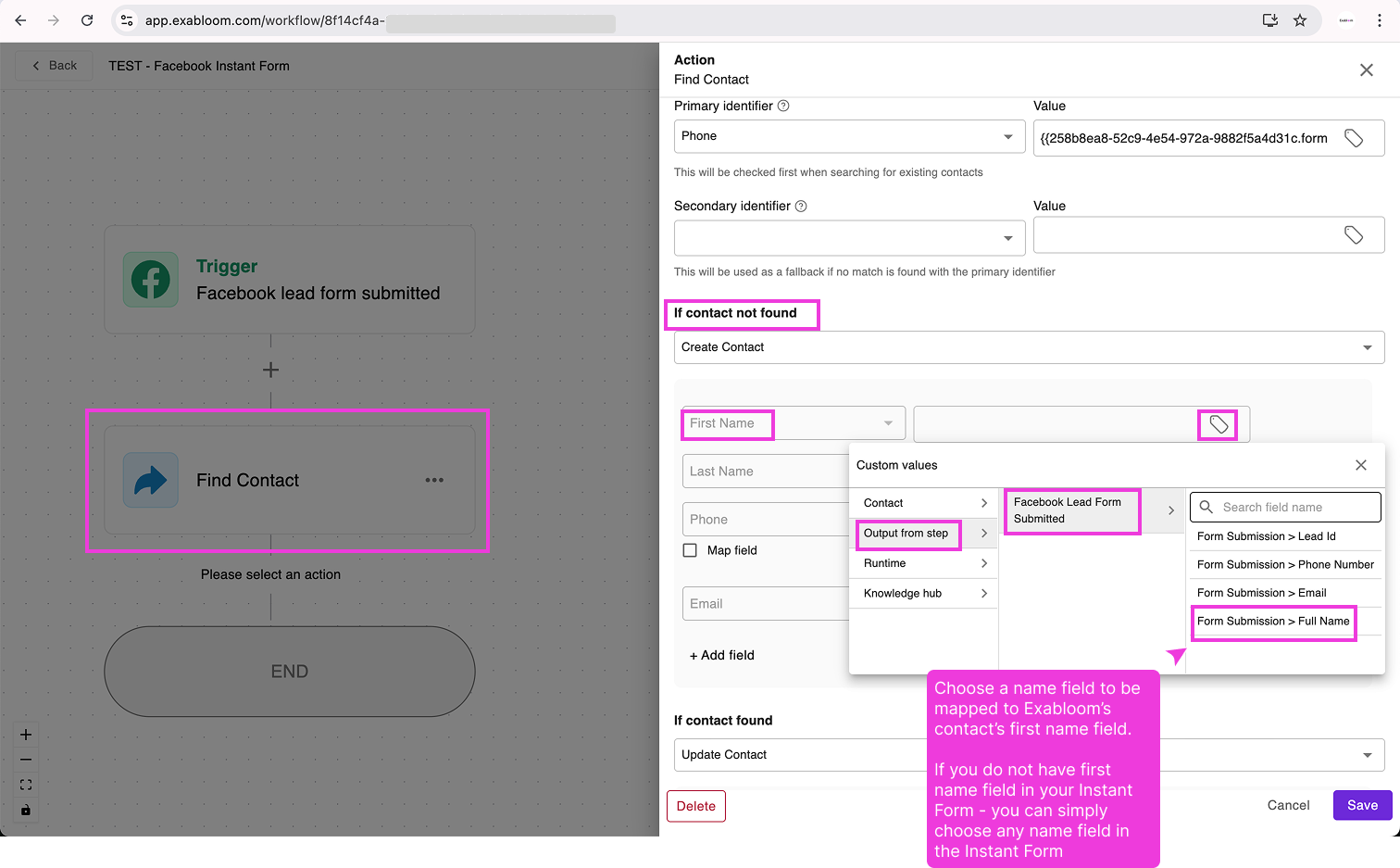
If this is a brand new person (not already in your contacts), we need to tell Exabloom how to create their contact record.
- Still in the Find Contact configuration, scroll to the section about what to do if the contact isn't found.
- Map the name field from your Facebook form to the contact's First Name in Exabloom.

Your Facebook form might have different field names like "Full Name" or just "Name" instead of "First Name." That's perfectly fine—just choose whichever field contains the person's name.
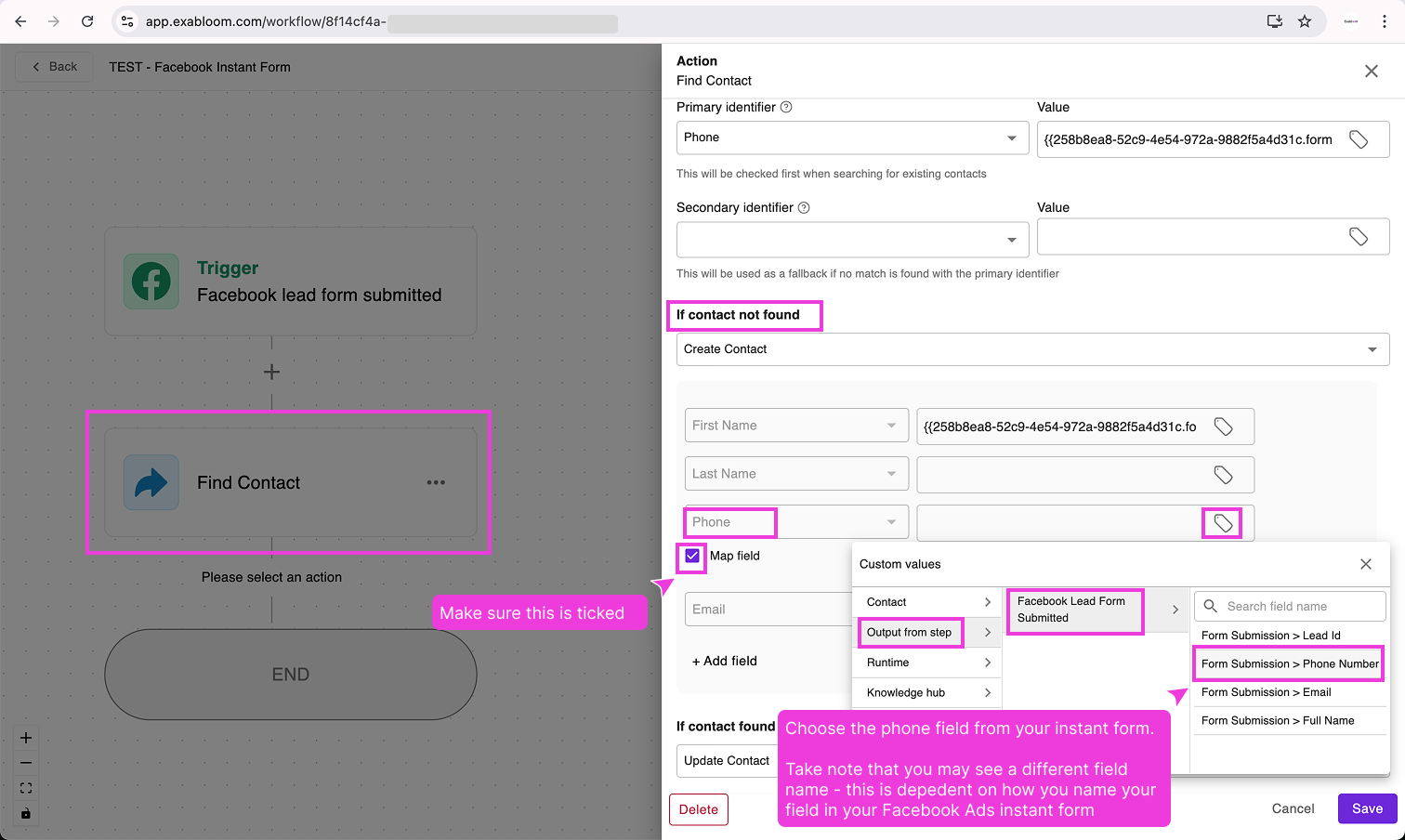
- Map the phone number field from your Facebook form to the contact's Phone in Exabloom.

Step 7: Set "If Contact Found" Behaviour
If the person already exists in your contacts, we don't want to overwrite their information during this test.
- Find the If contact found setting.
- Set it to Do Not Update Contact.

Step 8: Save the Find Contact Configuration
Click Save to save your Find Contact settings.

Step 9: Add a "Create Lead" Action
Now we'll add an action that creates a lead record—this will be our proof that the integration is working.
- Click to add a new action step after Find Contact.

- Choose Create Lead from the list of available actions.

Step 10: Configure the Create Lead Action
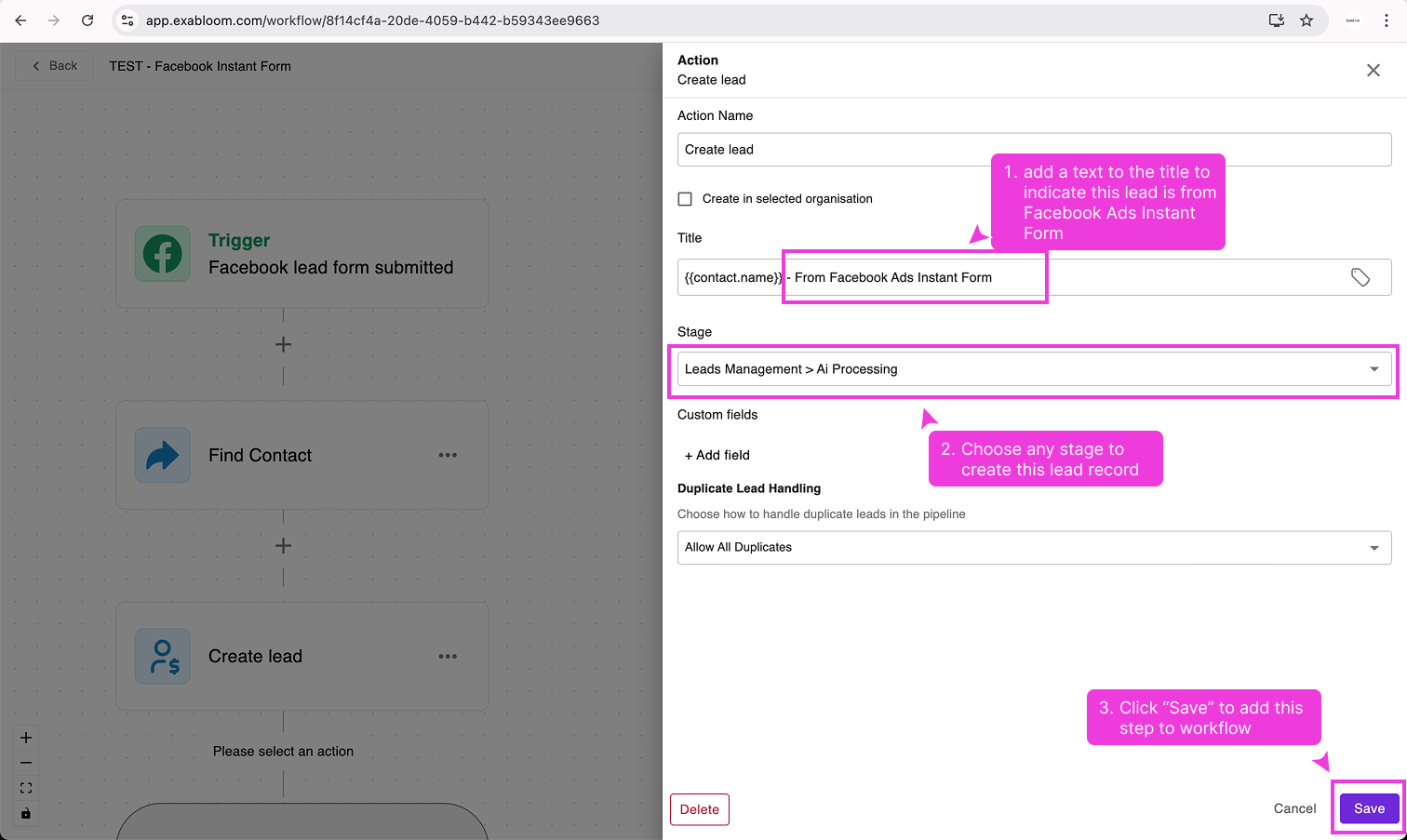
-
For the Title field, add this text at the end:
- From Facebook Ads Instant FormThis special text will help you identify leads created by this test workflow.
-
For the Stage, select any stage in your pipeline (it doesn't matter which one for testing purposes).
-
Click Save to add this action to your workflow.

Step 11: Publish Your Workflow
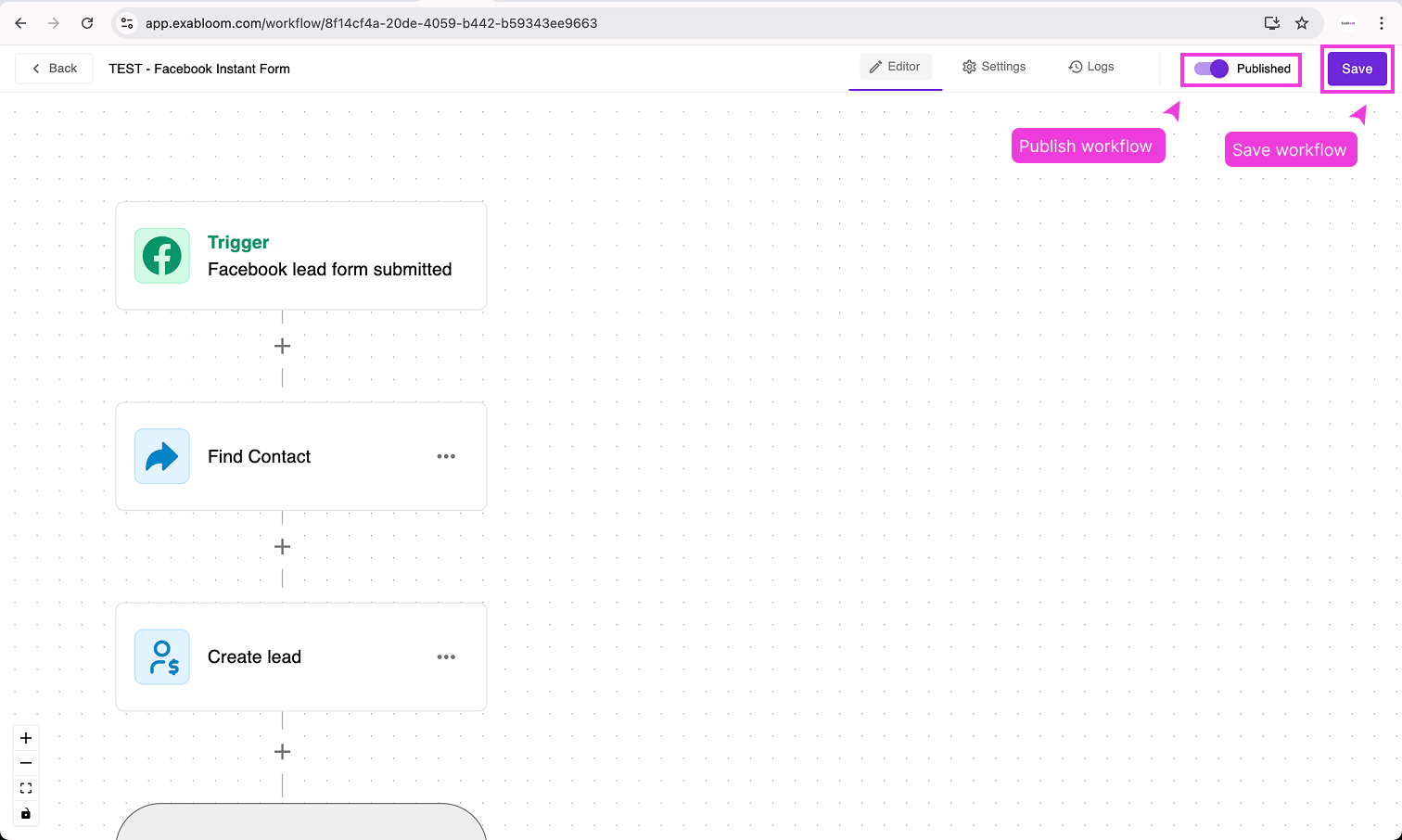
- Click Publish to make the workflow active.
- Click Save to save all your changes.

A workflow must be published to be active. If you only save without publishing, the workflow won't respond to form submissions.
Part 4: Test the Integration
Everything is set up! Now let's send a test form submission to make sure data flows correctly from Facebook to Exabloom.
We're going to pretend to be someone who saw your Facebook ad and filled out the form. If everything is connected properly, Exabloom should receive this test submission and create a new lead record.
Step 1: Open Facebook's Lead Testing Tool
- Open a new browser tab.
- Go to developers.facebook.com/tools/lead-ads-testing.
- Log in with your Facebook account if prompted.
Step 2: Select the Correct Settings
Make sure the following are correctly selected:
- Business Portfolio: The same one you connected to Exabloom
- Facebook Page: The same page you connected
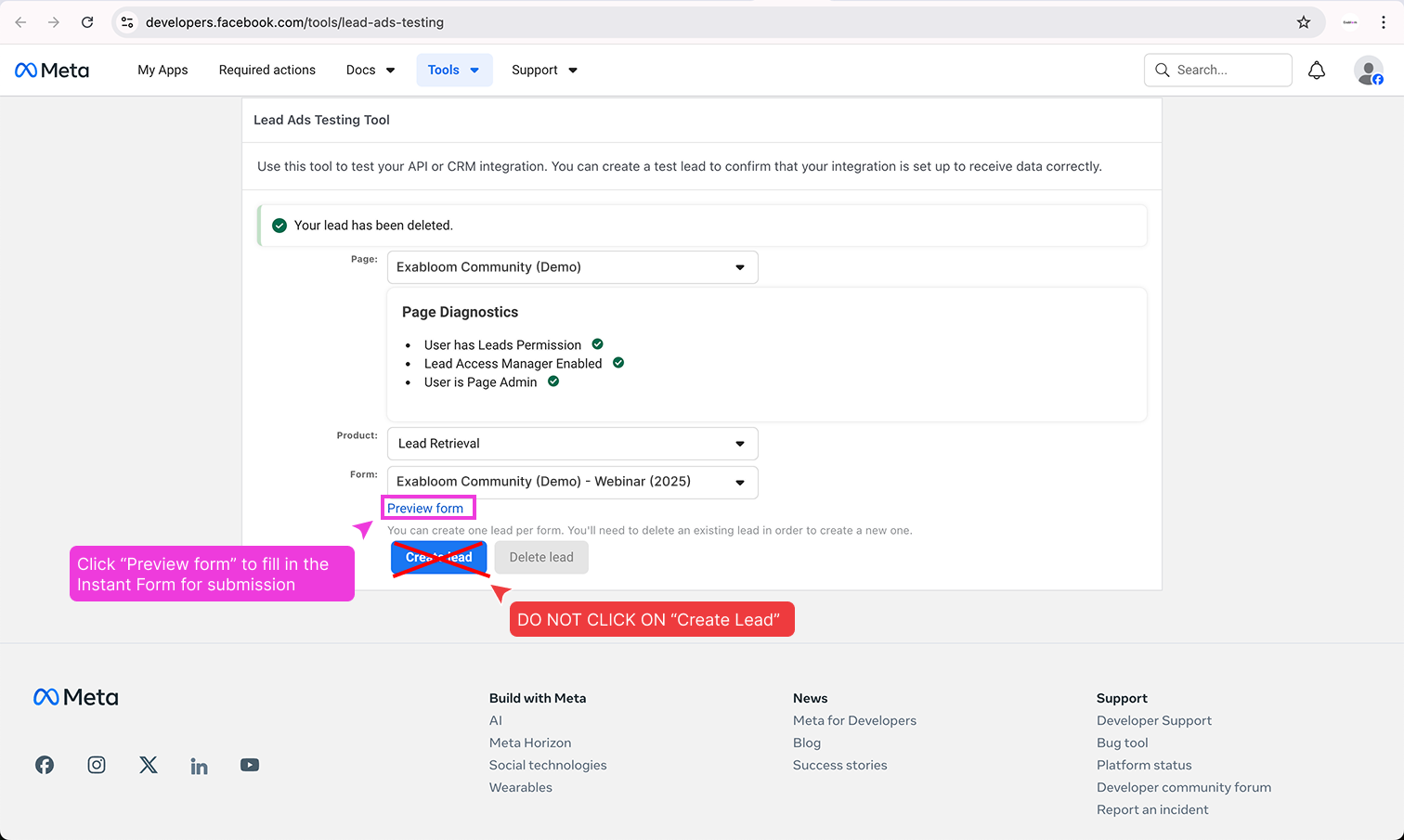
- Product: Set to Lead Retrieval

Step 3: Preview the Form
- Find and click the Preview form link (it appears as clickable text, not a button).

If you see existing test data instead of the Preview form option, click Delete Lead to clear it first.

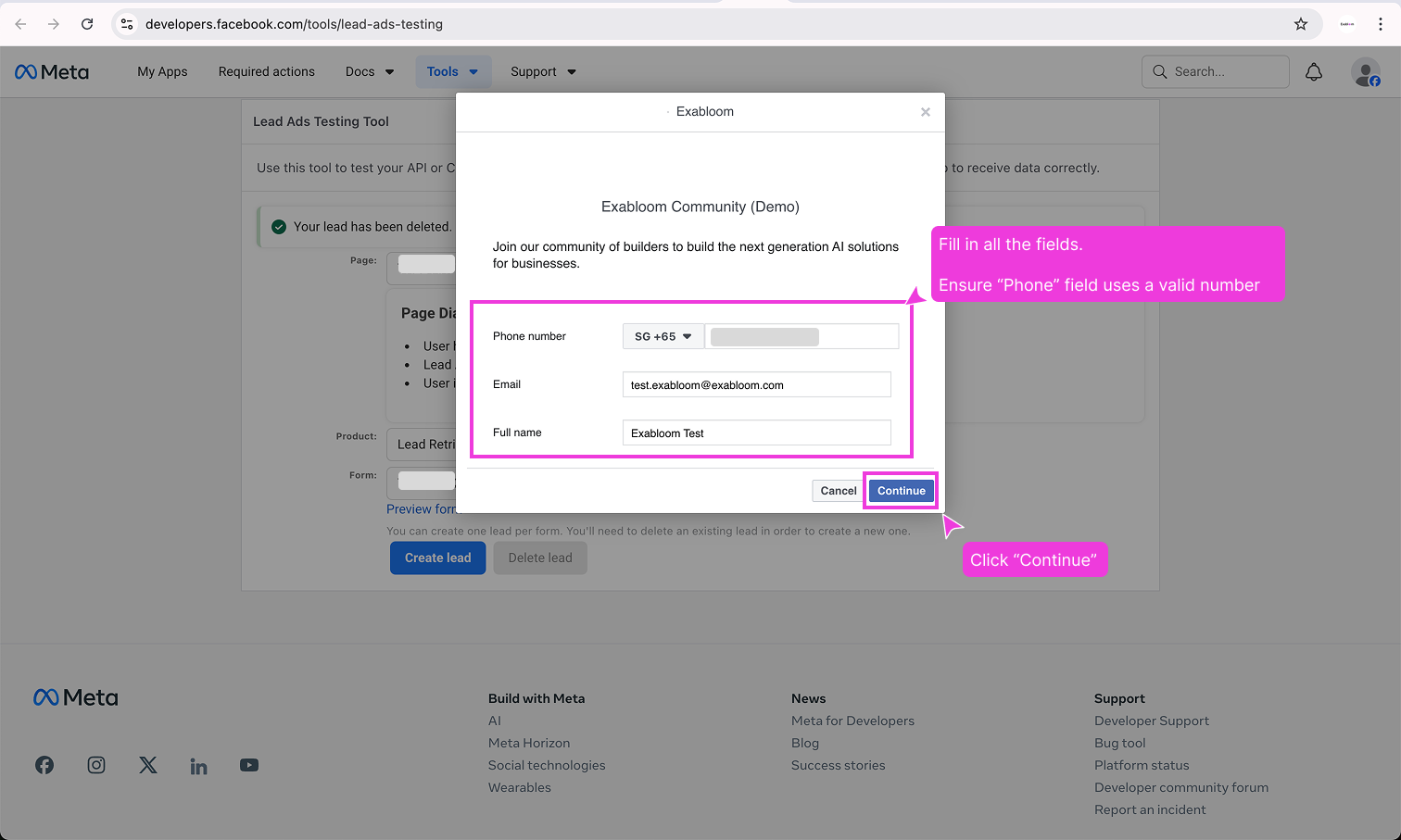
Step 4: Fill Out the Test Form
A preview of your Facebook Instant Form will appear.
- Fill in all the required fields with test information. You can use made-up details, but use a real phone number format.
- Click Continue.

Step 5: Submit the Form
If a confirmation screen appears, click Submit.

Step 6: Wait for the Submission to Send
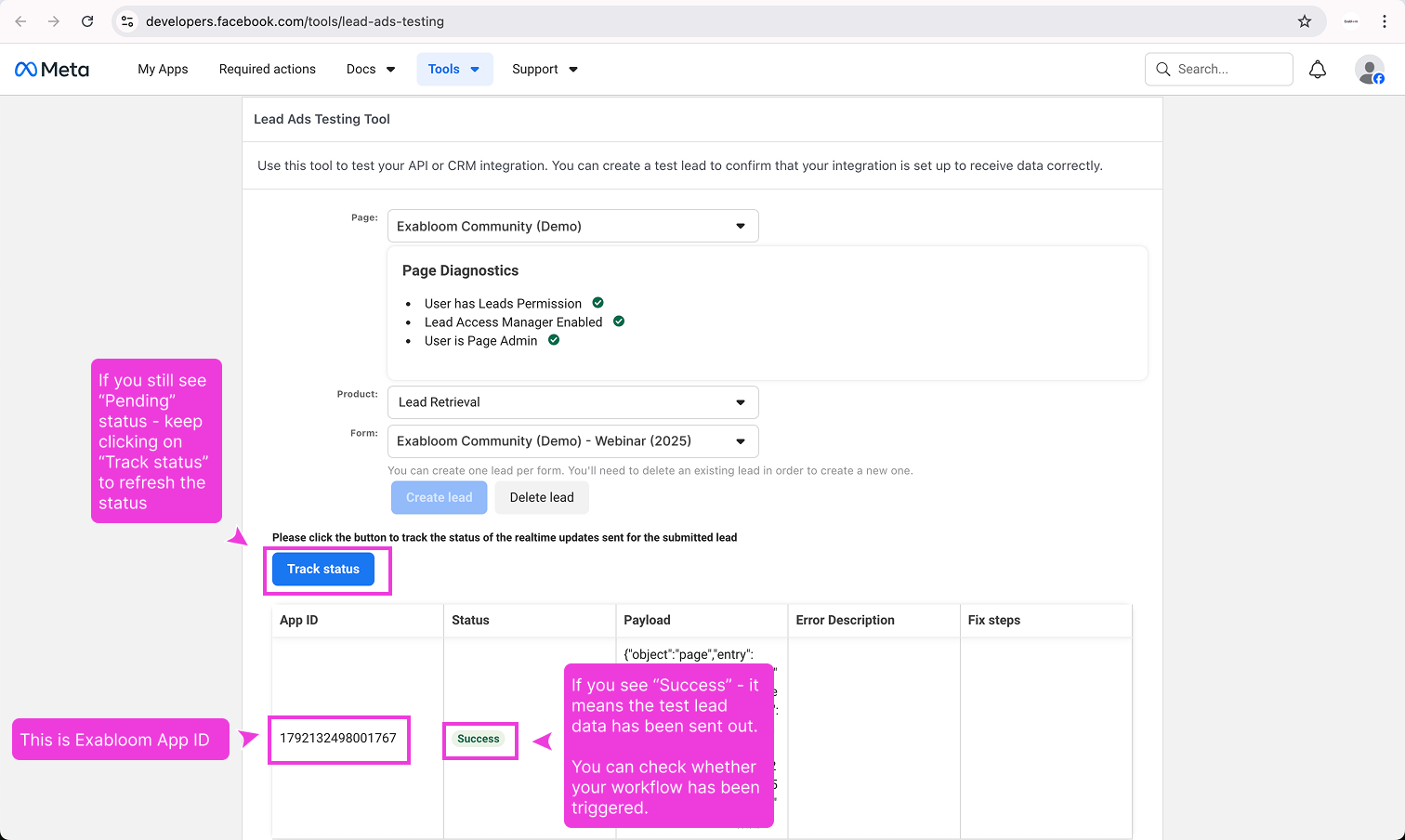
- You'll see a status indicator. Click Track Status to refresh it.
- Wait until the status changes from Pending to Success.

The status changing to "Success" means Facebook has sent the lead data. Now we need to check if Exabloom received it.
Step 7: Verify the Lead Was Created in Exabloom
- Go back to Exabloom.
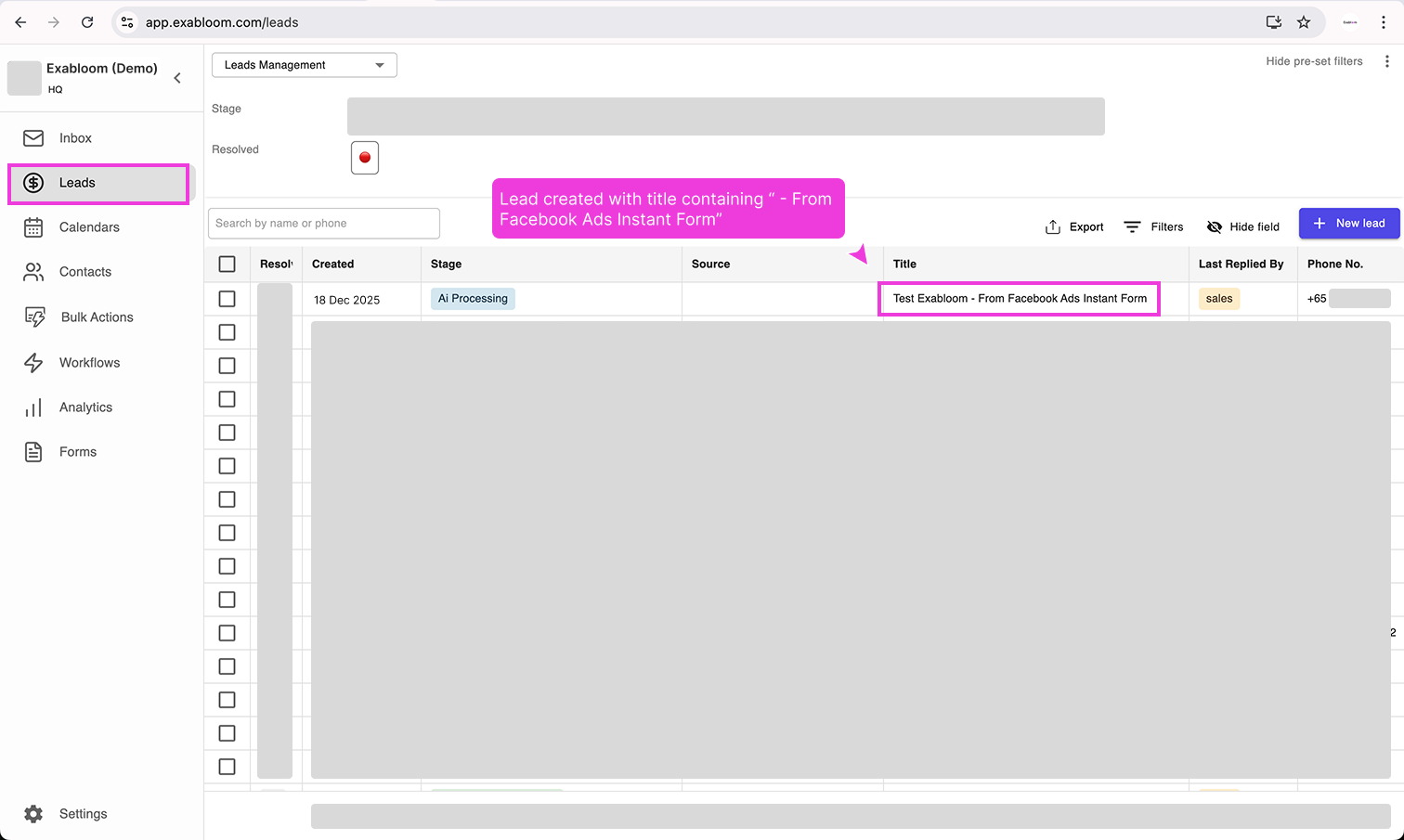
- Click Leads in the main menu.
- Switch to the pipeline and stage you configured in your test workflow.
- Look for a new lead with a title containing "- From Facebook Ads Instant Form".

If you see a lead with that title, congratulations! Your Facebook Ads integration is working correctly. Exabloom will now automatically receive lead data whenever someone submits your Facebook Instant Form.
If the lead doesn't appear after a minute or two:
- Double-check that your workflow is published (not just saved).
- Verify that you selected the correct form in the workflow trigger.
- Make sure you granted Exabloom AI leads access in Meta Business Suite (Part 2).
- Try the test again from Step 3 of Part 4.
What's Next?
Now that your integration is working, you can:
- Modify your test workflow to do more than just create a lead—for example, send an automated message or assign the lead to a team member.
- Create new workflows for different Facebook Instant Forms.
- Delete or rename your test workflow once you're confident everything works.
You did it! Your Facebook Ads are now connected to Exabloom. 🎉