Connect an AI Provider
Connect an AI provider (OpenAI or Google Gemini) to use AI models in your workflows.
Prerequisites
An API key from your chosen provider:
- GPT-4 / ChatGPT → OpenAI API key
- Gemini → Google AI API key
Steps
-
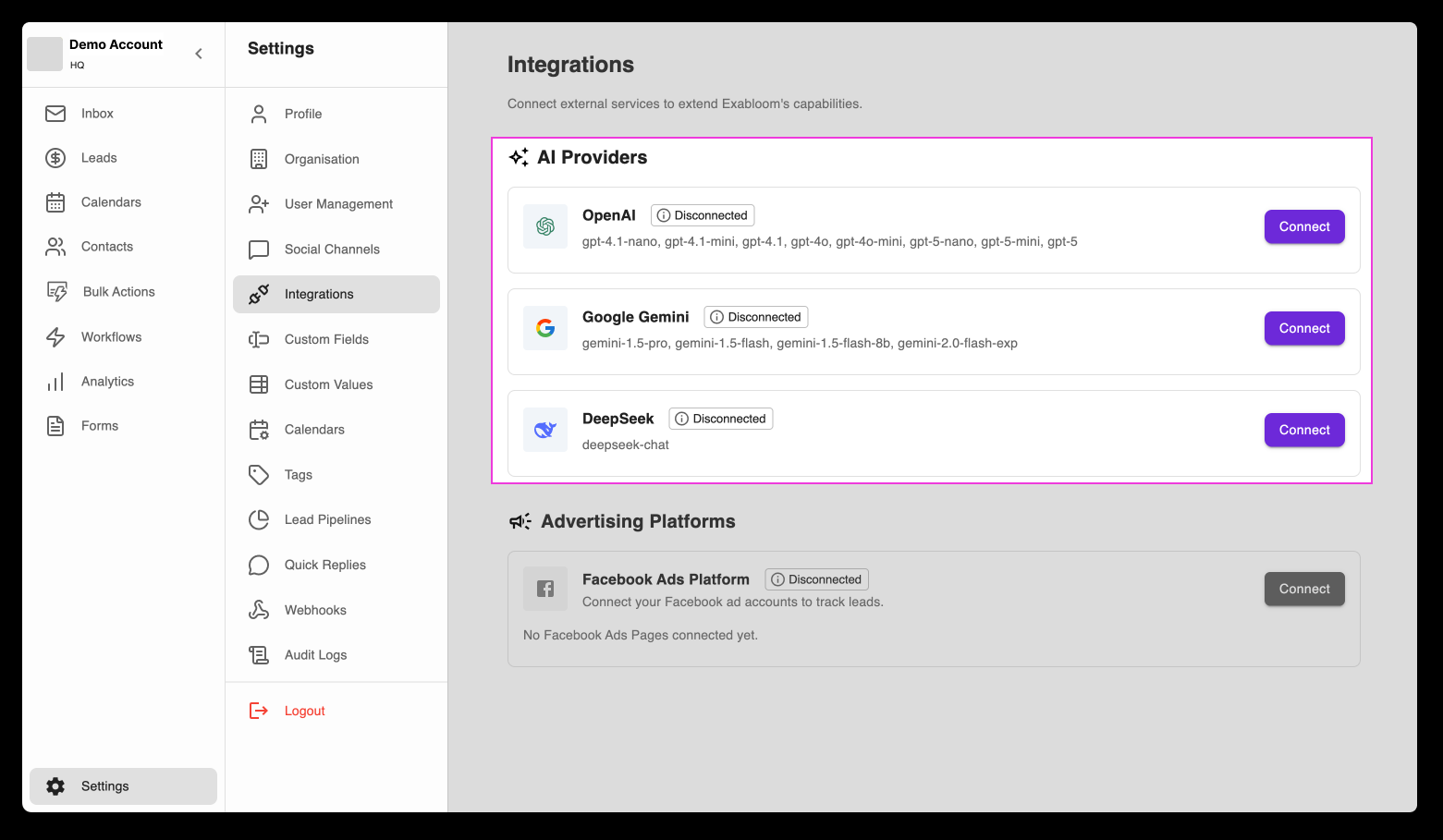
Go to Settings > Integrations and find the AI Providers section.
-
Locate your provider (e.g., "OpenAI") and paste your API key into the field.
-
Click Save or Connect.
warningCopy the entire key with no extra spaces. The connection won't work if the key is incomplete.
-
Test by running a workflow that uses the connected AI model.
Troubleshooting
Connection failing?
- Verify the API key is correct and complete
- Check that your provider account is active with available credits
- Ensure the key has proper API access permissions
You can connect multiple providers to use different models for different workflows.